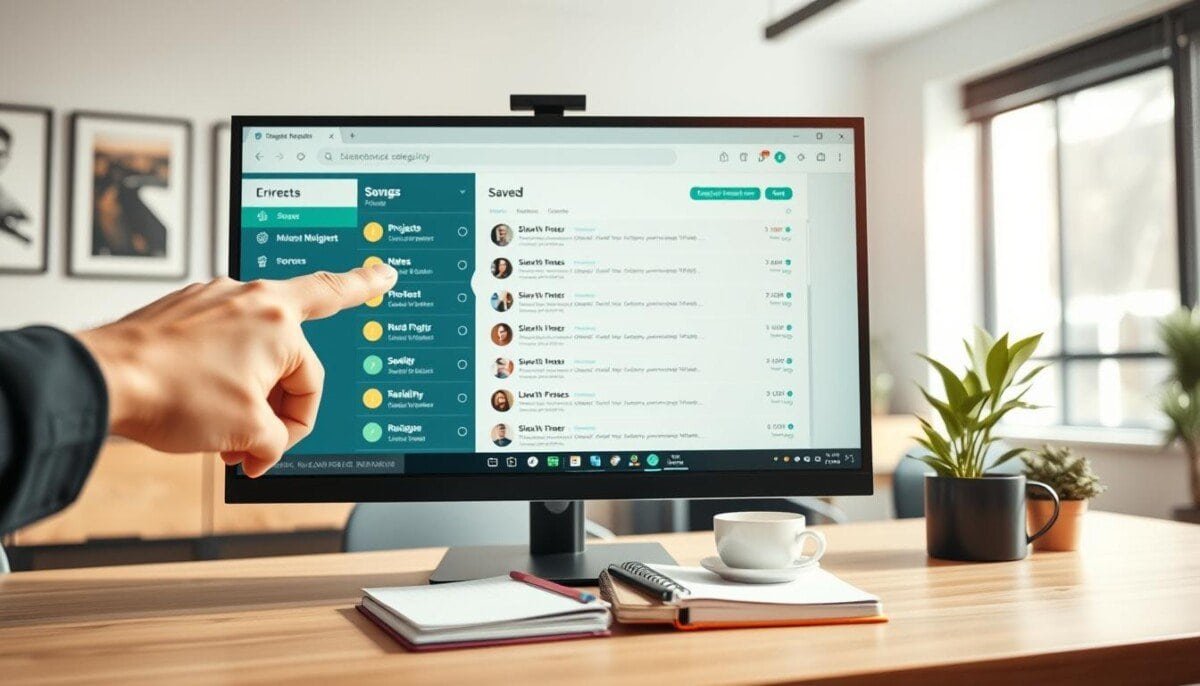
Question: What if a simple, repeatable alert could stop monthly reviews and key tasks from slipping through the cracks?
Establish a system that enforces consistency—start by defining the trigger, cadence, and ownership for each alert. Implementing slack reminders recurring in the workspace makes deadlines visible. Do not rely on memory; configure the workflow instead.
Set reminders as structured rules. Assign a task owner. Choose a cadence that fits the process. Use the platform to centralize notification history and to measure compliance.
Result: Reduced oversight. Faster response. Clear accountability. This method converts manual tracking into automated task management and secures follow-through on important tasks.
Key Takeaways
- Define cadence and owner—prevent missed deadlines.
- Centralize alerts—keep notification history in one place.
- Automate rules—replace manual tracking with systemized alerts.
- Measure compliance—use logs to improve processes.
- Maintain focus—ensure visibility of high-priority work.
Understanding the Power of Slack Reminders
Use the native notification feature to keep every team member aligned on deliverables.
Definition: The built-in reminder system schedules notifications for an individual or a channel at a specified date and time. Configure a reminder and the workspace will issue the notice automatically.
Operational benefits:
- Maintain team alignment—ensure all members see upcoming deadlines.
- Track progress on complex tasks—surface status without meetings.
- Reduce tool sprawl—use the platform’s feature instead of third-party apps.
Each reminder acts as a lightweight governance mechanism. Implement the notices across teams to enforce a consistent work rhythm. Use them to support task owners and to keep priorities at the top of every workday.
Result: Clear accountability. Fewer missed deadlines. Better operational visibility.
How to Set Up Slack Reminders Recurring Effectively
Configure the /remind command with exact recipients and timing to enforce task discipline across channels.
Syntax for recurring commands
Type remind followed by the target (user or channel), the task text, and the schedule. Use plain language—the parser accepts phrases such as “every Monday” or “every weekday.” Validate the command in a direct message to the system before deployment.
Choosing the right frequency
Select a cadence that matches the work rhythm. For daily stand-ups, schedule every weekday at a specified time. For weekly status, set Monday mornings for updates.
- To set reminder configurations, type remind + @user or #channel + task + time.
- Define a specified time—examples: 9:30 AM every weekday; 8 AM every Monday.
- Confirm formatting—incorrect syntax prevents the system from parsing the command.
Result: A single command converts manual follow-ups into automated notifications. Use this method to keep the team aligned and to ensure prompt updates at scheduled times.
Creating Personal Reminders for Individual Tasks
Create a private notification that tracks single-owner tasks and enforces completion.
When you type remind in a direct message, set a personal alert for preparing slides or following up on emails. Use the remind command to specify the exact time for the notice.
Set a clear deadline—date and time—so the system issues a single, actionable message at the appointed hour. This converts informal intentions into tracked tasks and prevents missed deadlines.
- Type remind + task + time to set reminder for one person.
- Choose precise time to align with work blocks and calendar events.
- Edit or cancel the command when priorities shift—maintain a dynamic task list.
Result: Each personal reminder acts as an automated assistant—preserve focus, protect important tasks, and keep individual deadlines visible without team noise.
Implementing Channel Reminders for Team Alignment
Dispatch a synchronized notification to a channel to enforce shared deadlines and rituals.
Channel notifications post a Slackbot message to everyone in the channel. Use them for shared deadlines and recurring team rituals.
Set a reminder on a specific message by hovering the message and choosing the option to create a context-specific alert. This preserves the original message as context.
Setting reminders on specific messages
When users type remind in a channel, the command broadcasts a slack reminder at the specified time. Use the remind command to include the message link and a clear action.
- Set slack channel reminders to align every team on shared deadlines.
- Attach the original message so the team retains context when the reminder fires.
- Use a direct message or channel command to coordinate tasks across teams.
Every recurring reminder sent to a channel keeps the team focused. Validate syntax before deployment. Confirm the specified time to avoid timezone drift.
Managing Your Active Reminder List
Open the active list each morning to triage tasks by priority and due time.
Inspect pending entries. Type remind list to display all scheduled notices. Use the output to confirm ownership and next actions.
Use the Later tab. The Later tab centralizes reminders personal and team-wide. Mark items complete. Delete or modify items that no longer apply.
- Type remind list daily to ensure nothing is missed.
- Prioritize tasks by urgency and assigned owner.
- Adjust or remove entries via the command interface to match workflow changes.
| Action | Command or Location | Outcome |
|---|---|---|
| View all pending items | type remind list | Complete overview of active reminders |
| Centralize management | Later tab | Unified view of personal and channel entries |
| Edit or delete an item | Command interface | Remove obsolete tasks; update time or owner |
| Daily triage | Morning review | Prioritized queue; focused execution |
Maintain the list. Check the active reminders list every day. This practice keeps the team on schedule and ensures each task is tracked to completion.
Utilizing the Later Tab for Better Organization
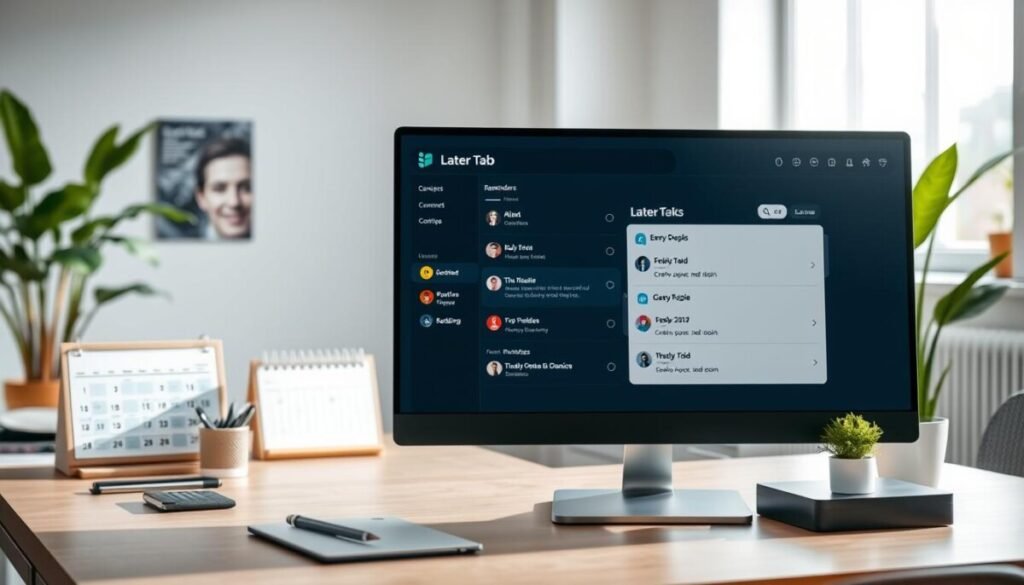
Use a unified tab to surface pending tasks and saved messages so nothing falls through the cracks.
Viewing pending tasks
Open the Later tab to view all pending items—reminders and saved messages appear in one feed.
Type type remind list to validate entries. Use the list to confirm owners and next actions.
Marking items as complete
Mark items complete in the tab to remove them from the active queue. This action updates the visible list and helps the team track progress.
Best practice: Review the tab at set times each day. Triage by due time and owner. Archive or delete obsolete messages.
- Combine saved messages and alerts for a single operational view.
- Use the list to prioritize tasks and reduce context switches.
- Mark complete to keep the queue current and auditable.
| Function | Action | Outcome |
|---|---|---|
| View pending items | Open Later tab; type remind list | Unified queue of reminders and messages |
| Complete item | Mark as complete in tab | Removed from active list; progress tracked |
| Organize messages | Save message to Later tab | Preserved context for follow-up; faster triage |
Practical Examples for Operational Teams
Provide concrete command examples that operational teams can deploy immediately to enforce monthly and weekly processes.
Finance: Use a channel command to enforce close tasks. Example—/remind #finance-ops to close monthly books on the 28th of every month. This preserves compliance and reduces late expense entries.
Onboarding: Schedule checklist prompts for new hires. Post a notice to a hiring channel to run validations and training steps on a fixed cadence. Track completion via the active list.
- Automate expense deadlines—reduce manual follow-up and missed filings.
- Schedule weekly meeting prompts—ensure team updates and status reviews occur on time.
- Send a weekday update cue—capture async progress across distributed teams.
Outcome: Fewer missed deadlines. Less administrative overhead. More time for strategic work.
For advanced task management patterns, consult the task management guide.
Troubleshooting Common Reminder Issues
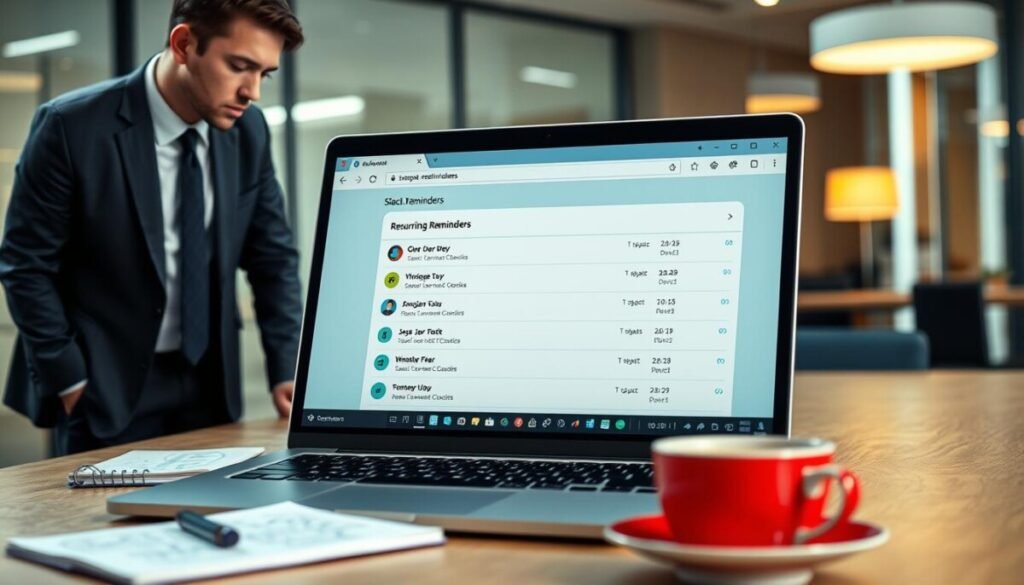
Pinpoint delivery failures by inspecting profile time, Do Not Disturb, and command syntax.
Time zone discrepancies
Reminders fire based on the time zone in the user profile — not the device clock.
Confirm the profile time zone matches the current location. Mismatches cause missed deadlines and wrong delivery times.
Notification settings
Do Not Disturb and custom notification rules block alerts.
Check preferences when a message does not appear. Toggle settings and test with a short reminder.
Editing channel reminders
Channel reminders cannot be edited after creation.
Delete the original entry and set a new command at the specified time. Use clear message text and owner assignment.
- If a reminder does not fire, type remind list to confirm the command exists.
- Verify command syntax and the specified time — formatting errors prevent parsing.
- Check the active reminders list and the Later tab for visibility and audit.
| Issue | Verify | Fix |
|---|---|---|
| Wrong delivery time | Profile time zone | Update profile; recreate the reminder |
| No notification | Do Not Disturb / notification settings | Adjust preferences; test with a sample message |
| Change channel alert | Existing channel entry | Delete entry; set reminder with new text and time |
When to Move Beyond Native Slack Features
Adopt a purpose-built workflow platform when simple alerts no longer provide operational visibility.
Indicators to switch: High volume of customer messages. Multiple owners per task. Complex approval routing. These conditions create gaps in accountability and degrade service quality.
Data: Salesforce reports 63% of consumers expect agents to understand unique needs. A basic notification feature cannot deliver that level of empathy or tracking.
- Native reminders work for single-owner, low-volume tasks.
- A dedicated platform adds shared ownership and approval workflows.
- Shift to a new tool to measure performance and prevent missed deadlines.
| Capability | Native feature | Dedicated platform |
|---|---|---|
| Shared ownership | No | Yes |
| Approval routing | Limited | Built-in |
| Performance metrics | None | Detailed reports |
For advanced scheduling patterns and workflow design, consult the guide on best scheduling workflows. Transition when the platform delivers measurable gains in service quality and task visibility.
Streamlining Your Workflow for Future Success
Convert ad-hoc follow-ups into enforceable procedures that run without manual prompts.
Standardize operations—use slack reminders recurring to keep the team on top of important tasks and avoid missed deadlines. Pair the list in the Later tab with an automation platform to reduce manual work and improve throughput.
Automate ticket routing and support flows with a connected platform so nothing falls through the cracks. Review the active list regularly to track progress and recalibrate priorities.
Adopt the right tool and train teams to use it. For workflow templates and integration guidance consult the workflow management guide and explore recommended productivity apps.