Question: Can a repeatable system cut search time in half while preserving message context?
Adopt a structured method. Implement tagging, short metadata, and standardized folders for fast retrieval. Data shows users spend nine-plus hours per workday connected to the platform. Five billion actions occur each week—signals demand systems.
Define a taxonomy. Apply consistent labels. Limit folder depth to reduce friction. Assign ownership for each category—enforce accountability.
Outcome: Reduced cognitive load—faster decision cycles. The guide that follows provides a technical framework to classify messages and files for immediate reference. Establish habits early to leverage the platform fully.
Key Takeaways
- Implement a clear taxonomy to maintain high retrieval velocity.
- Use concise metadata—minimize search latency.
- Limit category depth—reduce cognitive overhead.
- Assign ownership—ensure consistent maintenance.
- Follow the technical framework for repeatable classification.
- Establish habits early to capture long-term efficiency gains.
Understanding the Slack Interface for Better Productivity
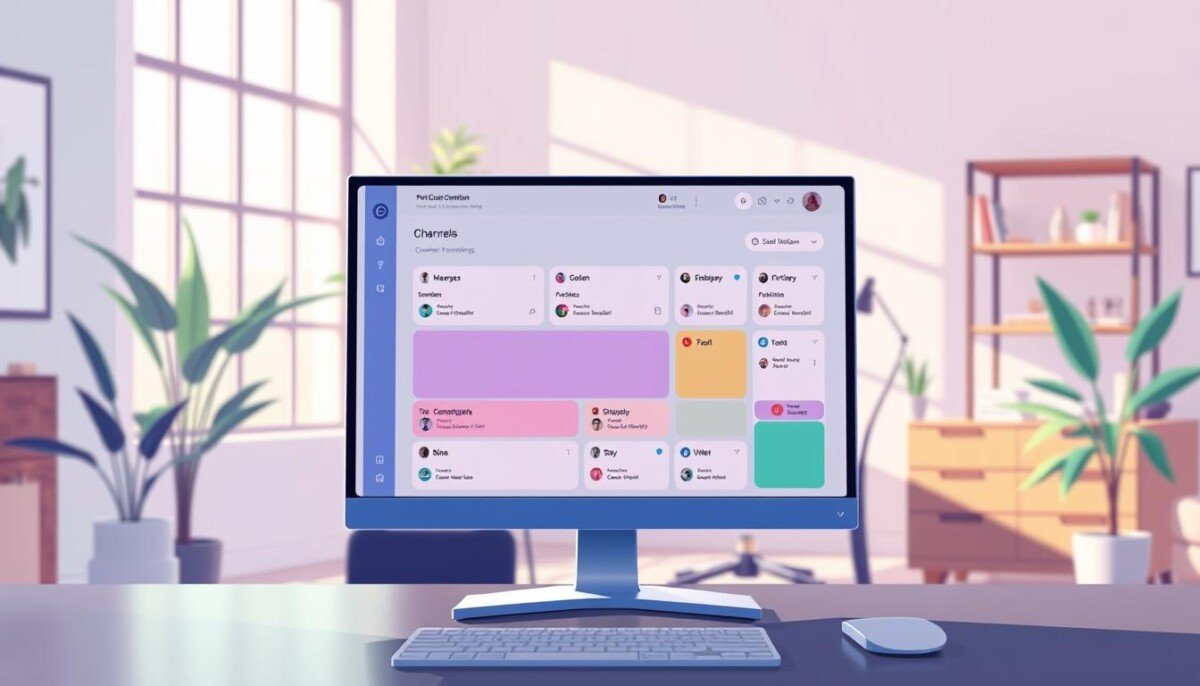
Inspect the main navigation to accelerate information retrieval. The updated nav bar permits search across the workspace and toggling between recent conversations without complex keystrokes. This speeds access to channels and reduces friction when switching context.
Key mentions, reactions, files, and apps sit at the top of the sidebar. Place primary signals where they are visible—minimize time lost scanning lists or separate views.
Use the compose control to start messages for specific people or a project. The button keeps drafts tied to a channel or a direct message. Teams maintain topic fidelity while drafting.
- Review the list of recent conversations in the main view.
- Learn primary navigation elements to get started quickly.
- Prioritize mentions and files to surface critical information fast.
| Element | Function | Benefit |
|---|---|---|
| Navigation bar | Search & toggle conversations | Reduced lookup time |
| Sidebar top | Mentions, reactions, files, apps | Faster contextual recall |
| Compose button | Start channel or DM messages | Organized project communication |
For a concise walkthrough on interface tactics and tool usage, follow this guide to how to use online tools and get started with practical steps.
How to Slack Saved Items Organize and Manage Your Sidebar
https://www.youtube.com/watch?v=RAJz7tSZ0Co
Create compact sidebar groups to reduce visual clutter and speed access. Apply a strict method—promote frequent channels and conversations to purpose-built sections. Custom sections remain private to the user; they do not change the team view.
Moving conversations to sections
Drag and drop a channel or direct conversation onto a target section. Use the star icon at the top right of the conversation header to assign a channel to a section. Paid plans permit channels, DMs, and apps in custom sections for precise sidebar organization.
Removing items from sections
Open the same star icon menu and choose remove to return the conversation to the default list. Slack Connect conversations remain in their dedicated section—those cannot be renamed or deleted.
- Paid plans: allow custom sections for better access to project resources.
- Free plan: use alternative methods or trial the paid features for full functionality.
- Shared group: create a user group section to surface project channels to relevant people.
Creating Custom Sections for Your Channels and Conversations
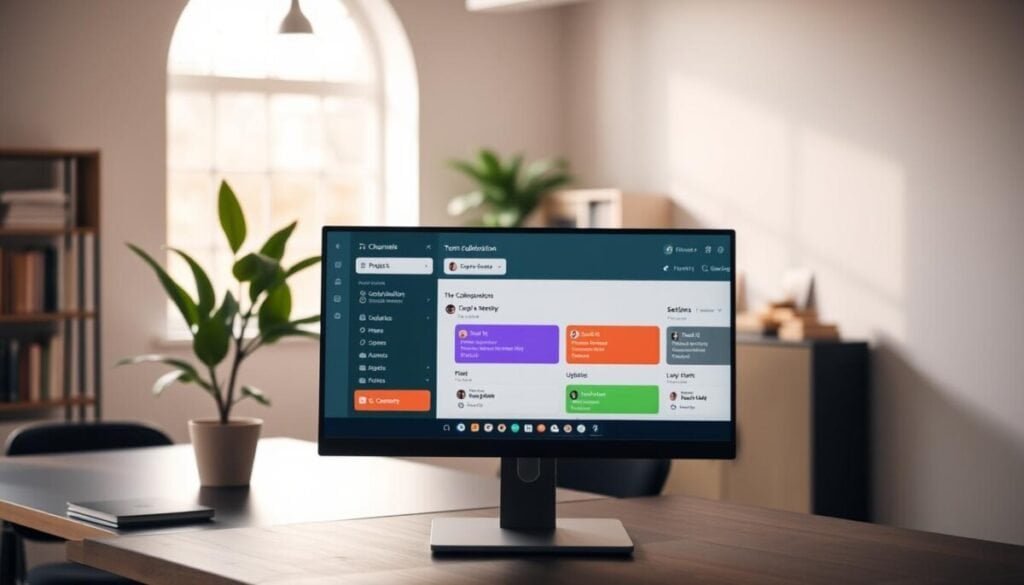
Establish concise section labels that reflect workstreams and recurring team responsibilities.
Get started from the Home tab. Select the Channels area. Click Create section to add a new entry to the sidebar.
Name the section with a short, consistent convention. Click the smiley face icon to choose an emoji icon. The icon provides fast visual scanning of the list.
- Group related channels, apps, and conversations to keep project work visible.
- Allow members to rename or delete sections as project needs change.
- Keep section names under three words to reduce cognitive load.
| Action | Where | Benefit |
|---|---|---|
| Create section | Home → Channels → Create | Faster access to active channel lists |
| Assign emoji icon | Section name menu → smiley face icon | Immediate visual cue for team members |
| Group apps | Section add → include app | Tools remain one click away |
Mastering the Later Tab for Saved Messages and Files

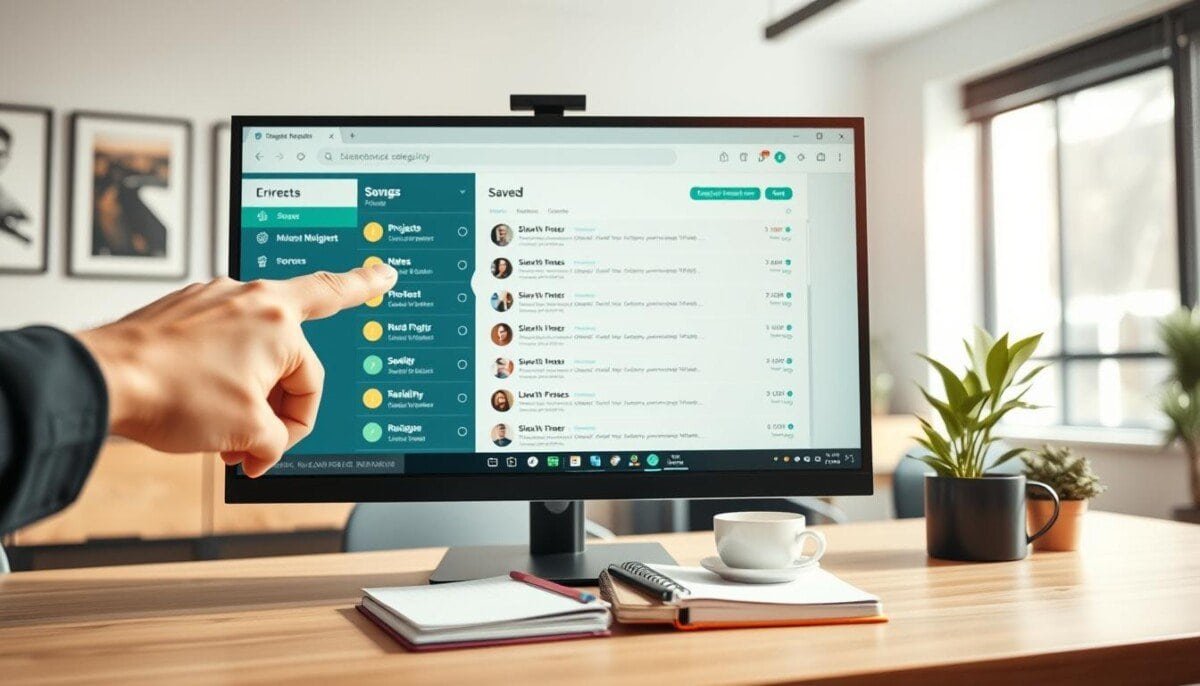
Consolidate reminders and in-progress work under the Later view for fast triage. The Later tab splits content into three clear categories—In progress, Archived, and Completed. Use the Later list as the single hub for messages and files that require action or review.
Saving messages and files
Click the save icon on a message or file to push it to the In progress list. The default view surfaces upcoming reminders so nothing slips past its due time.
Filtering upcoming reminders
Use the filter icon in the top right to hide or show upcoming reminders. Toggle settings to reduce the list to only items due now. This speeds triage across channels and conversations.
Archiving completed items
Move finished tasks to Archived or mark them Completed to keep the Later section lean. Archiving reduces noise in the sidebar and preserves historical information for audits.
- The Later tab centralizes follow-ups for messages and files.
- Saving via the icon ensures quick retrieval from the In progress list.
- Filters in the top right refine the view to current tasks.
- Archived entries keep the main list focused and actionable.
- Reminders trigger desktop and mobile notifications to enforce deadlines.
| Tab | Primary function | Best practice |
|---|---|---|
| In progress | Active reminders and pending tasks | Use filters to surface due items |
| Completed | Confirmed finished tasks | Review weekly; purge if not needed |
| Archived | Stored history and reference | Keep for audits; move back if reopened |
Utilizing Shortcuts to Streamline Your Daily Tasks
Use the lightning bolt icon as the central entry point for app-driven tasks.
Open the menu to access built-in features—Workflow Builder, calls, and reminders. Execute routine actions without leaving the current conversation. Reduce context switching and save time on repetitive work.
App shortcuts enable direct actions. Start a Cisco WebEx Meetings call. Create a Freshdesk ticket. Trigger polls or approvals from the same place.
- Direct triggers—invoke polls, meeting links, or support forms from the menu.
- Automation hub—run Workflow Builder flows to update project states or notify team people.
- Focus retention—keep the message thread active while the app performs tasks.
| Shortcut type | Common action | Benefit |
|---|---|---|
| Workflow | Trigger approval or status update | Automates repeatable project steps |
| Call / Meeting | Start Cisco WebEx Meetings | One-click transition to live discussion |
| Support / Ticket | Create Freshdesk ticket | Log issues without leaving the channel |
To get started, explore available shortcuts and map the ones that reduce time per task. Evaluate which apps and tools belong in the shortcuts list. For curated app recommendations and integrations, consult the productivity apps guide.
Adjusting Display Preferences for a Clutter-Free Workspace
Tune the workspace view—collapse low-priority sections and surface the lists that matter most.
Click the arrow icon beside a section to hide or reveal its channels and conversations. Use keyboard shortcuts—Option on Mac or Alt on Windows/Linux—to toggle visibility quickly.
Customize display preferences per section by clicking the section name and selecting Show and Sort. Override the default order. Sort project lists to keep active channels at the top.
Collapsing and expanding sidebar sections
Maintain a lean sidebar. Collapse inactive sections to reduce visual noise. Expand current sections to speed navigation.
- Hide or reveal a list with the arrow icon.
- Sort sections independently to prioritize critical channels.
- Use a keyboard command to collapse all sections and reset the view.
- Keep the sidebar clean to lower cognitive load for people who manage many channels.
| Action | Where | Benefit |
|---|---|---|
| Show and Sort | Section name menu | Custom display order |
| Arrow toggle | Next to section | Hide/reveal list |
| Keyboard shortcut | Desktop | Collapse all sections |
Maximizing Your Efficiency with Refined Slack Habits
Standardize how teams handle messages and files so the workspace reflects current priorities.
Set a weekly review cadence. Keep the list of pending tasks short. Purge or complete entries that no longer require action.
Use custom sections and shortcuts to place frequent channels and apps within immediate access. Limit section depth. Favor short, consistent labels.
Set notification rules for team channels. Send concise updates to reduce redundant pings. Assign clear owners for each project task to speed decisions.
Adopt time-management tips and automation—summaries, recaps, and integrations—to cut search time and preserve context. For actionable guidance, consult this time-management tips resource.
Result: A lean workspace—faster retrieval, fewer interruptions, and predictable handoffs across people and groups.