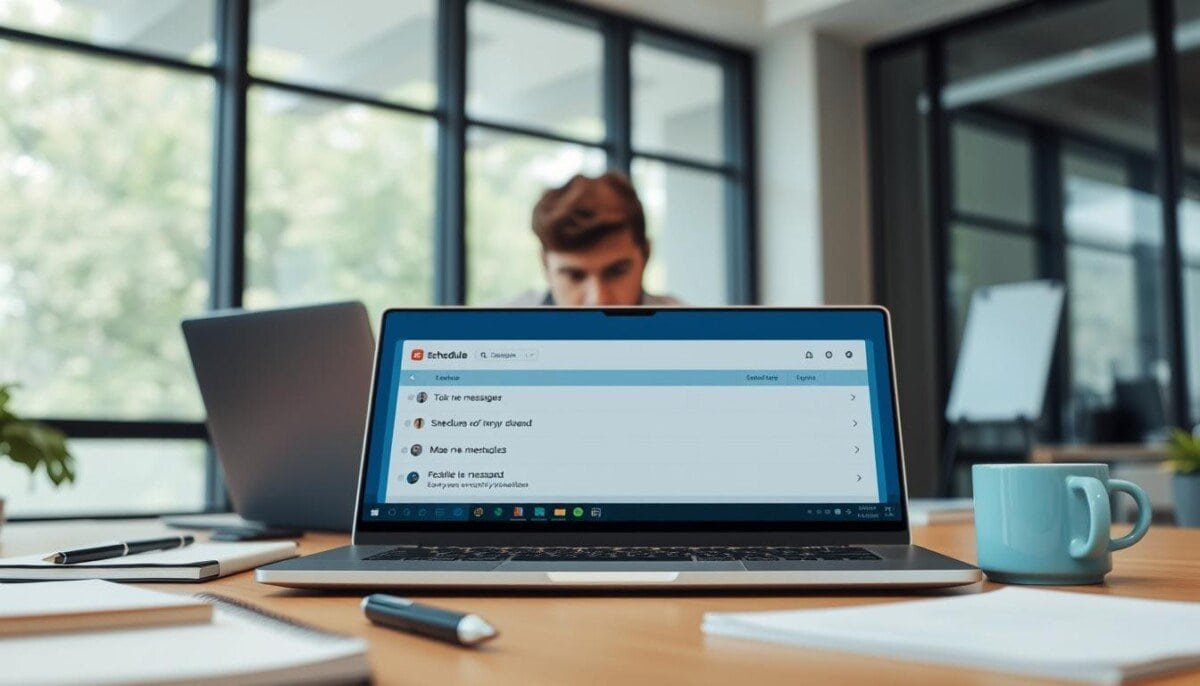
Implement precise delivery control. Remote operations require consistent communication across time zones. Implementing the ability to schedule slack schedule messages enforces timing discipline and reduces notification fatigue. With the right tools, teams can automate slack status updates easily, ensuring everyone is informed without the manual hassle. This streamlined approach not only enhances transparency but also fosters a culture of accountability. By keeping all members aligned, remote teams can focus on productivity rather than managing distractions.
Use the built‑in controls to set a future time for each message. Define delivery windows that match recipient availability. This method ensures a single message reaches the right desk at the right hour.
Master the interface to improve engagement. Professionals must plan each message for maximum clarity. Follow a stepwise procedure—compose, set delivery, confirm—then monitor outcomes.
Outcome: predictable communications, fewer disruptions, measurable gains in team focus and productivity.
Key Takeaways
- Control delivery to improve reach and engagement.
- Set messages to align with recipient work hours.
- Follow a repeatable, stepwise process for every send.
- Measure results to refine timing strategies.
- Use the platform tools to enforce communication standards.
Understanding the Benefits of Slack Schedule Messages
Set automated prompts to keep recurring tasks on track without manual follow-up. Automated reminders reduce context switching and enforce predictable team rhythms.
- Use the /remind command to create self or team reminders—examples include checking email at 2:30 p.m.
- Enable recurring messages to run daily standups and routine checks without the account owner intervening.
- Respect non-working hours—automated timing preserves work-life boundaries and reduces after-hours interruptions.
Integrate third-party tools where needed. Geekbot offers a free tier for teams with ten or fewer active users. Apply these tools to centralize project communication and cut redundant emails.
Operational outcome: consistent delivery, fewer missed deadlines, and a cleaner communication plan that keeps teams focused during core hours.
How to Schedule Messages on Desktop and Mobile
Enable precise delivery on every platform. Use the app on Mac, Microsoft Windows, Linux, Android, or iOS to compose ahead and assign a specific date and time for each message.
Scheduling on Desktop
Open the desktop app. Compose the content. Click the green downward-pointing arrow next to the send button.
Select a specific time or pick a preset. Confirm the entry to queue the scheduled messages for delivery on the chosen date.
Scheduling on Mobile
Open the mobile app on Android or iOS. Tap and hold the green paper plane icon in any channel or direct message.
Choose a date and time. Save the choice. The scheduled message will perform the message send at the set time.
- Works across teams — members receive content when they are available.
- Use the feature to reduce real-time interruptions and maintain consistent presence.
Example: compose at night; set a specific time for morning delivery — a reliable way to manage cross‑time‑zone communication.
Managing and Editing Your Scheduled Slack Messages

Access the pending items view to inspect and manage queued communications.
Locate pending items: open the Drafts & Sent area in the desktop or mobile app to view all scheduled messages and their delivery date and time.
Editing and Deleting Messages
Use the interface controls to edit content, reschedule delivery, or delete an entry before it posts.
If a direct message requires correction, hover over the queued entry on desktop to reveal the management icons. On mobile, long-press the queued item to display the same options.
- Edit content — adjust wording to maintain accuracy.
- Reschedule delivery — change the date or time to match recipient availability.
- Delete entry — remove outdated items to prevent incorrect delivery.
Operational benefit: active management prevents accidental sends of obsolete information and preserves communication standards across the workspace.
| Action | Desktop Process | Mobile Process |
|---|---|---|
| Edit | Open Drafts & Sent → select item → click edit icon | Long-press queued item → tap Edit |
| Reschedule | Select item → choose new date/time → confirm | Long-press → set new date/time → save |
| Delete | Select item → click delete → confirm removal | Long-press → tap Delete → confirm |
Setting Up Recurring Messages for Team Routines
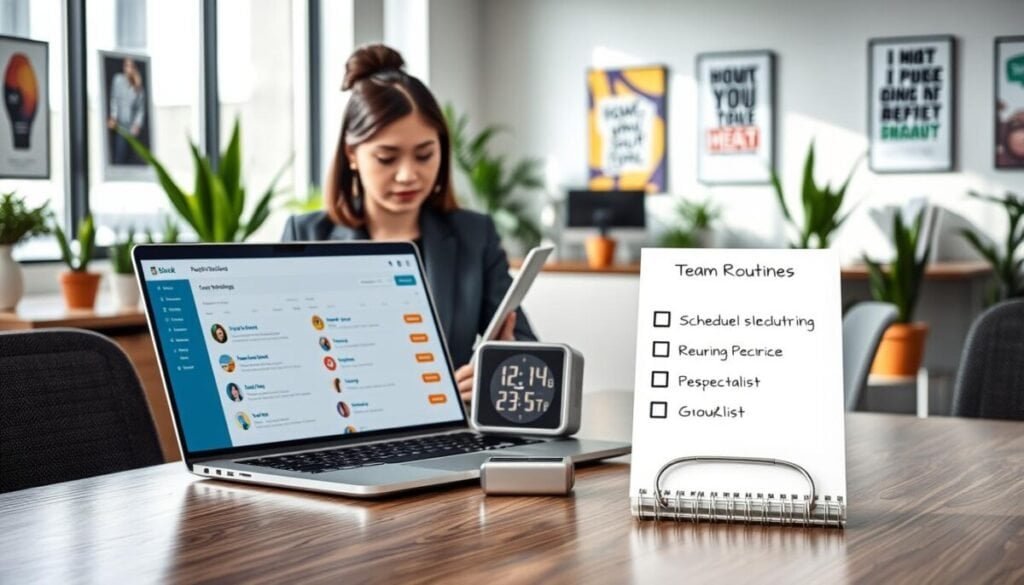
Define a recurring cadence that posts to the right channel at fixed hours.
Use a dedicated app to automate daily team work. Geekbot supports over 170,000 users and teams—including GitHub, Shopify, and Zapier—to run recurring messages and standup questions.
Apply a template to reduce setup time. A template standardizes content and assigns a task to specific members. Configure the send time and target channel. Confirm the delivery window aligns with working hours.
- Assign accountability—tie each recurring item to a single user or role.
- Use presets—deploy weekday prompts at fixed hours (for example, 9:45 a.m.).
- Scale reliably—integrate the tool into the team plan or account to support growth.
For teams on a free plan, evaluate alternatives such as Nightowl. For a production-ready setup, consult the guide to schedule recurring messages to implement templates and reminders quickly.
Best Practices for Effective Slack Communication
Establish firm rules for sending team updates across regions to preserve focus and legal compliance. Define when to send posts and who owns each task. Apply one policy for all work channels.
Respecting Time Zones
Honor local work hours. In 2021, Portugal enacted a right-to-disconnect law. France has similar protections.
Use tools that mark availability—Clockwise displays a moon emoji when a user is outside working hours. That visual cue prevents interruptions.
Operational rule: schedule messages to arrive during the recipient’s local morning when possible. This reduces late-night notifications and supports legal compliance.
Avoiding Message Overload
Consolidate related points into a single post. Send one clear message rather than rapid successive pings.
- Bundle updates—combine status, next task, and blockers into one entry.
- Prioritize actionable items—flag the task and required hours to complete it.
- Use scheduled messages for cross-zone coordination—set delivery to a different time if needed.
Example: when a colleague is in a different time zone, queue the content to land at their local morning. This yields higher response rates and reduces context switching.
Leveraging Third-Party Apps for Advanced Scheduling
Leverage developer-built integrations to deliver content at an exact local hour.
Deploy advanced tools when native controls cannot meet a complex routing case. Apply the 30-second task rule—short tasks go to a task manager; longer items become a posted update. This reduces noise and improves throughput.
Use the platform API to create a custom app that posts at a specific time in each target zone. Developers obtain programmatic control over date, channel, and retry logic. The result: deterministic delivery to global teams.
- Use template libraries to standardize recurring messages across different time zones.
- Schedule a single message to land at the same local hour in Beijing, San Diego, and Barcelona — an illustrative example of cross-region precision.
- Integrate the app into the workspace to guarantee the ability to audit sends, view retry events, and track user receipt times.
For implementation steps and automation tips, consult the guide to schedule recurring messages.
Optimizing Your Workflow with Automated Communication
Automate routine updates to deliver critical content at the exact moment teams need it.
Result: reduced manual overhead and clearer focus on high-value work.
Enable the feature that queues scheduled messages and recurring messages to run at predefined local time windows. This preserves individual work-life balance and limits after-hours interruptions.
Integrate third-party apps and mobile scheduling tools to cut email volume and centralize task flows. Use the linked guide for mobile options: mobile scheduling tools.
Adopt a systematic approach—define cadence, assign ownership, measure delivery and response. This way teams gain predictable delivery, consistent message send timing, and higher operational throughput.