Can a single click end interruptions and restore deep work? Pose the question; compel action.
Provide a clear method. Explain that the chat platform launched in 2013 to enable real-time collaboration. Define the objective—configure presets to protect time and streamline team communication.
List the core steps. Instruct users to set status manually by clicking their name in the sidebar. Recommend custom status messages and an emoji to give instant context to people. Advise integration with apps to automate availability across the workday.
Adopt a consistent protocol. Enforce one-click updates—reduce unnecessary pings. Measure impact on interruptions and team response times. Use this guide to implement a systematic, repeatable workflow.
Key Takeaways
- One-click presets reduce interruptions and protect focused time.
- Manual set status via the user name enables immediate team signals.
- Custom status plus emoji gives visual context without extra messages.
- Third-party apps can automate availability to keep presence accurate.
- Establish a consistent protocol to align expectations across the team.
Understanding the Role of Slack Statuses in Productivity
Evaluate how clear availability indicators reduce notification-driven context switches. Present the problem with data and define actionable signals for teammates.
The Impact of Notification Fatigue
Quantify the burden. Research shows 59.9% of professionals report notification fatigue. The average employee faces 31.6 interruptions per day.
Each interruption requires over 20 minutes to regain focus. Those metrics justify structured presence controls and concise status messages.
Defining Your Professional Availability
Adopt explicit rules. Use brief messages to signal availability during meetings, deep work, or vacation.
- Control notifications—reduce non-urgent messages while focused.
- Mark meetings and blocks of time to protect concentration.
- Select options that communicate availability to people at a glance.
Note: the green active dot can invite interruptions—per Ali Rayl. Implement one-click presets and consider calendar sync. For cross-platform scheduling guidance, see schedule offline status on Teams.
How to Configure Slack Status Presets for Quick Updates

Set up quick-access presence options so the team knows availability at a glance. Follow a systematic method to reduce unnecessary interruptions and preserve focused time.
- Open the desktop app and click the profile picture in the bottom left corner to set status manually.
- Click the text box to enter a message—up to 100 characters—then pick an emoji for visual context.
- Use the Clear after option to select hours or a specific date time so the entry expires automatically.
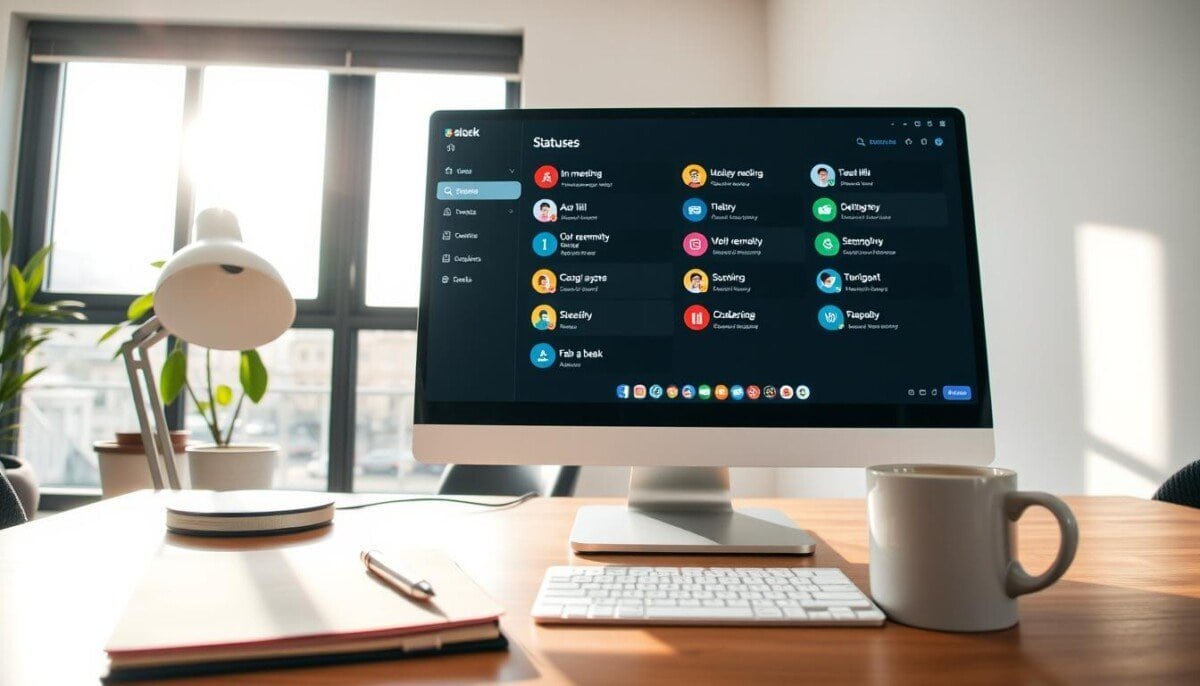
- Choose from five default options—In a meeting, Commuting, Out sick, Vacationing, Working remotely—or create a custom status.
- Configure apps to automate updates for recurring routines and to reduce manual changes during the day.
When a user sets a status, it appears next to their name. People can check availability before opening communication. Implement one-click options to improve team response and notification hygiene.
Managing Your Availability with Custom Status Messages
Use tailored messages and unique emojis to communicate work context instantly.
Create granular availability labels. Add a custom status message—for example, “Writing strategic plan”—to deter interruptions during deep work.
Add custom emoji for immediate context. Open the status menu and select the “#” icon to upload or pick an emoji that matches the message. Visual cues reduce needless messages from teammates.
- Set a message that explains the current work and expected return time.
- Choose a custom emoji to reflect team culture and role-specific signals.
- Use the clear-after option so availability persists only for the allotted time.
When a user updates their entry, the information appears next to the name in the sidebar. People see context before they message. This practice lowers notification anxiety and improves planning—especially for vacation and focused blocks.
Automating Your Slack Status Presets with Calendar Integrations

Use calendar-driven rules to trigger presence changes across the workday. Connect a Google Calendar account to the messaging platform to keep availability current.
Enable calendar access to have events update the profile automatically. This ensures a meeting or focus block flips the text box and emoji without manual edits.
Leveraging Third-Party Apps
Install Reclaim.ai and enable status sync from the app Home tab > Settings. Configure event categories—deep work, meeting, travel—to map to custom status messages and emoji.
- Integrate Google Calendar to auto-update availability for the day.
- Use Reclaim.ai to classify events and apply tailored messages.
- Customize the box text and emoji per event type.
Setting Time-Based Expirations
Set date time expirations so a status clears after hours or when a meeting ends. This preserves accuracy for long-term entries—vacation or travel—without manual clearing.
For additional automation workflows, consult the guide to automate slack status and steps to schedule office hours in Outlook.
Best Practices for Setting Boundaries in a Remote Workplace
Mandate clear online availability indicators to preserve focused time across distributed teams.
Establish formal rules. Define expected online behavior—work hours, response SLAs, and escalation paths.
Protect deep work blocks. Use a custom status to signal uninterrupted focus. Configure the entry to clear automatically after the planned block ends.
- Document a team policy that explains how status messages map to urgency levels.
- Require setting a short availability note before taking vacation to align expectations.
- Limit non-urgent notifications during protected intervals—route critical alerts through designated channels.
Enforce consistency. Audit adherence weekly. Track interruptions and reclaimed time metrics to quantify impact.
For cross-platform scheduling tactics and setting focus blocks, consult this guide to schedule focus time in Teams.
Mastering Your Communication Flow for Better Focus
Use disciplined presence updates to minimize interruptions across the workday. Command clear signals to control communication and preserve deep blocks.
Configure a one-click option to set status and to map a slack status to a short message. Use a custom status to indicate availability and expected return date.
Declare limits for response time and the team’s notifications policy. Teach teammates how to set status and how to interpret messages.
Automate changes with calendar-linked apps to reduce manual edits. Review the implementation daily; record interruptions and recovered minutes.
Follow this Slack for productivity guide to scale communication and raise overall productivity.