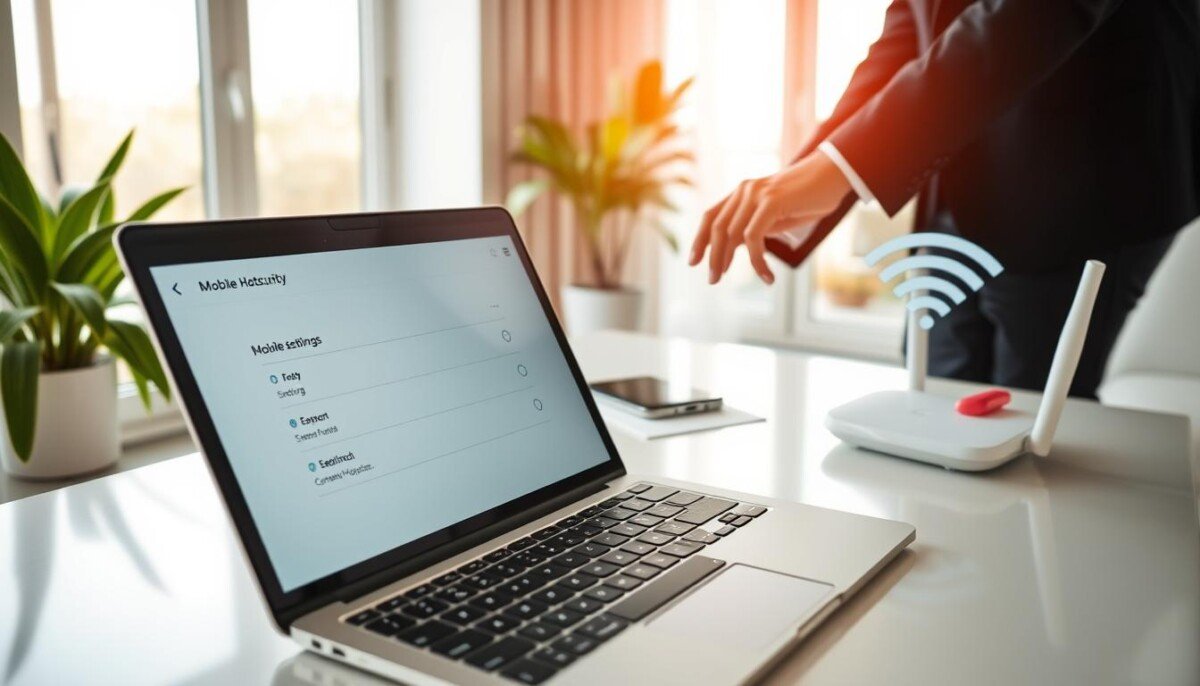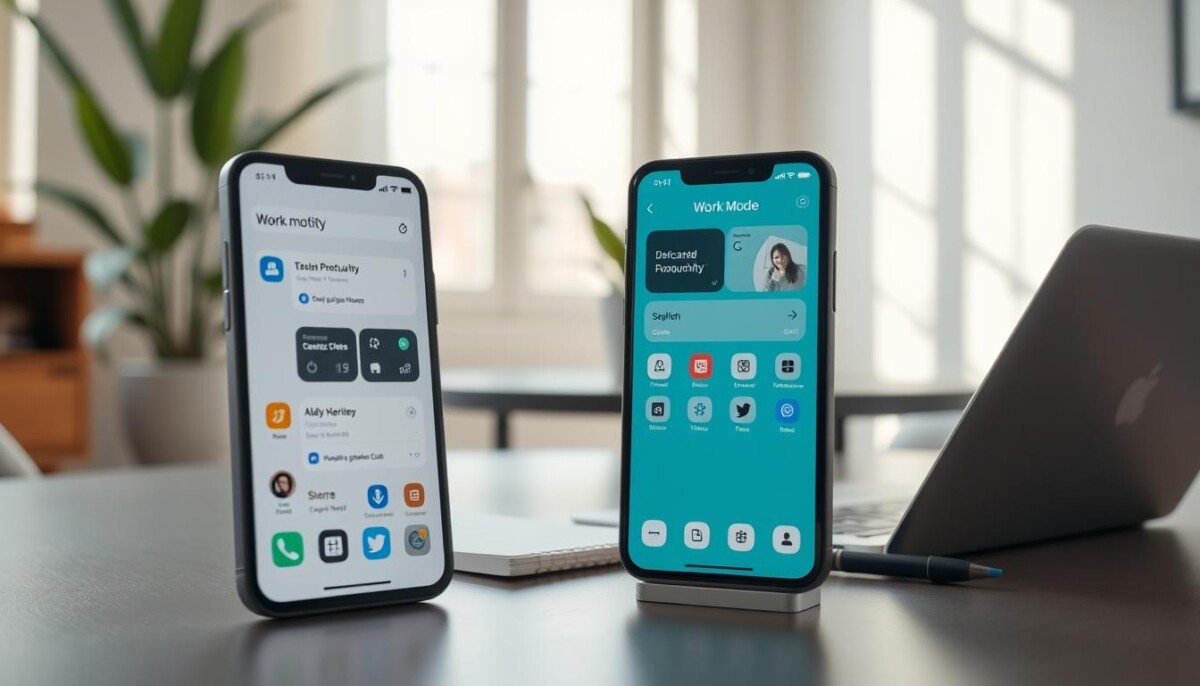
Can a phone stop being a distraction and become the primary tool for focused professional tasks?
Establish a dedicated smartphone work mode to isolate professional data and raise productivity. Android 5.0 and later support secure work profiles—enable them via the primary settings menu. Configure a profile; assign apps for email, calendar, and project tools.
Add a Modes and Routines icon to the Apps screen for one-tap access to the professional setup. Place essential apps on the home screen. Use the icon to switch context quickly during commutes or urgent coordination.
Transform the device from a notification viewer into a true task manager. Isolate corporate accounts from personal apps. Follow systematic steps to protect sensitive data and sustain measurable gains in productivity.
Key Takeaways
- Enable a secure work profile on Android 5.0+ via Settings.
- Add a Modes and Routines icon for fast access to professional tools.
- Place essential apps on the home screen to streamline task flow.
- Isolate corporate data from personal apps to protect sensitive information.
- Convert the phone into a task manager to boost productivity.
- Consult a technical guide for troubleshooting and advanced setup: setup and optimization tips.
Understanding the Benefits of a Dedicated Smartphone Work Mode
Create a secure professional environment on mobile devices to reduce interruptions and improve productivity. Segregate corporate data from personal files—this enhances security and simplifies compliance. Configure settings to prioritize business notifications during set hours.
Manage email on mobile with specific strategies: use targeted inbox rules, short templates for replies, and scheduled syncs to limit constant alerts. Ensure video conferencing tools run on stable networks and use proper lighting to maintain professional presentation.
- Systematic task handling—assign apps for email, documents, and calls to a single profile.
- Notification control—customize background settings and notification options for essential messages only.
- Automation—automate repetitive app actions to save time and power.
- Seamless integration—use the device as a companion to the desktop computer for business workflows.
Implement scheduled focus periods—see the guide for how to block interruptions and assign dedicated hours with calendar tools: schedule focus time in Teams.
Establishing Clear Boundaries with Work Profiles
Segregate professional accounts and tools to prevent accidental data crossover on the phone.
Isolating professional data
Enable the Android work profile—available from Android 5.0 onward—to create a secure container for email, documents, and communication tools.
Apps in that container show a briefcase badge on the screen. This visual cue separates corporate app instances from personal apps.
Toggling Work Access
Use the single toggle to pause all work-related apps and notifications. Toggling off disables background sync and mutes messages, calls, and video alerts from the profile.
MDM software can provision profiles and enforce settings across corporate devices. Employers cannot access personal photos or files on BYOD devices when profiles are active.
- Android 5.0 feature—secure, isolated professional space for sensitive data.
- Clear visual separation—briefcase badge identifies profile apps on the phone screen.
- One-tap pause—stop notifications and app access outside business hours to protect time and productivity.
- Policy enforcement—MDM automates configuration and compliance across devices.
Configuring Your Smartphone Work Mode via Settings
Access Settings and open Modes and Routines to configure a professional profile on supported devices.
Add the Modes and Routines icon to the Apps screen for immediate access. Tap the icon to create custom triggers. Define time- or location-based rules that activate the profile automatically.
Enable picture-in-picture for video calls via Settings > Apps > Special app access. Verify that conferencing apps have the required permissions.
- Limit app usage during scheduled hours—restrict background sync for non-essential apps.
- Confirm encryption is active—newer Android versions enable device encryption by default to protect sensitive information.
- Adjust notification filters so only critical alerts reach the screen during focused periods.
- Validate email and other business apps for correct permissions to prevent data leaks.
| Setting | Action | Effect |
|---|---|---|
| Modes & Routines | Add icon; create triggers | Auto-activation of profile |
| Special App Access | Enable picture-in-picture | Multitask during video calls |
| Security | Verify encryption | Protect corporate data |
| Notification Rules | Restrict non-essential alerts | Reduce interruptions |
Refine options iteratively. Test triggers and observe battery impact. Confirm the phone and its apps behave as intended before relying on the system for daily tasks.
Creating Custom Routines for Professional Efficiency
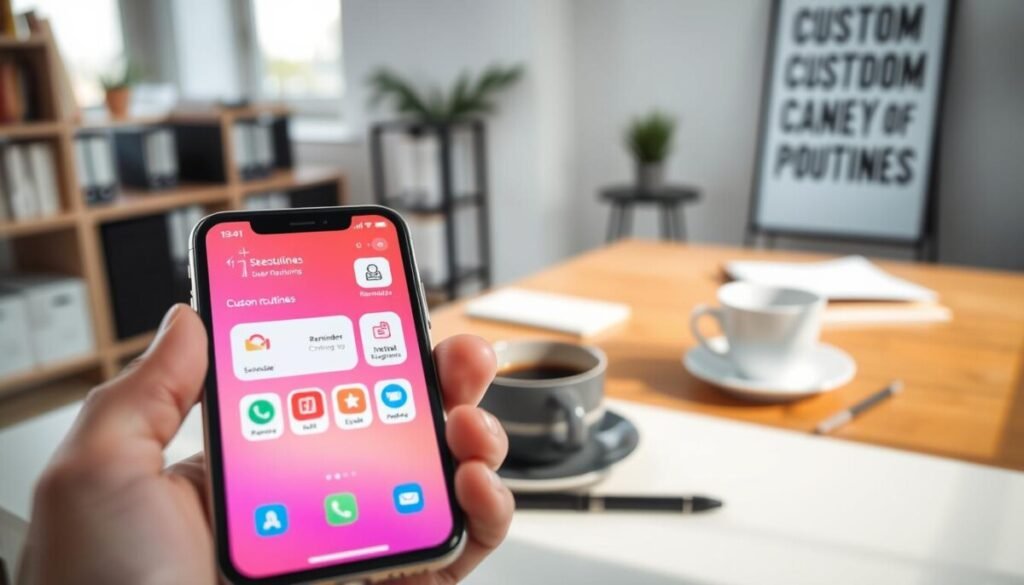
Configure location, calendar, and time triggers to enforce predictable app behavior. Define triggers that change notification rules, launch selected apps, and set Do Not Disturb automatically. Keep routines explicit—one trigger, one clear outcome.
Triggering Routines Automatically
Set triggers based on calendar events, location geofences, or time blocks. Enable calendar-based rules to silence nonessential notifications during meetings.
Allow location triggers to change the screen profile when arriving at the office. Use calendar updates to start sequences when a meeting begins.
Customizing Action Sequences
Open the Routines tab and tap Add to build a sequence. Chain actions—launch an app, mute notifications, set brightness, open email drafts.
Include Wispr Flow for rapid document and email composition—dictate content four times faster than typing.
Using Voice Assistants
Link sequences to Google Assistant or Bixby for hands-free activation. Use snippet libraries to populate templates by voice. Assign custom icons and colors to identify routines on the screen quickly.
- Tip: Automate urgent message routing so critical texts and calls bypass Do Not Disturb.
- For scheduled messaging, see the guide to schedule text send.
| Trigger | Action | Effect |
|---|---|---|
| Calendar | Enable DND | Reduce interruptions |
| Location | Launch apps | Ready screen for tasks |
| Voice | Compose email | Faster communication |
Managing Notifications and Communication Flow
Control notification flow to ensure critical messages surface while nonessential alerts remain silent.
Configure Do Not Disturb for fixed hours to protect focused task blocks. Set the duration in settings so alerts resume automatically at the end of the period.
Connect Google Messages to a computer browser for faster replies and full keyboard input. This reduces time spent on the phone and speeds business communication.
Enable visual voicemail to scan and prioritize callbacks. Use priority keywords in messaging apps to trigger notifications only for important information.
- Allow picture-in-picture for video calls to reference documents and email on the same screen.
- Assign app-specific notification rules—separate email, messaging, and project apps by priority.
- Review notification options weekly to silence low-value alerts that interrupt the day.
| Action | Effect | Recommended Setting |
|---|---|---|
| Do Not Disturb (hours) | Minimize interruptions | 2–4 hour blocks |
| Google Messages Web | Faster text responses | Enable link to computer |
| Priority keywords | Critical alerts only | Configure per messaging app |
Adopt these controls as part of a documented routine. For optimized app selection and advanced tools, consult the productivity enhancement apps guide.
Securing Sensitive Data on Your Mobile Device
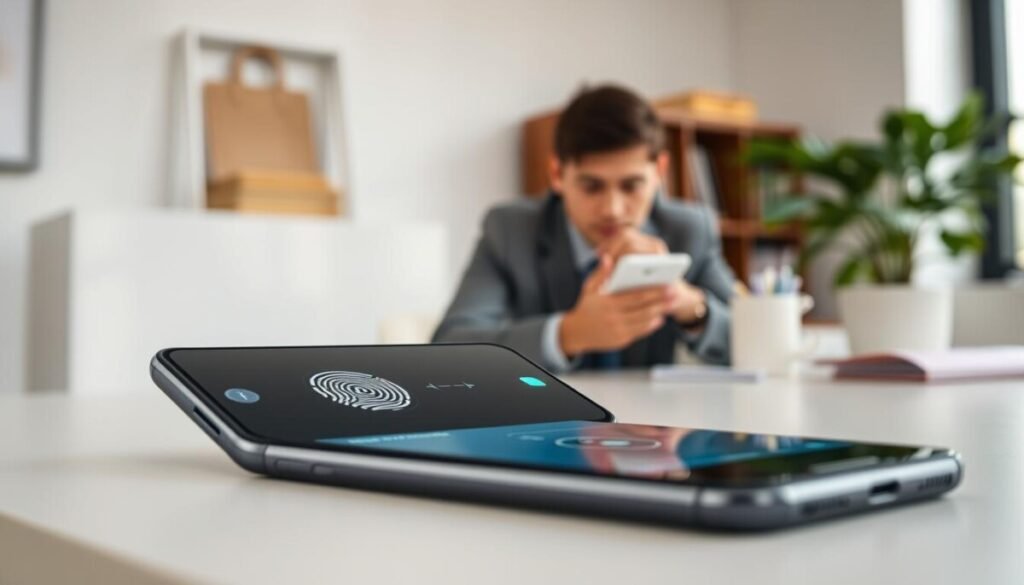
Lock down access to sensitive apps and email with biometric gates and centralized management tools.
Implement multi-layered authentication. Enable fingerprint or facial recognition for immediate, secure access. Pair biometric unlock with a strong PIN or password as a fallback.
Implementing Biometric Security
Use a vetted password manager—Bitwarden—for unique credentials across all work accounts. Store and auto-fill logins only within the manager.
Enable device encryption. Encrypted storage prevents data extraction if the phone is lost or stolen.
- Use biometric authentication to restrict access to corporate apps and email.
- Activate App Pinning to lock the screen to a single app when sharing the phone.
- Review app permissions in settings regularly to limit data exposure.
- Provision remote wipe via MDM to erase information on compromised devices.
Maintain continuous security. Update settings and apply patches. Audit access logs and restrict third-party tools to least privilege. For an enterprise checklist, consult the mobile device security best practices.
Leveraging Advanced Automation for Daily Tasks
Automate repetitive screen tasks to free cognitive capacity for complex projects.
Deploy Tasker on a Google Pixel 6 Pro running Android 15 to build conditional sequences. Define triggers that adjust Do Not Disturb based on calendar events or set times. Chain actions to launch apps, mute notifications, and open documents.
Customize Quick Settings tiles for one-tap access to essential tools and task managers. Map tiles to task sequences to reduce manual steps and conserve device power.
- Auto-enable DND during meetings—preserve focused hours and reduce interruptions.
- Send arrival notifications to clients when connecting to car Bluetooth—improve communication timing.
- Launch email drafts and project apps when arriving at the office—streamline the morning routine.
| Trigger | Action | Effect |
|---|---|---|
| Calendar event | Enable DND; open meeting app | Reduce notifications; ready communication tools |
| Bluetooth connect | Send arrival message; launch navigation app | Automate client updates; quick route access |
| Time block | Limit background sync; boost battery | Extend device uptime; focus sessions |
Review automated tasks weekly. Update triggers and settings to match changing business needs. For agent-based automation examples and integration options, consult the automation agent overview.
Sustaining Long-Term Mobile Productivity
Preserve focused performance with repeatable checks on apps, alerts, and automation rules.
Conduct scheduled audits of the device settings and app list. Verify notification filters and revoke unnecessary permissions. Apply the same checklist every week or month to keep the screen uncluttered and responsive.
Standardize a review routine for time blocks and routine triggers. Update automation sequences and security policies after system updates. Use trusted productivity resources to discover new tools; integrate proven options via this productivity enhancement apps guide.
Enforce simple standards—one task per session, clear offboarding steps, and periodic backups. These controls sustain long-term productivity and make the device a reliable business asset.