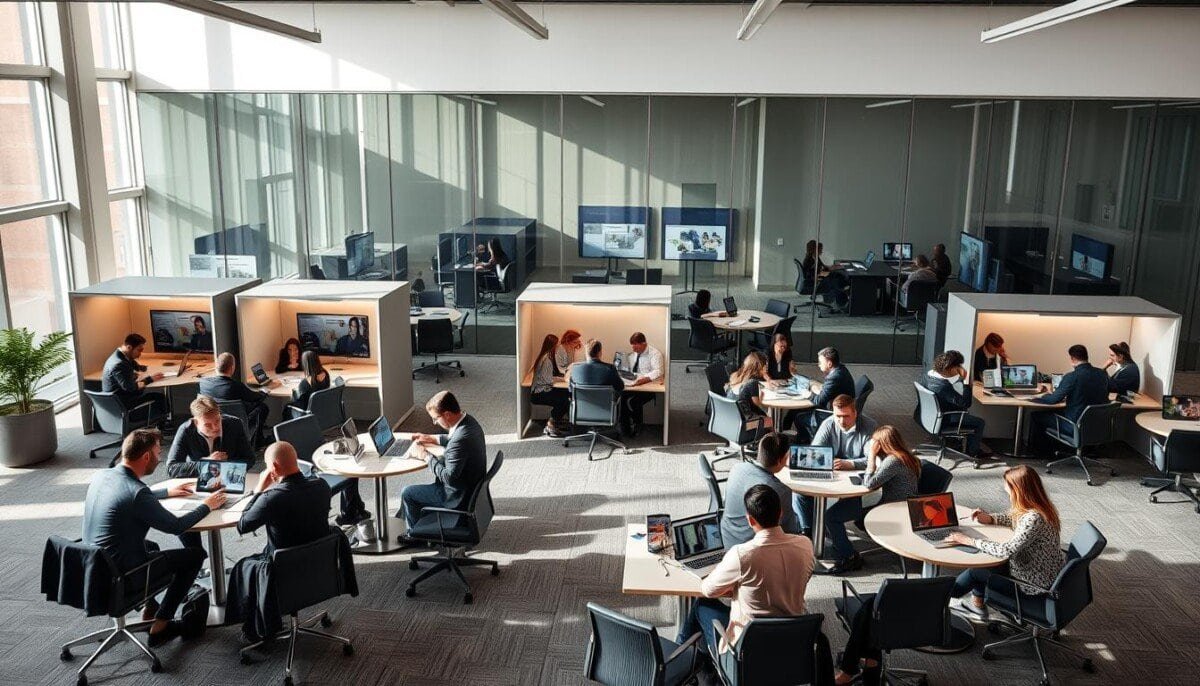
Study reveal: a single meeting can host up to 300 participants in Microsoft Teams — a scale that demands precise segmentation to preserve productivity.
Divide large gatherings into smaller groups to increase focus. Create multiple breakout room sessions to enable targeted collaboration. Plan assignments and timing before the live meeting.
Account for lifecycle limits — unused rooms expire after 60 days. Verify the digital infrastructure and permissions. Test connectivity and device settings to prevent interruptions during the meeting.
Key Takeaways
- Prepare room assignments and objectives before the meeting begins.
- Limit each subgroup to a manageable size for active participation.
- Confirm that microsoft teams settings and network capacity meet session needs.
- Note the 60-day expiration rule — open rooms within that window.
- Run a technical rehearsal to avoid connectivity issues during live use.
Understanding Prerequisites for Teams Breakout Rooms
Verify that every participant uses a supported client to avoid administrative failures.
Confirm client compatibility before the meeting starts. Participants must join meeting calls from Windows (including VDI) or macOS to create and manage a breakout room.
Linux, web clients, iOS, iPadOS, Android, and PSTN endpoints can join meeting sessions as attendees. These endpoints can participate inside a room but cannot perform managerial actions.
Enforce tenancy and permissions. All participants must belong to the same organization to access full functionality in a breakout rooms meeting. Meeting organizers must verify membership and permission assignments in advance.
- Ensure meeting organizer grants creation rights to designated users.
- Confirm that organizational settings permit segmented sessions—administrators can enable or disable the feature globally.
- Test client capabilities during a rehearsal to catch incompatible endpoints.
Supported Clients
Windows and macOS — required for management. All other clients — participant-only access.
Organizational Requirements
Tenant membership and admin settings determine whether an organizer can create and assign a room. Validate policies before the live meeting.
How to Configure and Create Teams Breakout Rooms
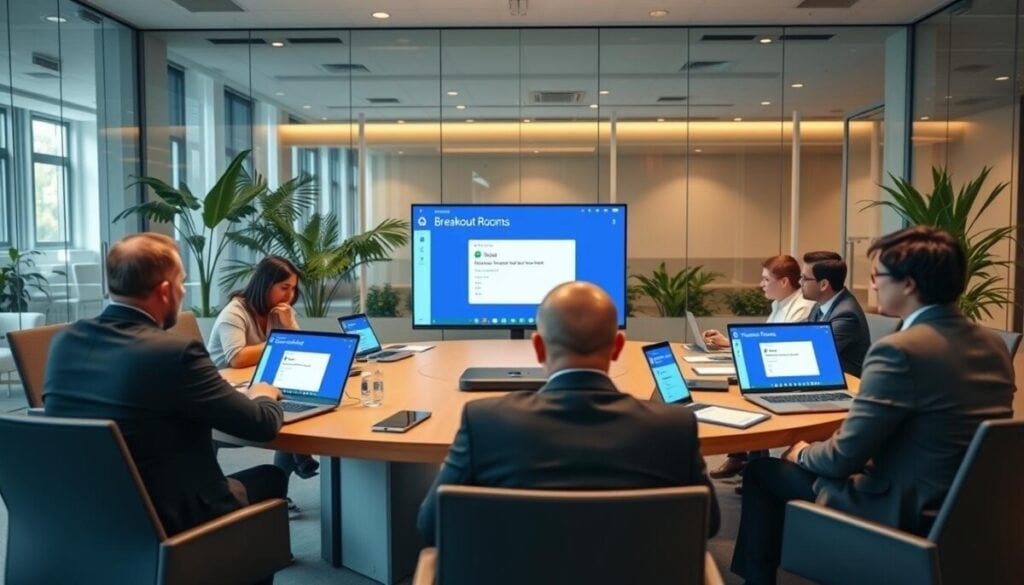
Activate the creation workflow in the meeting controls to provision multiple sub-meetings.
Open the primary meeting controls. Select the dedicated icon to create a new breakout room set. The meeting organizer must perform this action while the meeting is active.
Define the number of rooms based on agenda goals. Use the rooms meeting controls to set allocation rules—automatic, manual, or round-robin. Save settings before assignment.
- Choose the count of sub-sessions—match group size to task complexity.
- Use the management panel to manage breakout states—open, close, broadcast.
- Assign participants with the select rooms and select breakout options in the panel.
Note: The meeting breakout rooms feature requires the organizer to be present and the meeting to be live. Do not attempt configuration before joining or after the session ends.
Managing Participants and Room Settings

Control participant placement and room behavior prior to opening sub-sessions.
Assigning Participants
Use the meeting controls panel to allocate participants. Hover over a participant name. Select the target breakout room from the assignment menu.
Open the sub-sessions before attendees attempt to join. This enables the join breakout room function from the main meeting.
Renaming and Deleting Rooms
Access room settings to rename or remove a room. Select the more options menu in the panel. Administrators must confirm deletion.
Maintain a clear naming convention—include task, facilitator, and expected duration in the name.
Setting Time Limits
Define a time limit for each room to enforce session cadence. The system closes rooms automatically when the timer ends.
Broadcast a final notice; then close breakout and return attendees to the main meeting.
| Action | Control Location | Outcome |
|---|---|---|
| Assign participant | rooms meeting controls → select rooms | Participant moved to specified room |
| Rename or delete | room settings → more options | Updated label or removed session |
| Set time limit | meeting controls → time limit | Room closes; attendees return to main meeting |
Advanced Controls for Meeting Organizers
Enable granular administrative control. Configure elevated roles to distribute facilitation and maintain session quality. Set precise permissions before the meeting opens.
Appointing Breakout Room Managers
Designate up to ten presenters as a breakout room manager. Select presenters from the same organization only. This preserves security and simplifies audit trails.
The appointed room manager may move freely between rooms. Grant permissions via the room settings. Verify that the manager can admit participants, share content, and close a room.
- Limit appointees to presenters with verified accounts.
- Confirm manager privileges before the live meeting.
- Use the management panel to manage breakout activity in real time.
Meeting organizers must document role assignments. Use the provided guidance on advanced meeting features to align policies and settings.
Troubleshooting Common Breakout Room Issues
Diagnose connection failures quickly to keep small-group sessions on schedule.
Verify participant entry. If a participant fails to join breakout room sessions, locate the participant name in the list. Then select the ask to join option from meeting controls.
Address phone endpoint audio faults by instructing the user to drop the call and redial. That action restores main meeting audio state and re-enables the join room function.
Note empty room behavior. Empty sub-sessions will not open. If a time limit is set, the room will close automatically when no participants enter.
If an error occurs when attempting to close breakout rooms, right-click the specific room in the panel and select the close breakout option. Use the management controls to confirm closure.
Confirm client versions before the meeting. Participants on unsupported devices or older microsoft teams clients may be unable to join breakout room sessions. Require updates during the rehearsal.
| Issue | Action | Result |
|---|---|---|
| Participant cannot join | Check name list → select ask to join | Participant moves into the room |
| Phone audio failure | Drop call → redial | Audio restored; can return main meeting |
| Empty sub-session | Confirm attendees or cancel time limit | Room remains closed if empty |
| Close error | Right-click room → close breakout | Room closed; attendees return to main meeting |
Mastering Collaborative Sessions for Future Meetings
Establish a repeatable workflow to improve coordination across future sessions. Define a short facilitator checklist. Include step-by-step options for allocation, timing, and tool checks.
Train organizers on meeting controls. Practice assignment methods such as select rooms and select breakout. Verify permissions and device compatibility before each meeting.
Preserve a concise post‑meeting list. Review attendance and export reports to refine participant assignments. Use the collaboration platforms guide to compare workflows and reduce context switching.
Standardize the return main meeting process. Implement these controls to ensure each breakout room and the main meeting end with clear outcomes.



