Question: Can real-time speech-to-text transform meeting accessibility without manual transcription?
Enable the feature—activate immediate transcription. Microsoft ASR technology converts speech to text in real time for every participant.
Ensure settings are correct—open the meeting controls and select the captioning option. The caption text appears at the bottom of the video window for clear reference.
Configure language preferences and transcription sources. Adjust settings to reduce background noise impact on speech recognition accuracy.
Implement these measures to safeguard critical information during any teams meeting. Proper configuration preserves audio quality and captioning consistency across multiple languages.
Key Takeaways
- Activate turn live captions in meeting settings to enable real-time transcription.
- Microsoft ASR powers automatic speech recognition for accurate captioning.
- Set spoken language and transcription options prior to the meeting.
- Minimize background noise to improve speech-to-text accuracy.
- Validate captioning settings to ensure the video window displays information consistently.
Understanding the Benefits of Teams Live Captions
State how immediate on-screen text supports participants with auditory or language challenges.
Separate functions—automated captions differ from full transcription. Automated text provides instant display of speech. Transcription records and indexes meeting content for later review.
Use human CART services when accuracy is essential. CART delivers verbatim, human-generated captioning for complex discussions and large-scale events.
Implementing live captions in a Microsoft Teams meeting enhances comprehension for participants with auditory processing issues. It also helps non-native speakers follow fast dialogue.
Accessibility drives inclusion—organizations that require captioning ensure all attendees follow meeting flow. Multiple languages in the caption interface support global collaboration and reduce communication silos.
Choose automated captioning for immediacy. Choose CART or transcription for legal accuracy or detailed records. Both paths preserve information and expand participation across diverse teams.
- Improves comprehension for auditory and language-challenged participants.
- Provides instant visual text—critical for events and large meetings.
- Enables organizations to meet accessibility and compliance requirements.
How to Enable Teams Live Captions During a Meeting
Open the meeting controls to locate the captioning option and grant access to on-screen transcription.
Accessing Meeting Controls
Select the three-dot menu in the meeting interface to access options. The menu provides access to captioning features and other settings.
Note: The meeting organizer controls which options are available to participants. Confirm organizer permissions before attempting to change global settings.
Starting the Feature
To turn on the feature, choose the captioning option from the meeting controls. The caption window appears on the screen and displays real-time speech as text.
- Organizer navigate to the meeting controls and select the three dots to turn live captions on.
- Desktop users may press Windows logo key + Ctrl + L to enable the feature quickly during a call.
- Default settings allow instant use; open the menu to adjust spoken language for better accuracy against background noise.
- Confirm options so the feature remains active for the full time of the meeting; the organizer may disable it at any time.
Personalizing Your Caption Display Settings
Move the caption panel above, below, or leave it floating to suit the workspace. Configure display options to prevent text from obscuring critical content. Apply a consistent layout to reduce distraction during a meeting.
Access the display menu by selecting the settings button in the live captions window. Use the controls to adjust placement, font size, and opacity. Confirm language preferences for on-screen text.
Adjusting Window Position
- Dock above: Keeps text out of the video frame; best when video is at the bottom.
- Dock below: Prevents overlap with toolbars and app controls.
- Floating: Offers flexible placement for multi-window workflows; move as needed.
Adjust these settings to maintain readability and reduce background interference. Custom placement preserves focus on spoken language and keeps the screen orderly.
| Position | Impact on Video | Best Use | Notes |
|---|---|---|---|
| Dock Above | Minimal overlap with lower-screen video | Presentations with bottom video | Use when video content is critical |
| Dock Below | Keeps upper-screen video unobstructed | Screen-shared demos | Adjust opacity to reduce distraction |
| Floating | Flexible; may overlap small areas | Multi-app workflows | Move to avoid toolbars and menus |
Adjusting Language Preferences for Better Accuracy
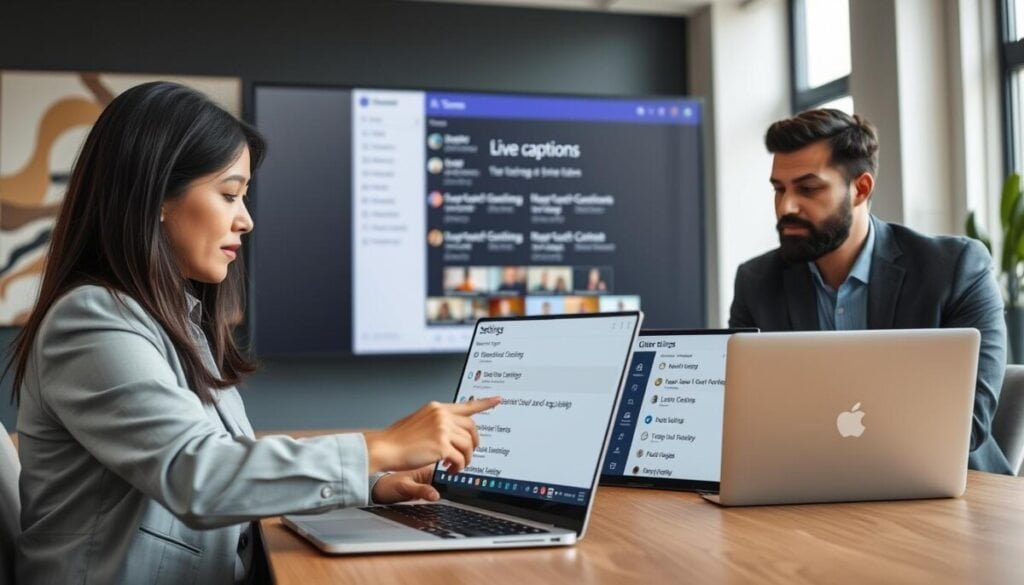
Change the spoken language in settings to align the speech recognition engine with participant audio.
Access the settings menu before the meeting starts. Select the spoken language that matches the primary speaker or dialect.
Desktop users may switch the language dynamically during a meeting. This reduces errors caused by regional accents and background noise.
- Open the menu and choose the correct language for the session.
- Confirm the selection so the speech recognition model uses the right phonetic rules.
- Use dynamic switching on desktop for multi-lingual meetings to keep captioning accurate.
Microsoft supports over 27 languages for live captions and transcription. Proper configuration improves audio parsing and reduces mis-transcription.
Validate settings before major meetings. Accurate language selection yields reliable caption output and a better participant experience.
Utilizing CART Services for Professional Captioning
Connect professional stenographers to the meeting via a CART URL for maximum transcript fidelity.
CART services use trained captioners to deliver real-time stenography. This option supplies human-generated text when accuracy matters more than speed.
The meeting organizer must provide the CART URL. Add the URL in the meeting controls to grant access and configure the connection.
Connecting a CART URL
Open meeting controls. Select the captioning options and paste the CART link provided by the vendor.
Switching Between Services
Presenters may switch between automated and CART captioning depending on event needs. Use CART captions for specialized terminology and compliance requirements.
- Professional accuracy: CART captions provide verbatim transcripts for legal or technical events.
- Organizer responsibility: The meeting organizer supplies the CART URL to enable the connection.
- Flexible options: Toggle between automated and human captioning through meeting controls.
For implementation details and vendor instructions, see the guidance to use CART captions.
Differences Between Live Captions and Transcription
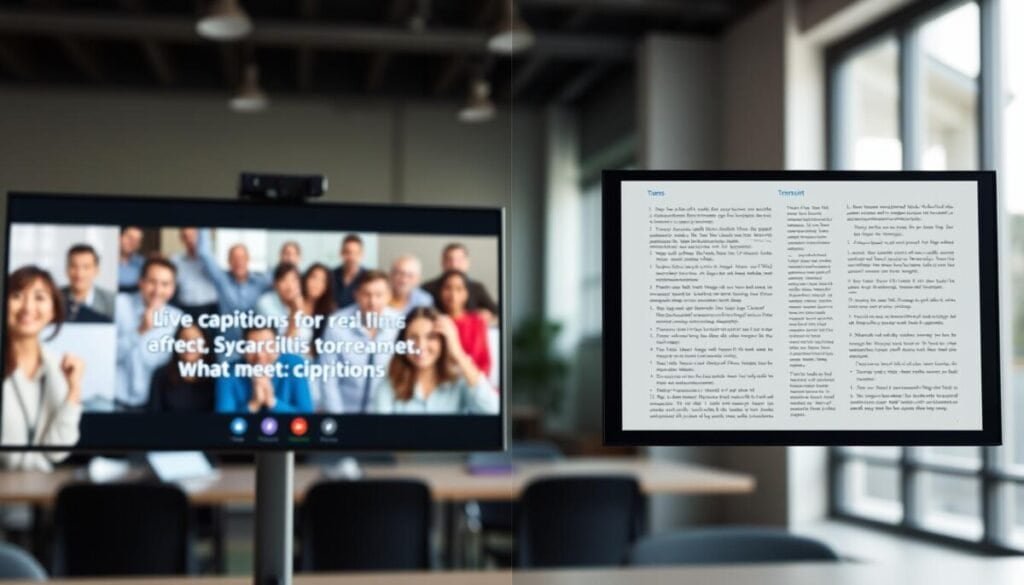
Differentiate real-time subtitle display from stored meeting transcripts to pick the correct accessibility tool.
Live captions provide instant text at the bottom of the screen for immediate comprehension during a meeting. They do not include speaker names or timestamps. They disappear after the call ends.
Transcription creates a permanent record. It captures speaker attribution and timestamps. The meeting organizer stores files in an Exchange Online account for download and audit.
Choose live captions when accessibility and speed matter. Choose transcription when documentation, review, or compliance is required. The underlying technology differs—transcription needs explicit permissions and supports richer metadata; it is currently optimized for English speech and some translation workflows.
- Real-time: live captions—instant, ephemeral, no download.
- Persistent: transcription—speaker names, timestamps, downloadable transcripts.
- Control: meeting organizer configures transcription via meeting controls and secures storage.
| Feature | Live Captions | Transcription |
|---|---|---|
| Real-time display | Yes | Yes—also saved |
| Speaker names & timestamps | No | Yes |
| Storage location | Not stored | Organizer’s Exchange Online |
| Downloadable | No | Yes |
Best Practices for Optimal Captioning Performance
Configure the microphone and desktop resources to prevent caption lag and errors. Prepare devices and environment before the meeting begins. Confirm default input and close heavy applications that consume CPU.
Optimizing Microphone Input
Set the preferred microphone in the settings menu. Test gain and reduce automatic boost to prevent distortion.
Use directional microphones and position them close to the speaker. Review the default input level to ensure clear speech capture.
Reducing Background Noise
Minimize noise sources—turn off fans and mute notifications. Soft surfaces reduce echo and improve recognition accuracy.
Enable hardware noise suppression where available. Closing unused apps reduces latency so captions render in time.
Managing Multiple Speakers
Assign a moderator to coordinate turn-taking. Overlapping speech degrades transcription quality and drops caption segments.
Prioritize the caption window—select settings that keep the caption panel visible on the screen and above other video or app windows.
| Action | Why | Expected Impact |
|---|---|---|
| Select correct microphone | Aligns audio source with OCR model | Reduced recognition errors |
| Close resource-heavy apps | Frees CPU for real-time processing | Lower caption latency |
| Control background noise | Improves speech-to-text clarity | Fewer mistranscriptions |
| Manage speaker flow | Prevents overlapping audio | Consistent caption output |
Managing Privacy and Data Security
Implement strict data controls to protect audio and transcript processing during meetings.
Microsoft ASR processes audio in real time and discards session data after the call ends. This design prevents retention of speech-derived information.
Enforce privacy defaults—the system ships with conservative protections enabled. Administrators must confirm settings to preserve organizational confidentiality.
Users control microphone access and consent to processing through device and application options. Restrict application access to reduce exposure to third-party apps.
Policies and audits validate compliance. Regular checks ensure that transcription protocols and security controls meet enterprise standards.
- Strict handling of audio and meeting information—no post-session storage.
- User-managed microphone and data access controls.
- Default configurations favor data protection; adjust only with governance oversight.
For granular control over recorded transcripts and audit trails see the guidance to control Teams transcripts.
Enhancing Your Meeting Accessibility Experience
Standardize language selection and audio setup to reduce transcription errors and improve comprehension. Verify settings before each meeting. Configure input devices and reduce background noise. Apply accessibility features consistently.
Enable the appropriate captioning option to turn live captions on when immediacy matters. Select the correct language and test microphone gain. Use turn live captions only after confirming spoken language and device routing.
Integrate transcription and caption workflows for full coverage. Use Microsoft Teams controls to manage speaker attribution and generate usable transcripts. Review updates and adopt new languages as they arrive.
For further productivity and accessibility tools, consult this guide on productivity enhancement apps.