
Can a single setting guarantee full compliance and searchable archives for every session?
Implement a system that captures video and chat for each convening—without gaps. Configure the platform to save files as .mp4 to the organizer’s OneDrive or channel SharePoint. Set expiration, privacy URLs, and access controls through the admin center.
Note: Some subscriptions—such as Microsoft 365 Education A1—lack automatic transcription and recording options. Acquire Teams Premium to enable advanced controls for organizers and admins.
This guide presents precise steps to enable the feature, manage recording transcription, and align storage and expiration policies with organizational compliance. Follow the admin settings sequence and verify that organizers can initiate transcribe workflows.
For related scheduling workflows and asynchronous review practices, consult the guide to schedule office hours in Teams.
Key Takeaways
- Enable automatic capture—use licensing that supports the feature.
- Recordings save as .mp4 in OneDrive or SharePoint.
- Teams Premium unlocks advanced transcription and control.
- Admins set default expiration—modify to meet compliance.
- Privacy and security URLs display legal statements on files.
Understanding the Teams Meeting Auto Record Feature
Access to the automatic capture setting is governed by admin controls and licensing tiers. Confirm licensing before enabling system-level capture. Policy determines availability.
Organizers can select who may capture and transcribe — options include organizer only, organizer plus co-organizers, or organizers with presenters. Use meeting options to assign authority.
If Microsoft 365 Copilot is disabled for events, both recording and transcription functions are unavailable. Verify Copilot status when troubleshooting missing features.
Operational effects — when configured, the platform logs every session automatically. All recordings and transcription files appear in the meeting chat for participant access. Manage access via SharePoint or OneDrive controls.
- The teams meeting auto record feature removes manual start steps.
- Administrators must validate that the meeting organizer holds a compatible license.
- Sensitivity labels or admin policies commonly block the option when missing.
- Record transcribe capability fuels post-session analysis and searchability.
Prerequisites for Enabling Automatic Meeting Recordings
Confirm license entitlements and admin controls before enabling system-level recording.
Licensing Requirements
Validate Microsoft 365 subscriptions. Education A1 plans do not include the option to record or transcribe sessions.
Purchase Teams Premium for granular controls — who may record, who may transcribe, and advanced retention options.
Admin Policy Settings
Configure the recording policy in the Teams admin center to permit users to capture video and chat. Set permissions for organizers and presenters.
Manage the auto-recording policy via PowerShell when bulk changes are required — use the -ChannelRecordingDownload parameter to set channel behavior.
- Verify organizer permissions — the system checks the meeting organizer at join time to permit automatic capture.
- Enable record transcribe for events that require searchable transcripts for compliance and training.
- Restrict by policy to ensure only authorized users can record meetings and access recordings.
If Copilot is enabled for meetings events, confirm transcription settings align with the recording transcription workflow. For related scheduling details, consult the schedule messages guide.
How to Configure Teams Meeting Auto Record Settings
Configure platform settings before start time to ensure every session begins with capture enabled.
Enable via the meeting options pane — the meeting organizer must toggle the option before participants join. Set the option at scheduling time or update the meeting options prior to start.
Start trigger — once the setting is active, the system begins capture as soon as the first participant joins. If the session is started again later, a new video file is created for each instance.
- Verify the record transcribe option to capture audio and text together.
- Use PowerShell to enforce organization-wide defaults and align policy with compliance.
- All files save to the meeting chat or the Files tab for authorized access.
| Action | Effect | Admin Control |
|---|---|---|
| Enable setting in meeting options | Sessions automatically recorded on first join | Organizer level |
| Restart session multiple times | Creates separate video files per start | User and storage tracking |
| Apply PowerShell policy | Set default behavior across tenant | Admin — enforcement |
For scheduling workflows and focused time practices, consult the guide to schedule focus time.
Managing Recording Policies and Permissions

Apply label-driven constraints to ensure only authorized users may capture and transcribe sessions.
Use sensitivity labels to enforce the “who can record and transcribe” option. Labels bind policy to content type and classification. Administrators assign labels to meet compliance requirements.
Using Sensitivity Labels
Enforce permissions by label — restrict transcription and download actions for sensitive folders. Labels add an auditable layer to the recording policy.
Implementing Meeting Templates
Create templates that standardize the record transcribe option across meetings events. Templates reduce configuration drift and ensure consistent settings for organizers and users.
Controlling Participant Agreement
Require consent before unmuting or enabling cameras. Store consent results in the attendance report for an auditable trail.
- Admins use labels to enforce compliance and access controls.
- Templates standardize settings across the organization.
- Consent gates produce evidence for recording transcription audits.
| Control | Effect | Admin Scope |
|---|---|---|
| Sensitivity Label | Restricts who can record transcribe | Tenant |
| Meeting Template | Standardizes options | Admin / Organizer |
| Participant Consent | Provides audit trail | Event-level |
Where to Find Your Automatically Recorded Files
Locate every automatically captured session by checking the organizer’s cloud storage and the channel’s SharePoint library. This section maps storage points and access paths for fast retrieval.
Storage Locations for Channel Meetings
Primary stores—Regular meeting recordings save to the organizer’s OneDrive for Business. Channel sessions save to the SharePoint site tied to that channel.
- The system posts a link to the video file directly in the meeting chat for immediate access.
- Transcription files sit beside the video file—searchable for keywords within the content.
- If upload fails, the file remains in temporary storage for 21 days before deletion.
- Access recordings via the Files tab in the meeting details pane or via the channel’s Documents library.
- Admin controls permit relocation or retention adjustments to meet policy and compliance needs.
For guidance on storage selection and collaboration tools, consult the best cloud storage for collaboration guide.
Troubleshooting Missing Recording Options
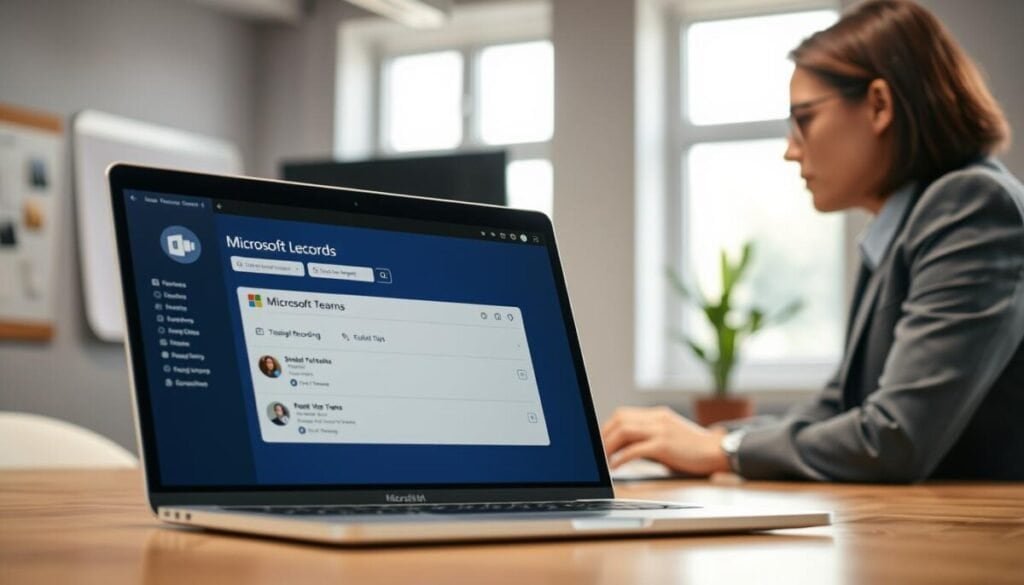
Begin diagnostics by confirming tenant policies and license entitlements. Verify that the tenant admin has enabled the required settings and assigned appropriate licenses.
Check client scope. Test the meeting options in the web app to determine if the issue is isolated to the desktop client. If the toggle appears in the web app, reinstall or update the desktop client.
Confirm license status. Users require a license that includes advanced features such as teams premium and the record transcribe capability.
- Verify that the admin meeting policy allows the recording and transcription feature.
- Inspect sensitivity labels and meeting templates for restrictions on recordings.
- If the option is missing after checks, contact the administrator to confirm policy assignment.
- Ensure transcription and recording settings are enabled in the admin center to prevent failures during meetings.
For a broader comparison of conferencing tools and platform behavior consult this guide: online meeting tools.
Handling Data Retention and Expiration Policies
Establish a default deletion schedule to manage storage and ensure regulatory compliance for recorded content.
Default lifecycle — The system deletes meeting recordings and transcripts after 120 days by default. Administrators must change the default in the admin center to extend or shorten retention.
Admin control — Use the Teams admin center to manage recording transcription lifecycle and enforce organization-level compliance. Apply retention settings that align with legal and operational requirements.
- The system automatically deletes recordings and transcription files after 120 days unless the admin overrides the default.
- Moving a file out of its original location stops the expiration policy for that specific content.
- Organizations requiring strict compliance should store files in a SharePoint library and apply Microsoft Purview retention rules.
- The record transcribe output follows the same expiration rules as the video file; treat both as a single compliance asset.
- Organizers must account for automated policies when planning retention and access workflows.
For procedural details and admin procedures consult the meeting recording documentation.
Streamlining Your Meeting Documentation Workflow
Standardize capture policies to convert conversations into indexed, retrievable knowledge assets.
Allow the organizer to focus on content—shift control to admin policies that enforce capture and storage. When sessions are automatically recorded, the system captures spoken content and saves the video and transcript to governed storage.
The record transcribe feature creates searchable text that appears in the meeting chat and links to the file. Share or download transcripts for audits and training. For implementation guidance on automated transcription, consult this automate note taking guide.
Apply retention and access controls. Require admins to validate templates and options so meetings automatically produce compliant recordings and searchable assets.


