
Can a simple time limit stop interruptions without blocking work? Ask this before changing presence on a company app.
Execute the following steps to control visibility. Select the profile picture at the top-right of the screen. Choose the desired option from the menu—then set a time window.
Use keyboard commands for speed—examples: /available, /busy, /dnd, /away. These inputs change presence without navigating multiple menus.
Note—Microsoft Teams automatically updates indicators based on calendar events, calls, or when a computer goes to sleep. The colored dot next to a name provides a clear visual cue for people across the organization.
Set a time limit to ensure the indicator resets after the specified time. Use the focus time feature to prevent interruptions while preserving accurate availability for meetings and collaboration.
Key Takeaways
- Open the profile picture menu to set presence quickly.
- Use slash commands to change presence without extra clicks.
- System activity and calendar events modify indicators automatically.
- Apply a time limit so the indicator reverts when work or focus ends.
- Use focus time to block interruptions while keeping availability accurate.
Understanding How Microsoft Teams Presence Works
Learn what drives presence updates so changes reflect accurately across devices.
The Meaning of Status Indicators
The app shows a colored dot next to a user’s name to signal availability. This dot informs people whether a colleague is available, busy, or away.
Presence ties to activity—keyboard, mouse, and device screen events feed the system. Use the profile picture menu to set status manually when precision is required.
Automatic Status Changes
The system monitors activity and will automatically change status to away after about five minutes of inactivity. Calendar sync marks the user as busy when a scheduled meeting begins.
Idle sleep mode on a computer also triggers an away update. Focus time blocks calendar slots so availability reflects deep work.
| Trigger | Resulting Presence | Action |
|---|---|---|
| Keyboard or mouse idle ~5 min | Away | Resume activity to return to available |
| Scheduled calendar meeting | Busy | Use focus time or adjust calendar |
| Manual selection via profile picture | Set state persists | Override automatic updates |
For scheduling best practices and calendar control, consult the guide to schedule office hours.
How to Set a Custom Teams Status Duration
Access the profile picture menu on the top-right of the app. Click the current status and choose the Duration option to open timing controls.
Select a suggested interval or pick Custom under Reset status after. Enter the exact date and time for expiry—this sets a clear window for focused work.
The app will automatically change status back once the defined period ends. Note—Available cannot receive a timed setting.
- Manual changes override the active timer immediately.
- Use focus time to block incoming meeting requests during the set period.
- Click the profile picture to view the current state and remaining time.
Maintain presence accuracy—set a timed state to communicate availability for collaboration or deep work. For scheduling focus blocks, follow the guide to schedule focus time in Teams.
Methods to Keep Your Teams Status Active

Prevent automatic idle updates by combining calendar controls and lightweight interactions. Apply these methods to maintain an accurate presence while minimizing interruptions.
Using Calendar Focus Time
Block focus time in Outlook to mark calendar slots as busy. This keeps the indicator set to busy during deep work and prevents automatic away updates.
Engaging with Team Chats
Send short messages or reactions at intervals. These actions reset the idle timer and keep presence visible without disrupting workflows.
Hosting Private Meetings
Select Meet Now in the calendar to host a private meeting with yourself. The meeting instance keeps the app reporting activity and prevents the dot from switching to away.
- Keep the microsoft teams app open on mobile to avoid idle when away from the desk.
- Adjust display and power settings to stop the screen from entering sleep; this helps keep teams status active.
- Avoid unapproved automation; prefer calendar focus and short interactions over third-party simulators.
Note: For scheduled control of offline indicators and advanced timing, see the guide to schedule offline status.
Adjusting Device Settings to Prevent Idle Mode
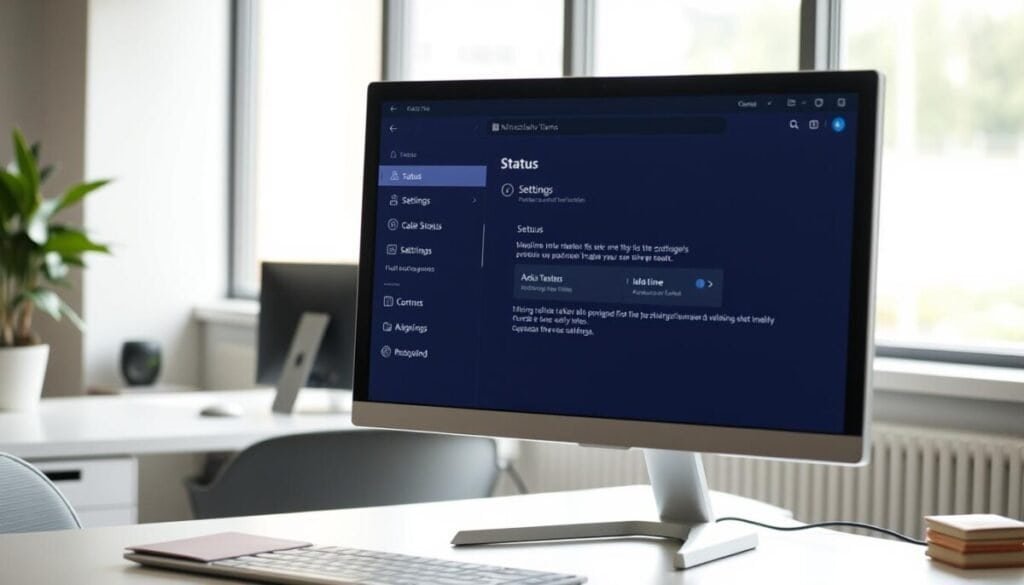
Change power and lock-screen settings so the workstation does not signal inactivity.
Configuring Power and Sleep Settings
On Windows — open Control Panel > System > Power & sleep. Set the screen and sleep options to Never while working. Keep the computer plugged in to avoid low-power transitions.
On macOS — open System Settings and adjust Lock Screen sleep intervals. Choose a longer timeout when conducting deep work or meetings. This prevents the machine from sending an idle signal.
On Android — disable battery optimization for the app to maintain a persistent connection. This reduces background throttling and helps keep the app open during long work blocks.
- Keep teams status active by preventing idle sleep mode on the device.
- Leave the teams app open on primary devices to maintain presence during work hours.
- Use these settings so the system does not automatically change status; change status manually only when needed.
| Platform | Action | Result |
|---|---|---|
| Windows | Control Panel → Power & sleep → Never | Prevents idle sleep; keeps indicator active |
| macOS | System Settings → Lock Screen → Extend sleep | Display stays on; avoids idle flag |
| Android | Disable battery optimization for app | Maintains connection; reduces background pause |
For additional techniques to keep presence alive, consult guidance on keeping presence active and learn scheduling workflows at schedule messages.
Troubleshooting Common Status Syncing Issues
Diagnose synchronization failures by isolating device-level and server-side causes.
Clear local cache first. On Windows delete files in %appdata%\Microsoft\Teams. Restart the application so configuration files regenerate.
Sign out and back into the app on desktop and mobile. Re-authenticate all devices to re-establish presence sync.
Check the Microsoft 365 Service Health Dashboard for platform outages. Confirm calendar sync if a meeting does not reflect in the app.
- Restart the computer and the teams app if the indicator remains stuck.
- Verify the green dot beside a person’s name in the members list to confirm presence.
- Avoid multi-device conflicts—sign out on idle devices to reduce sync confusion.
- Keep the app updated to prevent known bugs from affecting presence reporting.
- Manage device power and sleep settings to stop unintended idle signals.
| Cause | Action | Expected Result |
|---|---|---|
| Corrupt cache files | Delete files in %appdata%\Microsoft\Teams; restart app | Regenerates config; resolves stuck indicators |
| Account desync across devices | Sign out on all devices; sign in again | Presence syncs uniformly |
| Service outage | Check Microsoft 365 Service Health Dashboard | Identify platform issues; wait for restore |
For deeper fixes, follow the guide to fix missing presence in Outlook and consult cloud sync troubleshooting at cloud storage syncing.
Maintaining Professional Presence Without Artificial Hacks
Use native controls to manage visibility and avoid artificial hacks. Rely on official features to keep presence clear and compliant.
Block deep work with focus time and set a busy dot via the profile picture menu. Use built-in options—such as Do Not Disturb or Be Right Back—to communicate availability.
Engage in brief chat activity when available to keep the status active. Avoid unauthorized tools that mimic activity; they risk security and reputation.
Set expectations with coworkers about meeting windows and work blocks. Use the app controls to change status honestly and keep teams visibility accurate.



