
75% of new accounts start with alerts sent instantly—this scale creates immediate inbox saturation for team projects.
Control the flow of project updates. Configure the default notification setting to match task criticality. New people often find instant alerts disruptive. Provide a targeted method to limit alerts to items that matter.
Follow a technical procedure to reduce noise—adjust preferences, set priority rules, and assign watcher roles. Regain focus during complex workflows. Prevent inbox overload and maintain clear channels.
For practical setup examples and project management guidance for smaller teams, consult this project management for small businesses guide.
Key Takeaways
- Default accounts send instant alerts—change the setting immediately.
- Limit alerts to task-specific events to reduce clutter.
- Set role-based rules so only responsible people receive key updates.
- Use preference controls to preserve focus during sprints.
- Apply systematic settings to prevent inbox saturation.
Understanding Why Trello Notifications Can Overwhelm Your Inbox
High-frequency card activity drives excessive email volume for project teams.
Assigning people to a card triggers an automatic notification for each attached member. This behavior creates a baseline of messages for every assignment action.
Adding a comment to a card generates an email to all members attached to that card. Repeated comments on active cards escalate message counts rapidly.
The structure of a board compounds the issue. One board can host many active projects—each minor update can produce a separate notification. Teams with multiple collaborators see proportional growth in inbox traffic.
- Every added comment alerts associated members—this accelerates inbox accumulation.
- Multiple people working on shared cards increase event volume and email traffic.
- Tracking visibility of cards is essential to reduce noise from high-frequency updates.
Control the attachment and watcher rules to reduce redundant messages. Review card membership and summary settings before scaling projects.
How to Mute Trello Notifications by Adjusting Email Frequency
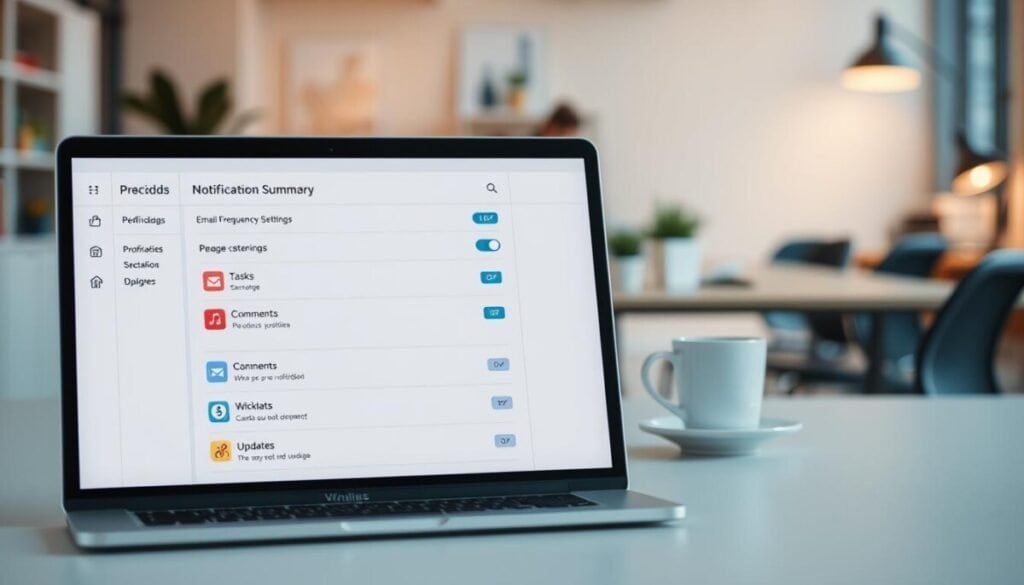
Reduce email interruptions by consolidating board activity into timed summaries.
Changing Your Email Settings
Open account settings. Change the email delivery from instant to periodic or never. Select the periodic option to group updates and reduce raw message volume.
Understanding Periodic Notification Summaries
The periodically setting aggregates card and comment events. It sends a summary at most once per hour. The system groups every action into a single digest.
- Navigate to account settings to change frequency from instant to periodic.
- Periodic sends at most one email per hour—grouping comment and card updates.
- Automation delays specific actions—labels or checklist edits wait until the next hourly digest.
- Select the never option to disable all email for your cards and boards.
| Setting | Frequency | Best use |
|---|---|---|
| Instant | Immediate | Critical, real-time action items |
| Periodic | Up to once per hour | Consolidated updates and reduced interruptions |
| Never | None | No email—use for zero inbox interference |
Configuring Mobile Push Settings for Specific Actions
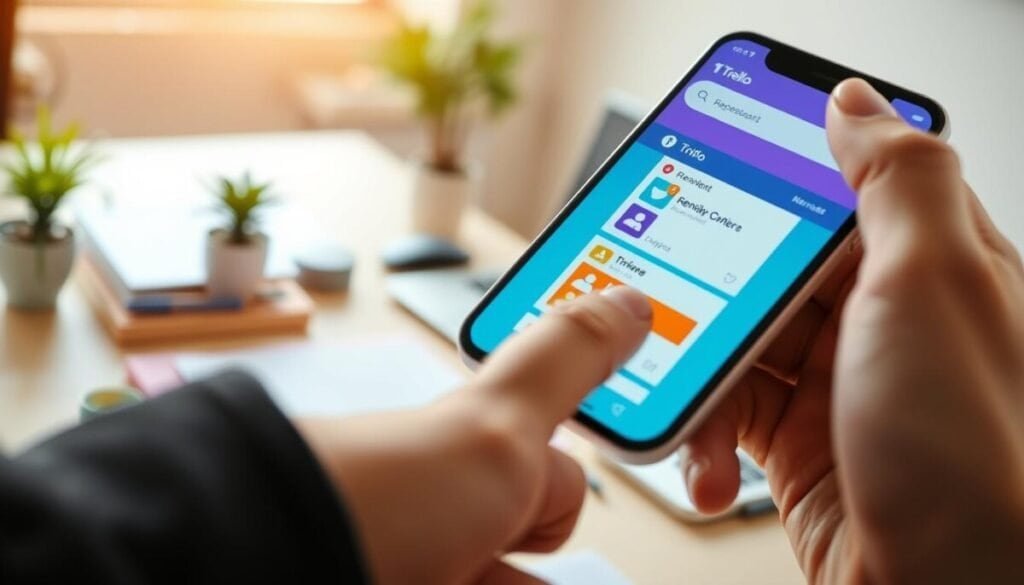
Define push triggers for each category to control mobile updates. Configure push delivery to match project priorities. Implement granular rules so only critical alerts reach the device.
Customizing Alerts for Boards and Cards
Open the app notification tab. Tap the Settings icon to review the list of push categories. Choose only the categories that require real-time attention.
iOS users navigate the app settings in the Notification tab to deselect individual actions. Android 8.0+ users open Notifications view and toggle switches per category.
- 15 distinct categories — configure push for adds to a board or mentions on a card.
- Enable or disable alerts for each specific action — e.g., when a comment posts.
- Use per-category toggles on Android devices to switch alerts on or off quickly.
- Apply automation sparingly—limit push to only essential events to reduce noise.
Streamlining Your Workflow for Better Project Focus
Establish a disciplined alert policy so teams receive only relevant updates.
Define which card events require instant action and which can wait for a digest. Apply those rules at the board level to limit interruptions.
Filter out low-value changes—comments, bulk edits, routine status updates—and route critical items to assigned people. Keep each comment or update tied to a clear owner.
Use automation to group repeatable events and reduce manual checks. Share this configuration across teams; standard settings scale focus company-wide.
For implementation examples and system-level hacks, consult the engineering team guide at project management hacks and the productivity tools roundup at productivity enhancement apps.



