
Can a built-in desktop tool really triple your engagement when you post at the right time? Many pros say consistency beats randomness. This short intro shows how a free, browser-based calendar can change your social media workflow.
The native scheduler is a built-in feature accessed only on desktop browsers. You can draft tweets, threads, and media posts, then use the calendar icon to pick the exact moment to publish. Accounts that post consistently at optimal times often see up to 3x higher engagement compared to sporadic posting.
This twitter x native scheduler guide walks you through the core steps. You will learn how to schedule tweets, manage threads, and compare third-party scheduling tools to the platform’s own option. Use this tool to save time, keep a steady posting rhythm, and hit peak audience windows without staying online 24/7.
Key Takeaways
- Use the desktop calendar icon to set posts live at peak times.
- Consistent scheduling can boost engagement up to threefold.
- Draft tweets and threads ahead to streamline posting.
- Compare scheduling tools vs. the built-in option for your needs.
- Follow each step to build a reliable posting routine.
The Strategic Value of Scheduling X Posts
Scheduling posts strategically gives you steady visibility without being online all day. Use timing to turn ad-hoc updates into a reliable content rhythm that your audience learns to expect.
Benefits of Consistency
Maintaining a steady posting pattern boosts recognition and trust for your account. Buffer’s research on over 1 million posts shows consistent timing helps reach people across their active hours.
Metricool analyzed more than 2 million posts and found engagement patterns, though no single best time fits every account. The point is to test windows and use analytics to refine your strategy.
Reaching Global Audiences
Scheduling lets you reach audiences across time zones while you batch your work during productive hours. This keeps your content calendar full without daily manual effort.
Every tweet, thread, and media post feeds into long-term metrics. Use built-in analytics and a clear posting plan to track what works and when.
- Hit peak engagement windows: schedule tweets to match follower activity.
- Batch content creation: save time and maintain quality across the week.
- Test and measure: adjust posting times with analytics, not guesswork.
For deeper tactics on how to schedule tweets at scale, see advanced tweet scheduling strategies.
Getting Started with the Twitter X Native Scheduler Guide
Start by signing in on a desktop browser to unlock the built-in post planner.
Once logged in, open the composer and draft your first posts. Add text, media, and any links. Organize threads or single tweets so your content flows logically.
Use the calendar icon to pick a date and time. This scheduling step lets you set a steady rhythm for your social media output without constant manual posting.
- Log in on desktop to access the schedule tool.
- Draft tweets, threads, and media in advance.
- Pick optimal windows to reach your audience.
This short guide walks you through each step so you can build a content calendar that scales. The built-in scheduler is a reliable tool for planners who prefer not to use third-party tools. Plan in batches, then let the schedule handle timing while you focus on creating high-quality posts.
Desktop Browser Workflow for Native Scheduling
On desktop, the compose window becomes your command center for scheduling posts and polishing content.
Compose and Format
Start by clicking the compose button in your desktop browser and write your tweet. Add images, video, links, or thread continuation so the media appears correctly when it posts.
Locate the calendar icon at the bottom of the composer to pick a date and date time up to 18 months out. This lets you plan a week, a month, or an extended content calendar with precision.
Confirming Your Schedule
After selecting your date and time, click the schedule button to queue the post. The system processes scheduled content best when you schedule at least 10 minutes before the target time.
View and manage scheduled posts in the drafts or scheduled tab. You can edit or delete any post before it goes live to keep timing and messaging aligned with analytics.
| Step | Where | Why it matters |
|---|---|---|
| Compose and attach media | Composer window (desktop) | Ensures correct formatting and higher engagement when media displays properly |
| Select calendar icon & set date time | Bottom of composer | Schedules posts up to 18 months ahead for consistent timing |
| Confirm and review | Scheduled/Drafts tab | Allows edits and aligns posts with analytics and content calendar |
Limitations of Mobile App Scheduling
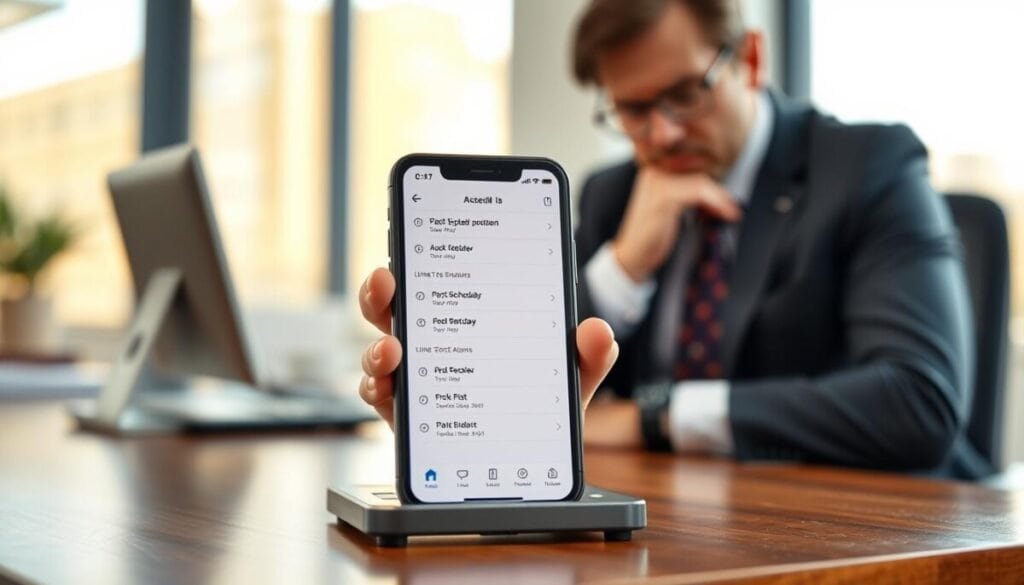
If you rely on a mobile device, you’ll hit a hard limit: scheduling is desktop-only. The official mobile app for iOS and Android does not allow you to set future publish times for posts.
This gap forces a change in workflow. You must use a desktop browser or third-party tools when you need to schedule tweets, threads, or media in advance. That adds steps when you are away from your desk.
Managing uploads and edits in a mobile browser feels clumsy compared to the desktop composer. Many professionals find this reduces their ability to react to trends and maintain consistent audience reach in real time.
- Desktop only: you cannot schedule posts directly from the app.
- Workaround: use third-party tools or the desktop site when on the go.
- Practical tip: plan and batch content on desktop to protect timing and quality.
For tactics on scaling your workflow across devices, see advanced tweet scheduling strategies. Using a desktop ensures your schedule stays accurate and reliable.
Leveraging X Ads Manager for Organic Posts
If you manage campaigns, Ads Manager offers a reliable way to schedule organic content alongside paid efforts.
Ads Manager lets you schedule organic posts once you add a credit card to the account. You do not need to run an ad or spend money to use the interface for scheduling.
Use this tool when your campaigns require tight timing. It helps align tweets, threads, and media with launches and promotions.
- Access Ads Manager to plan multiple posts and threads across time zones.
- Coordinate organic content with paid creative so messaging stays consistent.
- The scheduling interface gives precise control over the publish time for each post.
- Requires a card on file, but no spend is necessary to use the scheduling tool.
For teams, this method streamlines workflow and improves engagement predictability. Each step in Ads Manager supports an organized, professional posting routine.
Comparing Third-Party Scheduling Tools

Professional scheduling platforms turn scattered posts into a single visual calendar you can manage in minutes. Tools like Sprout Social offer a calendar view that makes weekly planning faster and clearer.
Bulk scheduling saves time: Sprout Social supports up to 350 posts and CSV uploads. That feature helps teams import large batches of content and set date time values in one step.
Third-party tools also add advanced analytics and collaboration. You get deeper audience insights and approval workflows that the native scheduler lacks.
- Use calendar view or list view to visualize tweet, thread, and media timing.
- Bulk uploads speed weekly work and reduce manual entry.
- Cross-platform scheduling saves time for accounts that post to multiple services.
| Feature | Native Tool | Third-Party Tool |
|---|---|---|
| Bulk scheduling | Limited | CSV import up to 350 posts |
| Analytics | Basic | Advanced audience and engagement reports |
| Team workflows | Minimal | Approval paths and role controls |
Establishing a Repeatable Content Calendar
A repeatable calendar frees you to create high-value content without daily firefighting. Use a simple framework to define what you post and when. That clarity keeps your content consistent and your audience engaged.
Defining Content Pillars
Pick 3–5 pillars that reflect your brand. These pillars guide every tweet, thread, and media post.
Why it helps: pillars keep messaging focused and make it easier to batch writing across topics.
Batching Your Writing
Block 1–2 hours weekly to write and schedule posts. Batching saves hours and reduces creative fatigue.
Target a 70% scheduled content and 30% real-time engagement mix. Spend at least 10 minutes daily reviewing scheduled content to stay relevant.
Maintaining Flexibility
Always leave room for spontaneous posts. Scheduled content should free, not freeze, your calendar.
- Use analytics to shift times and content based on audience behavior.
- Keep a buffer of unscheduled posts for breaking news or trends.
- Organize media and text so every post supports your long-term plan.
Identifying Optimal Posting Times for Your Audience
Pinpointing when your followers are active is the single most practical step you can take to boost reach. Research shows weekdays between 9 AM and 11 AM often deliver peak engagement. Use that window as a starting point for your schedule.
Then test. Open your account analytics to see exact hours and days your audience visits. Compare those results to the 9–11 AM baseline and mark the best times to post for your niche.
Schedule posts during those hours and track performance. Prioritize tweets, threads, and media that need early traction. Spend a few minutes each month reviewing analytics to refine timing.
- Start with data: use analytics, not guesswork.
- Test across the week: weekdays and evenings may vary by account.
- Account for time zones: schedule to hit peak hours in target regions.
Small, regular reviews—ten or twenty minutes monthly—keep your calendar aligned with changing audience habits. That step will improve engagement and make every scheduled post more effective.
Advanced Tactics for Evergreen Content and Threads
Plan long-lived threads and reusable posts so your best content keeps working while you sleep.
Evergreen content can be recycled every 30–90 days to preserve reach. Schedule high-value posts on a regular cadence so new followers see your core ideas.
Automating thread sequences ensures each tweet in a thread posts in the correct order. This removes manual posting and keeps long-form ideas coherent.
Automating Thread Sequences
Use advanced tools to queue thread posts and attach media in the right slot. Optimize each image and video so the thread reads and looks professional.
- Automate sequences to publish complex ideas without live posting.
- Recycle evergreen content periodically to sustain steady engagement.
- Plan threads and media to go live at the best time for your audience.
- Craft every post in a thread to encourage replies and interaction.
| Tactic | Benefit | Recommended interval |
|---|---|---|
| Evergreen reposting | Keeps top content visible to new followers | Every 30–90 days |
| Automated thread queue | Maintains order and reduces manual work | Schedule per campaign or weekly |
| Media optimization | Consistent, professional visual style | Before scheduling each thread |
Practical tip: Read analytics to find the best time to publish and adjust the calendar. For troubleshooting on thread scheduling, see why you can’t schedule a thread.
Common Scheduling Mistakes to Avoid
A simple oversight in your queue can make a well-planned campaign look tone-deaf. Always review scheduled content before major events. Scheduling during a crisis can damage trust and hurt engagement.
Use tools, but don’t let them replace judgment. Scheduled posts must be checked by a person who understands context and brand tone. Pause your queue when news breaks or your industry faces a major event.
- Failing to pause scheduled content during a crisis.
- Over-scheduling posts, which reduces engagement and fatigues followers.
- Not checking media and links before they go live.
- Neglecting a balance between scheduled posts and real-time engagement.
- Expired authorizations in third-party tools that cause failed publishes.
- Skipping a final check for typos or incorrect timing in tweets and threads.
Quick checks you can do in minutes: scan your content calendar, verify links and media, confirm times match your audience, and leave room for real-time posts that week.
| Mistake | Impact | Quick Fix |
|---|---|---|
| Auto-post during crisis | Brand appears tone‑deaf | Pause queue immediately |
| Over-scheduling | Lower engagement | Mix scheduled and live posts |
| Invalid links/media | Broken experience | Test assets before scheduling |
For practical setup tips on how to schedule tweets and for event-specific precautions see best practices for scheduling tweets for.
Mastering Your Social Media Presence Through Consistent Posting
A steady posting routine is the single best action you can take to improve reach and results. Commit to regular posts and plan content that matches your audience’s active time.
Use built-in tools or professional platforms to automate scheduling and keep threads, tweets, and media aligned with your calendar. Leave room for live replies so engagement stays genuine.
Review analytics weekly to refine your strategy. Small changes in timing and content drain or boost performance quickly.
Start small, be consistent, and scale your posting over time. For tips on recurring timing and practical workflow, see scheduling recurring tweets.



