Can a routine login suddenly lock you out when you most need access? That question matters when devices and services guard your accounts with extra verification steps.
Microsoft checks each sign-in for trust signals to block risky access. If the system spots unusual activity, it may stop verification delivery to your registered devices.
If you face this issue, please try waiting a short time before requesting another message to avoid further blocks. This page offers clear steps to regain access and manage your security settings.
Our support team watches community posts and reply threads to keep guidance current. For related troubleshooting on third-party logins, see third-party login issues.
Key Takeaways
- Unusual sign-in alerts can block verification delivery.
- Wait a few minutes before requesting another message.
- Check security settings and update apps or browsers.
- Support monitors posts and reply threads for solutions.
- Review this page periodically during peak login time.
Understanding Why Your Authentication Code Fails
Unusual login activity can trigger automated safeguards that delay or stop verification delivery. When systems detect a sign-in that differs from your normal pattern, they may flag the attempt and pause messages to your registered devices.
Repeated requests for the same code can make the system treat the flow as abusive. That leads to a temporary block on your account and forces a waiting period before new requests are allowed.
Before you request another message, confirm your password and wait a few minutes. Many issues resolve after the system resets its security window. This page gives clear steps so you spend less time locked out.
- Unusual patterns may trigger a security flag and stop verification delivery.
- If a password reset raises a question, avoid rapid repeats; the system may block requests.
- Follow the timed wait as the primary solution while preparing alternative access.
- We list practical solutions on this page to help you regain access efficiently and safely.
Common Reasons for Delivery Delays
When networks swell with heavy use, verification messages can be stuck in transit. That delay often affects how long a verification code takes to reach your phone.
Network congestion is the most common cause. Peak-hour traffic and large regional events can slow SMS delivery. In some cases, delays last hours or even days while carriers stabilize service.
Network Congestion
High traffic on a computer network or mobile carrier can push messages into queues. Poor signal strength on your phone also slows arrival time. Always confirm your device has a stable connection before retrying.
SMS Service Availability
Carrier outages or limited Microsoft SMS support in certain regions can block delivery even if your account settings are correct.
- Wait a few hours during known outages; multiple rapid attempts can worsen the case.
- Check whether your provider accepts automated verification messages for your number.
- We monitor community posts and reply threads to spot widespread issues; see our guide on verification problems for more context.
Verifying Your Contact Information
Check the Security info page to confirm which contact details Microsoft lists for your account.
Microsoft shows only limited details — usually the last two digits of a phone number or the first two characters of an email address — to protect your privacy.
Verifying your contact info prevents delivery failures. An incorrect phone number or email will stop the verification code from arriving. Sign in to the Security info page and confirm the last two digits match the device you use now.
- Confirm the phone number and email address on your account and add a reachable option if needed.
- Select a method you know will reliably receive messages and then update that info on the page.
- Expect a short propagation time after an update; changes can take a little time to apply across services.
- Regularly review your recovery info so the account stays accessible when you need it.
This page guides you through verifying and updating contact details so verification messages reach the right phone number or email. Take a minute now to avoid longer delays later.
Troubleshooting Your Mobile Device Settings
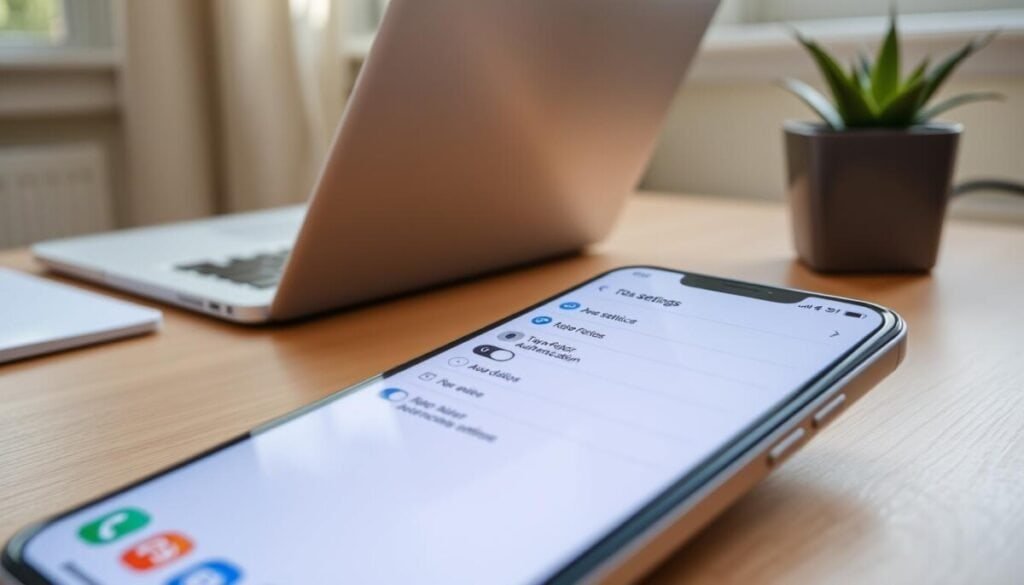
Start by checking the message and storage settings on your phone to rule out basic delivery problems. A full inbox or a misbehaving app can stop a verification code from appearing on your device.
Clearing Message Storage
If your message inbox is full, delete old threads or back them up. Clearing space frees the phone to accept new SMS from providers.
Tip: Remove large media attachments first to reclaim space fast.
Checking Messaging Apps
Ensure your messaging app is current. Outdated apps can block or delay messages.
Try switching to the default carrier app briefly to confirm delivery. If that works, update or reinstall the third-party app.
Disabling Unknown Sender Blocks
Some mobile device settings block texts from unknown senders or automated numbers. Turn off these filters while you test access.
Also verify your security settings on the page and, if needed, perform a quick reset of notification preferences.
| Setting | Action | Expected Result |
|---|---|---|
| Message storage | Delete old threads / clear cache | Inbox accepts new SMS quickly |
| Messaging app | Update or switch to default app | Reliable delivery to device |
| Unknown sender block | Disable filter temporarily | Automated messages reach phone |
This page provides a practical solution when your mobile device blocks verification messages. We monitor community posts and reply threads to surface model-specific issues and help you recover access in minimal time.
Addressing VOIP and Virtual Number Limitations
A standard mobile phone number gives the most reliable path to regain access. Virtual or VOIP lines are often blocked by security systems and cannot receive verification reliably.
If you use a VOIP phone number, expect a persistent issue where sign-ins fail or messages never arrive. These lines lack carrier-level routing that many services require for trust checks.
Replace any virtual number with a mobile number from a major provider. After you add the new phone number, the system will take a short time to verify and propagate the change across services.
- VOIP and virtual lines are frequently unsupported for verification delivery.
- A standard mobile phone number reduces delivery failures and login delays.
- Allow some time after updating contact info for verification to become active.
Actionable step: Update your account with a carrier-backed phone number and confirm receipt of a test message before you rely on it for urgent access.
Resolving Issues with Email Verification
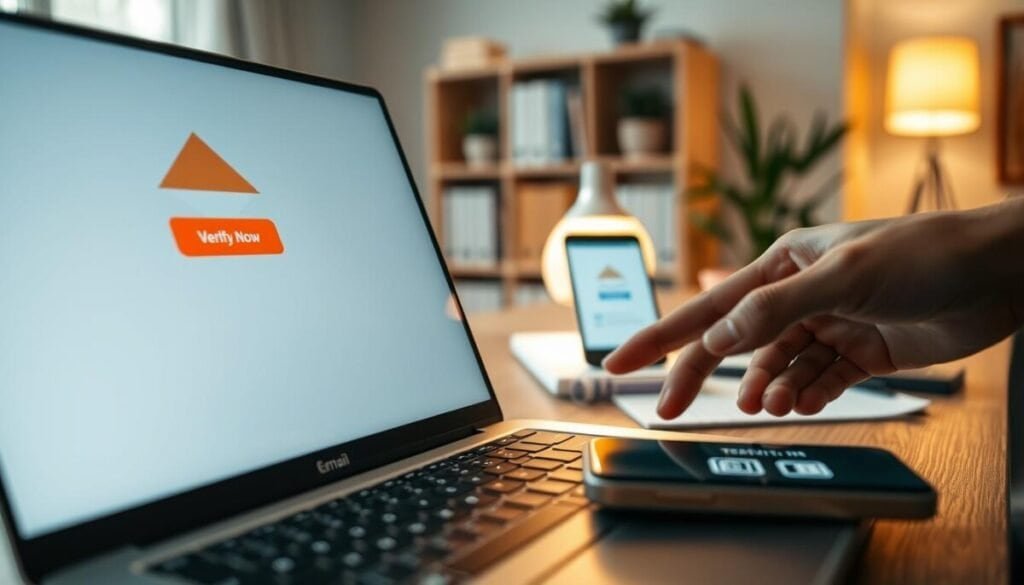
An email rule or filter can reroute legitimate verification messages before you see them. Check filters, rules, and the junk folder first. Valid verification messages arrive from @accountprotection.microsoft.com.
Checking Junk and Spam Folders
Start simple: open your spam and bulk folders. If a message from @accountprotection.microsoft.com sits there, move it to your inbox and mark it as trusted.
- For work or school accounts, ask IT to whitelist the sender so system filters do not block messages.
- Ensure your email app is set to sync automatically so emails arrive in real time.
- Allow a short period of time after a request; server load or routing can delay delivery by a few minutes.
This page gives clear steps to mark our address as trusted and prevent future filtering. We monitor community posts and reply threads to spot accounts that face repeat delays and update our support content when trends emerge.
Managing Two Factor Authentication Code Not Working Fix for Apple Devices
When automatic delivery stalls, your iPhone or Mac can produce a verification value locally. This gives a quick, secure path back into your account without waiting for SMS or email.
On older devices, you may need to type your password and then enter the six-digit codes immediately after it in the same password field.
To generate a code on modern Apple equipment, open Settings > Password & Security > Get Verification Code on your iPhone or visit System Preferences on a Mac. Use the generated number to complete sign-in.
- Update software: keep iOS and macOS current to avoid unusual prompts and timing problems.
- Trust this device: ensure your device settings allow it to act as a trusted computer or phone for recovery.
- Account Details Unavailable: follow the manual generation steps to retrieve a code offline and finish sign-in.
- Keep security info updated: add a reachable phone or email so recovery tools work when automatic delivery delays occur.
This page provides a clear solution for Apple cases where automatic delivery fails and offers a fast alternative to regain access.
Handling Account Lockouts and Security Blocks
If your account is flagged for unusual activity, automated delivery of verification messages can pause. That pause protects your data while systems verify the sign-in source.
Be prepared to wait: recovery procedures can take time. For example, Google may require 3–5 business days to confirm identity during a full recovery.
Follow the steps on this page to request a formal reset of your security credentials. When you answer a security question, double-check that your email address and recovery address are correct so instructions arrive without delay.
- Handling lockouts requires patience; security blocks aim to stop unauthorized access.
- If locked out, expect 3–5 business days in some recovery flows before the system confirms identity.
- Use the page tools to reset credentials and track the process for updates over time.
- Monitor your inbox for messages from the security team and provide accurate details when asked.
Pro tip: Keep a valid recovery email and a current password on file. Accurate information reduces the time it takes to restore account access.
Utilizing Backup Methods and Recovery Codes
Backup options protect your access when your primary phone or app cannot receive a verification message.
Prepare alternatives such as recovery codes, a hardware security key, or a passkey created on another device. These let you sign in without waiting for an SMS or email.
Using Trusted Devices
If you have a trusted computer or device, select the option to skip future prompts for that device. That reduces repeated interruptions during critical tasks.
Mark devices carefully. Only choose this on personal machines you control to keep security intact.
Generating New Backup Codes
Go to the 2-Step Verification section on your account to revoke lost codes and generate fresh ones. Store one printed set in a safe place.
If you need step-by-step help, see the recovery guide at Google account recovery and troubleshooting tips at verification troubleshooting.
| Method | Where to Create | Best Use |
|---|---|---|
| Recovery codes | Account security page | Lost phone or app outages |
| Hardware key | Buy from vendor / register in settings | Fast, offline access for high-risk cases |
| Passkey on another device | Device settings or account page | Quick sign-in when SMS delays occur |
Dealing with App Passwords and Legacy Software
Older apps often cannot use modern authentication flows, so they need a special app password to sign in.
If an email client or calendar app stops connecting after you enable extra protection, check your account settings for an app password option. Generate a unique password in your security settings and enter it in the legacy app instead of your normal password.
- Legacy apps that lack current protocols require an app password to access your account.
- Create one app password per application in your account security page and use it only where needed.
- Store generated passwords securely; they grant full access for that app until revoked.
- Review connected apps regularly and remove any you no longer use to limit exposure.
- App passwords supplement your main authentication method and do not replace primary security controls.
| Issue | Action | Result |
|---|---|---|
| Legacy email client | Generate app password in account settings | Client reconnects using the generated password |
| Multiple old apps | Create unique password per app; label clearly | Granular revocation and clearer tracking |
| Unused app access | Revoke app password and remove from account | Reduced security risk and fewer active credentials |
Pro tip: Keep your primary authentication methods current and confirm app passwords only when required. If a specific app fails after a password reset, revisit settings and recreate a dedicated app password.
Troubleshooting legacy app sign-ins
Final Steps to Restore Your Account Access
Final Steps to Restore Your Account Access
Finish your recovery by signing in with the most reliable method you identified in this guide. If that succeeds, update your password and confirm your recovery email and phone so future attempts go smoothly.
If you still face an issue, please try contacting common verification problems or consult our login attempts guide for next steps. Provide device details, the exact error, and the time you saw it.
This page is your final resource. Use the recommended solutions and, when you perform a reset, choose a strong, unique password to protect the account going forward.