Have you ever lost a sale because a customer heard nothing back?
Fast first contact changes how prospects see you. In the U.S., speed often wins. When a person sends a message, they expect an answer now, not later.
Setting up an efficient whatsapp business flow means every customer gets an instant nod that you care. The right automatic replies and simple automation keep your brand professional around the clock.
The guide that follows shows how the app and the whatsapp business api can scale your outreach. You will learn quick steps to turn quiet inboxes into active sales paths.
Key Takeaways
- Immediate messages build trust and cut missed opportunities.
- Simple automation keeps your team efficient and responsive.
- The app and api paths suit different volumes and needs.
- One clear auto reply can feel like a real greeting.
- This guide gives stepwise actions to get started fast.
Why Speed Matters in Modern Customer Communication
Minutes, not hours, now decide who wins a customer conversation.
The impact of response time shows up in sales. Research from Flowlu and Lift AI finds 35%–50% of sales go to the first responder. Recent 2024 data says 82% of consumers expect an answer within 10 minutes.
Slow replies cost leads. If you answer after 10 minutes instead of within five, your chance to qualify that lead drops by 400%.
The Impact of Response Time
Fast responses keep engagement high. Messaging channels have far higher open rates than email, so quick responses turn interest into action.
Customer Expectations
People expect chat speed, not a 24-hour lag. Businesses that delay responses often lose customers to faster competitors.
- High open rates make every message valuable.
- Manage expectations by stating when a human will follow up.
- Optimized auto reply settings help every customer feel seen.
| Metric | Fast Response | Delayed Response |
|---|---|---|
| Lead qualification | High (within 5 minutes) | Low (after 10+ minutes) |
| Customer engagement | Strong (98% open rate on chats) | Weak (typical email 20% open) |
| Sales probability | Up to 50% to first responder | Significantly reduced |
Understanding the WhatsApp Business Auto Reply Setup
Begin with a clear view of the built-in messages that greet and inform your contacts.
The platform offers two native automations: a greeting message and an away message. The greeting sends the first time a customer messages you or after 14 days of silence. This gives new customers an immediate, friendly note that you saw their message.
The away message tells customers when to expect a personal reply from your team. Use it to set hours, response windows, or next steps so customers feel informed and calm.
These tools are made for small companies and require no code or extra software. They differ from manual shortcuts and quick messages because they trigger automatically and keep conversations moving.
- Native messages help manage volume without heavy tech.
- The platform is ideal for starters; the whatsapp business api suits complex flows and scale.
- Every configured message becomes part of your wider service and automation strategy.
Understand the limits and strengths of the app features before you grow. That clarity helps you choose whether to stay on the app or move to the business api as customers increase.
Prerequisites for Configuring Your Business Account
Start with the right app and a complete profile to avoid wasted effort.
Confirm that you’re using the dedicated WhatsApp Business app, not a personal account. Install the latest version from the Google Play Store or Apple App Store before you try any professional tools.
A full profile is required. Add your address, clear description, and accurate hours. These details give context to every message and make automated responses feel trustworthy to customers.
- Double-check business hours so away messages trigger at the right times.
- Complete contact fields so every customer sees consistent info.
- If you plan to move to the WhatsApp Business API, first verify your presence via the standard app interface.
Many companies miss conversions because profile fields are blank. Take ten minutes now to finish your profile and confirm settings. That small step improves message credibility and lifts customer trust before you activate any auto reply.
Step by Step Guide to Activating Away Messages
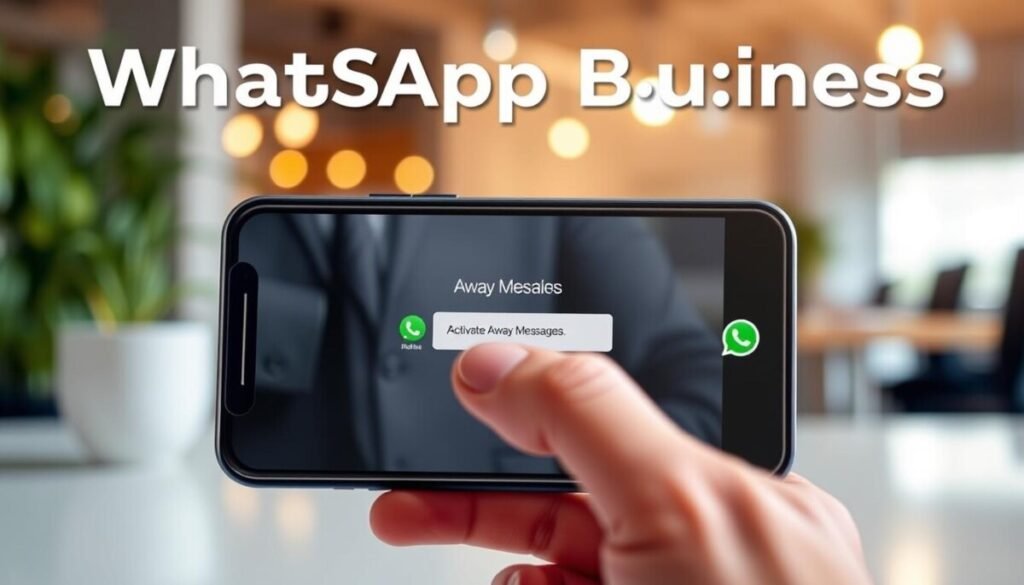
A clear away message keeps customers informed when your team is offline.
Open the whatsapp business app and go to Business Tools. Find the Away Message option and toggle it to “On.” This is the single action that activates automatic responses for selected times.
Configuring Schedules
Choose between “Always send,” “Custom schedule,” or “Outside business hours.” Use Custom schedule to target specific hours or days when your team cannot answer.
Set business hours accurately in your profile so the system knows when to trigger the outside business hours option. A correct schedule prevents mixed messages and keeps expectations clear.
Selecting Recipients
Decide who gets the away message. You can send to all contacts, to everyone except selected contacts, or only to certain customers.
Use templates for consistent tone and to include an estimated response time. Keep the message short and helpful so customers know when to expect a reply.
- Open the business app and navigate to Business Tools.
- Pick the schedule type that matches your team hours.
- Choose recipients carefully to avoid over-messaging regular clients.
- Use a clear template that states when a human will respond.
| Action | Why it matters | Example |
|---|---|---|
| Toggle Away Message On | Makes automatic replies active | Turn on in Business Tools |
| Set Schedule | Limits messages to true off-hours | Custom schedule: nights and weekends |
| Select Recipients | Targets the right contacts | Exclude VIP customers or include new inquiries |
When your away message is active, monitor responses and adjust templates and times. As you grow, consider moving to the whatsapp business api for richer automation and routing.
Setting Up Welcome Messages for New Customers
A friendly welcome message starts the conversation on the right foot.
The welcome message sends automatically the first time a customer messages you or after 14 days of silence. Use that moment to introduce your company and point the customer to quick options.
Craft warm, short templates in the whatsapp business app so new contacts feel seen. Keep instructions clear: how to order, where to find FAQs, or how to ask for help.
- Write friendly templates that guide the customer to next steps.
- Include a site or FAQ link to reduce wait time for common questions.
- Manage your contacts so only relevant users get the greeting message.
Used well, this simple form of automation raises engagement because customers know they were heard. It sets tone, answers common questions, and helps businesses move the conversation toward a sale without delay.
| Feature | Benefit | Tip |
|---|---|---|
| Welcome timing | First impression within seconds | Keep it brief and helpful |
| Templates | Consistent, warm tone | Include a link to FAQ or site |
| Contact rules | Only relevant customers receive messages | Segment contacts in the app |
Best Practices for Crafting Effective Auto Replies

A short, helpful message can turn a waiting moment into trust. Start by setting clear expectations so customers know when a human will follow up.
Personalizing Your Tone
Use the customer’s name when you can. A personal touch keeps the conversation human, even when you use automation.
Keep the tone consistent with your brand: friendly but professional. Tell customers who will respond and when the team is available.
Including Helpful Links
Always include an alternative path to answers. Link to FAQs, product pages, or a help center so customers can self-serve.
For examples and sample messages, add a contextual link like sample auto reply messages so readers can reuse proven templates.
Keeping Messages Concise
Aim for three to four short lines. State estimated response time and next steps. This respects the customer’s time and reduces follow-ups.
- Be specific about response time and hours.
- Use a custom schedule for outside business hours and weekends.
- Include one helpful link and a simple call to action.
Common Mistakes That Can Damage Your Brand Reputation
Small mistakes in your message templates can erode trust faster than you expect.
Leaving temporary messages on is a top error. Customers may get wrong opening hours or offers long after the promotion ends. That leads to confusion and lost sales.
Generic messages like “Thanks for your message” also hurt. They give no next step and make the customer feel ignored.
- Failing to update seasonal messages creates frustration during holidays.
- Forgetting to deactivate an away note after you return causes missed opportunities.
- Team members must know all active automation to avoid conflicting information.
- Poorly configured replies can become a dead end and drive customers to competitors.
| Issue | Impact | Fix |
|---|---|---|
| Outdated schedule message | Customers arrive at closed hours | Review seasonal messages weekly |
| Vague generic message | Low customer trust and engagement | Add clear next steps and ETA |
| Undeactivated temporary auto reply | Confusion and lost sales | Set expiration or audit reminders |
Always test responses and align them with your hours and service limits. For broader automation ideas and workflows, see a practical guide on email automation workflows.
Limitations of Native App Automation
The convenience of native messaging hides key restrictions that affect scale and service.
Simple tools work at first, but they stop fitting real workflows. The native app only lets you run one away message and one welcome message at the same time. That means you cannot tailor automatic replies by customer type or product line.
Quick replies are another common trap. They are manual shortcuts that still need a person to pick and send each message. That makes them different from true automation that routes and responds without human action.
The practical limits and when to move on
The platform cannot run complex conditional logic or handle product-specific inquiries automatically. A VIP customer and a new lead both get the same static message, so you lose personalization and speed.
- One away message at a time prevents tailored hours-based answers.
- Quick replies require human selection, not autonomous responses.
- Scaling often means upgrading to the whatsapp business api and AI agents.
| Limit | Impact | When to upgrade |
|---|---|---|
| Single away/welcome | No segmentation | Multiple customer types |
| Quick replies | Manual effort | High message volume |
| No conditional logic | Generic answers | Product-specific support |
Scaling Your Business with WhatsApp API and AI Agents
As message volume rises, you need systems that read intent and act, not just send canned text.
The WhatsApp Business API opens advanced automation and conversational flows. It lets you move from one static away message to intelligent AI agents that handle intent, not just acknowledge it.
AI agents can check order status, give product details, and process transactions in real time. That keeps customers moving through the funnel while your team focuses on complex cases.
Integrating your knowledge base ensures responses are accurate and consistent. Every handled conversation becomes an opportunity to provide clear, helpful content and keep the customer engaged.
- Provide 24/7 support that feels personal and accurate.
- Automate product consultations and inventory checks.
- Reduce response time and lift customer satisfaction.
Scaling with the business api and AI means higher volume without lower quality. Use routing rules so the team sees only the conversations that need a human touch.
| Capability | What it does | Business benefit |
|---|---|---|
| AI conversational flows | Understand intent and respond contextually | Faster, accurate responses to inquiries |
| Transaction handling | Check orders, process payments, confirm shipments | Reduce manual work and speed up conversions |
| Knowledge base integration | Deliver consistent, up-to-date content | Lower escalations and increase first-contact resolution |
Conclusion
Close the loop by turning templates and schedules into a reliable habit. Configure the basic whatsapp business app tools and you will free up time while keeping customers informed.
Start with a clear away message and a short welcome note. Keep your business hours, schedule, and templates accurate so messages land as expected.
When volume grows, move to the whatsapp business api or a larger platform for advanced automation and routing. Test settings, watch response times, and adjust contacts and times so every user gets fast, helpful answers.
Small changes today create steady gains in trust and efficiency.



