
One in four virtual sessions loses audience attention within five minutes. Act now to prevent that outcome. This article delivers precise steps to deploy the focus mode feature and restore control. Employing professional zoom background techniques can create an inviting atmosphere that captivates your audience from the start. By selecting appropriate lighting and minimizing distractions, you can enhance engagement and maintain viewer interest throughout your session. Additionally, incorporating branded elements within your background can strengthen your professional image and reinforce your message.
Enable the tool and the host will mute competing video feeds. The host controls the screen and the visible content for all participants. The presenter retains a single live video view; other participant windows hide.
Confirm activation via the interface note at the top. Look for the designated icon that verifies the setting. Adjust account-level permissions to restrict who can share video and disrupt the presentation.
Key Takeaways
- Activate the feature to limit distractions for all participants.
- Assign host controls to manage screen and video visibility.
- Check the top interface note and icon to confirm activation.
- Set account permissions to prevent unauthorized participant video.
- Use the settings to curate content and maintain presentation flow.
Understanding the Benefits of Zoom Focus Mode
The host can limit visible streams so only the presenter and shared content appear to attendees.
Reduce visual distraction. Restrict the participants view so students and staff see only the host and the shared window. Names and other video tiles hide—reducing cognitive load during high-stakes meetings.
Improve content retention. Limiting video feeds keeps attention on slides, demos, and spoken instruction. The account administrator can enforce this across meetings to maintain a professional environment.
Ensure cross-browser consistency. The system architecture supports Chrome, Firefox, Edge (Chromium), and Safari 12.0+. Mobile browsers on iOS and Android receive equivalent behavior when running current releases.
- Host controls restrict participant video and names.
- Participants view remains uniform across supported browsers.
- Use this feature to preserve presentation flow and learning outcomes.
How to Start and Stop Zoom Focus Mode
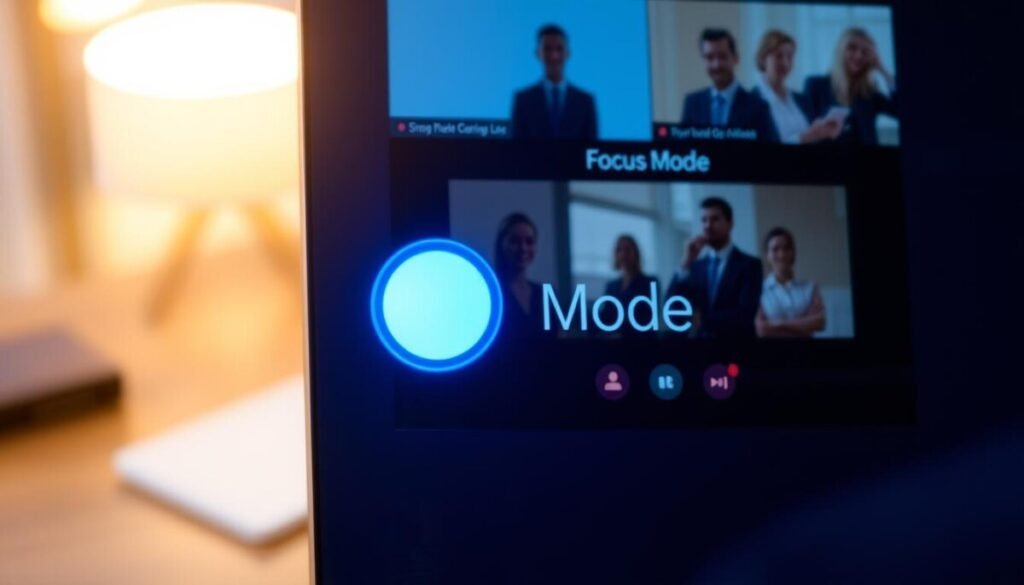
Begin by opening meeting controls and locating the toolbar toggle to activate the presenter-only view.
Enabling the Feature
Navigate to settings in the meeting toolbar. Click the focus mode toggle to enable presenter view.
The host sees a notified banner along the top confirming activation. Participants receive a participants notified banner with the same note.
Browser Compatibility Requirements
- Chrome, Firefox, Edge (Chromium): latest version or two prior releases for the web interface.
- Safari 12.0+ and current iOS/Android browsers support presenter controls and options.
- Host can click focus to stop focus mode; this removes the banner and restores standard video tiles.
| Action | Control | Supported Web |
|---|---|---|
| Start focus mode | Focus mode toggle — toolbar icon | Chrome, Firefox, Edge |
| Stop focus mode | Click focus in meeting controls | Safari 12.0+, mobile web |
| Notification | Participants notified banner along top | All supported web clients |
Managing Participants and Co-hosts During Your Presentation

Assign a trusted co-host before the session to share administrative duties and keep the presentation uninterrupted.
Grant co-host permissions from the participants panel. Use the participants icon to select a user and enable co-host rights. Co-hosts gain access to attendee controls and can perform essential tasks without interrupting the presenter.
Granting Permissions to Co-hosts
Authorize co-hosts to manage nonverbal feedback and monitor names. This preserves the presenter view and keeps content central.
Hosts and co-hosts can still hear unmuted participants. Allow verbal interaction for Q&A while others remain muted. Co-hosts handle hand-raises, polls, and chat moderation.
- Assign co-hosts to handle participant entry and tasks.
- Use the participants panel icon to set permissions quickly.
- Co-hosts monitor nonverbal feedback—thumbs up, hand raise, and reactions.
Delegate participant management so content remains primary. For full hosting best practices consult the hosting meeting guide.
Optimizing Your Meeting Environment for Better Engagement
Confirm account settings before the session. Ensure the focus mode feature is enabled at the account level so presenter permissions apply automatically.
Display the top banner and icon on the screen as a clear note to attendees. This reminder reduces interruptions and signals that only the presenter view will display to others.
Keep the participants view clean. Hide names that distract students. Adjust permissions so the host can manage entries and mute lines without changing the presentation flow.
Monitor the meeting status continuously. Check the account settings periodically. Use the same configuration across meetings to maintain a professional, distraction-free environment for every participant.


