Can one keystroke change the outcome of a meeting? Implement a systematic approach to meeting control. Learn the exact command sequences that reduce mouse dependency and speed navigation through participants, chat, and audio settings.
Validate browser compatibility first—Chrome, Edge Chromium, and Firefox recent releases; Safari 12.0+ for browser access. Update mobile clients on iOS and Android to ensure stable video and screen commands.
Master the shift and ctrl modifiers. Use the tab and option flows to switch focus across the toolbar, window, gallery, and participant panels. Combine command sequences to start recording, mute audio, or open chat without leaving the screen.
Key Takeaways
- Verify browser and mobile versions before using advanced meeting control features.
- Learn modifier keys—shift and ctrl—to combine commands reliably.
- Use tab and window management to keep focus on the screen.
- Reduce mouse use to speed task flows—manage participants, gallery, and audio via keys.
- Practice common sequences for recording, chat, and toolbar access to build muscle memory.
Understanding the Power of Zoom Keyboard Shortcuts
Treat hotkeys as precision tools that convert multi-step clicks into single commands. Apply them to mute audio, toggle video, open chat, or start recording with one keystroke.
Differentiate global hotkeys from app-local commands. Global hotkeys act system-wide—control functions even when the meeting window lacks focus. Local commands require active window focus to run. Configure both in settings.
Use the spacebar for push-to-talk to prevent background noise. Combine shift and ctrl modifiers to switch views—gallery to speaker—without interrupting flow. Practice these like use patterns to build muscle memory.
- Assign repeatable commands for participants and audio control.
- Map an option key to move focus between screen, chat, and toolbar.
- Document sequences for quick reference—reduce errors in high-stakes meeting scenarios.
How to Access and Customize Your Hotkeys
Access the settings menu to view every assignable command and customize entries.
Open the settings icon. Select the keyboard tab to list available commands. Scan entries for functions used in a meeting—mute, video, chat, and recording.
Global versus Local Hotkeys
Global hotkeys remain active even when the app loses focus. Use them during presentations to maintain control while other windows display content.
Local bindings act only when the meeting window is active. Reserve local commands for actions that require direct window control—gallery, participants, and screen layouts.
Managing Shortcut Conflicts
The system flags duplicate assignments. Identify conflict lines that use the same shift or ctrl modifier.
- Select the option next to a command to change its mapping.
- Input the new key sequence—test in a dry run to confirm behavior.
- Document final mappings to avoid overlap with system-level controls.
Maintain a minimal set of global commands. Keep local commands for window-specific control. This reduces errors and keeps every next shortcut functioning predictably.
Essential Zoom Keyboard Shortcuts for Meetings
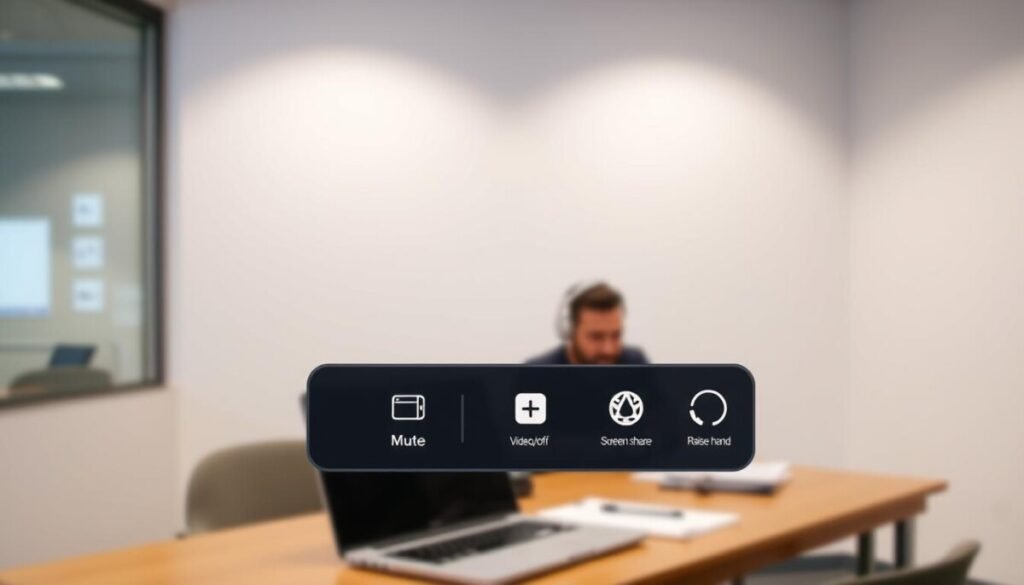
Implement specific commands to manage audio, video, and recording from the meeting control toolbar.
Use direct commands when the control toolbar has focus. For Windows, press Alt + Shift + S to start or stop screen sharing. Press Alt + P to pause or resume recording immediately.
Mute controls use concise sequences. Alt + M mutes all participants except host. Alt + A mutes the active speaker’s microphone.
Switch view and manage live layout with single commands. Alt + F1 switches to the active speaker. Use Ctrl + Alt + Shift + H to toggle floating meeting controls visibility.
Utilizing the Push to Talk Feature
Enable push-to-talk to grant temporary audio access. Hold the spacebar while speaking; release to return to mute. This prevents accidental noise during focused presentation segments.
- The meeting control toolbar provides immediate access to screen share and cloud recording via mapped commands.
- Windows users must ensure the control toolbar has active focus for Alt + Shift + S to work.
- Use Alt + P to pause resume of recordings—maintain documentation control without mouse navigation.
For troubleshooting meeting control or display issues, consult the troubleshooting guide.
Advanced Controls for Chat and Phone Features

Enable advanced chat and phone controls to reduce response time and centralize communication. Configure message navigation and call handling from the settings pane. Keep controls minimal to avoid command conflicts.
Navigating Team Chat
Use mapped sequences to jump between conversations. On windows systems press Ctrl + T to open a specific thread. Maintain focus on the active panel to prevent message loss.
- Assign a small set of global keyboard commands for reply, search, and mute notifications.
- Use tab to shift focus across the toolbar and message list.
- Toggle portrait landscape with Alt + L for optimized video during chat sessions.
Managing Inbound Calls
Accept or end calls with concise commands. Use Ctrl + Shift + A to accept. Use Ctrl + Shift + E to end. Test mappings in a dry run.
Cross Platform Integration
Enable Mio or similar bridges to message Teams contacts from the meeting client. Restrict file uploads and emoji use via admin policies for compliance. Log call events and recording actions for audits.
Mastering Your Workflow for Seamless Virtual Collaboration
Establish a daily practice of Alt–Shift combinations to harden muscle memory for meeting control. Apply a strong, systematic routine—repeat brief drills before critical sessions.
Integrate the meeting control toolbar commands into habitual flows. Map pause and resume recording to a single command. Configure cloud recording control for one-step stop and start.
Use the active speaker and gallery view to preserve visual focus. Employ concise keyboard mappings for chat and participant management without leaving the main interface.
Standardize mappings across devices. Test mappings in dry runs. Maintain a small set of reliable shortcuts to reduce errors and sustain control.