
65% of professionals report missed context during meetings due to unclear presence signals. This metric shows scale—control presence to prevent interruptions and missed business opportunities.
Open the app. Sign zoom into your zoom account. Navigate to settings and verify availability options.
Ensure platform compatibility — use Chrome, Firefox, or Edge Chromium up to two releases back. Use Safari 12.0+ on desktop. Use the latest iOS or Android browsers on mobile devices.
This article provides a concise, authoritative protocol. Admins and members must configure video, phone, and email settings. Configure messages and contact visibility to align with work rhythms.
Key Takeaways
- Sign zoom to your account to control availability across devices.
- Use desktop or web interfaces to access presence and settings quickly.
- Verify browser and mobile requirements for consistent performance.
- Admins must set organization options to standardize member behavior.
- Balance meetings and deep work by using clear presence controls.
Understanding Zoom Presence and Availability
Starting a collaborative session triggers automatic presence visibility across the account.
By default the platform displays availability to every contact in the account as soon as users start collaborating. This default behavior ensures colleagues see real-time availability without manual input.
Automatic updates occur during a meeting. The system shifts presence based on activity—microphone use, camera on, and screen sharing. Each participant can view this information to decide whether to join a call.
The zoom community provides troubleshooting guides and time-management resources. Consult those resources when optimizing meeting cadence and uninterrupted work windows.
- Default behavior — availability shows as available unless changed.
- Activity-driven — presence updates automatically during meetings.
- Visibility — every contact in the account can view current presence.
| Condition | Displayed | Action Required |
|---|---|---|
| Idle for set time | Auto-changed to idle | None — system default |
| In a meeting | In a meeting | Mute or set do-not-disturb for focus |
| Manual change | Custom availability | Adjust account settings |
How to Set Zoom Status Away Manually
Select the profile menu to change presence and define availability across devices.
Desktop Application Steps
Open the zoom desktop client and click the profile icon. Choose the availability option labeled for away or idle. Confirm the selection in settings to sync with chat and calls.
- Sign zoom into your account on desktop; open profile.
- Pick the manual availability entry to prevent interruptions during a meeting.
- Verify video, phone, and message options in settings.
Mobile App Procedures
Sign zoom into the zoom mobile app. Tap the profile entry and set the chosen availability flag. Changes push to contacts and web sessions.
- Use the zoom mobile app to update presence when stepping away.
- Ensure device sync—admins must confirm account policies for uniform updates.
| Platform | Action | Result |
|---|---|---|
| Desktop | Profile → Availability | Chat and calls show manual flag |
| Mobile | Profile → Set flag | Syncs to web and desktop |
| Web | Account settings → Presence | Prevents incoming calls during meetings |
Using Do Not Disturb Mode for Focus
Activate Do Not Disturb on the device to block interruptions during critical meetings.
Enable system-level Do Not Disturb to silence notifications and calls while keeping the app active. This preserves the meeting connection and prevents chat pings from breaking concentration.
Manage availability by setting a fixed time window. The system suppresses every incoming notification for that period. Toggle the setting before a high-priority session ends.
- Silence all alerts—preserve audio and video in the meeting.
- Keep the app open—maintain presence without manual replies.
- Restore normal notification flow immediately when focus time ends.
| Mode | Effect | Toggle |
|---|---|---|
| Do Not Disturb | Blocks notifications and calls | Manual or schedule |
| Focus window | Suppresses chat alerts | Set duration |
| Normal | All notifications allowed | Immediate |
For scheduled focus blocks and advanced workflow tips, consult the guide to schedule focus time.
Adjusting Notification Settings on Desktop and Mobile
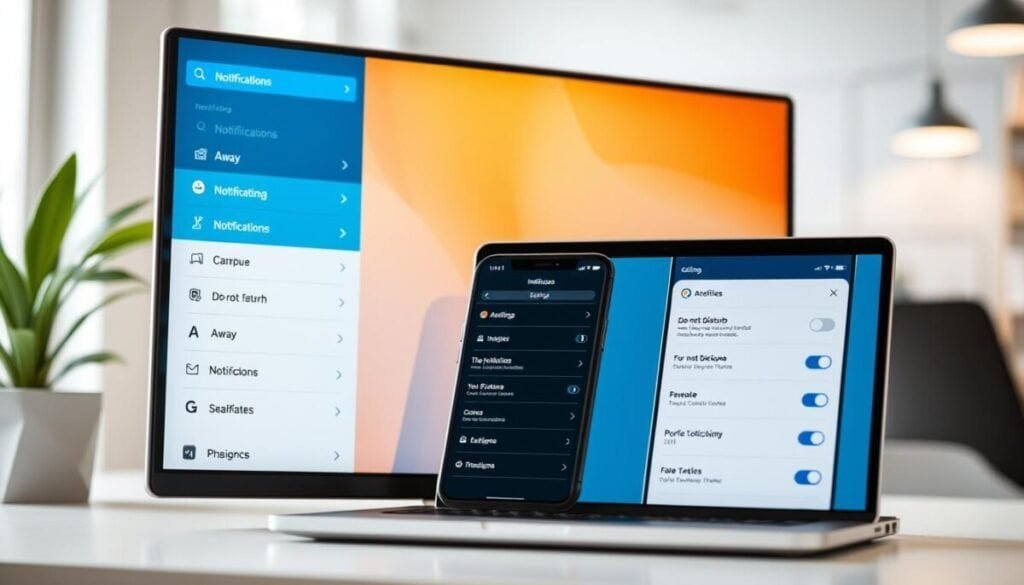
Set precise notification rules on desktop and mobile to prevent interruptions during critical tasks. Configure unified preferences to ensure every device enforces the same alert behavior.
Configuring Desktop Notifications
Open the desktop client and navigate to settings → notifications. Select which meeting alerts appear as banners, sounds, or silent entries.
Disable redundant chat pop-ups. Keep call alerts enabled only when required. Change the default behavior to reduce context switching.
Mobile Device Settings
Open the mobile app and review notification options under settings. Sync push rules so messages and meeting alerts match desktop preferences.
Limit background refresh and mute less critical categories. Verify contact-level overrides for high-priority contacts.
Silencing Incoming Calls
Use the account call controls to silence incoming calls on the phone client. Enable Do Not Disturb or schedule quiet windows for focused work.
Admins must document recommended settings. Standardize procedures so presence and call handling remain consistent across the team.
| Platform | Action | Result |
|---|---|---|
| Desktop | Notifications → Customize | Fewer banners; prioritized meeting alerts |
| Mobile | App → Push settings | Synced rules; reduced interruptions |
| Web | Account → Notification sync | Unified behavior across devices |
Managing Your Zoom Status Away and Other Options
Authenticate the user session and verify availability options in account settings.
Sign zoom into the account before any scheduled meeting. Confirm presence and notification rules across desktop and mobile app.
When users start collaborating with the zoom community, use the presence options to signal availability to every contact. Review video, phone, and chat settings regularly. to enhance the overall experience, make sure to set up waiting room features in zoom. This way, participants can be properly managed before joining the meeting, ensuring a smoother process. Additionally, consider customizing the waiting room message to provide attendees with important information or updates while they wait.
Note: Admins and users must audit notification and call controls to minimize interruptions during focused work time. Implement synchronized settings on desktop and web to enforce uniform behavior.
- Sign zoom into the account and confirm sync across devices.
- Use presence flags to control calls and chat during meeting time.
- Have admins document recommended settings and rollout schedules.
| Action | Where | Effect |
|---|---|---|
| Sign in and verify options | Desktop / Mobile | Consistent availability across devices |
| Adjust notification and call rules | Account → Settings | Fewer interruptions; clearer presence |
| Use presence flags when collaborating | Profile menu / Mobile app | Signals availability to every contact |
For a deep dive on preventing automatic changes, consult guidance to prevent your status from switching. For tool selection and integration advice, review the online meeting tools overview.
Addressing Privacy Concerns While Online
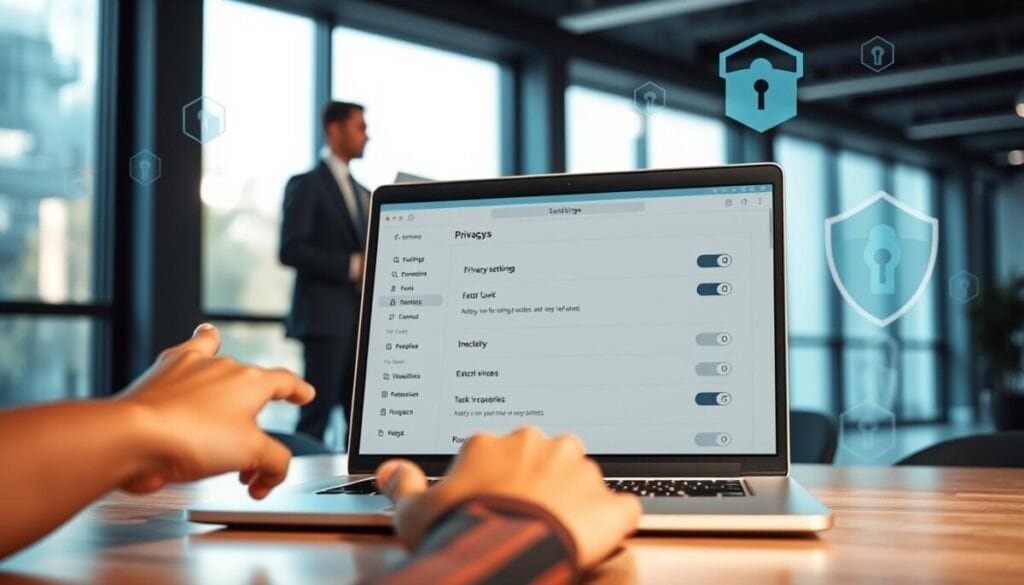
Review account visibility controls to prevent unauthorized access to personal identifiers. Audit profile fields and contact lists. Limit exposure of email and other sensitive information.
Protect personal information by tightening permission scopes. Restrict who can see presence indicators and manual status flags. Confirm that external contacts cannot view internal data.
Protecting Personal Information
Perform a settings sweep after every update. Disable public profile fields that are unnecessary. Remove or mask email addresses from public contact pages.
- Review notification and privacy settings in the account dashboard.
- Restrict chat visibility to approved contacts only.
- Keep a private status when not accepting external messages.
| Item | Action | Recommendation |
|---|---|---|
| Profile fields | Audit | Remove visible email and phone |
| Presence | Limit audience | Set to contacts-only |
| Account access | Verify | Use MFA and periodic reviews |
Maintain this practice. Privacy across articles must remain a priority. Protect the zoom account and control who sees status and contact details.
Limitations of Current Status Features
Platform controls restrict selective visibility for many users.
The current feature set prevents hiding presence from a single contact in most account configurations.
Manual changes to a status do not guarantee concealment. Presence signals may still propagate to synced devices. This behavior affects call routing and chat visibility.
True offline mode is not available for every account type. Administrators cannot enable an account-wide offline state for all users. The limitation reduces control during high-sensitivity work windows.
Recognize these constraints. They are a known factor for anyone managing online visibility.
- Per-contact concealment — not supported in standard tiers.
- Manual flagging — may not hide presence across sessions.
- Offline mode — limited or absent depending on account plan.
| Limitation | Effect | Recommended action |
|---|---|---|
| Per-contact hide | Contact still sees presence updates | Use contact-level rules where available |
| No universal offline | Users remain reachable on linked devices | Schedule Do Not Disturb or enforce policy |
| Manual changes not absolute | Inconsistent visibility across clients | Audit client sync and update schedules |
Anticipate platform updates. Future releases may improve control over presence and per-contact visibility.
Mastering Your Availability for Better Productivity
Master availability to reduce interruptions and reclaim time for high-value business tasks.
Standardize settings across desktop and mobile app. Configure notifications and chat rules on the zoom desktop, zoom web, and the zoom mobile app to match work windows.
Require every admin and member to view status, video, phone, and email options in the account. Audit device and call controls before scheduled meeting blocks.
This article and related articles provide actionable steps to control presence, manage messages, and start collaborating without constant disruption. Implement these controls to improve team productivity and protect focused time.



