
Fact: More than 70% of remote meetings report lower engagement due to inconsistent visual setups—this gap undermines credibility and clarity.
Implement technical standards for high-quality video output. Specify resolution, lighting, and codec settings—enforce consistency across teams.
Configure the virtual backgrounds zoom feature to replace the physical environment with high-resolution assets. Test chroma-key and software-driven segmentation before live sessions.
Establish a unified strategy using the official backgrounds zoom library. Define brand-safe images, color palettes, and placement rules—document the process.
Follow a systematic deployment plan. Validate performance on corporate devices. Monitor bandwidth, CPU load, and frame rate to maintain a polished zoom virtual appearance that aligns with standards.
Key Takeaways
- Adopt technical specs—resolution, lighting, and codecs—for reliable video output.
- Use approved assets from the official backgrounds library to protect brand identity.
- Validate chroma-key and AI segmentation in pre-meeting tests.
- Enforce device and bandwidth checks to prevent quality degradation.
- Document configuration steps for consistent enterprise rollout.
Understanding the Importance of Professional Backgrounds
Mandate coherent visual assets to ensure every meeting projects the same brand identity. Use a virtual background that reduces visual noise and enforces uniformity across teams.
Prioritize composition and color choices. Select palettes that contrast with skin tones. Test placement to avoid clipping. Preserve speaker focus in the frame—do not let the room distract participants.
Implement a high-quality virtual background to minimize cognitive load. Clear visuals improve retention in video sessions. Maintain a consistent aesthetic across all meetings to signal authority and technical competence.
- Focus control—keep attention on the speaker, not the environment.
- Brand consistency—use approved assets and repeatable placement rules.
- Visual clarity—remove clutter from the physical room before capture.
Technical Requirements for Zoom Virtual Backgrounds
Validate web client versions and device capacity to prevent processing lag during live sessions.
Browser Compatibility
Use supported web browsers—Chrome, Firefox, and Microsoft Edge Chromium. Each must be the latest release or within two prior releases.
Safari requires version 12.0 or higher for macOS clients. Web-based sessions rely on current browser APIs to process live video and segmentation.
Hardware Specifications
Require a modern CPU and at least 8 GB RAM for standard meetings. Increase specs for multi-stream video or high-resolution assets when working from a home office.
Ensure screen resolution conforms to company standards. Download the latest client to unlock full feature sets and driver compatibility.
| Component | Minimum | Recommended |
|---|---|---|
| Browser | Chrome/Firefox/Edge — latest or two prior | Latest release |
| macOS Browser | Safari 12.0+ | Safari latest |
| System RAM | 8 GB | 16 GB |
| CPU | Dual-core modern processor | Quad-core or better |
Maintain updated video drivers and client version to avoid common errors. Test the virtual background on web and native clients before presenting.
How to Set Up Zoom Virtual Backgrounds on Desktop
Open the desktop client and access Settings to configure the meeting display quickly.
Navigate to the Settings menu in the desktop app. Select the Background & Filters or imagery panel to begin. Use the Add Image control to download and store brand assets on the local machine.
Choose a single image file that matches the approved brand palette. The desktop app shows a live view of the composition. Verify the screen area for clipping, edge artifacts, and subject contrast.
- Select the correct image file to enable the zoom virtual display — the file replaces the physical environment in the video stream.
- Test the configuration before the meeting start — confirm CPU load and frame rate remain within limits.
- Manage the settings centrally when possible — enforce the selected background for consistent meeting starts.
Configuring Backgrounds for Mobile Devices
Require the latest app version on iOS and Android before permitting remote meeting visuals. Verify Safari/Chrome on iOS and Firefox/Chrome on Android meet the current release requirements.
Update first—test second. Open the mobile settings menu in the app. Confirm the client shows the installed version.
App Version Requirements
Install the current release to enable the virtual background feature and improved segmentation. Older software often lacks processing optimizations needed for a clean view.
- Ensure the app is updated to access the zoom virtual rendering pipeline.
- Select a background from the mobile menu to preview the composition on the screen.
- Use a stable network to prevent image dropouts for the entire meeting.
Selecting the Right Image for Your Brand
Choose images that align with corporate color systems and legibility metrics for clear on-screen branding.
Select a professional virtual background that reflects brand color values and composition rules. Prioritize contrast with skin tones. Avoid high-frequency patterns that confuse segmentation.
Require high-resolution images. Download only lossless or high-quality JPG/PNG files. Verify pixel density to avoid blur on large displays.
- Maintain a curated library of approved backgrounds—organize by campaign and use case.
- Choose a single focal plane in each picture to reduce visual noise during a meeting.
- Enforce a consistent style guide—composition, color palette, and logo placement.
| Attribute | Recommended | Rationale |
|---|---|---|
| Resolution | 1920×1080 or higher | Preserves clarity on standard displays |
| File Type | PNG/JPG high quality | Fast processing; minimal artifacts |
| Texture | Low complexity | Reduces segmentation errors for zoom virtual render |
| Use Case | Brand, Presentation, Webinar | Matches visual narrative and meeting intent |
Optimizing Your Lighting for Better Results
Optimize on-camera illumination to enable consistent subject separation and reduce rendering artifacts. Configure light to prioritize subject contrast. Keep settings repeatable across devices.
Natural Light Positioning
Place primary natural light in front of the subject. Avoid backlight that causes silhouette or edge noise.
For a home setup, face a window or use a translucent diffuser to soften direct sun. This preserves skin tones and aids segmentation for the zoom virtual replacement.
- Maintain even frontal illumination—reduces clipping and improves video processing.
- Use curtains or diffusers to control intensity and color cast.
Avoiding Glare
Eliminate direct light sources that create specular highlights on glasses or shiny surfaces. Glare confuses the algorithm and breaks the image plane.
Introduce soft filters or bounce lights to reduce hotspots. Test adjustments at camera frame rate to confirm stable output.
- Remove strong backlighting—prevents subjects from blending into the background.
- Use neutral white balance to avoid color shifts during the call.
| Option | Control | Cost | Best Use |
|---|---|---|---|
| Natural Light + Diffuser | Medium | Low | Daytime home video calls |
| Softbox / Panel | High | Medium | Professional meetings; consistent results |
| Ring Light | Medium | Low | Close-up presentations; reduce facial shadows |
Using a Green Screen for Superior Quality
Deploy a green screen as the core hardware element for professional-grade video compositing.
A physical green screen provides the most reliable chroma field for software replacement. It creates a uniform color plane that simplifies pixel mapping and stabilizes the segmentation mask.
Benefits:
- Precise edge detection—preserve subject silhouette during movement.
- Consistent color key—reduce spill and false positives in the segmentation map.
- Lower CPU load—offload complex scene analysis and improve frame rate for zoom virtual rendering.
Lighting must be even across the surface. Use soft, diffused sources to avoid hotspots. Verify color consistency with a camera preview before the meeting.
For professional presentations, integrate the screen into the capture setup. Mount the fabric or painted surface so it is wrinkle-free and fully fills the rear plane. Confirm the chosen virtual background aligns to the keyed area.
| Setup Type | Key Advantage | Typical Cost |
|---|---|---|
| No screen | Fast setup; higher CPU use; less reliable edges | Free |
| DIY green screen | Good color field; moderate control; low cost | $30–$100 |
| Professional green screen | Optimal uniformity; best edge fidelity; lowest processing overhead | $150–$500 |
Recommended Aspect Ratio and Resolution Settings
Set image dimensions and ratio rules to eliminate scaling artifacts across devices.
Maintain a 16:9 aspect ratio for all background images. This ratio maps directly to standard HD and widescreen displays. Use 1920×1080 pixels as the primary resolution for professional use.
Verify each file before upload. Confirm pixel dimensions and file integrity. Check for compression artifacts and color shifts.
Ensure the image fills the frame without letterboxing or stretching. Crop to the 16:9 aspect where necessary. Export at high quality to preserve detail.
- Use 1920×1080 for standard meetings — preserves clarity and reduces scaling.
- Use higher resolutions for large displays — maintain the same ratio to avoid distortion.
- Validate files on target devices and browsers before live sessions.
| Setting | Recommended | Why it matters |
|---|---|---|
| Aspect ratio | 16:9 | Prevents stretching and black bars |
| Resolution | 1920×1080 (minimum) | Maintains sharpness on HD displays |
| File format | High-quality PNG/JPG | Balance of fidelity and performance |
For upload errors or stuck progress, consult the troubleshooting guide via this helpful link: fix upload issues.
Exploring the Official Zoom Background Library
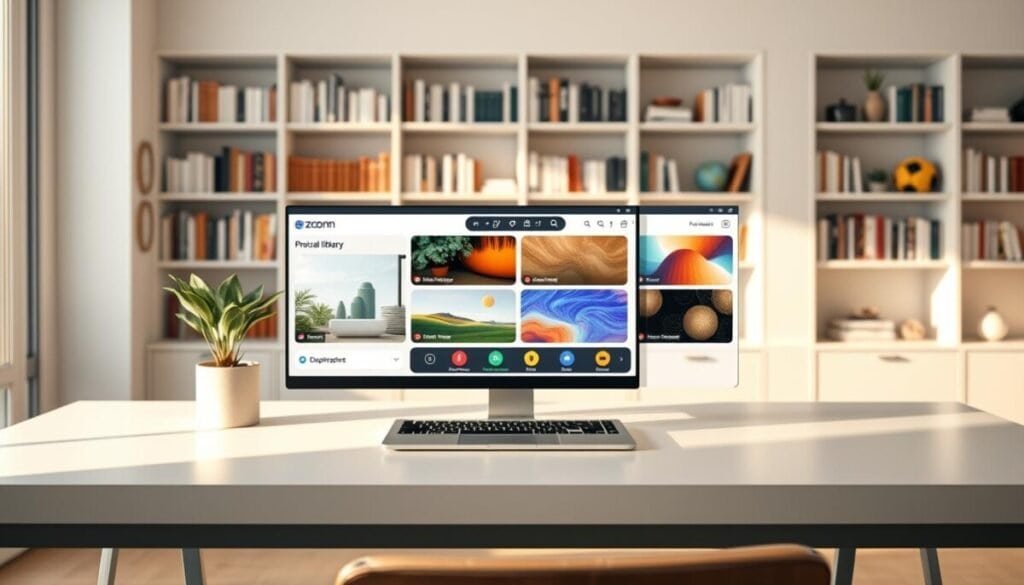
Open the official library to review curated professional images and standardized styles.
Scan the collection. Identify the Serene Grey Minimalist Haven by BEHR Paint. Note the Sunlit Loft with Exposed Brick from West Elm. Flag campaign-appropriate assets.
Evaluate image quality. Prioritize files that meet 1920×1080 minimum. Confirm color balance and low texture complexity. Verify edge contrast to reduce segmentation errors during a meeting.
Download selected files for local testing. Include the Miami Sunset Sailing Paradise from University of Miami. Include the Profiler’s Home Office from Criminal Minds: Evolution.
Use the library to standardize style across teams. Add Elegant Textured Minimalism by Ellen Degeneres for formal uses. Add Tropical Paradise Retreat by Smithsonian Channel for lighter contexts.
- Access the library for approved images—reduce approval cycles.
- Download and test each image—confirm frame fill and skin-tone contrast.
- Rotate selections regularly—maintain fresh meeting visuals and consistent brand style.
Customizing Your Meeting Room Environment
Centralize room appearance settings in the account console to ensure consistent color application across devices. Define a single style guide—colors, logos, and allowed imagery—to reduce variability across sessions.
Configure account-level controls before publishing any public-facing session. Lock logo placement and set primary and secondary colors to match brand tokens. Limit image complexity to protect rendering fidelity.
Managing Background Settings in Your Account
Enforce room templates. Create templates for internal meetings, client calls, and webinars. Assign templates by user group to maintain standards and streamline rollout.
- Integrate company colors and logo assets via the account dashboard—use tools like Livestorm for seamless application.
- Apply subtle filters to preserve subject contrast—ensure the speaker remains the focal point.
- Preview the room on representative devices—confirm participant view, frame fill, and performance.
Document the chosen settings and automate deployment. For technical reference on client-side options consult the zoom virtual background guide. Additionally, customizing the zoom waiting room can enhance the user experience by allowing personalization that reflects your brand. It’s important to consider the elements you want to showcase, such as logos or themed backgrounds, to maintain consistency in your branding. By tailoring the waiting room, you can make a strong first impression on participants before the meeting begins.
Managing Background Settings in Your Account
Centralize profile controls to enforce consistent visual identity for every meeting and device.
Access the account console to set defaults for user profiles. Apply a company-approved virtual backgrounds library to each account. Lock values where policy requires uniformity.
Use the app-level controls to enable or disable the background feature per group. Configure who can upload new images. Restrict file types and resolution to prevent scaling errors.
- Update each profile regularly—sync approved images to the account repository.
- Verify settings on both desktop and mobile app instances—confirm propagation.
- Audit account activity—record changes to maintain visual compliance for every meeting.
Treat the account settings menu as the primary interface for managing the zoom virtual policy. Enforce naming conventions, set role-based permissions, and document the configuration for IT and compliance teams.
Troubleshooting Common Display Issues

Begin with reproducible diagnostics. Identify whether the failure stems from an image file, client app, or device screen.
Image File Formats
Validate file type first. Use PNG or JPEG for compatibility. Avoid uncommon or animated picture formats.
Check file integrity—open the image in a native viewer. Corruption will show artifacts or fail to load.
Aspect Ratio Errors
Confirm the picture matches 16:9. Cropped or mismatched aspect ratio causes stretching on the meeting screen.
If the background appears distorted, re-export the file at 1920×1080 and then reapply it.
Color Distortion
Adjust lighting before changing settings. Uneven illumination produces false color and spill on the subject.
Disable conflicting video filters in the app. Update the client to remove rendering glitches.
- Ensure image format is JPEG/PNG to prevent display errors.
- Re-export to correct aspect ratio if the picture stretches.
- For rendering failures, verify screen resolution and test for file corruption.
For unresolved errors consult the community guide on virtual background not rendering: virtual background not rendering.
Best Practices for Remote Work Presentations
Define a repeatable checklist that prepares every presenter and room for a professional remote session.
Enforce pre-meeting checks. Verify lighting, camera framing, and audio. Confirm the selected virtual backgrounds zoom asset matches brand rules. Run a quick preview five minutes before the start.
Organize the physical room. Remove clutter. Position the camera at eye level. Use neutral color surfaces to limit segmentation errors.
Elevating Your Virtual Presence
Follow concise operational steps to start a polished webinar or meeting.
- Apply the approved virtual backgrounds per account policy.
- Test image resolution and aspect ratio on the target device.
- Rehearse the first two minutes of the presentation to confirm visibility and flow.
| Action | Who | Metric |
|---|---|---|
| Preflight checklist | Presenter | Complete 5 min prior |
| Room tidy | Presenter | No visible clutter |
| Asset validation | IT/Brand | 1920×1080 confirmed |
Elevating Your Virtual Presence
Start each call with a calibrated video setup that prioritizes clarity and speaker prominence. Begin with device checks and the approved virtual background to ensure consistent frame fill.
Apply the documented steps to configure a reliable virtual background and account-level settings. Use the approved background zoom asset when brand alignment is required.
Keep the speaker in focus. Maintain even lighting, correct aspect ratio, and a distraction-free view so participants see a polished presentation from the moment the meeting starts.
Result: predictable, professional video that strengthens credibility and improves participant engagement.



