
65% of professionals say phone interruptions cut a task short within five minutes. Control of notifications equals measurable gains in focus and output.
Implement a system. Access the Quick settings by swiping down with two fingers. Open the settings menu and locate the DND or disturb mode feature.
Configure exceptions for calls, messages, and app notification types. Set favorite contacts to allow calls through. Filter alarms and media sounds to preserve critical alerts.
Schedule times for sleep and focused sessions. Use the quick settings icon to toggle the status bar and enable or disable schedules quickly. In addition to managing your time effectively, you can schedule quiet hours in Microsoft Teams to avoid interruptions during critical periods. This ensures that your colleagues are aware of your unavailability and helps maintain productivity. Setting these hours not only enhances your focus but also promotes a healthier work-life balance.
Follow a stepwise method—navigate the system menu, set options, verify notification rules, and confirm device status. For a full procedural guide and example schedules, consult the step-by-step tutorial at how to schedule text notifications.
Key Takeaways
- Enable disturb mode via system settings and quick settings panel.
- Set exceptions for calls, messages, and app notification types.
- Schedule times to block screen distractions and allow alarms.
- Assign favorite contacts to ensure critical calls pass through.
- Use the quick settings icon for rapid toggling of status and schedules.
Understanding the Power of Do Not Disturb
Set granular rules so only critical alerts reach the screen during focused hours.
Establish control. Use the system settings to define which calls and app alerts can break silence. The dnd feature functions as a smart gatekeeper—allowing priority contacts while blocking social pings and system chimes.
Configure exceptions for key contacts and essential alerts. Apply time-based limits. Preserve alarms and urgent messages while muting trivial notifications. This approach keeps the phone available for vital communications and removes low-value interruptions.
- Granular filtering: specify apps and contacts.
- Priority levels: permit urgent calls only.
- Focus retention: reduce noisy notifications.
| Mode | What it mutes | What it allows |
|---|---|---|
| Silent | All sounds | None |
| Priority | Most app alerts | Favored calls, alarms |
| Do Not Disturb | Social media pings, banners | Specified contacts, system alarms |
For troubleshooting and advanced behavior, consult this guide on message notification issues: fixing Messenger notification issues.
How to Enable Android Do Not Disturb Work Settings

Enable focused silence quickly. Swipe down from the top screen to open the quick settings panel. Locate the dnd icon and tap to enable disturb mode. This action mutes most notifications and keeps the screen clear during tasks.
Quick Settings Access
Swipe once or twice from the top to expose the quick settings. Tap the dnd icon to toggle the mode. Use the icon for instant control—no menu navigation required.
Using the Settings Menu
Open the settings menu to refine options. Adjust vibration, alarms, and app notification rules. Define which calls and alerts can bypass the filter.
- To enable disturb mode, swipe down from the top screen and tap the dnd icon.
- Use settings to customize vibration, alarms, and app notification preferences.
- If the feature fails, restart devices to refresh the system—Asurion experts recommend this step.
Confirm behavior. Test with a sample notification. For troubleshooting steps on missed alerts, consult the guide on page notifications not appearing.
Configuring Custom Exceptions for Important Contacts
Allow selected contacts and apps to bypass silence for urgent communication.
Open the Allowed during dnd section in settings. Select specific contacts to permit calls and messages. Mark critical entries as favorite contacts to ensure priority routing to the phone.
Set exceptions for system items. Enable alarms, media, touch sounds, calendar events, and reminders so the device stays functional while silent mode is active.
- Calls and messages: permit chosen contacts to reach the device immediately.
- Apps and notifications: allow select apps to send notifications during focused periods.
- Alarms and sounds: keep alarms, media, and touch sounds active for essential alerts.
- Calendar and reminders: allow events and reminders to interrupt silence for scheduled items.
- Favorite contacts: assign to guarantee urgent communications bypass filters.
Verify options after changes. Test a sample call and message. For related troubleshooting, consult guidance on stories notifications not working.
Automating Your Focus with Scheduling Features
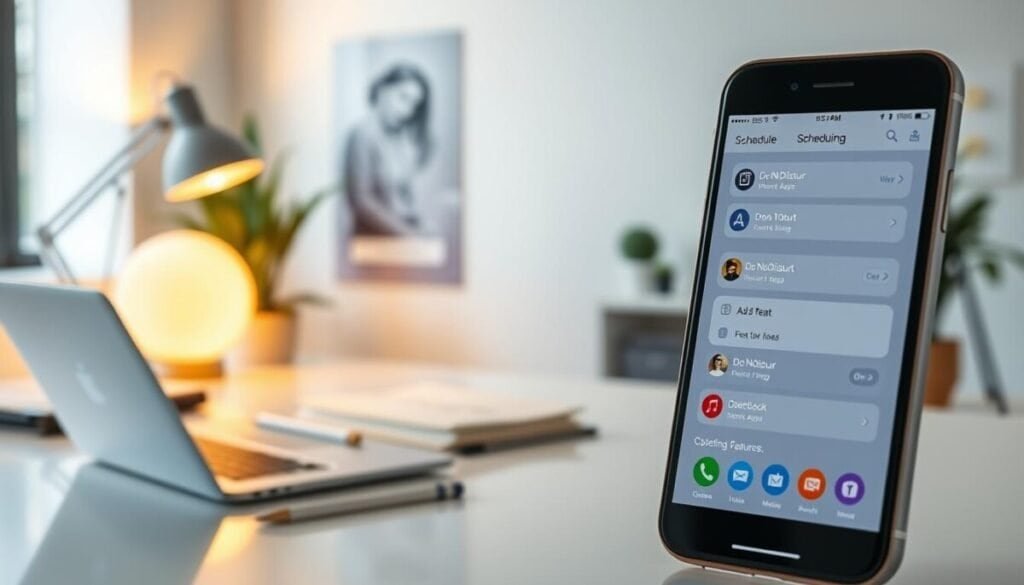
Define time-based triggers to enable focused silence for sleep and deep tasks.
Setting Time-Based Rules
Open settings and create a recurring schedule—example: 10 PM to 7 AM for sleep.
Set the system to disable dnd 15 minutes before an alarm. Test the rule with a mock alarm to confirm behavior.
Utilizing Location Triggers
Enable location-based activation to turn the mode on when arriving at a site.
Use geofences in the system menu to link a schedule to an office or study area. The phone will adjust notification rules automatically.
Creating Custom Modes
Create named modes—such as “Focus” or “Drive”—that change the status bar icon and notification options.
Include flip-to-silence as a hardware trigger. Place the phone face-down to activate silent behavior instantly.
Integrate calendar events. Link schedules to calendar entries so reminders and important messages still appear when needed.
| Automation Type | Triggers | Controlled items |
|---|---|---|
| Time-based schedule | Set hours (e.g., 10 PM–7 AM) | notifications, alarms, vibration |
| Location trigger | Geofence arrival/departure | calls, app alerts, status bar icon |
| Custom mode | Named profiles or flip-to-silence | screen icons, media sounds, reminders |
- Automate focus: use schedules to reduce interruptions.
- Link to calendar: ensure meetings toggle the correct status.
- Test rules: verify device behavior before relying on a schedule.
For an operational walkthrough on scheduling focus blocks in collaboration tools, consult the guide to schedule focus time.
Advanced Tips for Managing App Notifications
Minimize visual noise to protect focus. Hide nonessential visual elements. Apply precise rules to reduce banner, badge, and status clutter on the screen.
Implement selective hiding. Turn off app icon badges for low-value apps. Disable full-screen notifications and status bar icons for social and entertainment apps.
Preserve critical system alerts. The system continues to display phone and status updates related to safety and alarms.
- Hide app icon badges and status bar icons to maintain a clean screen environment.
- Disable pop-up notifications to prevent visual interruptions during focused sessions.
- Allow only essential system status updates to appear on the interface.
- Customize alert display per app to filter non-essential information.
- Combine rules with scheduled silence for maximal productivity.
| Visual Element | Effect When Hidden | Impact on Focus |
|---|---|---|
| App icon badge | Removes numeric badges on home and launcher | Reduces glance triggers and task switching |
| Full-screen alert | Prevents intrusive pop-ups during active tasks | Maintains uninterrupted activity and meeting flow |
| Status bar icon | Hides noncritical icons from top status area | Keeps visual field minimal; preserves attention |
For configuration steps, consult the notification settings guide.
Mastering Your Digital Environment for Better Productivity
Establish repeatable schedules and precise exceptions to protect concentration during key tasks.
Implement systematic rules. Apply a named mode and a recurring schedule. Whitelist critical contacts and allow calls only from priority entries.
Review settings weekly. Verify exceptions, times, and sleep rules across all devices. Keep notifications minimal so essential content surfaces.
Standardize the approach on each phone and tablet. Test profiles and adjust exceptions to match changing calendars and responsibilities.
For a practical checklist and extra optimization tips, consult this productivity powerhouse guide.



