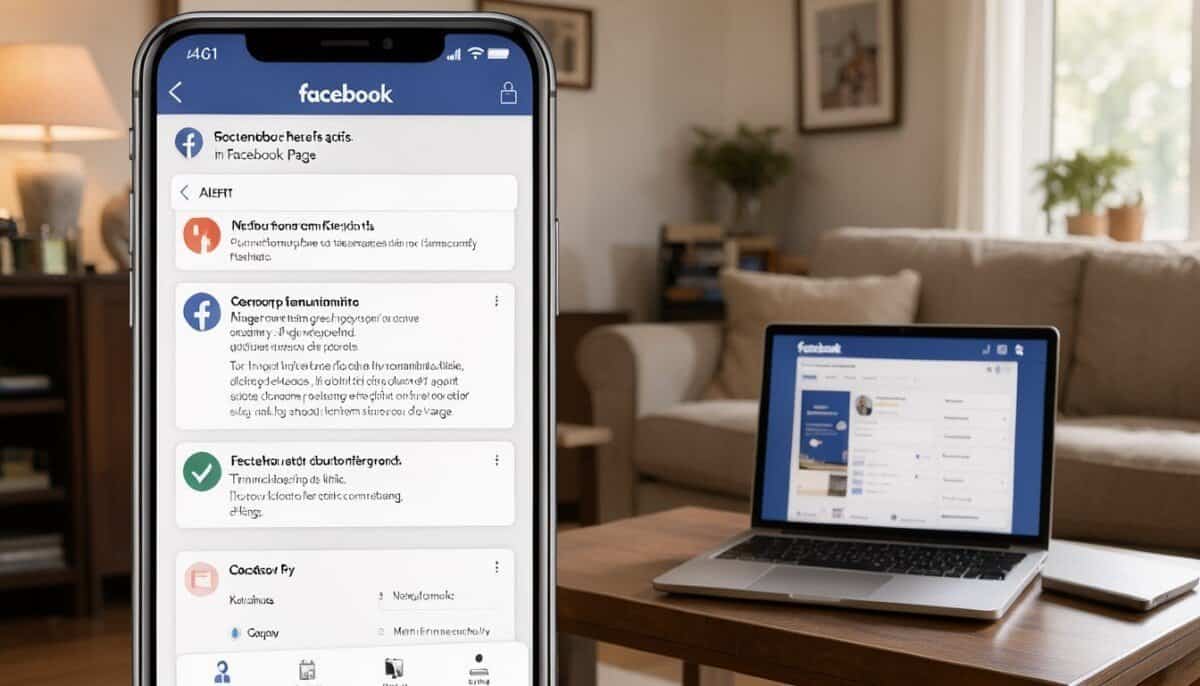
To fix facebook page notifications not appearing, check Page settings, access, Facebook controls, then your phone. Check Page settings first, confirm your access next, then review Facebook and phone controls.
A missing alert can stem from the Page, your access, or your device. It does not prove a wider Meta outage, and it can affect your work experience when you rely on quick replies. Start small by checking whether one Page alert is missing or all Facebook alerts are gone.
Key Takeaways
- Check the Page’s settings for the alerts you need.
- Confirm you have access to the Page and accepted any invitation.
- Review Facebook’s in-app controls and your phone’s notification permission.
- Check battery and focus controls if alerts still fail.
- Messenger alerts do not confirm Facebook alerts are working.
Fix Facebook Page Notifications Not Appearing by Checking Your Settings
A Page admin can set alerts for messages, comments, and reviews. Start with those settings, then check whether a wider issue may affect Facebook notifications.
Choose the alert types that match the Page work you handle. A message alert may matter most during a busy shift, while review alerts may need quick attention.
Check Meta’s status before changing a setup that already works. User reports can point to trouble, but they do not confirm an outage.
Set alerts for messages, comments, and reviews
Open the Page’s notification settings and choose alerts for messages, comments, and reviews. Page notification settings let admins choose which of these events can trigger alerts.
Pick the categories that fit your daily tasks. If you handle customer messages, keep those alerts on; if you track public feedback, include comments and reviews.
Check each category that is missing, rather than changing every setting at once. That makes it easier to spot which change fixes the issue.
Facebook notifications can also seem inconsistent when one event type is selected and another is not. A comment alert setting does not replace a message alert setting.
Check Meta status before changing your setup
As of November 24, 2026, Meta was reported operational, despite 27 user-submitted outage reports in the prior 24 hours. Those reports may reflect local problems or a limited service issue.
A working status report does not rule out a problem on your account or Page. Compare the alert types affected and see whether other Facebook features still work.
When Meta appears operational, keep your working setup in place while you check the specific alert category. Avoid broad changes that could make it harder to find the cause.
Treat user-submitted outage reports as a clue, not confirmation that Meta is down.
Verify Page Access and Accept Pending Invitations

Facebook Page access includes both People with Facebook access and People with task access. The right type matters, because your assigned permissions shape which Page work you can do.
Task access is Page permission for assigned jobs such as content, messages, community activity, ads, or insights. A person with full control can remove other people’s access, including the person who added them.
| Access option | What it covers | What to do |
|---|---|---|
| People with Facebook access | Page access through Facebook | Confirm your access and control level |
| People with task access | Assigned jobs, such as content or insights | Check that your needed tasks are assigned |
| Meta Business Suite Settings > People | People and partner access | Review access or send an invitation |
Choose the right Page access type
People with Facebook access can use the Page through Facebook. People with task access can handle assigned work, but that access is limited to the tasks they receive.
Check your access when Facebook notifications for Page work do not arrive. You may lack permission for the action that should create an alert.
Meta Business Suite offers another way to review people. Open Settings, then People, to check who has access or manage an invitation.
Accept invitations before expecting permissions
Invitees must accept a Page access invitation before the permissions take effect. Facebook Page access invitations appear as Facebook notifications, but an invitee may not see that alert.
A September 29, 2026 report described inconsistent delivery of Meta Business Manager people and partner invitations. Email and Meta notifications sometimes did not arrive, even when the invitation still showed Pending.
So, a Pending status does not prove the invitee received an email or Meta alert. Check the invitation itself instead of relying only on the notification.
Confirm the invitee has accepted the invitation before troubleshooting alerts that require Page permissions.
Check Phone Alerts and Facebook’s Notification History

If Page settings are correct, check whether Facebook is allowed to send alerts both inside the app and on your phone. Both controls matter, since one can block alerts even when the other is on.
Check these five controls before changing more Page settings.
- Facebook’s in-app notification controls.
- Your phone’s permission for Facebook app notifications.
- Do Not Disturb or Airplane Mode.
- Low Battery Mode and its limits on background activity.
- Your internet connection, especially if it drops or feels unstable.
Working Messenger alerts do not prove that Facebook app alerts are reaching your phone.
Do Not Disturb can block most alerts on your device. If you also use Teams, its Do Not Disturb status has separate controls, so Facebook steps will not change Teams.
If alerts still fail, update the Facebook app and restart your phone. A fresh start can clear a temporary app or device issue.
Facebook’s visible notification history typically spans 21-57 days, based on activity and storage rules. Older alerts may no longer appear, even if they arrived at the time.
Open “See All” from the bell menu on Facebook for Windows or the web when you need to inspect more alerts.
Conclusion
If the Page settings and access are correct, the phone’s alert controls are the next place to check. Two things must line up: Page settings and permissions must be right, and phone controls must allow alerts.
A missing alert does not always mean the Page is set up poorly. A device setting can still block a signal that the Page sent.
Make one change at a time so you can tell what helped. Then test the alert with a new Page message, comment, or review after your next change.


