
Have you ever been locked out and wondered how you can get back in without the usual code?
We know this experience causes real stress for people who use facebook daily. On March 5, 2024, a global outage showed how backend service failures can block access for millions.
We compiled clear steps to help you regain login access when your password alone won’t work. Our guide explains why the issue happens, how to get support, and what to try right away.
Follow our expert tips to manage 2fa settings, protect your account, and reduce the chance of future interruptions. We keep instructions simple so you can act fast and restore secure access to your account.
Key Takeaways
- We explain common causes of this login issue and the March 5 outage impact.
- Follow step-by-step actions to regain account access when codes are lost.
- Learn how to contact support and what proof helps speed recovery.
- Adjust 2fa settings to avoid repeated lockouts and improve security.
- Use our expert tips to balance ease of login with strong protection.
Understanding Facebook Two Factor Authentication Problems
Losing the required sign-in code can stop access even if your password is correct. We define this security step as an extra layer that asks for a secondary code to protect your facebook account from unauthorized access.
Often, when users encounter issues, the root cause is a backend service failure. Cisco’s ThousandEyes confirmed the March 5, 2024 outage came from an authentication system fault. That kind of outage can block codes from being issued or verified.
Our expert analysis shows these interruptions can happen at any time. Even with the correct password, authentication servers may fail and prevent login.
We answer common questions about why these security issues occur and give clear help to restore access. Importantly, your account stays secure during an outage—most cases are temporary server glitches.
- Identify if the outage is widespread before changing settings.
- Confirm your contact methods are current once services return.
- Follow our recovery steps and reach out for help when needed.
For step-by-step troubleshooting and recovery tips, see our guide on facebook account access issues.
Verifying Your Account Contact Information
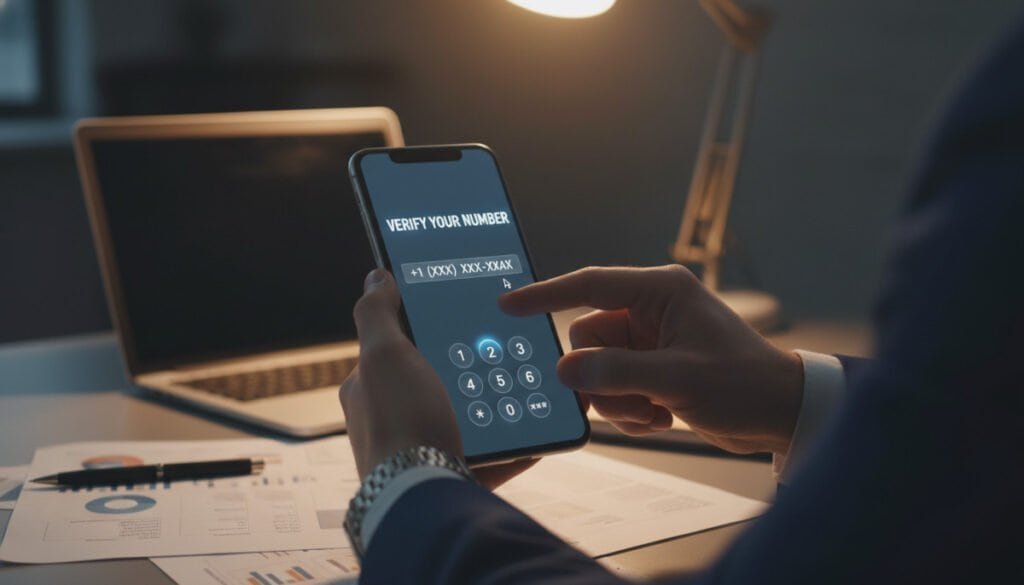
Start by making sure the phone number on file is current and formatted correctly.
Checking Phone Number Linking
Verify the phone number in your account settings so SMS codes arrive without delay.
Open settings, review the linked phone, and confirm the digits match your device.
If you changed carriers, update the number — this is a common cause of login access failure.
- Ensure your device can receive SMS and that your phone is not blocking short codes.
- Link a secondary app or phone number to give you another way to get a code.
- Keep a recovery option available in case you lose access to your primary phone.
Updating Country Codes
For customers in the United States, select the +1 country code in settings so verification messages route correctly.
We also recommend checking privacy policy links in the settings menu before saving changes.
For extra help, follow our facebook account access guide for clear steps and support options.
Optimizing Your Network Connection

When your connection lags, the login process may time out before a code is verified. A steady signal is essential for the two-factor authentication step to complete.
We recommend these simple steps to improve access from your device and reduce interruptions.
- Check Wi‑Fi or mobile data strength and move closer to the router or switch to mobile data if needed.
- Restart your router or modem to refresh service and clear temporary network faults.
- Close background apps that use bandwidth so the account page and authentication process load faster.
- Run a speed test to confirm upload and download rates meet basic login needs.
- If issues persist, contact your internet service provider for support and troubleshooting.
| Action | Expected Result | When to Contact Support |
|---|---|---|
| Restart router/modem | Clears temporary faults; restores stable service | If no change after two restarts |
| Switch network (Wi‑Fi ↔ mobile) | Provides alternate route to authentication servers | If other networks also fail |
| Close background apps & run speed test | Frees bandwidth; verifies connection quality | If speeds are below 3 Mbps or time-outs continue |
By optimizing your network, we help ensure your password and code transmit securely. These steps cut down time-out errors and help users regain login access faster.
Synchronizing Device Date and Time Settings
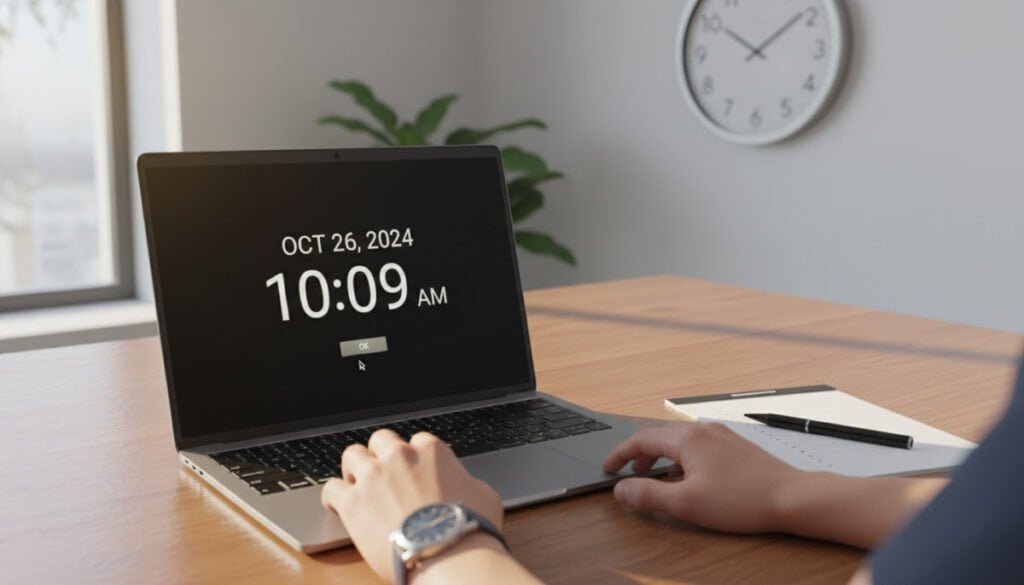
Accurate device time is a small setting that can block your login if it falls out of sync. We explain simple steps to fix time-related errors so your authentication tokens work as expected.
Automatic Time Settings
Enable network-provided time on your phone to keep the clock aligned with carriers and servers.
Open your device settings, choose date & time, and turn on automatic sync. This option prevents many access issues when you travel or change carriers.
Manual Time Adjustments
If automatic sync fails, set the time and time zone manually to match your current location.
Use exact minutes and the proper time zone so the authentication app and server clocks match. An incorrect time can cause the code to be rejected during login.
Restarting Your Device
After changing time settings, restart your device to apply the change across the system.
We recommend checking the phone clock and trying the sign-in process again. If you still encounter issues, repeat these steps or contact support.
| Action | Why it helps | When to repeat |
|---|---|---|
| Enable automatic time | Keeps device synced with network servers | After carrier change or travel |
| Set time manually | Fixes sync failures from the network | If auto option fails |
| Restart device | Applies new time to apps and services | Every time you change time or zone |
Utilizing Authenticator Apps for Reliable Access
Using an authenticator app gives us a reliable backup when text messages fail.
We recommend a reputable app like Google Authenticator to generate codes on your device. This method works without network connectivity and cuts delays that affect SMS delivery.
To link your facebook account, open security settings, choose the authenticator option, and scan the QR code shown on screen. The app will add your account and start producing time-based codes.
If you lose your phone, keep recovery codes saved in a secure place so you can regain access. We also explain how to add multiple accounts to the Google Authenticator app to keep things organized.
- Download the app from your device store and follow the on-screen setup.
- Scan the QR code in settings to pair your account quickly.
- Store recovery codes and update your backup phone or email in case of device loss.
| Step | Why it helps | When to use |
|---|---|---|
| Install Google Authenticator | Generates codes without SMS; reduces delays | When SMS codes are unreliable |
| Scan QR code in settings | Pairs app with your account securely | During initial setup or device change |
| Save recovery codes | Restores access if phone is lost | Before removing the old device |
For step-by-step help and answers to common questions, see our troubleshooting guide.
Managing Browser Cache and Proxy Services
A quick cleanup of your browser storage can remove corrupted files that block access.
We suggest clearing your browser cache and cookies if the web sign-in hangs while requesting a code.
Outdated browser data can cause login issues by serving old settings to the web portal. This prevents your device from correctly processing the authentication step.
Clearing Browser Data
Open your browser settings and remove temporary files, cookies, and cached images. Restart the browser and try signing in again.
If you use a proxy service or VPN, disable it temporarily. These services sometimes interfere with web services and block verification attempts for our customers.
- Clear cache and cookies to ensure a fresh login attempt.
- Disable proxy/VPN to rule out routing conflicts with authentication servers.
- Restart your session after cleanup so the browser loads fresh options.
| Action | Why it helps | When to repeat |
|---|---|---|
| Clear cache & cookies | Removes corrupted files that block web login | If sign-in still fails after one attempt |
| Disable proxy/VPN | Prevents routing that blocks verification | When codes do not arrive or are rejected |
| Restart browser/session | Applies clean settings and fresh connections | Each time you change browser data |
We answer your questions about why browser services might block access and offer this simple routine that often solves the issue. For further steps if the web login still won’t work, see our detailed guides on login errors and account recovery at account access help.
Reconfiguring Your Security Settings
We walk you through the security section step by step so you can safely reset access controls on your account.
Start small: open account settings, find the security section, and review recovery options. Check that the phone, email, and backup codes are current.
If sign-in still fails, temporarily disable two-factor authentication and then re-enable it. This reset can rebuild the authentication link between your device and the service.
Our expert team suggests updating your password and saving recovery codes before you change any options. Also review the latest privacy policy to confirm your contact choices meet current guidance.
- Disable verification briefly, confirm devices, then enable it again.
- Update password and add a secondary phone or app for backup codes.
- Keep recovery codes in a secure place and test a fresh login after changes.
| Action | Expected Result | Caution |
|---|---|---|
| Disable authentication | Resets device link and clears stale sessions | Have recovery codes ready before disabling |
| Re-enable via app or SMS | Re-establishes secure code delivery | Use the recommended app when possible for reliability |
| Update password & recovery | Strengthens primary access and backup paths | Follow privacy policy steps for secure storage |
If you have extra questions, we point to community support threads and guides for recovery steps. See an account recovery discussion and our forgot password guide for more options.
Navigating the Facebook Support System
When account codes fail, recovery codes become the fastest route back into your account.
We recommend downloading recovery codes to a secure device and storing a copy offline. These codes provide another way to login when 2fa fails and your phone or app is unavailable.
The Importance of Recovery Codes
Save recovery codes in a password manager or encrypted file. If you get an unexpected 8-digit code while the system expects 6 digits, keep the code and contact support — this discrepancy can be resolved.
Seeking Assistance from Meta
If you still lack access, open the support section and request help. We advise preparing ID and account details—support services often ask for verification to protect customers.
Follow the guided steps in the support portal, and be persistent. Reaching out multiple times and providing clear documentation raises the chances of recovery. For password reset options and extra help, see our forgot password guide.
| Action | Why it helps | When to use |
|---|---|---|
| Download recovery codes | Provides offline access | Before removing an old device |
| Contact facebook support | Official account verification | If codes or phone number no longer work |
| Provide ID if requested | Speeds account confirmation | For unresolved access issues |
Securing Your Digital Presence for the Future
Prioritizing simple security checks now can save you hours of trouble later.
We urge users to update their password regularly and review recovery options to keep your account ready if you need to regain access.
Keep your authenticator app current so you have a reliable login method. Periodically confirm your phone and email match the details in your privacy policy.
Our expert team is here to help customers who need support. Take these steps today to strengthen security and protect your Facebook account from future interruptions.



