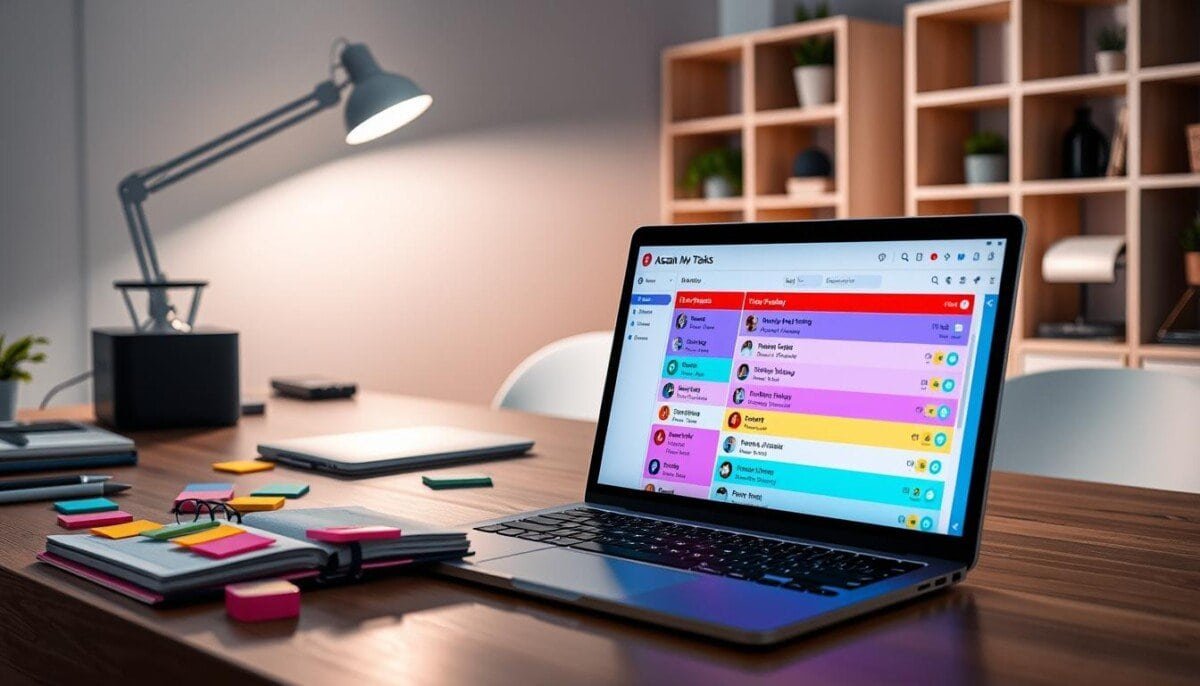
Question: Can a single customized workspace replace scattered calendars and restore control over daily work?
Establish a centralized management hub. Configure the asana my tasks view to map every task to a time block.
Use the week view update from April 2021. Assign each new tasks entry a specific date. Enforce rules to automate sorting into sections.
Integrate the calendar and app ecosystem. Reduce friction from switching platforms. Preserve continuous workflow and maintain organization across the team.
Implement clear sections for priorities — set dates, enable integrations, and standardize rules for consistent task management.
Key Takeaways
- Use week view to assign dates and plan time blocks.
- Automate task routing with rules to reduce manual work.
- Integrate calendar and app tools to streamline workflow.
- Define sections to maintain organization and focus.
- Ensure every new tasks entry maps to a scheduled time slot.
Understanding the Asana My Tasks View
https://www.youtube.com/watch?v=l_Q0rQsUJKM
Display all assigned work in one consolidated list to remove context switching. Present the user’s assigned tasks across multiple displays—list, board, and week—to visualize daily effort.
Create custom sections to prioritize work. Sections enable rapid sorting and clear project-level organization. Apply filters to narrow fields by priority, due date, or project.
Use built-in features to sync the list with a calendar and other app integrations. Maintain field integrity so each project entry reflects current status. Consult asana help guidance to start customizing sections for better organization.
- Centralized tasks list for each user.
- Multiple views support flexible management style.
- Filters and features align daily work with team goals.
| Display | Best for | Key action |
|---|---|---|
| List view | Linear prioritization | Sort by priority and due date |
| Board | Visual workflow | Drag between sections |
| Week | Time planning | Map tasks to calendar slots |
For teams managing multiple projects, link this section to broader project management resources such as project management for small businesses. Implement consistent sections and integration rules to preserve organization.
Configuring Your Workspace for Time Blocking

Set up structured sections and calendar mappings that force tasks into scheduled slots.
Begin by creating collapsible sections in the list layout. Use the keyboard shortcut Tab + N to add collapsible groups. Collapsible sections improve organization and reduce visual noise.
Customizing Sections
Assign a section to each priority band and project. Sort entries inside a section by date, project, or alphabet. Configure custom fields to reflect effort and context.
Utilizing Week View
Open the 7-day calendar. Items without a due date appear on the right side for easy drag drop. Drag items onto specific dates to create precise time blocks.
- Set a due date for every task to preserve timeline integrity.
- Use filters to surface today’s work and week-level planning.
- Implement rules to automate movement across sections when dates change.
Integrate the calendar with other apps to align team management and project timelines. Consult this resource for broader setup guidance: project management for small businesses.
Implementing Effective Time Blocking Strategies
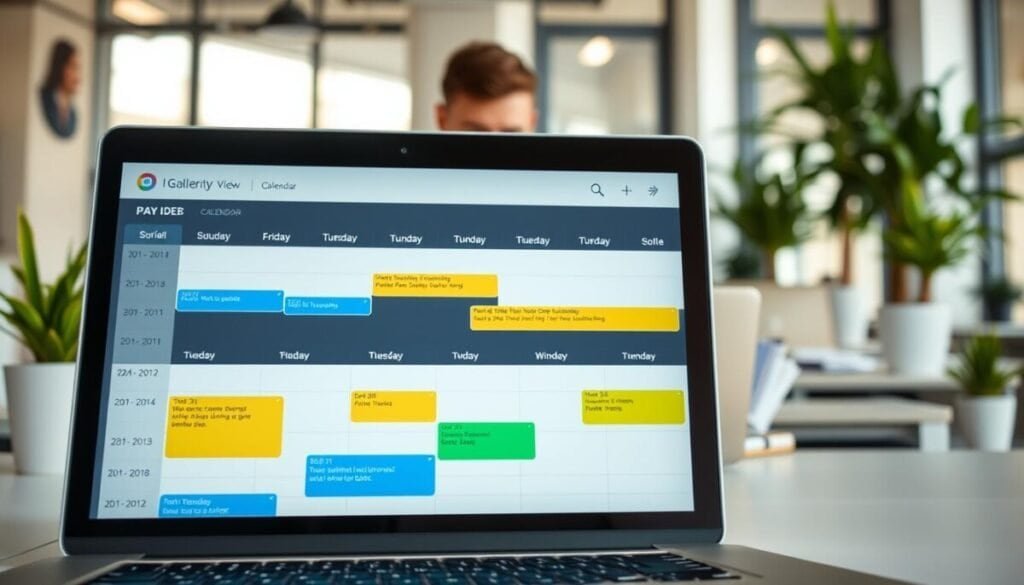
Block uninterrupted work periods on the calendar and assign each block a clear objective.
Define three scope bands for short breaks and longer sessions: Quick wins, Daily tasks, Large projects. Use the band label when scheduling. This reduces decision overhead.
Aligning Tasks with Work Blocks
Aligning Tasks with Work Blocks
Map each task to a named time block in the week view. Use the calendar view to drag drop items into slots. Confirm each entry has a due date or dates to preserve scheduling integrity.
Apply one rule to move items between sections when dates change. Automate routing to enforce planning. This lowers manual management for the team.
| Scope | Duration | Action |
|---|---|---|
| Quick wins | 5–15 minutes | Complete during short breaks |
| Daily tasks | 30–90 minutes | Schedule in focused blocks |
| Large projects | 2+ hours | Reserve deep work slots |
Integrate personal calendar with project management fields. This gives a single list for planning and improves team management. For timing setup, see how to schedule office hours.
Automating Your Workflow with Rules
Set deterministic actions so each new entry sorts itself into a schedule slot.
Routing Tasks by Due Date
Define date-based rules to route work into sections automatically. Configure a rule that moves a task into “Due next week” when its date is seven days out.
Use a separate rule to place items into “Due today.” This reduces manual sorting and enforces the daily plan.
Managing Completion Status
Create a rule that marks items complete when moved into a Done section. Premium accounts can auto-complete entries on move — saves time and maintains an accurate list of finished work.
Creating Custom Triggers
Set custom triggers for exceptions and tasks different from standard workflows. Integrate app notifications so the team never misses a deadline and taskscustom fields stay current.
- Automate routing to organize tasks by date and priority.
- Auto-complete to streamline project closure.
- Custom triggers to handle unique project rules.
For advanced setup, consult workflow automation features and compare platforms on project management platforms.
Mastering Your Daily Productivity Routine
Implement a consistent daily cadence that converts loose items into scheduled work. Build a concise tasks list each morning. Assign a due date and a time block for every task to enforce planning and priority.
Use the week view and board view to visualize projects and the list view to sort by date. Review the calendar and update any dates or fields that affect workflow. Leverage available features to keep organization tight and reduce context switching.
Standardize rules for section movement and integrate third‑party tools to align personal time with team management. Consult a collaboration platforms comparison at collaboration platforms comparison and the asana help guide for setup details.