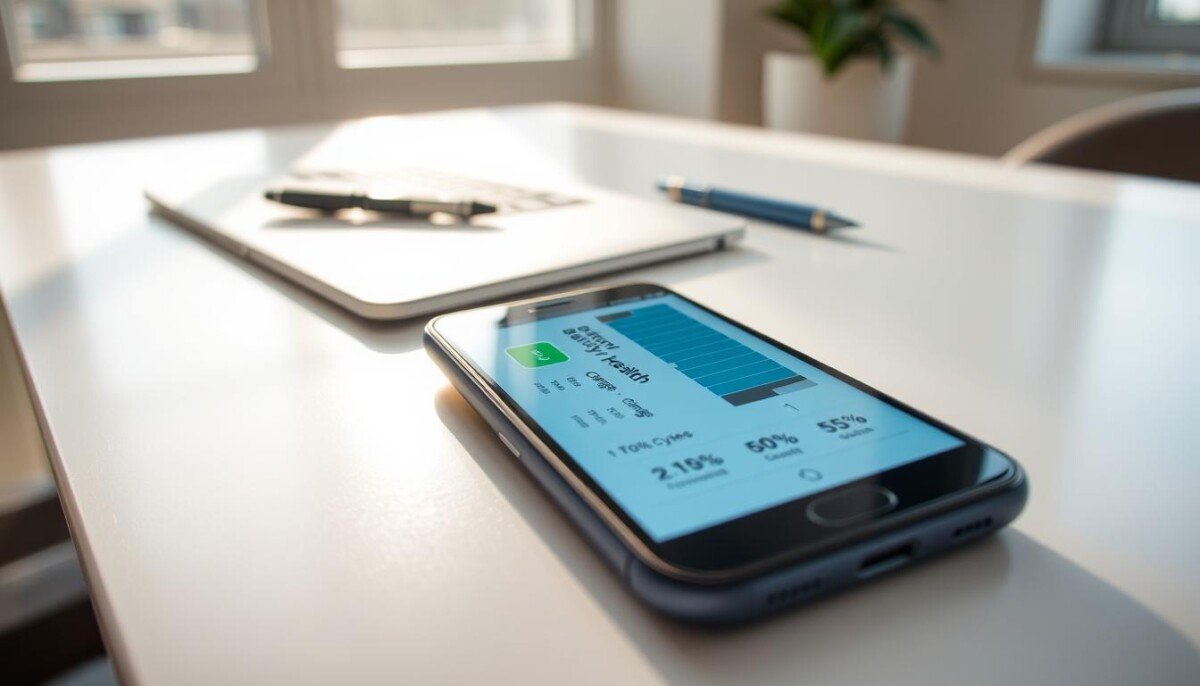
Curious whether your phone can still get you through a long workday? You rely on your android phone for meetings, travel, and quick decisions. Knowing how to know battery health helps you plan upgrades and avoid surprise shutdowns.
This short guide walks you through simple steps in your device settings and easy tools that require no root access. You will learn how to view key stats, watch temperature trends, and act before issues affect your work. For extra tips on temperature and charging habits, see a practical guide on overheating and fixes at smartphone overheating causes and fixes.
We keep instructions clear and fast. You’ll finish this section knowing where to go in settings and what simple checks tell you if a battery needs service.
Key Takeaways
- You can view core battery info without rooting your phone.
- Settings and lightweight tools reveal temperature and wear signs.
- Simple habits slow degradation and extend daily runtime.
- Early checks help decide repair or replacement timing.
- This guide focuses on fast, practical steps for busy professionals.
Understanding Battery Degradation
Lithium cells inside every modern phone lose usable capacity as you use them over months and years.
Battery health is the simple measure of how much energy your device holds now versus when it left the factory.
Chemical wear is normal. Over time, every phone will store less power than it did new.
Frequent full and partial charge cycles accelerate that loss. Heavy daily use for work can show effects after one or two years.
- Capacity falls with each cycle.
- Monitoring helps you plan repairs or replacements.
- Periodic checks keep essential apps running when you need them most.
| Cycles Completed | Typical Capacity Loss | Approximate Time |
|---|---|---|
| 0–200 | 0–10% | 0–1 year |
| 200–500 | 10–20% | 1–3 years |
| 500+ | 20%+ | 3+ years |
How to Check Android Battery Health via Settings
Tap into Settings to see the manufacturer’s assessment of your phone’s remaining capacity. Use the built-in menus first for the most accurate information your device offers.
Native Battery Menus
Open Settings and look for a Battery or Power section. On many phones you will find a dedicated area that reports status, charge cycles, and any warnings.
Manufacturers such as HONOR often include a clear menu showing capacity percentage and a status label. If your phone hides this, use the Settings search and type “battery” or “health” to surface the right section.
Identifying Capacity Percentages
When you see a capacity percentage, compare it to the original spec. Values under 80% usually signal reduced daily run time and may justify a replacement for busy professionals.
- Prefer native info over third-party apps when available.
- Note any status that says normal or needs attention.
- Repeat these steps monthly to track trends and avoid surprises.
Using Secret Diagnostic Codes for Battery Data
A hidden diagnostic code gives fast access to deeper device info.
Open the phone app and dial *#*#4636#*#*. On many phones this launches a service menu with a “battery information” option.
Select that entry to see capacity, cycles, temperature, and status fields that go beyond the settings screen. This raw data can help you see trends and confirm runtime loss.
This method works on a wide range of android phones but not all. Some makers block the code or limit the data shown, so a listed status may read “unknown” on certain models.
Use caution. The menu is intended for service use and shows low-level readings. Interpreting those numbers matters—look for sustained high temperature or rising cycle counts before deciding on repairs.
- Dial the code in the phone app to open the menu.
- Tap “battery information” to view capacity, cycles, and temperature.
- Don’t change settings you don’t understand; use the data to guide next steps.
Checking Battery Status on Samsung Devices

Samsung owners have a built-in diagnostic tool that reveals detailed power metrics for your phone. This method uses an official app and avoids third-party guessing.
Using the Samsung Members App
Open the samsung members app from your apps list. Go to Support, then look for the diagnostics or device care area.
Tap battery status to start a quick scan. The report shows capacity, charging behavior, and overall status that the standard settings menu may hide.
- The app runs a professional-grade test and surfaces precise information for your device.
- If the report shows “normal,” you can trust your phone is performing within expected limits.
- Use this tool monthly to find battery health trends and plan replacements before issues hit.
This is the most reliable step for Samsung phones. It gives clear data so you can manage capacity and daily power needs with confidence.
Monitoring Health on Google Pixel Phones
Google Pixel models give fast, native insight into how your phone holds charge.
Pixel 8a and newer let you see the current capacity percentage directly in Settings. Open Settings and tap battery to find the dedicated health area and a clear status readout.
Older Pixel phones still report a general status even if they do not show an exact capacity number. That status helps you spot decline and decide whether to plan a repair.
- Tap Settings → Battery to view device capacity and status.
- Check the reported percentage on newer Pixels every few months.
- Use the native menu so you can avoid third-party tools or complex codes.
Keeping an eye on status helps you manage daily use and avoid sudden shutdowns. Monitor your phone regularly so your device stays reliable for work and travel.
Analyzing Battery Performance with Third-Party Apps

A few well-built apps give deeper, ongoing insight into device power performance. They fill gaps when native menus do not show capacity trends or cycle counts.
AccuBattery Features
AccuBattery from the Play Store tracks real charging cycles and estimates true capacity after a few full charges. You can see charge rate, wear per cycle, and long-term trends that help you find battery health issues early.
Using CPU-Z for Hardware Info
CPU-Z reports device temperature and voltage. That info helps you link overheating or odd voltage swings to reduced capacity.
Battery Guru Insights
Battery Guru adds charging advice and schedules to extend life. It shows status and gives action steps when capacity or cycles trend down.
- Download trusted apps from the Play Store and allow permissions so they collect accurate information.
- Tap battery info inside each app to compare capacity, cycles, temperature, and charging behavior.
- Use these tools when your phone lacks native diagnostics to find battery health and plan service.
Interpreting Your Battery Health Results
A clear result helps you decide if a phone needs service or just a quick tweak.
When you view battery health, a value above 80% is generally healthy. Your phone still holds most of its original capacity and should run reliably for work.
If the readout falls below 80%, expect faster drain and occasional restarts. That decline often shows up as reduced performance during heavy tasks or long calls.
Use the results to separate app problems from true wear. Temporary slowdowns often resolve after closing apps or updating software. Steady drops in capacity point to a real need for replacement.
- Know battery health early so you can plan repairs before business is affected.
- Review the settings menu and any diagnostic app data when you need precise information.
- For Samsung devices, see the official guidance on battery service at Samsung battery support.
When to Consider a Battery Replacement

If your phone shuts down unexpectedly or loses power quickly, don’t ignore it. That behavior often signals the internal pack can no longer hold enough charge for daily use.
Consider a replacement when the reported capacity falls below 80%. At that point, you will likely see slower performance and shorter runtime.
Before you buy a new part, review warranty terms. Some makers cover early degradation and offer a service replacement.
- Use the settings and a single app from the Play Store to confirm device numbers.
- Install trusted third-party apps from the Play Store to track cycles and capacity over time.
- Replace the pack when drops in performance or sudden shutdowns repeat despite software fixes.
For busy professionals: a timely replacement extends the life of your phone by years and avoids costly productivity losses. If phone battery health is consistently low, prioritize service now so you stay connected on the job.
Best Practices for Extending Battery Longevity
Small daily choices make a big difference in how long your phone keeps a useful charge.
Optimizing charging habits
Keep your charge level between 20% and 80% to reduce stress on the cell. Avoid full overnight topping unless your device has smart charging enabled. Use the original power adapter and cable to ensure steady voltage and safe charging.
Avoid heat. High temperature speeds wear and lowers capacity permanently. Remove cases during fast charging and keep the device out of direct sun or hot cars.
Managing background app activity
Limit apps that run in the background from Settings. Background processes drain power and raise temperature over time.
Open your usage screen regularly to find power-hungry apps. Uninstall or restrict any app that shows heavy use without clear benefit.
- Enable smart charging features when available to preserve long-term capacity.
- Keep software updated for system-level power improvements and bug fixes.
- Monitor temperature and charge patterns so you can plan a replacement before work is affected.
| Action | Why it helps | When to do it |
|---|---|---|
| Keep charge 20–80% | Reduces cycle stress and slows capacity loss | Daily |
| Use original charger | Ensures stable voltage and safer charging | Whenever charging |
| Limit background apps | Lowers power draw and device temperature | Weekly review |
| Enable smart charging | Automates level control to protect capacity | When supported |
For deeper manufacturer guidance on managing power and maximizing life, see maximizing battery performance.
Conclusion
A short routine to monitor your phone prevents surprise power loss during work. Regularly reviewing battery health android status keeps your device reliable and ready for important tasks.
Use native settings first and a trusted app when you need more detail. This approach helps you spot decline early and act before performance slips.
Proactive maintenance — like smarter charging and watching temperature — preserves capacity and extends usable life. Follow these steps and your phones will run longer without an expensive replacement.
You can now confidently check battery results and manage daily use so devices stay dependable for professional life.



