
Question: Can a strict timer and a disciplined tracker turn scattered hours into measurable productivity?
Implement a repeatable system. Use the Pomodoro technique—25 minutes of concentrated work followed by short breaks—to quantify daily output. Record each session with a reliable app to capture every minute spent on a specific task.
Install the browser extension. Break complex project work into discrete tasks. Start the timer for one 25-minute block. Stop. Log the session.
Measure the number of sessions completed per eight-hour day. Analyze patterns. Identify tasks that consume excess time. Adjust the schedule to maximize productivity and reduce multitasking losses.
Key Takeaways
- Implement the Pomodoro technique to convert time into measurable sessions.
- Use the Clockify extension or app as the primary timer and tracker.
- Break projects into short tasks—one timer run per task.
- Log minutes precisely—avoid multitasking to protect data integrity.
- Review daily session counts to optimize work distribution and breaks.
Understanding the Power of Deep Work
Treat the workday as a series of deliberate, timed experiments in attention. Use a clear timer to mark each concentrated period. Track minutes and sessions to quantify output.
Francesco Cirillo pioneered this approach in the 1980s with a tomato-shaped kitchen timer. The method—now known as the pomodoro technique—breaks a large project into short tasks. Execute one task per session. Log the minutes.
Research from the University of Illinois shows brief diversions during a long work period can restore concentration. Apply scheduled breaks to avoid fatigue. Maintain high productivity across the day.
- Single-task intensity: pursue one task per timer run.
- Structured breaks: insert short breaks to refresh cognition.
- Measurable periods: count minutes to analyze performance.
| Metric | Recommended Value | Rationale |
|---|---|---|
| Work period | 25 minutes | Balances sustained attention and mental stamina |
| Short break | 5 minutes | Prevents cognitive overload; restores alertness |
| Long break | 15–30 minutes after four sessions | Reduces accumulated fatigue; improves quality of later sessions |
For practical scheduling tactics, consult this guide on setting dedicated time blocks in team calendars: how to schedule focus time in.
Getting Started with Clockify Time Tracking
Start with the extension installation to ensure all activity funnels into the tracker.
Installing the Extension
Install the browser extension for Chrome or Firefox. This step enables immediate time tracking in the browser.
Click the add-on icon. Select the project or task. Then start timer with one click to record minutes of work.
Setting Up Your Workspace
Install the desktop app on Mac or Windows for centralized control. Sync the app with the extension to consolidate activity.
Configure workspace settings—projects, tags, and user roles. Categorize every activity so reports reflect real billable time.
- Use consistent naming for projects and tasks.
- Enable automatic syncing between desktop and browser.
- Set up tags for technique, breaks, and client identifiers.
| Action | Platform | Result |
|---|---|---|
| Install extension | Chrome / Firefox | Start timer from browser; capture tab activity |
| Install desktop app | Mac / Windows | Centralize logs; manage workspace settings |
| Configure projects & tags | Web / App | Categorize activity; improve reporting accuracy |
Configuring the Pomodoro Timer for Better Focus
Configure the pomodoro timer to enforce strict intervals and predictable recovery windows.
Open the browser extension settings. Set the primary work period to 25 minutes and the short break to 5 minutes. Save the interval options.
Enable the long break option to trigger after four consecutive work sessions. Set that long rest to 15–30 minutes to restore cognitive resources.
When users start working, instruct them to start timer for a single task or project. The system will send a desktop notification at the end of each 25-minute block to signal a break.
- Customize intervals per project for variable intensity.
- Activate timer break alerts to get notification precisely when sessions end.
- Track each session in the app to measure minutes spent per task.
| Setting | Recommended Value | Effect |
|---|---|---|
| Work interval | 25 minutes | Maximizes sustained attention per session |
| Short break | 5 minutes | Quick recovery; prevents fatigue |
| Long break | 15–30 minutes after 4 sessions | Restores performance for later work |
How to Enable Clockify Focus Mode

Activate a streamlined display to remove visual clutter and sustain uninterrupted work intervals.
Open the extension or app settings. Toggle the compact view so the interface shows only the active timer and current project.
Benefits of a Minimalist Interface
- Hide recent activity: Remove the time log and session history to prevent distraction.
- Single visual target: Display only the running timer and project name to enforce single-task work.
- Improve session completion: Reduce visual clutter so users remain immersed for full 25-minute intervals.
- Notification remains active: Receive a timely alert when a break is due; alerts do not require the log to be visible.
- Cleaner workspace: Use this technique in the app to prioritize task execution and shorten context switches.
Enable the setting before a work block. Track minutes per task; review totals after a session to refine the technique.
Managing Idle Time and Automatic Timers
Detect and remove idle minutes to keep time logs precise and auditable. Configure inactivity rules to prevent inflated entries. Automate controls so recorded minutes reflect actual work.
Detecting Inactivity
Set idle detection to trigger after X minutes of no mouse or keyboard input. When the system flags inactivity, present a notification that asks to discard or keep the idle segment.
Discarding removes inactive minutes from the task. Keeping converts the interval into a separate entry. Use this rule to maintain accurate timesheets.
Automating Start and Stop
Enable the desktop app to auto start timer when the machine wakes. Enable auto stop when the screen locks or the computer sleeps.
When idle is detected, offer to start a new timer immediately. This ensures the tracker counts only active minutes per task or project.
| Feature | Action | Result |
|---|---|---|
| Inactivity detection | Trigger after X minutes | Prompt to discard or keep idle time |
| Auto stop | On screen lock or sleep | Prevents false billing; preserves accuracy |
| Auto start | On wake or resume | Resumes tracking without manual start |
Implement these controls to ensure the time tracker records real work. For broader options and comparisons, consult resources on time-tracking applications.
Customizing Your Work Intervals for Peak Performance
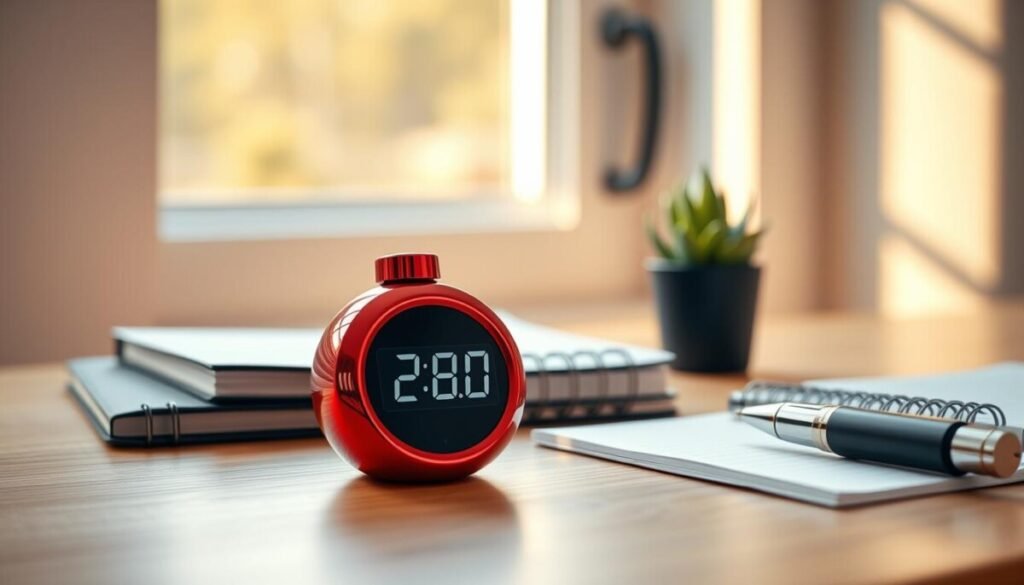
Set personalized session lengths so cognitive rhythms dictate the timer, not default presets.
Choose a pomodoro timer period that aligns with task complexity. Short sessions—25 minutes—fit creative sprints. Longer sessions—45–90 minutes—suit deep analysis.
Apply the 20/20/20 rule during each short break. Look 20 feet away for 20 seconds every 20 minutes to reduce eye strain and preserve visual stamina.
- Enable pomodoro settings to add a scheduled long break after a set number of sessions.
- Adjust work minutes and the timer break to match project tempo and context switching cost.
- Record session time per task to compare output across intervals.
Implement intervals that prevent reaching the end of the day exhausted—balance concentrated work with measured break periods.
| Interval Type | Recommended Minutes | Best Use |
|---|---|---|
| Short session | 25 | Creative tasks; frequent recovery |
| Medium session | 45 | Complex problem solving; fewer switches |
| Long session | 60–90 | Deep analysis; sustained concentration |
For tools that support custom intervals and integrations, review productivity enhancement apps at productivity enhancement apps.
Handling Interruptions and Staying on Track
Set explicit boundaries for interruptions prior to a work block. Communicate a short, fixed interval for concentrated work. This reduces context switches and preserves minutes of productive time.
The Inform and Negotiate Technique
Inform — Tell colleagues that a pomodoro timer is active for a set period. State the exact number of minutes and the next available slot.
Negotiate — Propose a callback time. Accept urgent requests only by scheduling a definite follow-up. Maintain work continuity.
When an interruption is unavoidable, either start timer for a new task or pause and discard idle minutes from the session. Use the extension to start working on the urgent item and log the switch.
| Situation | Action | Result |
|---|---|---|
| Minor interruption | Inform and negotiate a return time | Preserves session; fewer lost minutes |
| Urgent request | Start a new timer and track time | Accurate tracking time; clear billing |
| Idle detected | Discard idle minutes or convert to separate entry | Cleansed logs; reliable productivity data |
Example — state: “In a focused session for 25 minutes; can we talk at 11:30?” This simple script yields fewer interruptions and higher productivity.
Analyzing Your Productivity Data
Translate minutes logged into measurable productivity indicators. Review session totals for each project. Compare day and week aggregates to reveal patterns.
Run the report for the week. Inspect how many Pomodoro sessions concluded each day. Note which task consumed the most minutes.
Export billable hours when invoicing. Use exported CSV for financial reconciliation. Validate profitability per project with precise entries.
- See activity breakdown by project and task — spot time sinks quickly.
- Count completed timer sessions per day — measure sustained work.
- Adjust future estimates based on historical minutes logged.
| Metric | What to check | Action |
|---|---|---|
| Weekly time by project | Total minutes and sessions | Refine future estimates; reallocate resources |
| Task-level activity | Highest minutes per task | Break task; add sub-tasks or increase timer length |
| Billable export | Invoice-ready hours | Export CSV; attach to billing system |
For method comparisons, consult the time-tracking methods guide and survey of time-tracking applications. Use data to optimize schedule by the end of the month.
Mastering Your Workflow for Long-Term Success
Convert routine timer logs into a disciplined performance system that scales with project complexity.
Use the app consistently to record every project entry. Enable pomodoro settings and include a long break to avoid burnout and preserve output across the day.
Adjust intervals per task. Customize the timer option to match task depth. Track sessions and breaks; export data for weekly analysis.
Refine the technique—shorten or extend minutes based on results. Treat the tracker as the source of truth for estimates and deadlines.
For comparisons and tools to support this system, consult a curated list of productivity software tools.