Have you ever missed an urgent alert and wondered why your phone stays silent?
This guide cuts through confusion and gives clear, practical steps you can follow now.
Users like Bobo_99 report a persistent problem for over 1.5 years despite restarting their phone and checking account settings. The facebook app can still fail to deliver push alerts even when your profile looks correct.
We will show short, effective steps to diagnose and fix the issue on iPhone and Android. Start with simple checks: device settings, permission toggles, and an update from the app store. If those fail, deeper steps will help restore real-time alerts and protect your account activity.
For a focused troubleshooting list and additional context, see this guide on page alerts: facebook page notifications not appearing.
Key Takeaways
- Start with simple checks: phone settings and app permissions.
- Keep the app and OS up to date via the app store.
- Push alerts can fail even if profile settings look correct.
- Follow step-by-step troubleshooting to restore real-time alerts.
- Use the linked guide for deeper diagnostics and testing methods.
Understanding Why Facebook Notifications Are Not Working
Many users report months without alerts even after every toggle and permission is set correctly.
This problem often spans personal and business accounts, and it can be persistent across multiple devices.
Common causes include connectivity interruptions, incorrect in-app settings, or a sync error between the app and the server. User ryanoneill, for example, says they went 5–6 months without any alerts despite checking every option.
A frequent sign is an empty activity page (the ring button) while new messages, birthdays, or updates appear elsewhere on your profile. That gap points to a delivery or badge-sync issue rather than missing content.
- Device-level blocks or data restrictions can stop the app from reaching the page.
- Server sync faults cause stale feeds even when settings look fine.
- Reporting to the platform sometimes yields no timely fix; you need local troubleshooting steps.
| Root Cause | Symptoms | Quick Check |
|---|---|---|
| Connectivity limits | Delayed or missing alerts | Test Wi‑Fi and mobile data |
| Sync error | Empty activity page | Force close and reopen the app |
| Device permissions | No pop-ups or badges | Review system notification and background data settings |
For a focused troubleshooting checklist and deeper steps, consult this guide on page alerts: facebook page notifications not appearing. Implementing those checks will narrow the root cause and speed a practical solution.
Verifying Your Network and Device Connectivity
Start by confirming your phone has a stable internet link before changing any settings. A reliable connection is the most common fix when some alerts arrive and others fail. User wchuck reported receiving news and video alerts while activity alerts were missing—this pattern points to intermittent data access.
Checking Wi-Fi and Mobile Data
Toggle Wi‑Fi off and on, or switch to mobile data to test each network. A quick switch often forces the app to re-establish a session and pull pending alerts.
If possible, try a different network or tether to another phone for a short test. If all alert types arrive on one network but not another, the issue is likely with that connection or its router settings.
Disabling Do Not Disturb and Airplane Mode
System-level silence modes will block delivery even when the app is configured correctly.
- On iPhone, swipe down from the right corner of the screen to open Control Center and toggle off Focus or Do Not Disturb.
- On Android, swipe down from the top and confirm Airplane Mode is disabled and the device shows cellular or Wi‑Fi connectivity.
Quick checklist: ensure your phone has an active network, confirm Do Not Disturb is off, and disable Airplane Mode. If issues persist after these steps, run the focused push notifications troubleshooting linked here: push notifications troubleshooting.
Adjusting System Notification Permissions
Start at the phone’s Settings app to confirm the system-level switches allow the app to push alerts.
iOS and Android both require a green toggle to permit alerts from installed apps. On iPhone, open the settings app, find the app in the list, and ensure the Allow Notifications option is enabled. Review badge, sounds, and lock screen options so alerts appear where you want them.
Configuring iOS and Android System Settings
On Android, go to Settings → Apps, select the app, then tap Notifications. Confirm the main switch is on and inspect each category. Khizer Kaleem’s screenshots show exactly where to find these menus.
If system software is outdated, an existing bug can block alerts. Update your phone’s software and check the option again after a restart. Additionally, you may want to mute notifications for Figma comments to minimize distractions while working on important tasks. This will help you focus on the updates that matter most without constant interruptions. Remember to regularly check your notification settings to ensure everything is configured to your preferences.
- Quick checks: open settings app, enable Allow Notifications, verify lock screen and badge options.
- On Android, confirm the Apps → Notifications toggle and category options are active.
- If alerts still fail, run a system update and revisit these toggles later.
For a focused troubleshooting checklist on missed alerts, follow this guide: facebook-not-receiving-notifications. If you’re also dealing with account access issues, consider exploring some recovering a facebook account tips to regain control. These strategies can guide you through the steps needed to secure your account and retrieve important information. Additionally, ensuring that your recovery options are up to date can prevent future lockouts.
Configuring In-App Facebook Notification Settings
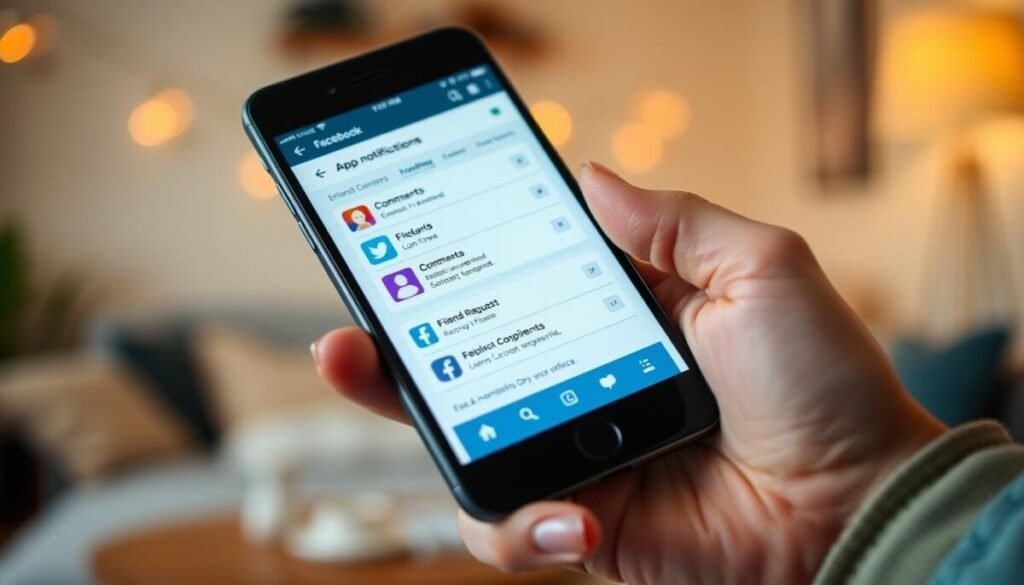
Open the app and tap your profile image in the top-right to access account controls.
From there, go to Settings and look for the section labeled “Where You Receive Notifications.”
- Turn off the Mute Push Notifications option so your device can receive alerts.
- If you see a Turn On Push Notifications button, tap it to prompt the phone to allow alerts.
- Verify each alert category and choose to allow notifications for messages, tags, and page activity.
Alvin Wanjala’s screenshots show the exact path to these controls. After you change options, refresh the page or force-close and reopen the app. The app will then try to download any pending alerts that were blocked by prior settings.
For a deeper checklist and troubleshooting steps, see this practical guide on fixing missed alerts: how to fix missed alerts and this focused walkthrough: receive notifications guide.
Advanced Troubleshooting for Persistent Issues
If toggles and restarts fail, move to deeper fixes that refresh app files and system links.
Clearing App Cache and Data
Corrupted cache can block alerts and cause stale behavior.
On Android, open Settings → Apps → select the app → Storage → Clear Cache. Clearing cache removes temporary files without deleting your account data.
If problems persist, use Clear Data (or Storage) to reset the app state. You will need to sign in again and re-enable permissions.
Updating Your Operating System
Keep your device software current to avoid compatibility gaps.
Check Settings → System → Software Update (or General → Software Update on iPhone). Install available updates, then restart your device.
New OS versions often fix background delivery and permission issues that block push alerts.
Reinstalling the Facebook Application
A fresh install removes corrupted app files and forces a clean permission request.
Apple Support recommends deleting the app and reinstalling it from the store when standard steps fail.
- Delete the app, reboot the device, then download and install from the App Store or Play Store.
- After reinstall, log in and grant all requested permissions for push and background data.
- Test alerts for a short period to confirm the solution.
| Action | What it fixes | Time |
|---|---|---|
| Clear cache | Removes temporary corrupted files | 2–5 minutes |
| Update OS | Resolves compatibility and background delivery bugs | 10–30 minutes |
| Reinstall app | Restores clean app state and prompts fresh permissions | 5–15 minutes |
If you still face issues, consult this focused guide on group alerts for another set of options: facebook group alerts troubleshooting.
Final Steps to Restore Your Social Alerts
Close this guide with final validation steps to make sure alerts reach your screen reliably.
Follow the checklist in order. Confirm your facebook notifications are allowed in both the facebook app and your phone system settings. Update the app and device to the latest version, then restart the device.
If issues persist, clear cache or reinstall the app and re-grant permissions. For deeper troubleshooting, see this focused push notifications troubleshooting guide and this practical facebook notifications guide.
These steps should isolate the root cause and deliver a reliable solution so your account alerts return.