
Are your short videos missing from the feed when you expect them most? This guide gives clear, expert steps to help you recover that content fast.
Meta launched its short-form video feature in 2021, and many users still face an issue where clips fail to load. You will learn practical steps to inspect the app, check settings, and target the root cause on iPhone and Android.
We focus on easy action items you can run through in minutes. The goal is simple: restore your watching experience with minimal downtime. Our team of experts compiled tested solutions so you can get back to streaming engaging short videos.
Key Takeaways
- Start with app updates and restart the device to resolve common issues quickly.
- Check permissions and data settings to ensure video content can load.
- Clear cache and review network connections for faster troubleshooting.
- Use account and region settings as a diagnostic step when content is missing.
- Follow step-by-step methods for iPhone and Android to isolate the problem.
- Contact support only after basic steps; most problems resolve locally.
Understanding the Role of Facebook Reels
Since 2021, short-form video has reshaped audience attention on mobile. Meta introduced this feature to offer vertical clips that fit fast browsing habits. These short clips run about 15 to 60 seconds and aim to keep you engaged in short bursts.
Video now dominates the web — roughly 60% of internet traffic is video-based. That shift makes these features vital for creators and marketers who want more reach. When users like reels, the algorithm learns preferences and serves similar content more often.
The platform updates these tools often. Updates add music, effects, and creator controls so content feels fresh. Understanding how the system surfaces clips helps you shape what appears in your feed.
- Short length boosts repeat views and session time.
- Music and effects drive engagement and sharing.
- Creator-focused features increase discoverability.
| Aspect | Typical Length | User Benefit |
|---|---|---|
| Short clips | 15–60 seconds | Fast engagement |
| Music & effects | Integrated | Higher shares |
| Algorithm signals | Likes & watch time | Personalized feed |
For deeper troubleshooting of watching issues, consult this watching Reels issues guide.
Common Reasons for Missing Video Content
When clips vanish, the root cause usually lives in servers, accounts, or app versions. That helps you narrow the problem fast.
Server Downtime
Check service status before digging deeper. Use MetaStatus or IsItDownRightNow to see if platform servers are offline.
An outage is often temporary. Experts report many problems clear within minutes to a few hours. If servers are down, wait a short time and try again.
Account Restrictions
Your facebook account can have limits that block certain reels or interactions.
Verify account status, community flags, and privacy settings. An outdated app version can also prevent your device from loading the latest reels properly.
- If you cannot find facebook content, check server status tools.
- Update the app version to avoid compatibility problems.
- Monitor data usage; high consumption can disrupt video playback.
| Cause | How to Check | Typical Resolution Time |
|---|---|---|
| Server outage | MetaStatus / IsItDownRightNow | Minutes to hours |
| Account restriction | Account settings & support center | Hours to days |
| Outdated version | App store update | Immediate after update |
Verifying Your Internet Connection
Start with a quick speed check to see if your internet can stream short videos. Use Fast.com to measure bandwidth and latency. A slow result points to why your facebook reels might fail to load on your device.
Check signal strength and data limits. Weak Wi‑Fi or spotty mobile service causes buffering and long load time. If you use mobile data, confirm your plan isn’t being throttled during peak hours.
- Run Fast.com and note download/upload speeds.
- Restart your router and reconnect the device if speeds are low.
- Switch between Wi‑Fi and mobile data to isolate the problem.
| Metric | Good Range | Immediate Action |
|---|---|---|
| Download speed | 10+ Mbps | Keep Wi‑Fi, reduce active devices |
| Latency | Use wired or closer router | |
| Packet loss | 0–1% | Contact ISP or change network |
Always check internet settings when your device struggles to display content. A stable internet connection delivers the smooth experience you expect when watching reels.
Effective Facebook Reels Not Showing Fix Strategies
Many playback problems trace back to one simple setting: low data mode. Toggle this option off in your app to let videos stream at full quality.
How to proceed: open your facebook app, tap the settings button, and locate any data‑saving controls. Disable Low Data Mode and similar features that limit background loading or autoplay.
If you use a cellular connection, confirm that mobile data permissions are enabled for the app. That permission lets the service fetch videos when Wi‑Fi is weak.
- Many users regain full access after switching off data restrictions.
- An expert recommendation: disable all restrictive features before deeper troubleshooting.
- These simple changes often restore your reels showing in the feed within seconds.
| Action | Where | Result |
|---|---|---|
| Disable Low Data Mode | App → Settings | Higher stream quality |
| Allow Mobile Data | Device → App Permissions | Plays on cellular |
| Turn off power saver | System settings | Background loading resumes |
Why this works: data limits block background fetching and reduce bandwidth. Changing those controls is one of the fastest, most reliable solutions to restore the feature and improve overall performance.
Managing App Cache and Storage
Old cache entries can corrupt loading behavior and degrade your streaming experience. Clearing temporary files keeps the app responsive and reduces playback problems.
On Android: open Settings → Apps → select the facebook app → Storage → Clear cache. This removes transient data without deleting your account or preferences. If you still encounter issues recovering access to facebook account after clearing the cache, try uninstalling and reinstalling the app. You may also want to check if there are any updates available for the facebook app in the Google Play Store, as sometimes bugs can create login problems. If the issue persists, consider reaching out to facebook support for further assistance with your account recovery.
On iOS: iOS lacks a one‑tap cache clear. Uninstalling and reinstalling the app is the most effective way to refresh data and remove corrupted files.
- Clear cache regularly to avoid corrupted files that block reels.
- Free up device storage so the app can download new data quickly.
- If your connection is stable but clips still fail, clearing cache often resolves the issue.
| Action | Platform | Result |
|---|---|---|
| Clear cache | Android | Removes transient files, faster load |
| Reinstall app | iOS | Refreshes data, clears corrupted cache |
| Manage storage | All devices | Prevents future problems, better experience |
Checking Account Status and Privacy Settings
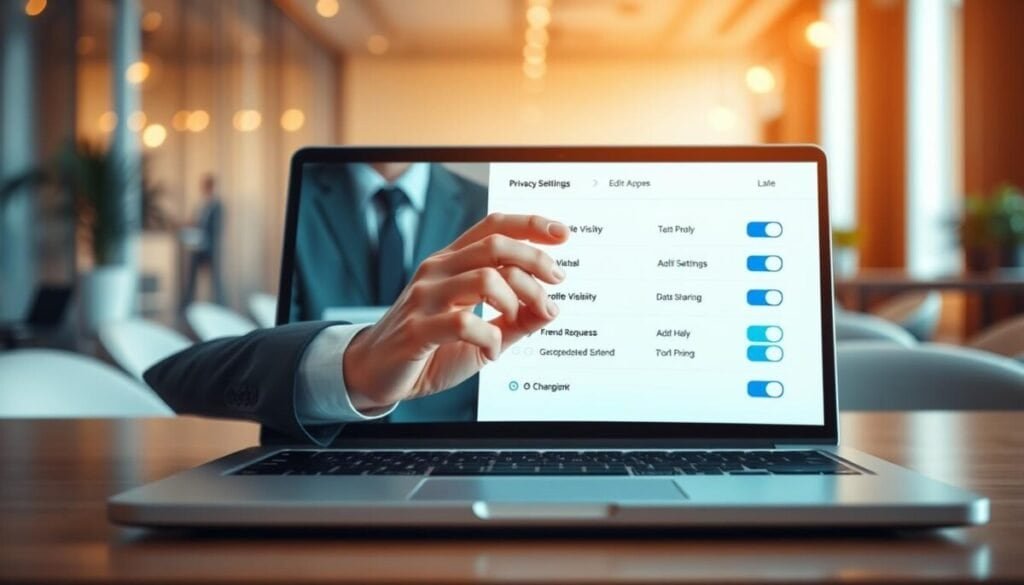
Begin with a quick audit of who can see your posts and where content appears. A visibility issue often looks like a technical error but rests in your account controls.
Reviewing Audience Visibility
Open your settings and inspect the privacy settings that govern post reach.
- Set your profile and post audience to Public or Friends if you want wider reach.
- Confirm audience selectors on individual posts so the right people see your content.
- Remember: audience controls influence which short clips appear in your feed.
Verifying Community Standards
Check if your facebook account has flags or restrictions. When an account is limited, features like viewing and interacting with short videos can be restricted.
Tip: Resolve warnings or appeals in the Help Center to restore full access. Maintain clear privacy and content practices to avoid future limits.
| Check | Where | Result |
|---|---|---|
| Audience | Settings → Privacy | Controls who sees posts |
| Account flags | Support inbox | May restrict features |
| Settings privacy | Profile controls | Improves visibility |
Updating the Facebook Application
Regular updates ensure the app aligns with backend changes and bug patches. Keeping your software current helps preserve access to the latest features and prevents compatibility issues with your account.
Open the app store or play store on your device and search for the facebook app. If an Update button appears, tap it. This simple action installs the newest version and applies bug fixes.
Experts recommend checking the store periodically. Developers release small patches that fix crashes and restore media tools like reels.
- Visit the app store or play store and look for the update button.
- Tap update to install the latest version; it usually completes in seconds.
- After updating, open the app and review settings for any new permissions.
| Action | Where | Result |
|---|---|---|
| Check for update | App Store / Play Store | Installs latest version |
| Tap Update button | Device → Store | Applies bug fixes |
| Review settings | App → Settings | Restores new features |
If you skip updates, the app may lose compatibility with platform changes and fail to load certain short videos. Clicking the update button is the fastest way to resolve known bugs and restore normal playback.
Reinstalling the App for a Fresh Start

When standard troubleshooting fails, a clean reinstall often clears hidden errors fast.
Why this works: Removing the app from your device deletes temporary cache and stale data. A fresh copy from the app store or play store resets settings and replaces corrupted files.
Follow these concise steps:
- Uninstall the app from your device.
- Restart the device to clear background processes.
- Download and install the latest version from the store.
Security note: Always use the official app store or play store to get the latest signed software. This avoids tampered builds and ensures safe updates for data handling.
| Action | Why | Result |
|---|---|---|
| Uninstall | Removes cache | Clears corrupted files |
| Restart device | Stops background tasks | Prepares clean install |
| Reinstall from store | Fresh app copy | Restores full functionality |
If problems persist after these steps, consult the open comments troubleshooting page for targeted help.
Utilizing Desktop Access as an Alternative
When your device struggles to load short clips, try a desktop browser for reliable access.
Open a computer, sign into your account, and navigate to the reels section to find facebook reels quickly. The desktop interface often bypasses mobile app bugs and gives a steadier playback experience.
If your mobile app settings block content, the desktop site can serve as a dependable fallback. You can still watch, like, and share content while you diagnose the phone.
- Why use desktop: fewer interruptions from mobile background limits.
- How to find content: log in on a browser, use the left-hand menu, then select the reels area.
- When to switch: if the app crashes or settings prevent loading on your device.
| Action | Where | Benefit |
|---|---|---|
| Log in on desktop | Browser (Chrome, Edge, Safari) | Stable playback and full features |
| Navigate to reels | Left menu → Reels | Quickly find facebook content |
| Use until mobile is fixed | Computer access | Uninterrupted viewing and sharing |
Pro tip: web design teams such as Prateeksha Web Design stress cross-platform compatibility. Keeping both desktop and app routes available helps you stay connected when one device acts up.
Reporting Persistent Glitches to Support
If your troubleshooting stops short of a solution, report the issue so engineers can run diagnostics. Use the app’s reporting tools to send precise information about the problem and the device you use. Another useful resource is the bluetooth connection troubleshooting steps available in the help section of the app. Following these steps can often resolve common connectivity issues before escalating to a support ticket. If you still encounter difficulties, ensure you have the latest software updates for both your device and any paired bluetooth accessories.
Using the Shake to Report Feature
The shake gesture sends a diagnostic snapshot to the team. On many phones, shaking the device opens a menu where you can describe the issue and attach logs.
- Open the app and reproduce the problem, then shake the device to trigger the report menu.
- Include your profile and account details so facebook support can correlate logs to your account.
- Attach screenshots or note recent steps and any unusual cache behavior so experts can triage quickly.
- Hit the report button; this sends data and starts a support review in less time than email chains.
When to contact facebook support: after you try updates, clear cache, and confirm your connection. Persistent problems should be escalated so developers can address bugs in future releases.
| Action | What it sends | Why it matters |
|---|---|---|
| Shake to report | Device logs & screenshot | Helps reproduce the problem quickly |
| Include profile details | Account ID & settings | Enables targeted account checks |
| Press report button | User description & timestamp | Speeds expert review and triage |
Maintaining a Seamless Social Media Experience
Regular attention to settings and updates prevents most playback problems and keeps your feed current. Routine checks save you time and reduce recurring issues.
Keep the app updated and monitor your connection. These two steps resolve many common problems fast and improve video load times.
Share these practical solutions with other users so the community benefits. Each issue you solve builds your knowledge and protects your digital presence.
Stay proactive: habitually review permissions, clear cache when needed, and restart your device after updates. Consistent maintenance keeps the feature reliable and your viewing experience smooth.