Have you ever clicked Post and nothing happens — no error, no change, just silence? This common problem affects millions of users on the platform and can stop workflows in marketing and community management. You’ll learn clear reasons and fast checks so you can fix one stalled post without guesswork.
Symptoms range from the Post button doing nothing to messages like “You can’t post right now,” or posts that disappear after publishing.
This introduction maps the key causes: account restrictions, content flagged by Community Standards, permissions on a page or group, app or browser glitches, and 2024–2025 policy changes that limit third‑party tools. You’ll get a tight troubleshooting flow that starts with simple wins — log out/in, clear cache — and moves to checks that confirm account status and permissions.
For deeper context on platform permission quirks and related account actions, see this concise guide on why you might not be able to add someone and other linked behaviors: permission and contact issues.
Key Takeaways
- Identify whether the problem is account-wide or a single post before troubleshooting.
- Start with quick fixes: relaunch the app, try a different browser, and clear cache.
- Check permissions on groups and pages — access rules often block posts.
- Be aware of 2024–2025 API limits that affect external schedulers and tools.
- Look for telltale restriction messages in your account and note expected timelines.
- Use a step-by-step checklist to save time on future posting problems.
Quick diagnosis: why your Facebook post button isn’t working right now
A few simple steps reveal whether the problem is your session, device, or an account restriction. Start with quick checks before spending time on deeper fixes.
Fast reasons to consider: temporary outages, stale login tokens, a buggy app, browser cache conflicts, extensions, VPNs, or network quirks. If you see the message “You can’t post right now,” that signals an account restriction, not a technical fault.
- Refresh your session: log out and back in on the app or browser to reset authentication tokens.
- Check outage reports and switch networks (Wi‑Fi ↔ cellular) to rule out a flaky connection.
- Force-close or update the app; clear browser cache and disable extensions that block scripts.
- Temporarily disable VPNs and test a plain-text post; if that works, the original content is being scanned.
If you manage a page: make sure you are acting as the page in the Pages Experience. For scheduled posts, re-authenticate your scheduler and follow this quick fix guide for next steps.
| Symptom | Likely cause | Immediate step | When to escalate |
|---|---|---|---|
| Post button does nothing | Stale session / cache | Log out, clear cache, retry | If repeats on other devices |
| Error message shown | Account restriction | Check Support Inbox | After 24 hours with same message |
| Works on other device | Local app or browser issue | Update/reinstall app or change browser | If extensions still block scripts |
| Scheduled post fails | Expired auth with scheduler | Re-authenticate tool | If API limits introduced changes |
facebook won’t let me post anything: the most common reasons
Most posting failures trace back to one of five concrete problems. Start by matching your symptom to the likely cause. This speeds fixes and avoids wasted steps.
Account restrictions and “Facebook jail”
If you see a clear restriction banner, this is an account-level block. These limits apply across the platform and stop actions until the restriction lifts or you successfully appeal.
Content blocks and blacklisted links
Certain posts trigger Community Standards or spam filters. Links, repeat wording, or flagged media can fail while other content posts fine.
Permissions on groups, pages, and profiles
Missing roles or not acting as the page will block posting in specific places. Check roles and switch context before you try again.
App, browser, or network glitches
Session errors, cache conflicts, extensions, or a bad connection often cause the Post button to spin or do nothing. Refresh login, clear cache, or reinstall the app to fix these.
Third‑party tool limits after 2024 changes
- Profiles: no external tools can publish since 2018.
- Groups: API posting ended April 22, 2024.
- Pages: still supported but need proper authorization.
Account restrictions (“Facebook jail”): signs, duration, and what you can do
A sudden loss of posting and commenting rights usually signals an account-level restriction rather than a local app error.
How to confirm you’re restricted:
- Try to post, comment, or react on a page or in a group. If actions fail everywhere and a banner appears, your account is restricted.
- Read the exact message text; it often lists the scope and the remaining time until abilities return.
- Check your Support Inbox for related messages and appeal links if you believe the block is a false positive.
Typical timelines and when to appeal
Durations vary. Reported blocks in 2025 range from a few hours up to 30 days for repeat or severe violations.
Temporary bans usually auto‑expire at the stated time. If you think the restriction is wrong, file an appeal via Support Inbox and keep your explanation concise.
Behavior that triggers limits
Common triggers include violations of community policies such as hate, harassment, graphic content, or nudity.
Spam-like patterns, bot-like automation, mass friend requests, or many user reports also cause restrictions. Pause third‑party tools until the restriction lifts.
| Sign | Likely duration | Immediate step |
|---|---|---|
| Banner: “You can’t post right now” | Hours to days | Check Support Inbox; document message |
| Multiple blocked actions | Days to weeks | Pause automation; review policies |
| Repeat violations | Up to 30 days | Appeal if false; slow restart after expiry |
Quick tip: Keep a brief log of the incident date, exact messages, and affected features. That record helps when you contact support or submit an appeal via this quick fix guide.
Content is the culprit: when Facebook blocks a specific post

When one specific submission fails, suspect the content itself before blaming your account.
How to tell content is the issue: Try a plain-text test post. If the test publishes, your original wording, link, or media caused the block.
Common triggers include blacklisted URLs, spammy phrases like “free money,” and corrupted or unsupported media files. Errors often read “This post goes against our Community Standards” or the message disappears after a short time.
- Remove or replace suspicious links; repost without a URL to validate the change.
- Rewrite hyperbolic or all‑caps claims to avoid spam filters.
- Re-encode images as JPG/PNG and videos as MP4 within size limits.
- Update the app and try a different browser to rule out upload workflow issues.
Keep a short changelog of edits. When the message finally publishes, you’ll know what was causing problem and can reuse that fix next time.
| Trigger | Symptom | Quick fix |
|---|---|---|
| Blacklisted link | Failed share or removal notice | Remove link; use a reputable source or shortened redirect |
| Spammy wording | Silent block or flagged text | Rewrite text; avoid all‑caps and promises |
| Bad media file | Upload error in app or browser | Re-encode file to standard format and size |
| Borderline content | Removed minutes after publishing | Reframe for community guidelines or use another channel |
Permissions and privacy: why you can’t post in groups, on Pages, or on a friend’s timeline
Many posting failures come down to simple access and role controls, not technical bugs.
Groups often require admin approval for non‑admin posts. Your submission may sit in a queue or be auto‑muted if you are new. AI moderation can delay or remove posts without a clear notice.
Pages frequently disable visitor posts. With the new Pages Experience, you must switch to acting as the page to publish as that page. Only Admin and Editor roles can create posts that appear as the page itself.
Profiles can block timeline submissions via privacy settings like “Who can post on your profile?” If set to “Only me,” others cannot add content. Confirm the person’s settings before assuming a bug.
- Check if your group post is pending approval or you’re muted.
- Verify your page role; Admin/Editor rights are required to publish as the page.
- Double‑check profile settings and ask the owner to adjust privacy if appropriate.
- Log which accounts you control and which you’re trying post from to speed fixes.
| Context | Common restriction | Quick check | Fix |
|---|---|---|---|
| Group | Pending approval or auto‑mute | Look for “Pending” status | Contact an admin to approve or unmute |
| Page | Visitor posts disabled / not acting as page | Confirm “acting as” status | Request Admin/Editor role or switch identity |
| Profile | Timeline posting disabled | Review target’s privacy settings | Ask owner to change “Who can post” setting |
| Account roles | Role removed or downgraded | Attempt an action that requires permissions | Contact a current admin to restore access |
Technical troubleshooting: app, browser, and device fixes that actually help
Start with a quick systems check—many posting problems are caused by simple, local issues you can fix in minutes.
Is the service down?
Verify outages first. Check Downdetector and official status pages. If the platform is down, local fixes won’t help.
Mobile app fixes
Force‑close the app and relaunch. If that fails, update to the latest version. Uninstall and reinstall to clear corrupted assets.
Web browser fixes
Log out and back in to refresh tokens. Then clear browsing data—cache and cookies—and retry in a clean session.
Extensions and browser choices
Disable ad‑blockers and script blockers. Test in another web browser (Chrome, Safari, Firefox or Edge) to sidestep user‑agent bugs.
Network and device basics
Turn off VPN and switch Wi‑Fi to cellular. Restart your router and reboot the device. If needed, try another device temporarily.
| Issue | Quick fix | When to escalate | Notes |
|---|---|---|---|
| Outage | Check Downdetector | Wait for service restore | Affects all accounts |
| App stuck | Force‑close / update / reinstall | After reinstall fails | Clears corrupted assets |
| Browser errors | Clear browsing data; disable extensions | Try different browser | User‑agent differences matter |
| Network faults | Disable VPN; switch network; restart router | ISP level outage | Resolves DNS and path issues |
Third‑party schedulers and tools: what changed in 2024-2025
API policy updates in 2024–2025 removed several automation paths that teams relied on. These changes changed how apps and services can publish. You need to align tools and workflows with the current rules to avoid surprises.
Personal profiles: why no app can post to your timeline
Key fact: No legitimate third‑party app has been able to publish to personal profiles since 2018.
Don’t expect any service or app to restore that capability. Claims otherwise are a policy red flag and a security risk.
Groups: April 2024 shutdown of Group posting via API
On April 22, 2024, Group posting via API ended. If your scheduler stopped publishing to Groups then, this is the reason.
Any service that still advertises Group publishing is either out of date or violating platform rules.
Pages: still supported via the official API with proper permissions
Page publishing remains supported. Confirm your Page role and reconnect the Page using the platform’s official connect flow.
If you manage many pages, re‑link each Page and verify requested permissions during the connect step.
When tools “lose” access: expired auth and API version rollovers
Most failures come from expired tokens or from tools using old API versions. Re‑authenticate in your tool and check vendor notes for required updates.
How to safely re‑authenticate and avoid fake services
- Re‑connect via the official OAuth flow inside your scheduler; follow vendor guidance for each Page.
- Check the tool’s status page for outages that mimic platform issues.
- Never give login credentials to services that claim they can post to profiles or Groups — that’s a policy breach and a security risk.
- Keep your scheduler updated so it targets current API versions and avoids version‑rollover breaks.
| Context | Change | Action for you |
|---|---|---|
| Personal profile | No third‑party publishing since 2018 | Use native publishing; avoid services claiming profile posting |
| Groups | API posting shut down April 22, 2024 | Post natively or use manual workflow; warn stakeholders |
| Pages | API still supported with proper permissions | Re‑authenticate, confirm Page role, update tool to current API version |
| Tool access | Expired tokens / version rollovers | Re‑login to tool; check vendor for updates and status |
Page-specific roadblocks: roles, wrong account, and policy hits
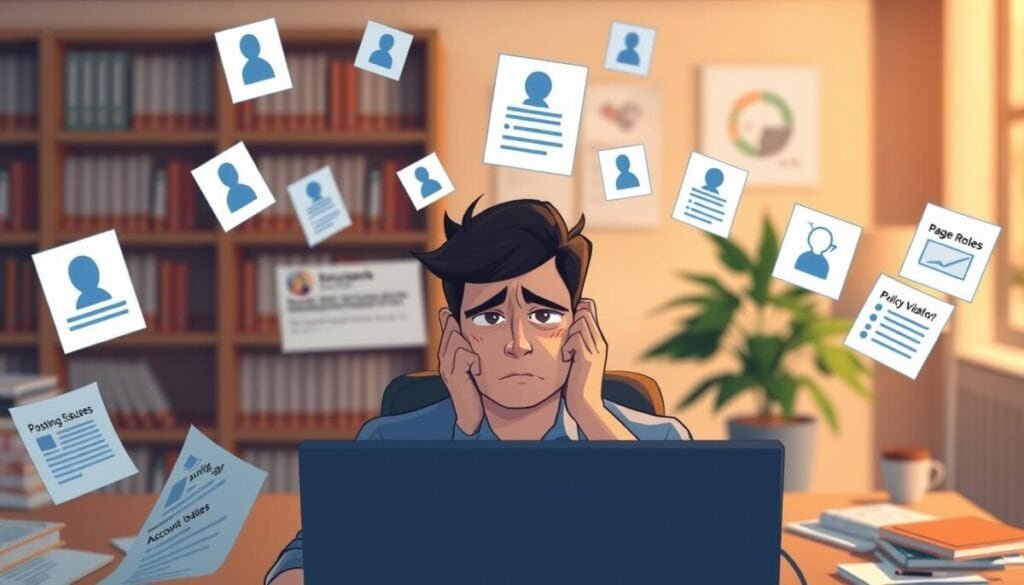
A common reason posts don’t appear is that you aren’t acting as the Page identity.
Quick check: confirm the active account and the identity shown in the composer. If you are signed in to the wrong account, the item will not publish as the brand. Context switching in the new Pages Experience is frequent and easy to miss.
Logged into the wrong account or not “acting as” the Page
Always verify the top bar or composer shows the Page name before you schedule or publish. If it shows your personal profile, switch to the Page identity and retry. This fixes many simple problems immediately.
Role removed or downgraded: Admin vs Editor vs limited roles
Only Admins and Editors can publish in most setups. Check Roles in Page settings to confirm your role. If your role changed, request access from a current admin and supply your profile link to speed approval.
Rule violations on the Page: partial feature loss vs full suspension
Open Page Quality to inspect policy hits. Partial restrictions can disable ads, messaging, or publishing for certain features. Full suspensions remove all access and require a support case. If you lost admin access accidentally, open support now—resolutions can take time.
- Confirm you’re acting as the Page before publishing.
- Verify role under settings; Admin or Editor is required.
- Request access from an existing admin if your role vanished.
- Rotate passwords and enable two‑factor on admin accounts to prevent tampering.
- Document exact composer errors; they help diagnose role, settings, or policy issues.
| Problem | Likely cause | Immediate action | Outcome to expect |
|---|---|---|---|
| Posts appear as personal | Wrong active identity | Switch to Page identity in composer | Posts publish as brand |
| Publish option disabled | Role lacks permission | Check settings; request Admin or Editor | Restore publish rights |
| Features missing | Policy or partial restriction | Review Page Quality; open appeal if needed | Features return after resolution |
| Admin removed | Accident or compromise | Open support case; secure accounts | Recovery may take days |
Step-by-step checklist to restore your ability to post
Use this compact troubleshooting flow to locate the cause and restore posting fast.
- Check for outages. If the service is down, wait and avoid making changes that complicate recovery. See the support troubleshooting guide for sharing problems.
- Refresh authentication. Log out and back in on all devices to clear stale tokens that often cause a silent composer failure.
- App and browser reset. Force-close and relaunch the app, then update or reinstall it. In a browser, clear cache and cookies, disable extensions, and try another browser to isolate the environment.
- Network and device checks. Disable VPN, switch networks, and reboot the device. This clears common DNS and routing issues.
- Test content. Post plain text. If that works, review the original content for risky links, formats, or spammy wording.
- Verify roles and settings. Make sure you are acting as the Page and that your role is Admin or Editor. Also check profile and page settings that block visitor posts.
- Third‑party tools. Re‑authenticate schedulers and confirm current API limits. Profiles and Groups have hard limits; Pages require proper permissions. If a tool still fails, consult vendor notes or this load troubleshooting resource.
- Document and escalate. Record timestamps and screenshots. If you are still unable post facebook after these steps, send the evidence to support for faster triage.
Once the post publishes, note what fixed the issue and add that to your team runbook.
| Step | Action | Why it helps | When to escalate |
|---|---|---|---|
| 1 | Check outage reports | Confirms platform status | If outage persists hours |
| 3 | Clear cache / reinstall app | Removes corrupted assets | If fails on other devices |
| 5 | Plain-text test | Isolates content filters | If all content blocked |
| 7 | Re-authenticate tools | Restores expired tokens | If scheduler shows API errors |
Stay out of trouble next time: prevention tips that keep posting smooth
Consistent controls and good tool hygiene stop most posting outages before they start. Build a short routine you follow weekly. Small checks save hours later.
Post like a human: pacing, originality, and avoiding spam patterns
Pace your activity over time. Don’t publish identical content across many places at once. Spread similar posts across hours or days.
Keep posts original. Rewrite for each audience to reduce spam signals and help the community engage.
Policy-aware publishing: content standards, wording, and safe links
Review current policies regularly. Avoid sensational wording and questionable links. Use reputable domains and clear URLs so filters trust your content.
Tool hygiene: authorized versions, secure access, and regular audits
Re‑authenticate tools on schedule and keep the app versions up to date. Limit admin roles and audit them quarterly to maintain control.
Quick checklist:
- Pace activity over time and avoid mass identical posts.
- Use safe, reputable links and simple wording.
- Re-authenticate tools and update apps regularly.
- Audit Page access and train users to spot fake services.
| Practice | Why it matters | Action | Result |
|---|---|---|---|
| Pacing | Reduces spam flags | Schedule posts hours apart | Stable posting ability post-restriction |
| Original content | Improves engagement and trust | Rewrite per audience | Fewer filters triggered |
| Safe links | Prevents blacklisting | Use known domains; avoid opaque shorteners | Higher delivery and fewer blocks |
| Tool audits | Stops role drift and token expiry | Quarterly reviews and re-auth | Continuous control and fewer outages |
If you manage Pages and need extra setup help, see the guide to create a page and secure roles so your team keeps the ability post on track.
Get back to posting: your path forward if issues persist
If basic fixes fail, collect clear diagnostics so you can escalate quickly and get back to publishing.
Gather precise details: note the exact error message, timestamps, target (profile, group, or page), and whether plain text or media behaves differently.
List the environments you tested — which app and which web browser, with versions — and whether another device succeeded. Reconfirm your core settings: acting as the page, correct roles, and visitor post permissions.
Re‑authenticate any scheduler or tool; expired tokens are a common culprit. Remember: profiles and groups have strict API limits, while pages still publish via approved apps.
If you remain unable post facebook, open Support Inbox with a concise reproduction list and screenshots. Meanwhile, publish via the working path (mobile or desktop) and document the fix for next time. It’s important to keep a record of any patterns you notice related to facebook marketplace posting issues, as this can help in troubleshooting. Engage with the Facebook community forums for advice, as others may have faced similar challenges. Lastly, stay updated on Facebook’s policies to ensure your posts comply with their guidelines to avoid future posting problems.