Ever tried to restore a connection but hit a wall? Does the platform block your attempt to change a friend’s access, leaving you puzzled about privacy and next steps?
This introduction walks you through clear fixes you can try right now. You’ll get practical workflows for web and mobile. You’ll learn the difference between Restrict, Block, and Unfriend.
The Restrict tool limits what a friend can see without cutting them off. You can remove a person from the Restricted list via the profile (Friends → Edit Friend List → uncheck Restricted), from Friends → Custom lists on the web, or inside Messenger by opening a chat and tapping the name to select Unrestrict.
If the platform itself has imposed limits on your account for violations, expect waits from hours to weeks and possible Help Center review for longer issues. For UI glitches, try updating the app, clearing cache, or using the web steps above.
Key Takeaways
- You can reverse Restrict from a friend’s profile or the Restricted list.
- Messenger offers a direct Unrestrict option in chat settings.
- Troubleshoot UI issues by updating the app and clearing cache.
- Platform-imposed limits vary; serious violations may need Help Center review.
- Adjust post-level privacy after unrestricting so public items stay controlled.
- For related account issues, see this guide on adding and managing contacts: why you can’t add a contact.
Understand Restrict vs. Unrestrict so you pick the right fix
Using Restrict lets you stay connected but narrows what a person can view on your profile. It preserves the friendship on your list while limiting non-public posts to protect your privacy.
When unrestricting matters now
Unrestrict when you want normal visibility back without rebuilding the entire connection. If your goal is to restore comments, tags, and the usual post reach, unrestrict is the right move. For message flow, choose based on how you use messenger.
Restrict vs. Block vs. Unfriend: quick contrast
- Restrict: person stays a friend; sees Public posts and tags; can still send messages.
- Block: full cutoff — no profile discovery, tagging, or messaging for safety reasons.
- Unfriend: removes the connection; public items remain visible but you lose friend-only access.
| Action | Messages & Calls | Profile & Posts |
|---|---|---|
| Restrict | Can still send; messenger activity hidden | Sees only Public and tagged posts |
| Block | No messages or calls | No profile access or tagging |
| Unfriend | DMs may still be possible | Loses friend-only access; public posts visible |
Tip: If you need to mute notifications but keep minimal access, use the messenger restrict option. For feed-level privacy, restrict is the best first step.
Step-by-step: Unrestrict a friend on Facebook (website and mobile app)
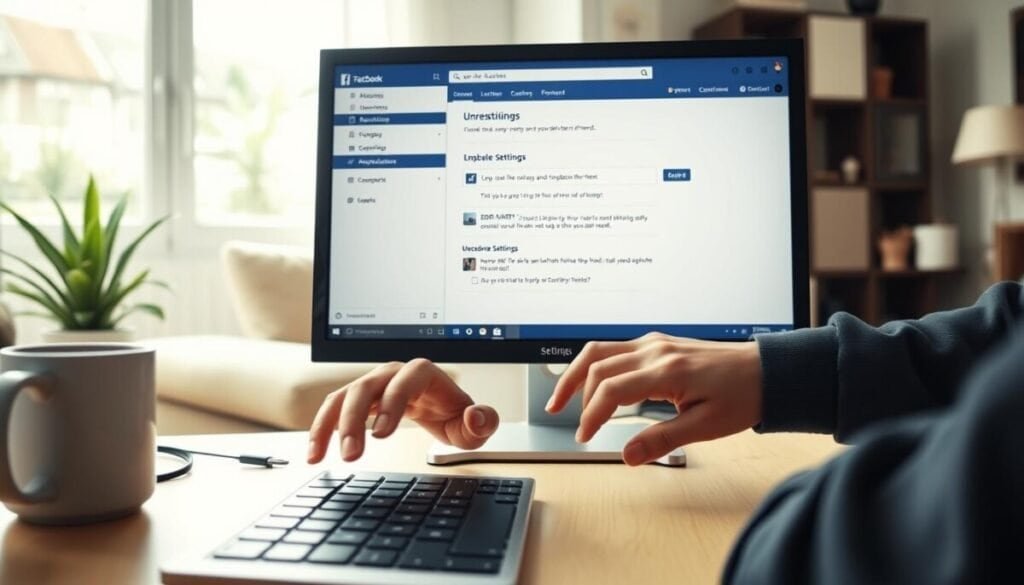
Follow these precise, UI-focused steps to remove a person from Restricted and restore normal visibility. The instructions cover the web path, the facebook app route, and managing the Restricted list for bulk edits.
On facebook.com (web)
Visit the person’s profile. Click the Friends button, choose Edit Friend List, and uncheck Restricted.
This step returns their access to Friends-level posts and restores normal interactions.
In the facebook app (mobile)
Open the app and go to the person’s profile. Tap Friends, choose Edit Friend List, then untick Restricted.
If the option is hidden, expand the Friends button options or try the web steps.
From your Restricted list (web)
To manage multiple accounts: go to Feed → Friends in the left menu → Custom lists → Restricted. Click the small cross next to the person’s name to remove them.
- Confirm: the person should no longer appear under the Restricted list.
- Troubleshoot: if the Friends control is unresponsive, refresh, clear cache, or switch browsers.
- Tip: double-check the right name before removing to avoid accidental changes.
Unrestrict someone on Messenger quickly
Open the Messenger app and go to the chat you want to restore. Tap the profile picture top area and select Unrestrict to return full message visibility. This restores notifications and read receipts based on your privacy controls.
If you prefer a central method, use Settings. Open the menu → Settings → Privacy & safety → Restricted accounts. Find the person name in the list and remove the entry to unrestrict across devices.
- Hidden chats: restricted chats may not show in your main feed — use Restricted accounts to locate them.
- Notifications: after you unrestrict, messages from that person will notify you again per your settings.
- Troubleshoot: if the Unrestrict button is missing, update the messenger app, check archived threads, or confirm the person name spelling.
Tip: For multiple accounts, manage the list under Settings to save time and keep your privacy safety controls consistent.
facebook won’t let me unrestrict someone: real fixes that work
When you can’t restore normal access, the fix often lies in app versions, cache, or using the wrong product. Start with simple checks before escalating to support.
Common causes
- Outdated app builds hide or rename the button and menu controls.
- Cached data or a bad session can make settings unresponsive.
- Confusing the site and messenger paths means you may be changing the wrong list.
When your account is restricted
Platform limits occur for spam, harassment, or policy breaches. Short penalties last a few hours to a day.
Serious violations can block actions for time windows of days or weeks. Review Community Standards and gather timestamps.
Quick fixes
- Update the app on your phone, clear cache, and relaunch.
- Try the web path (Friends → Custom lists → Restricted) if the menu is missing in-app.
- If limits persist, wait the short time window or contact Help Center with screenshots and notes for faster support.
Privacy and visibility after you unrestrict: what they can see and how to control it
When a person regains friend-level access, their visibility into your feed and profile increases. Check your privacy settings before posting to avoid unintended exposure.
- Public posts (globe icon) and any posts where they are tagged remain visible.
- Profile and cover photo updates are public by default, so a profile picture or cover picture change is visible.
- Messages remain separate from feed visibility; changing a list status does not retroactively share past posts.
Control post audiences: use the post privacy selector to choose Friends or Public at publish time. Choosing Friends hides posts from users kept on your Restricted list.
| Item | Visible to Restricted | Visible after Friend access |
|---|---|---|
| Public posts | Yes | Yes |
| Friends-only posts | No (if still restricted) | Yes |
| Profile / cover picture | Yes (public) | Yes |
| Messages | Visible in chat; privacy settings apply | Visible in chat; unaffected by past posts |
Before posting a sensitive update, set the audience to Friends. If you don’t want a specific person to see an update, keep them on the Restricted list or adjust the audience first.
For list management and professional uses, see this guide on using the Restricted list: manage your Restricted list. For tagging controls and why tags matter, read how tagging affects visibility.
Move forward with safer, smoother interactions
Adopt short, repeatable steps to manage lists and restore normal chat flow. Use the web path (profile → Friends → Edit Friend List), the app path (profile → Friends → Edit Friend List), or open messenger app and tap the chat to finish in seconds.
For multiple entries, visit your restricted list to remove people faster and confirm each change. In facebook messenger, tap the profile picture top area in chat or go to Menu → Settings → Privacy & safety → Restricted accounts to pick a person name and restore access. If you encounter issues while managing your restricted list, try logging out and back into your account to refresh your settings. Additionally, if you’re facing any problems with your account details, you may need to troubleshoot facebook birthday update problems to ensure your information is accurate. Remember, keeping your privacy settings updated is essential for a better experience on the platform.
Remember: messenger restrict hides the chat, stops notifications, and masks activity without deleting messages. Review lists monthly, document why you restrict someone, and reopen access when trust and context improve. For extra privacy tools, run a quick Privacy Checkup and consult a guide on account issues: change username help. Additionally, it’s important to understand the reasons behind restrictions on messaging features. For example, many users often wonder why Facebook restricts unsending messages, which can be a vital tool for maintaining privacy and effective communication. Familiarizing yourself with these policies can help you navigate interactions more confidently and protect your online presence.