Facing a block when you try to change your avatar? That unexpected error can stop you cold and raise questions about your account, device, or the app itself. This short guide gives clear checks and fixes so you get back to a normal workflow fast.
Start simple: confirm the app version and recent updates, test the same action in a browser or on the web, and verify account settings and privacy options. Small file problems — wrong image type, excessive file size, or odd dimensions — cause many failures.
On mobile, tap your profile icon, choose Select Profile Picture, pick a photo or take a new one, and use Save/Use. On desktop, hover the avatar, click Update Profile Picture, upload or choose an existing image, adjust with the slider, then Save. If the app acts up, try the lite app, switch to a browser, or reinstall the last update.
Key Takeaways
- Check updates: confirm app version and browser stability first.
- Validate files: image type and size often break uploads.
- Use web fallback: the browser flow can bypass app bugs.
- Control visibility: set privacy or page options to limit unwanted views.
- Contact support: policy or account flags may require official help.
Quick checks when facebook won’t let me upload profile picture
Begin by ensuring your client software is current or try the same action from a reliable web browser.
Confirm app version or use a stable web browser
Update the app to the latest version or open the site in a stable web browser. Outdated software and old browser builds commonly cause failed transfers and display errors.
Rule out temporary glitches
Quit the app, sign out and sign back in, then reboot your device. That clears cached errors that block the avatar flow.
Verify account status and privacy settings
Check account restrictions, recent policy flags, and page visibility. Mismatched settings can make a successful change invisible to your views.
Check the photo file before trying again
Use a standard image format (JPEG or PNG). Confirm the file size and dimensions fit the platform’s crop tool. If a loading loop appears, try the same photo using a web browser to isolate the issue.
| Check | Likely cause | Quick action | When to contact support |
|---|---|---|---|
| App or browser | Outdated version or unstable build | Update app or use a stable web browser | If update fails or versions mismatch |
| Temporary glitch | Cached data or session error | Sign out, restart app, reboot device | If problem returns after restarts |
| Account / policy | Restriction or temporary hold | Review settings and page controls | If changes are blocked for policy reasons |
| File | Wrong format, too large, bad dimensions | Resize, convert to JPEG/PNG, retry via web | If the same file fails on web |
If these checks fail, try the web flow for your page using the Update option. For tagging or account questions, consult this tagging help resource or contact support with the file name and timestamp for faster resolution.
Mobile fixes in the Facebook app: iPhone and Android
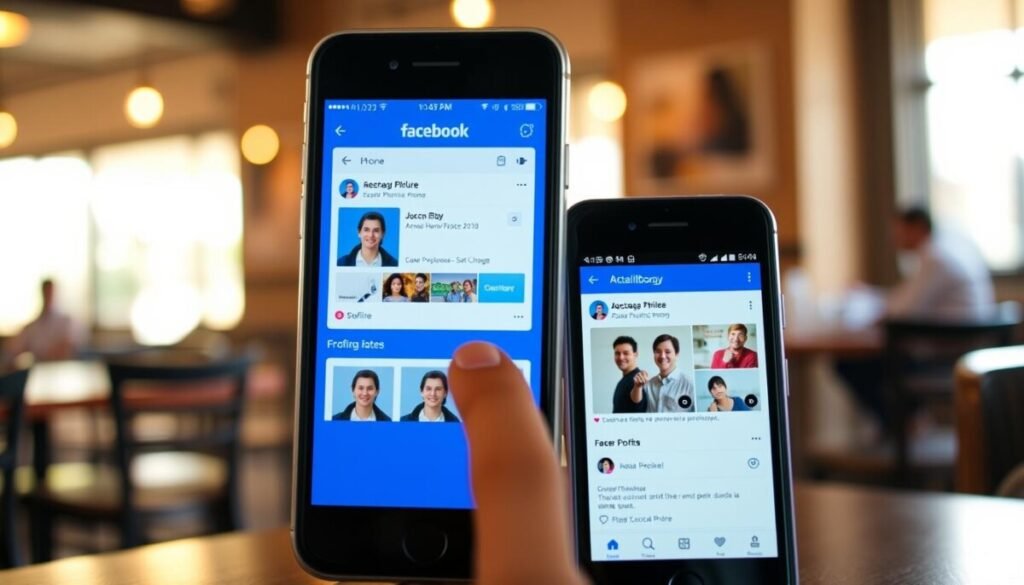
When your mobile app blocks a profile update, start by checking app permissions and the current version on your device.
iPhone steps
Update the facebook app from the App Store first. Then go to your page and tap the Profile icon.
Tap the profile picture, choose Select Profile Picture, and pick a photo or take one with the camera. Grant Photos and Camera access when prompted.
Use the editor to crop or zoom, then tap Save at the bottom to finalize the change profile picture action.
Android steps
Open the mobile app, tap your profile image, and choose Select Profile Picture from the menu. ALLOW storage and camera access if requested.
Select from Camera Roll or PHOTOS OF YOU, then tap USE. If the flow stalls, clear the app cache and retry to remove file or rendering errors.
Fallbacks and version rollbacks
If the regular app fails, try Facebook Lite or switch to a web browser to change profile photo on your page. When a recent update breaks uploads, uninstall updates or reinstall the app to restore a stable version.
| Issue | Mobile action | Why it helps | When to escalate |
|---|---|---|---|
| Permissions denied | Grant Photos/Camera | Allows file access for the editor | If prompts do not appear |
| App cache / stalls | Clear cache and retry | Removes corrupted session files | If same file fails on web |
| Broken after update | Reinstall or uninstall updates | Rolls back buggy code | If reinstall does not fix |
For related troubleshooting on app load errors, see this app load errors guide for additional checks.
Using a web browser to change your profile picture

Open a web browser and load the site in a new window. Go to your facebook profile and hover over the profile image to reveal the Update option.
Update via the profile thumbnail
Click Update Profile Picture, then choose Upload Photo to add a new file or select an existing image from Photos. In the dialog window, drag the image to position it and use the slider editor to set the zoom for the best fit.
Prefer a previously used picture? Scroll your images, select one, and click Save. Cropping happens automatically if the photo doesn’t match the frame.
File requirements and editor tips
Use standard formats (JPEG or PNG) and keep files moderate in size. Oversized images can time out in some browser sessions.
Use the pencil icon to edit the thumbnail so the icon looks clear at small sizes. Follow this simple order: open profile page, choose Update, select or upload, adjust with the editor, then Save.
Visibility and privacy controls
Set privacy to “Only Me” if you want to avoid a feed post after you change profile picture. After saving, refresh the window to confirm the new image renders across the page and menus.
Need step-by-step help? See the guide on how to change your profile picture for a visual walkthrough.
| Action | Why it matters | Quick tip |
|---|---|---|
| Open in browser | Bypasses app glitches | Try a different window if one fails |
| Use editor | Controls crop and thumbnail | Drag + slider for best framing |
| Set privacy | Prevents unwanted posts | Select Only Me to hide feed updates |
Keep your profile updates smooth from here on
Prevent repeated errors: prepare a properly sized image, pick the right tool, and follow a simple order when updating your icon.
Keep the facebook app and mobile app updated weekly to cut crashes. If the app still fails, switch to using web on desktop or try Facebook Lite to finish the change on older devices or slow networks.
Set visibility to Only Me if you want no feed post. After saving, confirm the thumbnail and icon placement so the image displays clearly across comments, search, and stories.
If errors persist at the bottom of the screen, clear cache or reinstall the app, document the time and error text, then contact change username help with those details for faster support.