
Have you ever had a device that worked yesterday but refuses to connect today? This common issue can stall your workflow and waste time. Many users report connectivity problems after a system update. You need a clear, ordered process to find the root cause and restore service fast.
Start with simple checks. Power-cycle the device and your computer, verify device compatibility, and confirm system settings let wireless devices connect. If that does not help, move to driver and firmware updates.
We guide you through a practical, step-by-step approach that balances software and hardware checks. Follow this sequence to save time and avoid repeated troubleshooting. For a deeper troubleshooting checklist, see this resource on connectivity troubleshooting: troubleshooting Bluetooth connectivity issues.
Key Takeaways
- Start with power-cycling and proximity checks to rule out basic interference.
- Verify device compatibility and firmware before extensive changes.
- Update drivers and review power management in system settings next.
- Work in a stepwise order to save time and isolate the issue.
- Use manufacturer drivers and official resources for stable results.
Initial Hardware and Connectivity Checks
Begin with simple hardware checks to rule out basic signal and power problems. These steps take minutes and often restore a stable connection. Follow them before changing drivers or system files.
Verifying Bluetooth Status
Press the Windows logo key + A to open Quick Settings and confirm the radio option is enabled. If the option appears off, toggle it on.
If a device does not show up, open Settings and switch the radio off, wait a few seconds, then switch it back on. This refresh can clear transient issues.
Checking Physical Proximity
Make sure devices are close to the computer. Move them within a few feet to eliminate range or interference problems.
If you still have connection issues, power-cycle both the computer and the device. Also verify the device supports the radio and that any required hardware is turned on.
- Confirm the device supports the radio standard used by your system.
- Keep other wireless gear at a distance to reduce interference.
- Restarting the radio option in system settings can help devices reappear.
| Check | Action | Why it matters |
|---|---|---|
| Radio State | Open Quick Settings (Win + A); enable the option | Ensures the computer advertises itself for a connection |
| Device Power | Confirm the device is on and discoverable | Powered devices are required for pairing and stable links |
| Proximity | Move devices closer; remove obstructions | Improves signal strength and reduces connection issues |
When basic checks fail, proceed to targeted troubleshooting. For a fuller checklist and step-by-step guidance, see our resource on troubleshooting Bluetooth connectivity issues.
How to Fix Bluetooth Pairing Failures Windows 11
Start by confirming the device is discoverable and ready to accept a new connection.
Make sure the device is in pairing mode. If it is not discoverable, your computer will not list it. Many connection issues come from the device not broadcasting its signal.
Open Settings and remove the problematic device. Then re-add it from the available list. Selecting the specific device from that list often completes the handshake.
If the device still does not appear, restart the computer. A quick reboot clears temporary software glitches and can restore the system radio state.
When you need a deeper checklist, consult this guide on troubleshooting Bluetooth headphones for targeted steps and examples users find effective.
| Step | Action | Why it helps |
|---|---|---|
| Make discoverable | Enable pairing mode on the device | Allows the computer to detect the device |
| Remove and re-add | Use Settings to forget the device, then reconnect | Clears stale profiles and resolves pairing errors |
| Restart computer | Reboot to reset system services | Fixes transient software glitches that block connection |
Running the Built-in Troubleshooter
Run the built-in troubleshooter to let Windows diagnose common radio and driver problems automatically.
Press the Windows logo key + I to open Settings. Go to System and select Troubleshoot. Then choose the bluetooth troubleshooter from the list to begin the process.
The troubleshooter is an automated routine that scans your system for typical connection issues. It checks services, adapter state, and configuration. The tool attempts repairs when it can.
- Select Troubleshoot > Other troubleshooters.
- Find the bluetooth troubleshooter and click Run.
- Follow prompts and note any recommended steps.
When the scan finishes, Windows reports whether the problem was resolved or if manual steps are needed. Running this tool often saves time on basic issues and points you to the next action.
| Action | What it checks | When to use |
|---|---|---|
| Run troubleshooter | Adapter, services, common settings | First step for unexplained connection issues |
| Follow recommendations | Apply automated repairs or view logs | When the tool suggests a targeted change |
| Note results | Resolution status and next steps | Before moving to driver or service adjustments |
Managing Bluetooth Drivers
A quick driver check can prevent hours of troubleshooting for your wireless devices.
Start in Device Manager. Open the manager, locate the adapter under network or Bluetooth, right-click it and choose Update driver. Select the automatic search to let Windows try a compatible update first.
If the automatic route does not help, uninstalling the adapter is an effective next step. Right-click the device, choose Uninstall device, then restart your computer. The system reinstalls the driver on boot and often clears corrupted profiles.
When those steps fail, download the latest driver from the manufacturer site. Make sure you pick the driver that matches your device model and system. This removes version mismatches and gives you vendor support for persistent issues.
For faster scanning and packaged updates, tools like Driver Easy offer a 7-day free trial. Use such tools to identify missing drivers, but validate any download against the manufacturer for safety.
| Action | How to do it | When to use |
|---|---|---|
| Update via Device Manager | Right-click adapter > Update driver > Search automatically | First step for most driver-related issues |
| Uninstall and restart | Uninstall device in Device Manager; reboot | Use when the driver is corrupted or behaves oddly |
| Manufacturer download | Download driver from vendor site matching model | When automatic update does not resolve the problem |
| Third-party scan | Use a trusted tool (trial available) then verify source | To speed discovery of outdated drivers, then confirm with vendor |
Managing drivers is a critical step because outdated software often causes connection issues. For a broader troubleshooting checklist, see our guide on troubleshooting Bluetooth.
Restarting Essential Support Services
Restarting core services often restores the system layer that manages wireless connections. This step targets the runtime processes that handle device advertising and pairing. It takes a few minutes and often resolves persistent problems without drivers or heavy changes.
Configuring Startup Types
Press the Windows logo key + S and type services.msc to open the Services app. Locate the Bluetooth Support Service entry in the list.
Set the startup type to Automatic so the support service runs every time the system boots. This option ensures the radio handler and related services are available when your computer starts.
- Right-click Bluetooth Support Service > Properties > Startup type: Automatic.
- Click Stop, wait two seconds, then click Start to restart the support service manually.
- Repeat for related services such as the Bluetooth Audio Gateway Service to improve overall support.
| Service | Action | Why it helps |
|---|---|---|
| Bluetooth Support Service | Set to Automatic; restart | Restores system-level radio handling and clears runtime errors |
| Bluetooth Audio Gateway Service | Set to Automatic | Ensures audio routing and profiles load reliably |
| Related services | Verify startup type | Reduces repeated interruptions over time |
Many users find that a manual stop and start of the support service resolves connection issues that build up over time. After these steps, restart bluetooth functions often return to normal without further intervention.
Adjusting Device Discovery Settings
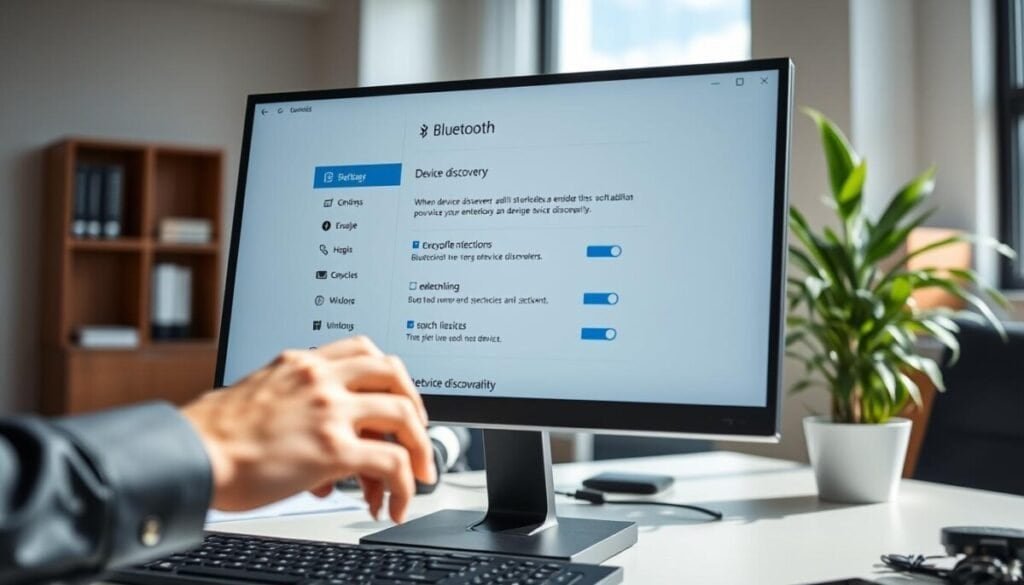
Open Settings and select Bluetooth & devices to manage how your system finds nearby hardware. This area controls discovery modes and visibility for every device you add.
Set discovery to Advanced when a device does not appear in the available list. Advanced scanning can detect a previously hidden bluetooth device and reveal more entries for pairing.
Ensure the target device is set to be discoverable. If the device broadcasts a signal, the system lists it and you can complete the connection from the available devices menu.
- Navigate: Settings > Bluetooth & devices.
- Change discovery: choose the Advanced option if present.
- Confirm the device is discoverable and refresh the list.
Why this helps: adjusting discovery settings forces the system to broaden its scan window and protocol support. That often resolves situations where a device is present but not shown in the list.
| Action | Where | Result |
|---|---|---|
| Enable Advanced discovery | Bluetooth & devices > Settings | Finds hidden entries in the available devices list |
| Set device discoverable | Device controls or companion app | Allows the system to detect the device |
| Refresh list | Bluetooth & devices page | Updates available bluetooth devices shown |
For a broader troubleshooting checklist, see troubleshooting Bluetooth.
Repairing Corrupted System Files
Use the System File Checker to scan your installation for corrupted files that disrupt hardware drivers.
Open an elevated Command Prompt (run as administrator) and enter:
- sfc /scannow
The tool inspects core system components and repairs damaged files automatically. Corrupted files can interfere with hardware drivers and cause a persistent connection issue on your computer.
The scan is a background system process and can take some time to finish. Leave the command window open until it completes so you can read the results and next steps.
If the utility finds and restores files, reboot after the update. That often resolves driver-related issues without further change to settings or third-party tools.
Run this check after a major update or when repeated issues appear. Regular scans help keep the system healthy and reduce recurring problems with hardware on your device.
Utilizing Advanced Software Tools
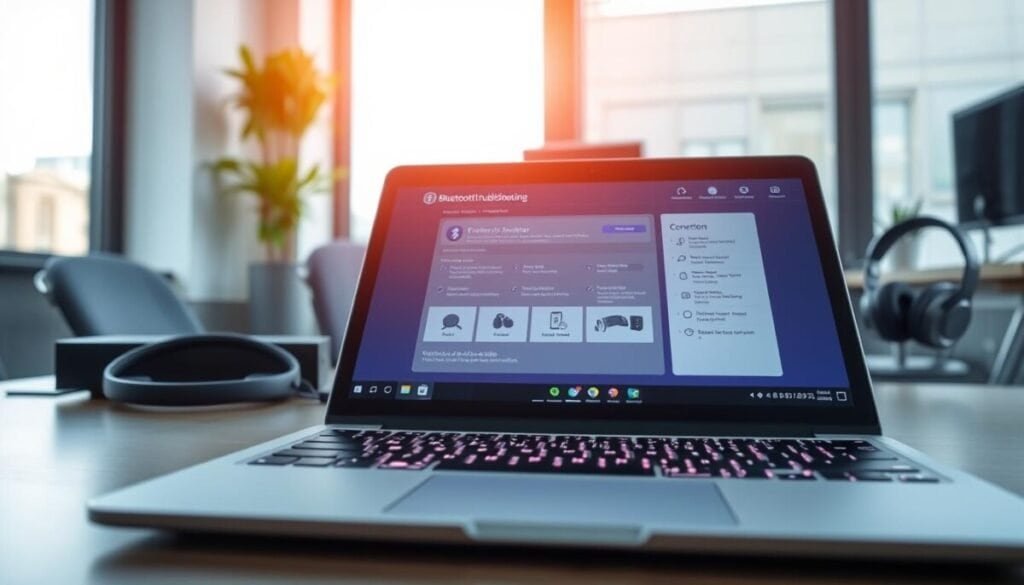
Turn to dedicated diagnostic tools to separate driver problems from device faults quickly. Use these utilities when basic checks do not isolate the cause.
Fsquirt.exe is a built-in Windows tool you can run to transfer files and confirm that your bluetooth support stack responds to connections. If Fsquirt opens and transfers complete, the core radio service is usually healthy.
Third-party scanners can find missing drivers that automated updates miss. Use a trusted vendor tool to flag outdated packages and other issues. These tools often produce a clear list of recommended updates.
- Run Fsquirt.exe to verify basic transfers.
- Scan with a reputable driver tool to detect missing drivers.
- Apply updates, then retest the connection to see whether the problem is software-related.
Maintaining proper bluetooth support ensures devices stay connected during your workday. Always confirm that support utilities are up to date with the latest system patches.
Final Steps for Restoring Wireless Connectivity
Give your PC one more reboot so all changes apply and services restart cleanly.
Open the Bluetooth & devices app in Settings and confirm the device is listed as connected. If the device still shows an issue, make sure the device is discoverable and try re-pairing it from the list.
If you still have connection issues, review the full checklist or seek community help via the Microsoft support thread. For headphone-specific steps, see this troubleshooting headphones guide.
By following these steps, you address common hardware conflicts and software errors so your device connections stay stable and predictable.