
One in four professionals saved over three hours per week after adopting the 2022 appointment schedule feature—proof of measurable impact on time management and booking efficiency.
Adopt the workflow. Share a direct link to the booking page to eliminate back-and-forth email. Allow people to book time without requiring an account.
Enable automated reminders to reduce no-shows. Activate payment collection and email verification to secure professional bookings.
Manage multiple bookings from a single interface. Use the feature to find mutually convenient meeting times for others and simplify daily scheduling.
This guide provides a step-by-step method to master google calendar appointments for maximum efficiency and consistent results. To enhance your scheduling experience, consider implementing some notion calendar integration tips to streamline your workflow further. These strategies can help you synchronize tasks and deadlines across platforms, ensuring that you never miss an important date. By leveraging these tools, you can optimize collaboration and improve time management among your team.
Key Takeaways
- Use a share booking link to remove email friction and speed booking.
- Allow people to book directly—no account requirement improves conversion.
- Turn on reminders to cut no-shows and protect scheduled time.
- Employ payment and email verification for professional-grade bookings.
- Centralize multiple appointment schedules to streamline daily workflows.
Understanding Google Calendar Appointment Schedules
Centralize scheduling rules to convert scattered time blocks into a single booking workflow. This appointment schedule model replaced legacy slots in 2022 to allow greater flexibility and control.
The system performs automatic availability checks across all synced calendars to prevent double-booking. Define explicit time blocks for when meetings may occur — enforce limits and guard free time.
The public booking page displays real-time availability to clients and partners. Every confirmed booking is added automatically to the main calendar, producing a consolidated daily view.
- Reduce admin load — centralize schedules to cut manual coordination.
- Increase professionalism — public page and automated checks improve the booking experience.
- Handle complexity — support overlapping rules for multi-role professionals.
Customize availability to ensure bookings occur only when truly free. The feature simplifies finding mutually convenient times and enforces predictable, reliable scheduling.
How to Set Up Your First Booking Page
Select a host calendar to anchor the booking page and capture every booking.
Sign in with a Google Account or a Workspace account to begin. Choose primary or secondary calendars during the setup step. Set a clear title and add a professional name and photo to the page.
Defining Your Duration
Define the duration for each meeting. Set a minimum duration of 5 minutes. Use consistent durations to preserve daily rhythm and avoid fragmented day segments.
Setting Your Time Zone
Verify the computer time zone. The booking page displays availability based on that setting. Correct time zone ensures others see accurate times and reduces cross‑zone conflicts.
- Include a description—appears on the booking page and in confirmation email.
- Every event adds to the calendar automatically.
- Confirm account identity—photo and name improve trust for bookings.
Customizing Your Availability and Booking Settings
Set explicit availability windows to prevent unwanted bookings.
Define lead time and scheduling window. Set a minimum lead time of 1 hour and a maximum of 365 days. Choose start and end dates so the booking page only shows valid dates. To ensure smooth operations, you can also set working hours in Google Calendar to reflect your availability. This allows clients to easily find suitable times without unnecessary back-and-forth communication. Additionally, consider syncing your calendar with other tools to enhance efficiency and streamline the booking process.
Limit daily load. Configure a maximum number of bookings per day to protect focused work blocks. Combine availability from multiple calendars to block conflicts across systems.
Configuring Buffer Times
Apply buffer time before or after each meeting to allow preparation and task completion. Use short buffers for quick follow-ups; use longer buffers for deep-work sessions.
- Set buffers between consecutive meetings — avoid back-to-back meetings.
- Adjust specific dates — mark holidays or blackout days to prevent bookings.
- Follow the step-by-step interface to update times, duration, and booking limits.
Monitor daily limits and buffer settings. This preserves service quality and enforces predictable scheduling behavior.
For a related workflow on sharing office hours, see the office hours scheduling guide.
Managing Google Calendar Appointments with Advanced Features
Activate payment and verification workflows to convert time slots into paid, validated meetings.
Enabling Payment Collection
Connect Stripe to the booking page to collect payments at the time of booking. Require payment as a condition of confirmation to reduce cancellations.
The confirmation email includes receipt details and the event link. Delegate payment oversight to an assistant when needed.
Setting Up Email Reminders
Configure up to five automated email reminders per booking to cut no-shows. Stagger reminders—48 hours, 24 hours, and 1 hour—to reinforce attendance.
Customize reminder copy and timing in the booking form settings to match the service and the expected lead time.
Implementing Email Verification
Enable email verification to block spam bookings from people not signed into an account. Require confirmation before finalizing a booking.
Verification reduces fraudulent bookings and lowers administrative load. Use delegation so assistants can manage verification flags.
- Invite up to 20 co-hosts per appointment.
- Auto-add video conferencing links to the event.
- Booking form supports custom fields to gather guest details.
- System checks for conflicts across all synced calendars.
For troubleshooting and setup guidance, see troubleshooting setup.
Strategies for Sharing Your Booking Page
Publish a short, trackable link to the booking page inside email signatures and social profiles. Use UTM tags to measure source performance. This reduces back-and-forth and accelerates booking conversion.
Embed the provided HTML code directly into a professional website. Add a button that opens a popup for the booking page to keep visitors on the same site. Offer both a consolidated page and individual service pages so people choose specific appointment types.
Preview the page with the “see what others see” option before sharing. Confirm availability displays properly and that time slots reflect buffer rules.
- Place the short link in outgoing email footers to surface the booking link automatically.
- Include the link on service pages and team bios to centralize scheduling.
- Enable public access so anyone with the link can view availability and schedule a meeting.
Ideal Use Cases for Professional Scheduling
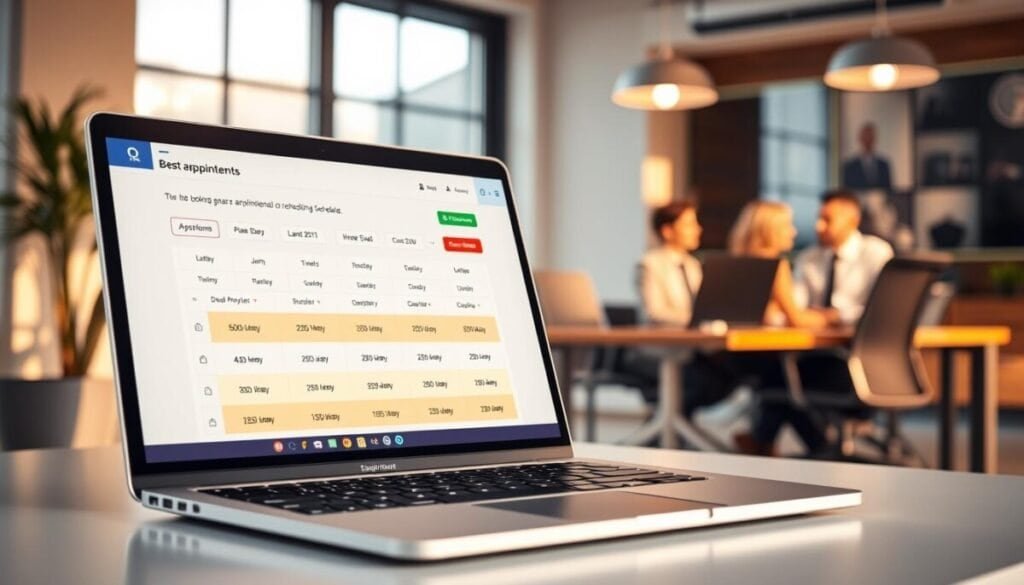
Match professional workflows to the appointment schedule to enforce predictable daily rhythms. Configure distinct booking pages per role—sales, recruiting, clinical, and education—to remove manual coordination.
Sales representatives publish a short link so clients can book demos and preserve selling time. Recruiters let candidates self-select slots to speed interview pipelines.
Clinicians accept online consultation bookings to reduce phone hold time. Teachers open office-hour blocks for students to reserve tutoring sessions.
Use the booking form to collect intake fields—role, goal, brief description, and verification token. Auto-add each confirmed event to the main calendar so the day remains organized.
| Role | Use case | Key benefit | Required form fields |
|---|---|---|---|
| Sales | Product demos | Faster lead conversion | Name, company, demo goal |
| Recruiting | Interviews | Streamlined selection | CV link, position, availability |
| Healthcare | Consultations | Reduced hold time | Patient name, reason, insurance |
| Education | Office hours | Improved student access | Student ID, topic, prep notes |
Enable reminders, video links, and verification to protect meetings. Implement role-specific pages so people reach the correct service with minimal friction.
Differences Between Appointment Schedules and Legacy Slots
Retired legacy slots were replaced by the modern appointment schedule model on July 18, 2024.
Legacy slots served internal workflows only. The new system allows public booking and guest access. It centralizes availability across multiple synced calendars to avoid conflicts.
Appointment schedules add features missing from legacy slots. Add buffer time. Set daily booking limits. Collect payments at booking. Configure custom recurrence and exact date availability.
The booking page is more user-friendly. Offer multiple appointment windows across days. Require an account only when verification is necessary. All new bookings must use the updated schedule feature to register as events.
- Automatic conflict checks prevent double-booking.
- Buffer time supports preparation between meetings.
- Payment and limits enforce professional workflows.
| Legacy slots | Appointment schedules | Practical impact |
|---|---|---|
| Internal use only | Public booking page | Wider client access; fewer manual exchanges |
| No buffer support | Buffer time between events | Protected focus; controlled day pacing |
| Basic recurrence | Custom recurrence and specific dates | Fits complex weekly and multi-day needs |
| No payment collection | Stripe payment integration | Convert booking into paid events |
For a technical walkthrough of setup and best practices, consult the appointment scheduling guide.
Managing and Hiding Your Booking Pages
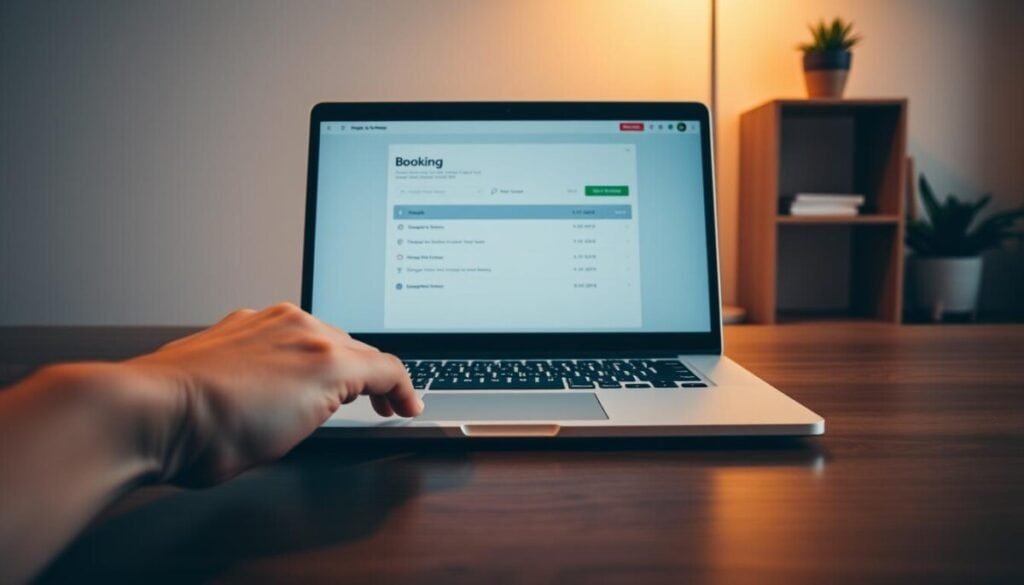
Hide unused booking pages to declutter the main view and reduce visual noise. Use the left-hand Booking pages panel as the control center. This panel centralizes visibility controls for all linked schedules.
Hover the target booking page. Select “Hide from calendar” to remove its overlay from the primary view. The page remains live—external users can still use the link booking to schedule time.
Removing Schedules from Your View
Toggle visibility for each schedule to match the current workflow. Show only the pages required for active services. Hide the rest to protect focus and reduce conflicts across calendars.
- Edit the title and name on any page to manage professional identity.
- Hide a schedule without deleting the underlying page or its booking link.
- Use the panel to switch pages on quickly when availability changes.
For step-by-step controls and troubleshooting, consult the support article on how to manage booking pages.
Streamlining Your Workflow for Future Success
Convert scattered availability into a predictable, managed schedule for every service. Implement an appointment schedule to automate booking and reclaim valuable time.
Enable automated reminders and payment options to protect confirmed appointments. Keep the booking page updated so external users see accurate availability.
Integrate with google calendar to prevent double-booking and enforce buffers. Follow each step in this guide to activate core features and finalize the public link.
Review metrics regularly. Adjust daily limits and time blocks as demand grows. Evolve the schedule to match client needs; maintain operational control and predictable outcomes.



