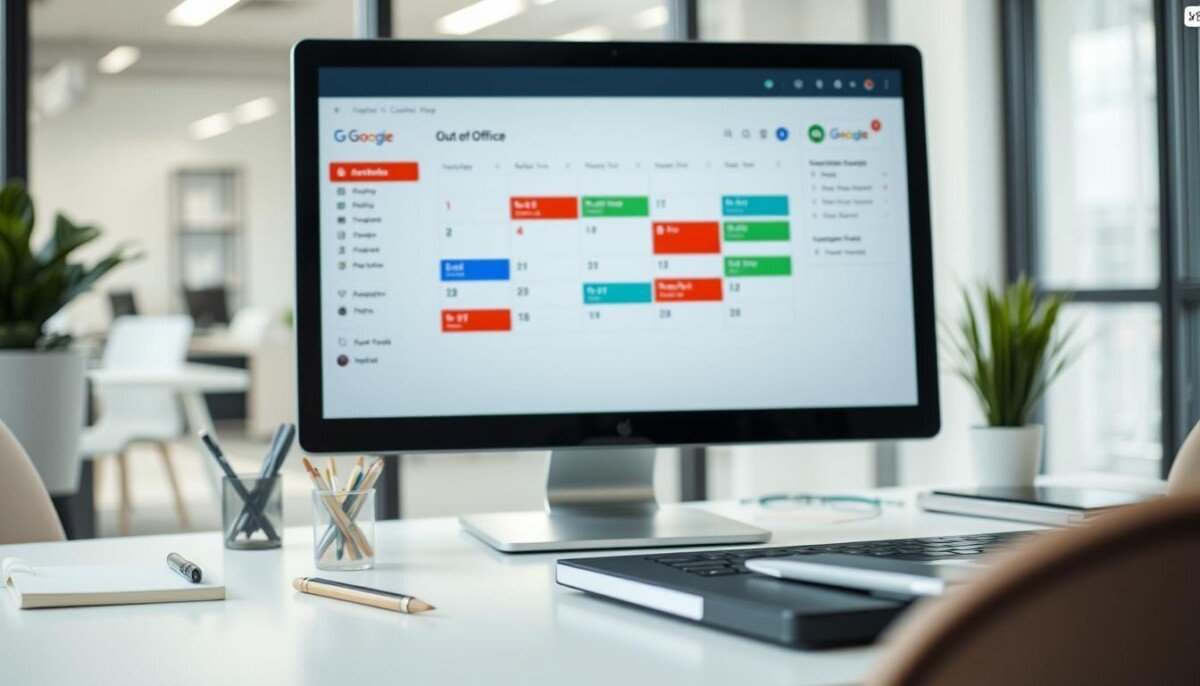
Enable automated absence handling to protect availability and preserve team flow.
Require a Workspace account to access the automated absence feature. Configure settings to mark a date range as unavailable—then the system will decline meeting requests during that period.
Set an explicit message for colleagues. Provide dates, hours, and a clear return day so requests receive consistent replies. This prevents manual overrides and missed communications.
Use the event-level option to apply rules to single days or longer periods. Apply decline rules to conserve time. Define hours to avoid partial-day confusion.
Follow this method to maintain reputation and mental space. Proper configuration ensures that users and team members know exact availability and that responses are sent automatically to incoming requests.
Key Takeaways
- Workspace accounts are required to use automated absence features.
- Configure an office message with clear dates and return hours.
- Enable automatic decline to stop unwanted meeting requests.
- Set event and time parameters to match actual availability.
- Consistent messages maintain professional communication.
- Automated replies reduce manual updates and stress.
Understanding the Benefits of Google Calendar Out of Office
Automated absence signals reduce scheduling friction and preserve team flow.
Studies show a properly planned vacation improves mental health and restores cognitive capacity. This recovery increases performance after return.
Set a clear absence status to protect shared time. Automated email replies provide exact return dates. People receive consistent guidance—fewer follow-up messages result.
- Configure settings to reflect working hours—avoid accidental meetings.
- Redirect urgent items to a designated colleague—prevent backlog.
- Use automated replies to manage expectations and respect team time.
| Metric | Effect | Recommended action |
|---|---|---|
| Vacation frequency | Improved recovery and productivity | Block time and enable automated replies |
| Availability clarity | Fewer meeting conflicts | Set working hours in settings |
| Communication load | Reduced follow-ups | Provide return date and backup contact |
Adopt these practices to maintain professional relationships and enable teams to plan reliably. For tool guidelines and setup procedures, consult this how to use online tools reference.
How to Set Up Google Calendar Out of Office on Desktop
Access the desktop interface and sign into the workspace account before creating absence blocks.
Open google calendar on the desktop. Confirm the google workspace login to enable the office feature.
Managing Event Privacy Settings
Navigate to settings. Select the calendar event and set visibility to only authorized users.
Use the privacy option to protect sensitive entries and limit attendee lists. Update the office message for each event so recipients receive consistent guidance.
Scheduling Recurring Out of Office Blocks
- Select the date range for the vacation and choose the office event option to automatically decline meeting requests.
- Choose frequency — daily, weekly, or custom — to create recurring ooo blocks that match working hours.
- Verify dates and times across all calendars to keep settings synchronized.
| Action | Setting | Outcome |
|---|---|---|
| Set privacy | Event visibility: private | Restricts access to authorized users |
| Create recurring | Frequency: custom | Maintains consistent working hours |
| Customize message | Personalized decline text | Clear guidance for meeting requests |
Refer to this guide for related procedures: how to schedule office hours.
Configuring Automatic Declines on Mobile Devices
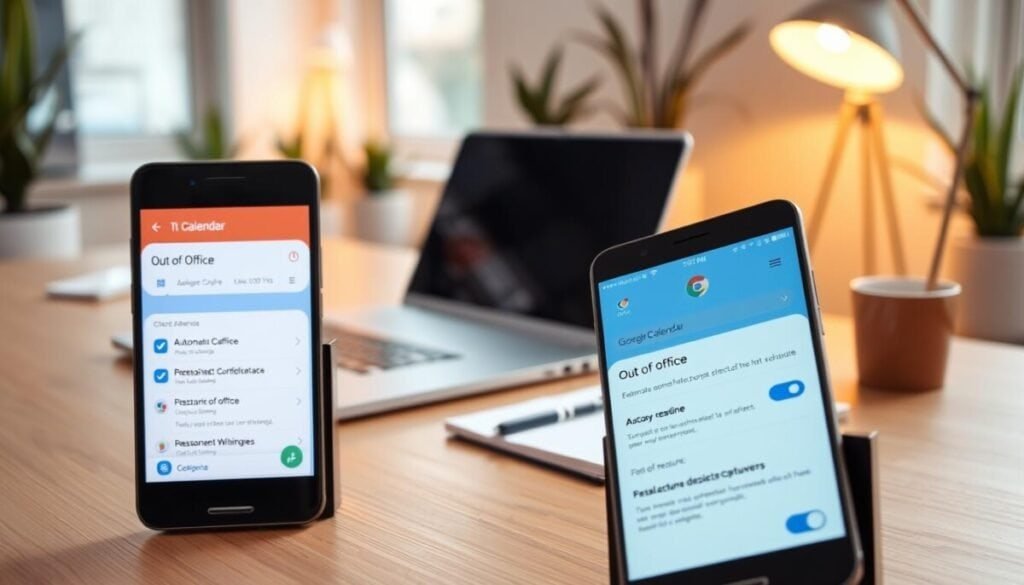
Configure mobile presence to automatically reject meeting requests during planned absence.
Open the app and tap the + icon at the bottom right to create an absence event. Select the ooo option to have the system automatically decline overlapping meetings.
Confirm the google workspace account before saving. Customize the decline message for each event—include return dates and a brief example of who covers urgent items.
- Set specific dates and times to limit automatic replies to the planned period.
- Adjust hours so team availability matches the event window.
- Verify settings on a secondary device to ensure synchronization.
Note: The Gmail vacation responder is not available in the preinstalled Apple Mail app for iOS. Use the app interface for mobile replies and declines.
For step-by-step scheduling and advanced tips, consult this mobile scheduling guide.
Customizing Your Working Hours and Availability

Define per-day working hours to align scheduled events with real availability.
Open settings. Enable a structured hours profile using the cog icon in the top-right. Configure start and end times for each day to map event windows to actual work time.
Syncing Across Time Zones
Enable automatic time inference so local time adjustments apply when traveling or when team members are remote. This prevents mismatched event times and reduces duplicate scheduling.
Set a recurring event for breaks or focus blocks as an example. Use the profile to ensure the system will automatically decline meeting requests outside defined hours. Update dates and the fallback message to direct urgent items to a backup contact.
- Use google calendar settings to set working hours per day.
- Define hours in the google workspace profile so events show correct availability.
- Sync calendars across zones to keep the team informed and prevent conflicts.
| Setting | Effect | Recommended step |
|---|---|---|
| Daily hours | Limits meeting slots to defined time | Set start/end times per day |
| Time zone sync | Preserves event time integrity | Enable automatic time inference |
| Recurring event | Reserves lunch or focus blocks | Create a repeating event for each day |
| Decline rules | Reduces unwanted meetings | Enable automatic decline for outside hours |
Crafting Professional Out of Office Messages
Write an absence notice that sets expectations—include dates and a backup contact.
Keep the message short. State the exact dates of the vacation. State when the sender will get back. Include a colleague who can handle urgent items.
Templates for Professionalism
Use a template to save time. Customize tone; keep structure consistent.
- Opening—state unavailability and dates.
- Middle—name a backup contact and provide a brief instruction.
- Closing—state the expected response time and sign off.
Including Emergency Contacts
Provide one clear emergency contact. Add role and preferred contact method. Confirm contact details before sending.
Best practice: Save templates in the feature to reuse for future events. Paid teams using Clockwise see 44% more Focus Time created on average—use saved messages to preserve time.
For examples and phrasing guidance, consult these professional tips: professional message templates and this list of tools for offline planning: offline tools guide.
Streamlining Your Return to the Workplace
Turn off auto-replies, sync devices, and triage messages to accelerate recovery time.
Disable the automated reply feature. Confirm the office settings reflect current hours. Update the office message if needed.
Scan the google calendar for missed meetings and events. Flag high-priority items for the first two work days. Allocate focused blocks for deep work.
Check email for any missed requests. Remove the vacation status once ready to get back. Sync events across devices to avoid duplicate bookings.
Follow this checklist to reduce friction and restore team rhythm. For tools that aid scheduling and recovery, see this guide to online planning tools. Consider leveraging automation to streamline repetitive tasks, such as automating status updates with Power Automate. This approach not only saves time but also ensures that your team remains aligned and informed without the manual overhead. By implementing such tools, you empower your team to focus on more critical aspects of their projects while maintaining clear communication. Another effective strategy for enhancing organizational efficiency is organizing folders in Google Drive. This practice can help ensure that all team members can easily access important documents and resources, fostering collaboration. Additionally, by creating a consistent folder structure, you reduce the chances of miscommunication and enhance team productivity.



