
Question: Can a simple on-screen signal transform chaotic discussion into orderly collaboration?
Activate the raise hand feature to control turn-taking. Follow exact steps to signal intent to speak without interrupting the flow.
Implement the protocol for every participant. Add up to 25 co-hosts to distribute moderation tasks inside a meeting—improve governance and reduce interruptions.
Understand the interface. Learn how the hand feature queues speakers. Track requests. Grant speaking time systematically.
Outcome: Standardize interaction. Preserve meeting tempo. Ensure equitable participation.
Key Takeaways
- Use the raise hand feature to signal intent without disrupting a live meeting.
- Add co-hosts—up to 25—to share moderation duties and enforce order.
- Learn interface cues—visual queueing reduces confusion and overlap.
- Follow a protocol—grant turns by queued order for fairness and efficiency.
- Integrate the hand feature into workflow to improve meeting quality.
- Train participants on usage to maximize adoption and compliance.
How to Use the Google Meet Hand Raise Feature
Use the meeting controls at the bottom of the screen to signal a request to speak.
On desktop, scroll bottom screen to reveal the control bar. Perform a bottom screen click on the raise icon to submit a request.
Raising your hand during a call
After the bottom screen click, a notification displays to all participants. The icon appears in the participant self-view. The participant is moved to the main grid so the moderator can identify who has a question.
Lowering your hand when finished
When finished, perform a screen click on the lower hand icon to clear status. If the speaker forgets, the system lowers the indicator automatically once speaking begins. This preserves meeting flow and reduces duplicate requests.
- Desktop and mobile: scroll bottom to reveal controls and toggle the hand feature.
- Moderator visibility: the main grid move highlights requesters for orderly turns.
- Queue management: use the raise icon to ensure proper order and recognition.
For an overview of related tools and best practices, consult this guide on online meeting tools.
Managing Participant Interactions as a Meeting Host

Monitor the people panel continuously to keep speaker order predictable.
Open the people panel with a bottom screen click to view the queued requests. The panel lists raised hands in order. The meeting host must monitor this list throughout the session.
Using the people panel to clear raised hands
Assign co-hosts — up to 25 — to share moderation duties.
- The moderator sees a notification when someone raises hand even if presenting on another tab.
- Click lower next to a name to remove a single request after the participant asks a question.
- Use click lower all or lower hands to reset the queue after group discussion.
Best practices for the host: Monitor the raised hands area. Acknowledge requests promptly. Use the icon cues to keep order.
For a deeper operational guide on related controls and tools, consult this online meeting tools overview.
Enabling Gesture Detection for Hands-Free Participation
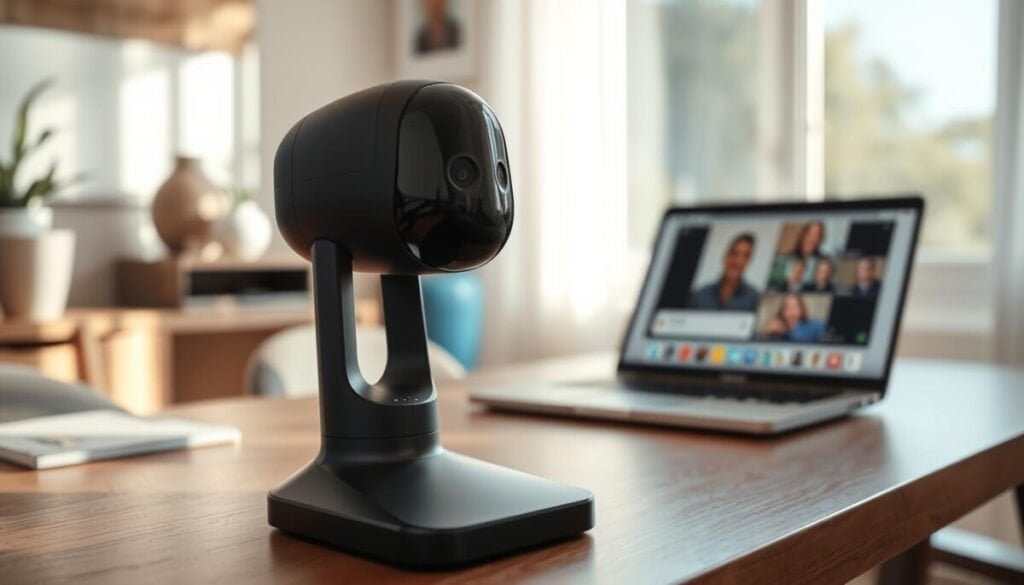
Enable camera-based gesture controls to signal intent without touching the interface.
Turn on the camera. Open settings and activate the raise hand gesture option to enable gesture detection for the call.
Confirm account edition — this feature is available for Google Workspace Business Plus, Business Standard, Enterprise Essentials, Enterprise Plus, Enterprise Standard, Enterprise Starter, Education Plus, and Teaching and Learning Upgrade.
- Keep one hand fully visible and away from the face and body — required for accurate recognition.
- Gesture detection disables automatically when the user is the active speaker to avoid false triggers.
- When the correct motion occurs, a highlighted hand raise icon appears and notifies the moderator instantly.
- Position the camera to frame the upper torso — camera placement impacts detection accuracy and responsiveness.
For implementation details and testing tips, consult this overview on gesture detection setup.
Streamlining Virtual Collaboration for Better Meetings
Use the queued requests list to preserve speaking order during every call. , Monitor the people panel. Acknowledge each raised hand quickly. The meeting host enforces order and answers each question in turn.
Apply the raise hand and hand raise controls consistently. When someone raises hand the icon appears on the screen and sends a clear notification to the moderator. Use click lower or click lower all to remove a raised hand after speaking.
Enable gesture detection for hands-free signaling where available in google workspace. Standardize procedure across participants. The result — shorter calls, fairer order, and higher participation.