65% of professionals report a work interruption every 11 minutes — a measurable drain on deep work time. This guide presents precise methods to silence meeting alerts and reclaim uninterrupted focus.
Follow the documented protocol updated by Johnny Campbell on Wed, 20 Jul, 2022. Review settings at the app and browser level. Verify interaction between the platform and browser notification controls.
Apply a systematic checklist. Identify the source of the alert — app, browser, or system. Execute the steps to mute meet notifications for scheduled focus windows. Confirm that the notification behavior aligns with the desired focus time. To enhance productivity, remember to block focus time in Microsoft Outlook well in advance to minimize interruptions. Setting this time helps create a dedicated space for deep work, ensuring that you stay on task without distractions. Additionally, encourage coworkers to respect your availability during these periods for maximum effectiveness.
Action required: evaluate current configuration. Adjust notification and notification settings to prevent unexpected pop-ups. Record the steps used for reproducibility across devices.
Key Takeaways
- Assess app and browser settings to locate alert sources.
- Follow the documented steps from July 20, 2022 for protocol clarity.
- Mute meet notifications during scheduled focus time.
- Test changes in a controlled session to confirm silence.
- Document configuration for consistent application across devices.
Understanding Google Meet Notification Settings
Open the browser and navigate to Privacy and security. Select Site settings to view permissions for web products.
Inspect the entry for the web meeting product. Verify whether the site is allowed to send alerts. Modify the permission to block if the app must not interrupt focus time.
Action: check for outdated site entries. The browser sometimes retains prior permissions after an update. Remove or update the site entry to stop repeated alerts.
- Locate Site settings under Privacy and security.
- Confirm the site permission for the meeting product.
- Update or revoke permission to prevent the site from sending notifications.
For technical troubleshooting and step-by-step procedures consult the troubleshooting guide. The community forum also offers configuration examples for different browsers and apps.
How to Keep Google Meet Notifications Off in Your Browser
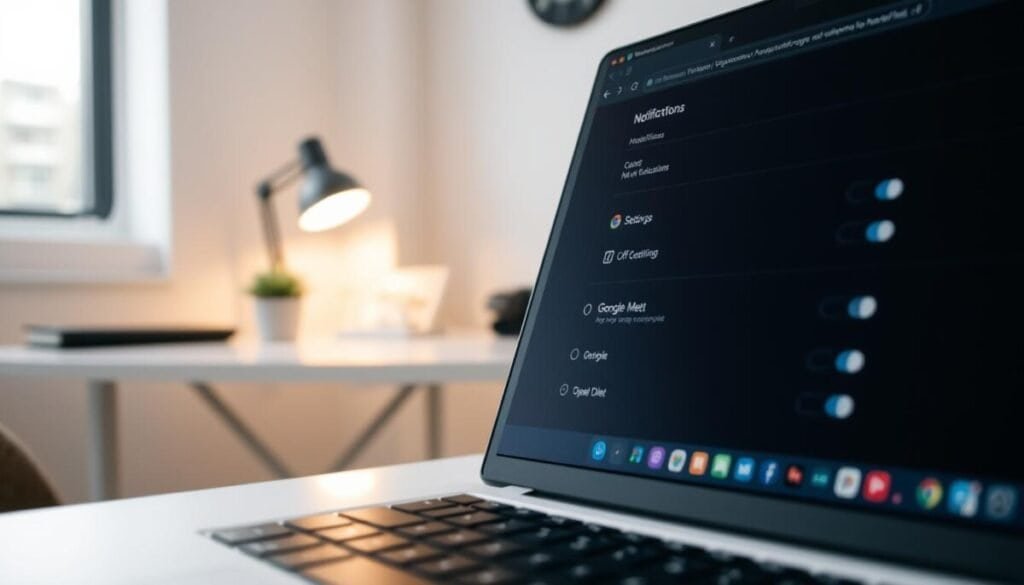
Lock down site permissions to ensure web meetings cannot push desktop alerts during focus windows. Audit the browser permission list. Revoke any entry that can send notifications.
Action: open Privacy and security. Locate Site settings. Change the site status from allow to block when needed.
Adjusting Chrome Site Permissions
Use Incognito mode to test behavior — Incognito prevents sites from issuing alerts. If alerts persist, manually update the site permission entry.
- Open site settings for the meeting product.
- Set notifications to block for that site.
- Clear cache if settings fail to apply; the community reports this resolves many issues.
Disabling Browser Extensions
Disable extensions that request access to desktop alerts. Third-party add-ons can override privacy security preferences.
| Action | Effect | When to Use |
|---|---|---|
| Enable Incognito mode | Prevents site alerts from appearing | Testing focus sessions |
| Revoke site permission | Stops the product from sending desktop messages | Persistent alert delivery |
| Disable extensions | Removes third-party interference | After configuration changes |
If a question arises about why notifications google meet still appear — verify site permissions and clear cache. Document the steps used. Test in a controlled session to confirm silence.
Managing Mobile Alerts for Meetings and Chats
Adjust mobile alert controls to prevent meeting interruptions during focused work blocks.
Configuring Gmail App Notification Preferences
Open the Gmail app on Android. Tap the Menu icon. Select Settings for the target account.
Choose Notifications. Toggle categories to allow only essential alerts. Use the account-level menu to silence meeting-related delivery. Also, set up do not disturb feature during important work hours to minimize distractions. This ensures that only critical notifications come through, allowing for better focus and productivity. Additionally, consider customizing your settings to prioritize messages from key contacts.
- Open the Gmail app and tap the Menu icon to reach notification settings.
- Within the app menu, select specific alert types so only essential meet notifications appear.
- If a question arises about a particular product alert, use the Chat tab menu to toggle spaces—adjust per conversation.
- Follow the documented steps to align your mobile app settings for all messaging apps and services.
- Use granular controls to mute specific conversations while keeping high-priority threads active.
| Location | Effect | When to Use |
|---|---|---|
| Account Settings → Notifications | Block or allow categories; reduces unwanted push alerts | Daily focus sessions; after schedule changes |
| Chat Tab Menu | Toggle space-level alerts; silence specific conversations | When one project thread is noisy |
| App Notifications (Android system) | Restrict background delivery; enforce quiet mode | System-level suppression during deep work |
For implementation details on Chat app controls consult the Chat tab help. Verify changes in a brief focus trial to confirm behavior.
Maintaining a Productive Environment During Focus Time
Establish a protected work window and enforce strict alert controls across apps and browser.
Silence nonessential notifications before the block begins. Verify system and app permissions to prevent interruptions.
Derrick Qian recommends checking settings in the event of persistent alert delivery. If a question arises about browser behavior, consult the support focus-time scheduling guide or the product community resource.
Activate focus mode. Confirm that meet notifications and other app reminders remain muted for the duration of the protected time. Document the configuration for reproducible results.



