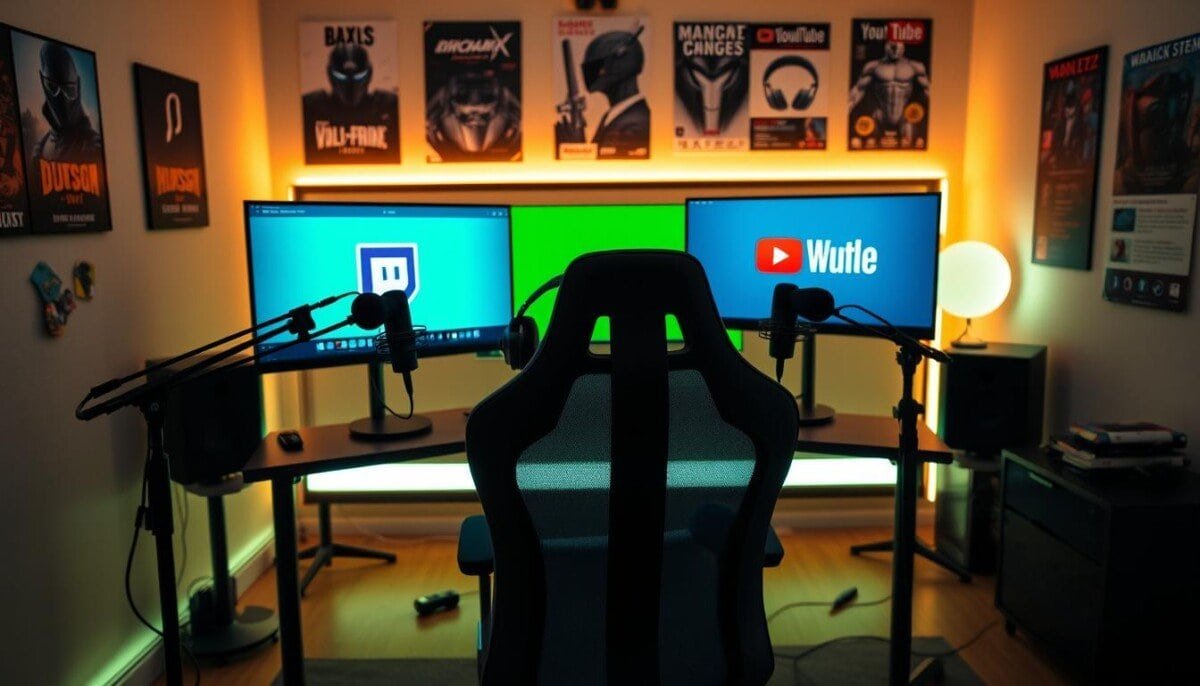
Curious whether a single broadcast can grow your reach without extra hours?
You can send one live stream out across multiple platforms and save precious time. This guide walks you through each step that links OBS, proper RTMP settings, and a valid stream key so your content lands on every destination you pick.
We explain which platforms suit business goals and how multistreaming keeps quality steady. You will learn practical tips for stable output, and clear checks for youtube time and viewer limits.
Whether you are a new creator or an experienced host, this short roadmap helps you set up fast, avoid common errors, and use the right tools like Streamlabs or the Multiple RTMP Output Plugin for OBS.
Key Takeaways
- One broadcast can reach many destinations with the right setup.
- OBS and RTMP settings matter most for stability.
- A correct stream key links software to platforms securely.
- Choose destinations that match your audience goals.
- Follow the steps here to save time and grow viewers.
The Strategic Advantages of Simultaneous Streaming
Sending a single feed to several platforms can multiply exposure while keeping production simple. This strategy helps you reach different audience pockets at once, without adding extra hours to your week.
Expanding Your Audience Reach
Streaming across multiple destinations connects you with viewers who prefer different services. That means your best content lands where each audience already spends time.
Streamlabs offers Dual Output, letting you format a single broadcast for both horizontal and vertical canvases. A browser-based tool also cuts hardware needs and keeps your workflow lean.
Maximizing Monetization Potential
Diversifying destinations often increases revenue. Each platform has unique monetization paths, so broadcasting broadly lets creators tap more options.
Use a professional service to keep quality steady and protect revenue from sudden algorithm shifts. For donations and payment links, consider a practical guide like set up PayPal for donations that integrates with your channel.
- Reach more viewers without extra production hours.
- Maintain consistent quality across each platform with a solid setup.
- Reduce platform risk and make peak hours work harder for your audience.
How to Multistream to Twitch and YouTube Using OBS

Get OBS set up so a single studio scene serves multiple channels from one screen. This saves hours and keeps your focus on content, not routing.
Installing the Multiple RTMP Output Plugin
Install the plugin in OBS to enable simultaneous broadcasting. Click the add button in the plugin window to add new destinations and name each entry clearly.
Configuring Your Unique Stream Keys
Grab a unique stream key for every account and paste each key into its destination settings. Verify account status and key validity before the next step.
Testing Your Output Before Going Live
Run a short test stream and check title, scene, video, and audio on each platform. Use a dedicated chat window so you can monitor viewers and respond without switching screens.
- Confirm RTMP endpoints and stream key accuracy.
- Test each output during non-peak hours.
- Use this guide for tools and services: live streaming tools for business.
Leveraging Cloud-Based Multistreaming Services

A cloud relay can take your single studio feed and deliver it across every platform you choose. This removes heavy encoding work from your computer and keeps the live screen stable.
Browser-based studios like Restream Studio let creators manage accounts and stream key settings in one place. That makes it easier to send one high-quality video feed to many destinations without a powerful PC.
Cloud services also protect your channel when local internet dips. The cloud handles RTMP distribution and keeps each platform active, so viewers see steady content even if your home connection fluctuates.
- Lower CPU load: Encoding moves off your machine.
- Simpler workflow: Manage accounts, scenes, and chat in a browser.
- Reliable delivery: Servers distribute to each platform with minimal fuss.
| Benefit | What it does | Who it helps |
|---|---|---|
| Centralized account control | Stores stream key and destinations | Busy creators with multiple channels |
| Cloud encoding | Reduces local CPU/GPU load | Users on mid-range computers |
| Failover delivery | Keeps platforms live during drops | Hosts concerned about uptime |
| Browser studio | Quick setup and scene edits | Teams working from any screen |
Follow each step for account linking and use a guide like set up PayPal for donations where payment links are needed. This keeps the experience professional and focused on growth.
Essential Hardware and Software Requirements
Pick hardware that offloads heavy encoding so your computer runs the show, not struggles under it.
Use a dedicated encoder where possible. Hardware encoders like NVENC, AMD VCE, and Intel QSV cut cpu and gpu load. That keeps your stream stable when you send one feed for distribution.
Reducing CPU and GPU Load
Choose an encoder that matches your computer and budget. Configure obs studio settings for a moderate bitrate and keyframe interval as the first step. Monitor CPU and GPU during tests to prevent dropped frames.
- Use NVENC or AMD VCE for hardware acceleration.
- Set a sensible output bitrate for your upload speed.
- Confirm your stream key is entered correctly in each destination service.
| Component | Benefit | Recommended use |
|---|---|---|
| NVENC (NVIDIA) | Low CPU load, fast encode | Gaming rigs and prosumers |
| AMD VCE | Efficient for AMD systems | Value-oriented builds |
| Intel QSV | Good on laptops and desktops with Intel | Portable setups |
Optimizing Your Stream Quality for Multiple Platforms

Aim for a clean 1080p at 60fps profile so every viewer sees crisp motion and clear detail.
Keep one consistent output resolution across all destinations. That reduces encoding conflict and gives a stable baseline for bitrate choices.
Create a unique scene for each platform when content needs slight variation. Small layout tweaks and channel-specific overlays help tailor the viewer experience without extra time.
Manage title and description in a browser studio before you go live. Quick edits let you match titles to audience expectations and save a last-minute step in your setup.
Adjust OBS studio settings with a balanced bitrate and keyframe interval. Test short streams during off-peak hours to spot frame drops and sync issues before viewers arrive.
- Use 1080p60 for high-quality video across twitch youtube platforms.
- Test often: one brief check prevents many common faults.
- Keep scenes simple: clarity helps viewers focus on content.
Managing Cross-Platform Chat and Viewer Engagement
Keep chat central so every viewer gets a timely reply and the room feels active. A unified chat window helps you read messages from all platforms in one place. This saves time and reduces missed comments during busy moments.
Set a dedicated scene in your OBS studio that shows priority messages and alerts. That visual focus highlights donations, questions, and key reactions.
Use a robust chat feature or a relay tool to group messages by source and priority. Quick replies build trust and make viewers feel seen.
- Single window: Read and respond faster across streams.
- Chat scene: Spotlight important messages for the audience.
- Moderation tools: Keep the conversation healthy and on topic.
| Task | Benefit | Best tool |
|---|---|---|
| Unified chat | Faster response, less tab switching | Chat relay apps |
| Chat overlay scene | Highlights key messages for viewers | OBS scene + browser source |
| Moderation | Safer, more welcoming experience | Auto-moderation and mods |
| Platform analytics | Track engagement over time | Built-in stats and third-party tools |
For a short list of the best cross-platform chat tools, see our guide on the best cross-platform chat tools. Use these tips to keep chat lively and build a loyal audience across every stream.
Troubleshooting Common Multistreaming Issues
Small setup errors usually cause the biggest interruptions during a broadcast. Start with the basics and work through one clear step at a time.
Check your RTMP settings and confirm the stream key is entered correctly for every destination. Open the output log in your streaming app and scan for errors on the account status screen.
If CPU or GPU use runs high, lower the encoder load in OBS or select a hardware encoder. That often fixes dropped frames and poor video quality without more complex changes.
Monitor unified chat and use simple tools that show stream health in real time. If a window or button stops responding, restart the software and recheck the stream link and channel status.
- Verify keys and endpoints before going live.
- Adjust encoder when cpu or gpu spikes.
- Use monitoring tools for quick diagnosis and less downtime.
If problems persist, contact your multistream service support for account help. A stable setup and quick steps save time and keep your stream reaching every platform, including twitch youtube.
Conclusion
,
Finish strong: broadcast smarter and reach more viewers without extra prep.
Follow the steps here and you will set up a clean, professional workflow. Check your hardware and software settings for steady quality. Small tests save big problems on live night.
Engage every audience by using unified chat and clear scenes. That builds loyalty and keeps viewers coming back. Use the right tools, practice your setup, and refine scenes over time.
Final note: a single, well-managed feed can boost growth across platforms like twitch youtube when you pair it with good habits and solid monitoring.