Can a clear plan for your live blocks turn casual visitors into loyal viewers?
Build a simple stream schedule that tells your audience what to expect and when. Recurring weekly segments and one-off events cut uncertainty. When you publish times on your channel, viewers get reminders and a shareable link that drives return visits. Additionally, incorporating effective team messaging strategies ensures that all members are aligned and can communicate important updates efficiently. This collaboration helps in refining your schedule based on feedback, ultimately enhancing viewer engagement and satisfaction. Keeping your audience informed fosters a loyal community that anticipates each segment with excitement.
Use the Creator Dashboard for quick edits and the Helix API for deeper control. Power users can create recurring blocks, set vacation periods with IANA time zones, and cancel single occurrences without confusing the community.
Keep titles tight, match content to peak hours, and avoid overlapping segments. A visible plan helps first-time viewers find your next stream and helps the audience trust your cadence. This guide gives clear steps, API fields, and practical tips so you can publish a schedule that fits your bandwidth and boosts engagement.
Key Takeaways
- Publish a clear stream schedule to reduce uncertainty and increase repeat visits.
- Use Dashboard for basics and Helix API for recurring segments and precise control.
- Set vacation periods and cancel single events without breaking cadence.
- Write themed titles and align time slots for maximum reach.
- A visible plan turns first-time viewers into followers and strengthens community trust.
how to schedule on twitch in your Creator Dashboard
Set clear start windows and publish them where viewers can find them.
Access your Channel Schedule: open Creator Dashboard, then go to Settings → Channel → Schedule. This is the native place to manage your twitch channel without external tools.
Access your Channel Schedule: Settings → Channel → Schedule
Click Add Stream to create entries. Fill the title, pick a category, and set the exact date and time.
Add a scheduled stream: title, category, date, time, repeat
Use the repeat option for weekly streams and single entries for special events. Clear titles like “Friday Ranked Climb” help viewers decide quickly.
Save and publish so viewers see upcoming streams on your channel
Save changes and publish so Remind Me alerts and a shareable twitch stream schedule link appear. Edit titles, date, or time instantly if plans change, or toggle Vacation Mode when you travel.
- Confirm date and time before saving to avoid timezone errors.
- Edit single occurrences rather than deleting when possible.
Managing your Twitch schedule like a pro: recurring, events, and vacation
Keep a clean calendar so viewers trust your cadence and show up when you go live.
Plan predictable blocks and reserve single slots for special events. Use recurring segments for weekly streams and non-recurring segments for isolated event promotions. Recurring entries build habit; one-off events create spikes in interest.
Recurring vs non-recurring segments
Create recurring segments with POST /helix/schedule/segment using is_recurring=true, an IANA timezone, start_time, duration, category_id, and a tight title.
Non-recurring segments (partners and affiliates only) set is_recurring=false. They can overlap a recurring block, but cancel the recurring occurrence that week to avoid confusion in your twitch channel presentation.
Editing, canceling, and deleting
Patch segments with PATCH /helix/schedule/segment to update title or duration. Changes to a recurring item affect all future streams.
Cancel a single occurrence with is_canceled=true when you skip one show. Delete removes a non-recurring segment or an entire recurring series via DELETE.
Vacation and API best practices
Enable vacation with PATCH /helix/schedule/settings and supply is_vacation_enabled, vacation_start_time, vacation_end_time, and timezone. Vacation flags availability but does not remove existing entries.
- Fetch a broadcaster’s plan with GET /helix/schedule?broadcaster_id={id} and use start_time at 00:00:00Z to capture full dates.
- Include Authorization (token with channel:manage:schedule) and Client-Id on modifying calls.
- Apply category_id (e.g., 509658) and a short title so your twitch stream schedule reads clearly.
For a quick reference on timing and cross-posting, see a short guide about schedule tweets and social timing strategies.
Best practices to optimize your Twitch stream schedule
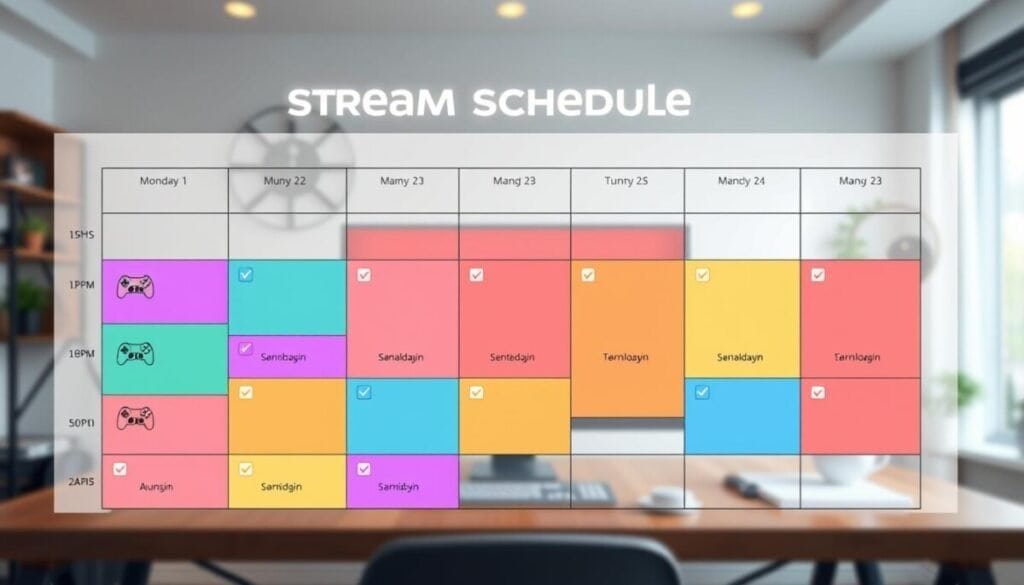
Small changes in timing and titles create big gains in return viewers and watch time.
Lock consistent start windows. Pick a few repeatable times each week so your audience can plan visits. Consistency trains viewers and raises average concurrent numbers.
Choose consistent times your audience can count on
Match your start windows to when most users in your region are active. Use shorter weekday runs and longer weekend sessions. Test two slots, compare watch-time, then standardize the better performer.
Use themed streams and clear titles to boost clicks and retention
Name recurring blocks with a promise—mode, goal, or guest. Clear titles increase click-through and make retention predictable. Keep descriptions focused and actionable so viewers know what content to expect.
Plan around time zones, major game launches, and community events
Publish local and UTC stamps so viewers never guess the time. Layer one-off specials for big game launches into your weekly rhythm and cancel single occurrences rather than double-booking recurring windows.
- Enable Remind Me and shareable links so fans set alerts.
- Set API queries with start_time at 00:00:00Z when fetching the day’s segments.
- Promote donations or payment options like add PayPal donations in event posts.
Tools and features to amplify your twitch schedule

Automated design tools remove manual updates and keep your audience informed with fresh graphics.
Leverage StreamLadder for sync and templates. Connect the tool to your account. It imports your stream schedule and populates visual templates with times, titles, and categories.
Pick a premade layout, download the asset, and post it across socials. When you change a time or title in your channel, templates refresh so posts stay accurate.
Promote across social and convert reminders
Pair shareable schedule links and the Remind Me feature with your graphics. Visual posts drive clicks while built-in alerts convert those clicks into live viewers.
- Auto-import calendar entries so edits propagate without manual work.
- Publish weekly templates to X, Instagram, and Discord for consistent reach.
- Create an events spotlight template for big collaborations, then revert to standard assets.
- Measure clicks, reminders set, and live concurrency. Drop or repeat posting times based on performance.
For cross-post timing tips and mobile app ideas, see a short guide on mobile apps for scheduling.
Start scheduling today and grow a loyal community
Lock in your next dates and pair on-channel Remind Me alerts with visual posts so your community knows when you stream.
Publish a clear two-week plan and watch regular viewers arrive on cue.
Set core recurring blocks in your Creator Dashboard, add focused one-off events with a tight title and exact date, and enable Vacation mode when you need a break. Publishing creates a shareable link and reminders that raise live attendance.
Use StreamLadder or similar tools to turn your plan into social assets. For timing tips, see the best days and times and a concise mobile scheduling guide.
Start now: publish two weeks, review attendance weekly, refine titles and windows, and keep your community engaged with steady cadence.