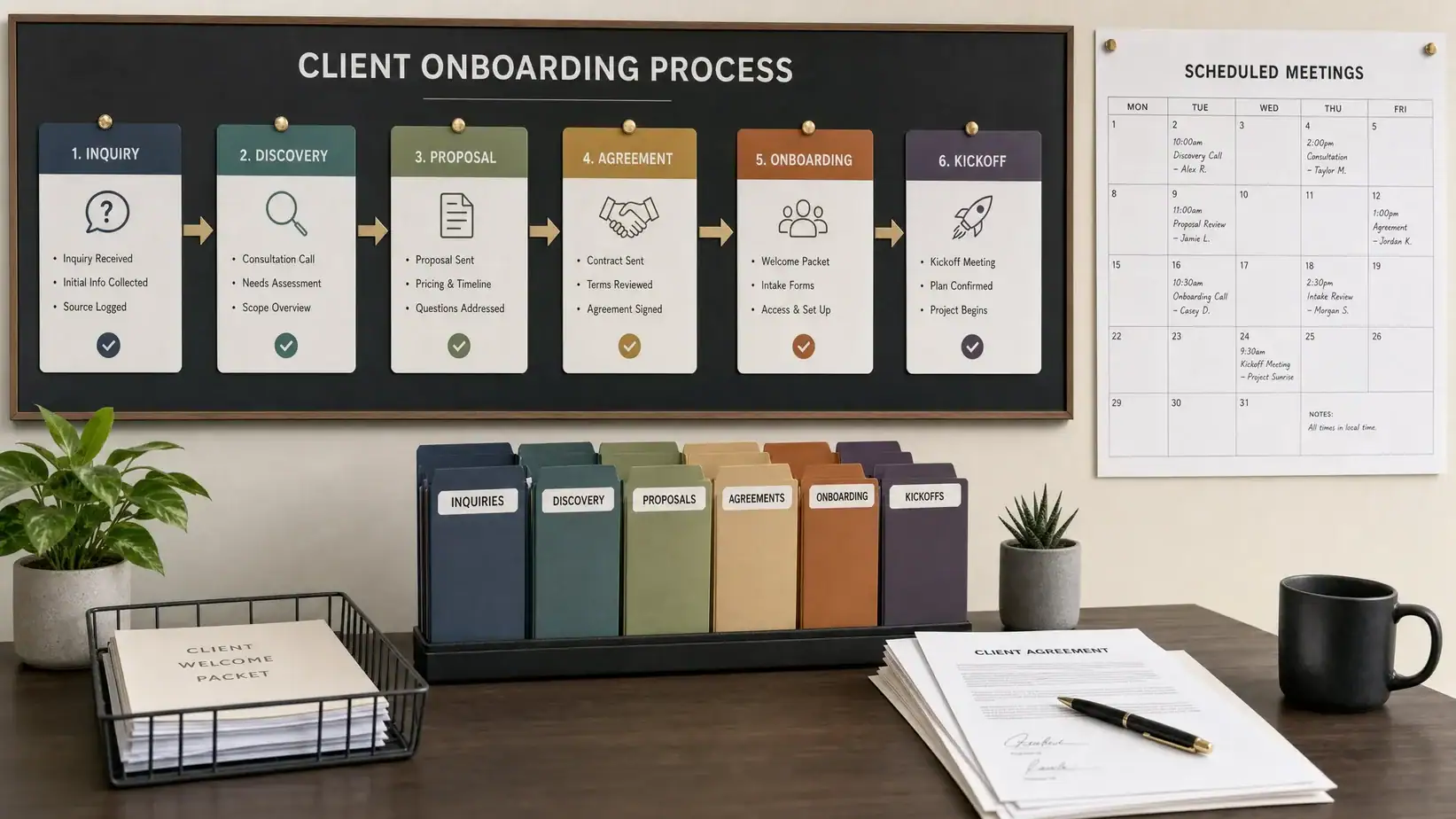
A great client experience starts before the first call. If your intake process depends on scattered emails, forgotten attachments, manual calendar links, and “Can you resend that?” messages, you are already creating friction. A well-designed online client intake workflow gives every new lead a clear path: submit details, qualify fit, schedule time, share files, sign agreements, and enter your delivery process without confusion.
The good news is that you do not need a custom app to build one. Most freelancers, consultants, agencies, coaches, service providers, and small teams can create a reliable intake system using forms, scheduling tools, cloud storage, task management software, and simple automation.
This guide walks through the full setup, from mapping your process to choosing tools, writing intake questions, automating handoffs, and measuring what works.
What Is an Online Client Intake Workflow?
An online client intake workflow is the repeatable process you use to collect client information, qualify requests, schedule next steps, and prepare your team to begin work. Instead of handling each inquiry manually, you create a structured digital path that guides every prospect or new client through the same core steps.
A typical workflow includes a few key moments: a form submission, automated confirmation, internal review, scheduling, document or file collection, agreement signing, payment or deposit collection, and project setup. Depending on your business, the workflow may be short and simple or more detailed.
For example, a solo web designer may need only a form, calendar link, and proposal template. A marketing agency may need lead scoring, CRM routing, internal task creation, shared folders, kickoff call scheduling, and onboarding emails. An education, admissions, or training organization may use a similar approach to guide families or applicants from inquiry to interview. Even a public-facing school admissions page can be useful inspiration for how to group contact options, interview calls to action, and application paths in one clear place.
The goal is not to make intake feel robotic. The goal is to remove administrative friction so your first human interaction is more focused, informed, and valuable.
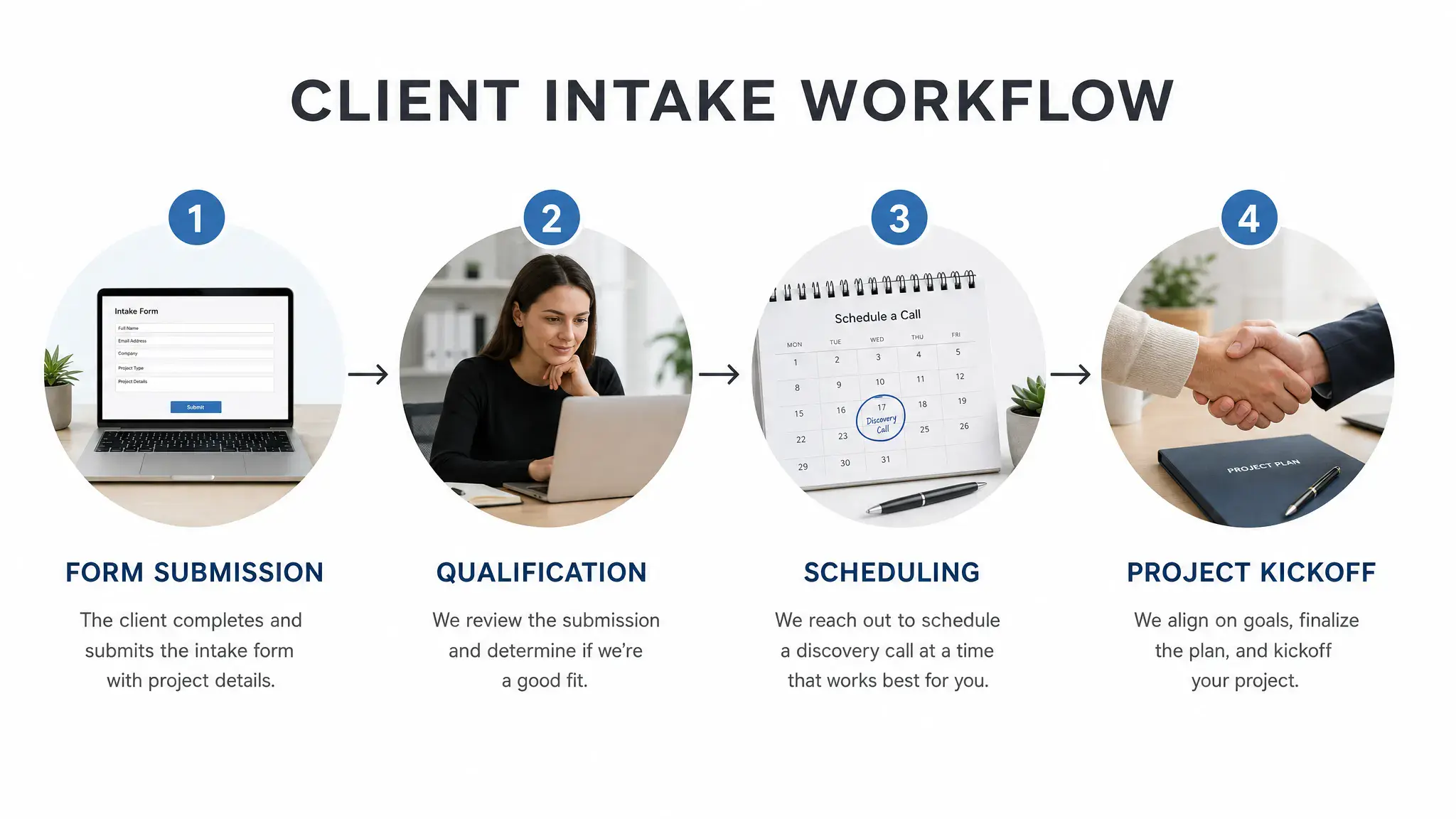
Start With the Outcome, Not the Tool
Many teams make the mistake of starting with software: “Should we use Typeform, Jotform, Airtable, HubSpot, Notion, or Zapier?” Tools matter, but your process design matters more.
Before choosing your stack, define what a successful intake should produce. At the end of the workflow, you should know who the client is, what they need, whether they are a fit, what the next step is, and what your team must do next.
Ask yourself three questions:
- What information do we need before we can help this person?
- What should happen automatically after someone submits a request?
- What should a team member review before accepting, rejecting, or scheduling the client?
Once you answer those, tool selection becomes much easier. You are not buying random productivity software. You are building a system around a clear business process.
Map the Client Intake Journey
A simple visual map helps you avoid gaps. You do not need advanced process-mapping software. A whiteboard, spreadsheet, Notion page, or diagram tool is enough.
Here is a practical intake workflow blueprint you can adapt:
| Stage | Client action | Internal action | Tool category | Output |
|---|---|---|---|---|
| Inquiry | Completes intake form | Review submission | Form builder or CRM | Lead record created |
| Qualification | Answers fit questions | Score or route lead | CRM, spreadsheet, automation | Qualified or disqualified lead |
| Scheduling | Books a call | Calendar updates | Scheduling tool | Confirmed discovery call |
| Preparation | Uploads files or context | Team reviews materials | Cloud storage, portal | Ready-to-discuss brief |
| Agreement | Approves proposal or contract | Create project folder and tasks | E-signature, payment, PM tool | Client officially onboarded |
| Kickoff | Joins call or receives next steps | Assign owner and deadlines | Task management tool | Delivery begins |
This table becomes your operating blueprint. If you already have a process, compare your current steps against it and look for manual bottlenecks. If you are building from scratch, start with the minimum version and improve it over time.
Step 1: Build a Client Intake Form That Filters and Clarifies
Your intake form is the front door of your workflow. It should collect enough information to help you make a decision, but not so much that serious prospects abandon it.
The best intake forms are clear, short, and intentional. They ask questions that directly affect qualification, pricing, scheduling, or project scope. Avoid vague questions like “Tell us about your business” unless you also guide the client with specific prompts.
A strong form usually includes these fields:
| Field category | Example questions | Why it matters |
|---|---|---|
| Contact details | Name, email, company, website | Creates a clean lead record |
| Service interest | Which service do you need? | Routes the inquiry to the right workflow |
| Timeline | When do you want to start? | Identifies urgency and availability fit |
| Budget range | What budget have you allocated? | Prevents mismatched expectations |
| Goals | What outcome are you trying to achieve? | Gives context before the first call |
| Current tools | What platforms are you using now? | Helps prepare recommendations |
| Files or links | Upload brief, brand guide, screenshots, examples | Reduces follow-up requests |
| Consent | Permission to contact, privacy acknowledgment | Supports compliance and transparency |
If your work involves sensitive personal, medical, legal, or financial information, be careful with what you collect. Use secure, compliant platforms and collect only what you genuinely need at this stage. For many businesses, the intake form should gather project context, not confidential records.
For form tools, consider options such as Typeform, Jotform, Tally, Google Forms, Airtable Forms, HubSpot forms, or your website’s native form builder. The right choice depends on your required integrations, branding needs, conditional logic, file uploads, and budget.
Step 2: Add Qualification Rules Before Scheduling
Not every inquiry should go directly to your calendar. If you let every lead book time, your week can fill with calls that were never a good fit.
Qualification rules help you protect your time while still giving prospects a professional experience. These rules can be simple at first. For example, you might prioritize clients with a certain budget range, service need, location, timeline, or company size.
You can qualify leads manually or automatically. Manual qualification works well when volume is low or each request requires judgment. Automated qualification is helpful when you receive many inquiries or have clear criteria.
Common qualification methods include:
- Required fields for budget, timeline, and service type
- Conditional form paths based on answers
- Lead scoring in a CRM
- Automated tags such as “high priority,” “not a fit,” or “needs review”
- Separate calendar links for different service categories
For example, if a prospect selects “urgent project” and a budget range that matches your minimum, automation can send a priority scheduling link. If the budget is too low, your system can send a polite resource email instead of a call invitation.
This is where your intake workflow begins to save real time. You are not rejecting people harshly. You are guiding each person to the next best step.
Step 3: Connect Scheduling With Clear Availability Rules
Once a lead is qualified, scheduling should be effortless. The client should not have to send three emails to find a time. Use a scheduling tool such as Calendly, Acuity Scheduling, Microsoft Bookings, HubSpot Meetings, or Google Calendar appointment schedules to let qualified leads pick from available slots.
A good scheduling setup includes more than open calendar times. Add buffer time, minimum notice, meeting limits, time-zone detection, and reminder emails. This prevents back-to-back calls and last-minute bookings that disrupt deep work.
If you use Acuity, our guide on setting minimum notice requirements in Acuity Scheduling explains how to protect your availability. If you use Microsoft’s ecosystem, you can also review how to add buffer time between appointments in Microsoft Bookings.
Your scheduling confirmation should set expectations clearly. Include the meeting purpose, duration, video link, cancellation policy, and anything the client should prepare. If the call is a discovery session, say that. If it is a paid consultation, make the terms obvious before booking.
Step 4: Create a Clean Handoff From Form to CRM or Project Tool
After the form is submitted and the meeting is booked, the information should move into the place where your team works. This might be a CRM, spreadsheet, project management tool, database, or client portal.
The key is to avoid duplicate data entry. If someone completes an intake form, you should not manually copy their answers into five systems. Use native integrations or automation platforms such as Zapier, Make, Pabbly Connect, n8n, or Power Automate to pass information between tools.
A practical automation might look like this:
| Trigger | Action | Result |
|---|---|---|
| New intake form submitted | Create CRM contact | Lead is stored in your pipeline |
| Budget meets threshold | Send scheduling link | Qualified client can book quickly |
| Call booked | Create internal task | Team member reviews intake before call |
| Contract signed | Create project folder | Delivery workspace is ready |
| Deposit paid | Move deal to “Onboarding” | Client officially enters production |
If you are new to automation, start with one trigger and one action. For example, send a confirmation email after form submission or create a Trello card when a new inquiry arrives. Once that works reliably, expand the workflow.
For more advanced ideas, see our guide to connecting your marketing stack with automation, which explains triggers, conditions, actions, and timing in more detail.
Step 5: Standardize File Collection and Client Documents
File collection is one of the most common intake bottlenecks. Clients send assets through email, chat, shared links, old attachments, and random folders. Your team loses time searching for logos, briefs, screenshots, contracts, and brand materials.
A better approach is to create a standardized file request process. After a client qualifies or signs, send them one secure upload location. This can be a Google Drive folder, Dropbox request, OneDrive folder, client portal, Notion page, or project management workspace.
Use consistent folder naming conventions. For example, “ClientName_ProjectName_YYYY” is easier to search than “New Client Stuff.” Inside the folder, create subfolders such as Admin, Brand Assets, Content, Contracts, Reports, and Deliverables.
If you manage team files in Google Drive, our guide on organizing Google Drive for team productivity can help you set up shared drives, permissions, and naming conventions.
Pay close attention to permissions. Clients should only see what they need to see. Internal notes, pricing calculations, subcontractor comments, and private strategy documents should stay in team-only areas.
Step 6: Automate Client Communication Without Sounding Generic
Automation should make your communication more consistent, not colder. Every automated email or message should feel useful, timely, and human.
At minimum, build these messages into your intake workflow:
| Message | When it sends | What it should include |
|---|---|---|
| Form confirmation | Immediately after submission | Thank you, review timeline, next step |
| Qualification response | After review or scoring | Scheduling link, resource, or polite decline |
| Meeting reminder | 24 hours before call | Agenda, link, preparation notes |
| Post-call follow-up | After discovery call | Summary, proposal timeline, requested items |
| Onboarding email | After contract or payment | Welcome, folder link, kickoff details |
The best messages are specific. Instead of “We received your request,” write “We received your website redesign request and will review your timeline, goals, and current site before responding.” This confirms that the client’s input mattered.
You can personalize messages with form fields such as first name, service type, company name, or meeting date. Just test every email before going live. Broken merge fields like “Hi {{first_name}}” damage trust quickly.
Step 7: Turn Accepted Clients Into Projects Automatically
Once a client signs or pays, your workflow should shift from sales intake to delivery. This is where many businesses drop the ball. The client says yes, but the team still needs to manually create tasks, folders, timelines, kickoff notes, and internal assignments.
A strong intake workflow automatically prepares the delivery environment. Depending on your tools, this might mean creating a project in Asana, ClickUp, Trello, Monday.com, Notion, Basecamp, or your CRM’s project module.
Your project template should include standard milestones and recurring tasks. For a marketing agency, that might include kickoff, access collection, strategy, content calendar, production, review, launch, and reporting. For a consultant, it might include discovery, audit, recommendations, implementation support, and final review.
If your business uses freelancers or assistants, assign clear ownership. Every new project should have one internal owner responsible for checking that intake information is complete. No workflow tool can fix unclear accountability.
Recommended Tool Stack for Different Intake Setups
There is no single best stack for every business. The right setup depends on your client volume, budget, team size, and complexity.
| Business type | Simple stack | More advanced stack |
|---|---|---|
| Freelancer | Tally, Calendly, Google Drive, Trello | Typeform, Acuity, Airtable, Zapier, Notion |
| Consultant | Google Forms, Google Calendar, Docs | HubSpot, Calendly, PandaDoc, Stripe, Asana |
| Agency | Jotform, Slack, Drive, ClickUp | HubSpot, Make, ClickUp, PandaDoc, Google Workspace |
| Coach or advisor | Calendly, Zoom, PayPal, email templates | Acuity, Stripe, CRM, client portal, automation |
| Local service business | Website form, Microsoft Bookings, email | CRM, routing rules, SMS reminders, review requests |
Start with the simplest stack that removes your biggest bottleneck. If your main problem is missed details, improve your form. If your main problem is scheduling chaos, fix your booking rules. If your main problem is handoff confusion, automate project creation.
Adding five tools at once often creates more complexity. A better approach is to improve one stage, test it, document it, then move to the next.
Security and Privacy Basics for Client Intake
Client intake often involves personal details, business plans, login access, budgets, contracts, and payment information. Treat that data carefully from day one.
Use these baseline rules:
- Collect only the information you need for the next step
- Use secure form and storage tools with access controls
- Turn on two-factor authentication for key accounts
- Avoid collecting passwords through forms or email
- Restrict file access by role and project
- Delete or archive old intake data based on a retention policy
- Tell clients how their information will be used
If you need clients to share credentials, do not ask them to email passwords. Use a password manager or secure sharing method. Our guide on how to securely share passwords covers safer options for both personal and business use.
Security does not have to slow down intake. In fact, a secure process usually feels more professional because clients know exactly where to upload files, what to expect, and who can access their information.
Common Mistakes to Avoid
The most common mistake is asking too many questions too early. Your first form should not feel like homework unless the client is already committed. Break the process into stages: inquiry form first, deeper onboarding questionnaire later.
Another mistake is sending every lead directly to the same calendar. This creates wasted calls and makes high-value prospects wait longer. Use qualification logic to route people based on fit.
Teams also forget to test the workflow from the client’s perspective. Submit your own form, book your own call, open the confirmation email, upload a test file, and check what your team receives. You will quickly find confusing wording, missing notifications, broken links, or permission problems.
Finally, do not automate decisions that still require human judgment. Automation is excellent for confirmations, reminders, routing, and task creation. It is less reliable for nuanced fit decisions, unusual client needs, or sensitive conversations.
How to Measure Whether Your Intake Workflow Is Working
A good workflow should save time, improve client experience, and increase conversion quality. Track a few simple metrics before and after your setup.
Useful intake metrics include form completion rate, qualified lead rate, average response time, discovery call booking rate, no-show rate, time from inquiry to proposal, time from proposal to signed agreement, and number of manual follow-up emails per client.
You do not need a complex dashboard at first. A spreadsheet or CRM report is enough. Review the numbers monthly and look for friction. If many people start the form but do not finish, shorten it. If qualified leads do not book calls, improve your scheduling email. If clients arrive unprepared, rewrite the confirmation and reminder messages.
The best workflows evolve. Treat your intake system as a living process, not a one-time setup.
Frequently Asked Questions
What is the best tool for online client intake? The best tool depends on your workflow. For simple intake, Tally, Google Forms, or Jotform may be enough. For more advanced workflows, consider Typeform, HubSpot, Airtable, Acuity, Calendly, Zapier, Make, or a project management tool connected through automation.
How long should a client intake form be? Keep the first form as short as possible while still collecting the information needed to qualify the request. For many service businesses, 8 to 12 well-chosen questions work better than a long questionnaire. Save deeper questions for onboarding after the client commits.
Should every lead get a scheduling link automatically? Not always. If your time is limited or your services require a strong fit, qualify leads before sharing your calendar. You can still send helpful resources or alternative next steps to people who are not a fit.
Can I build an intake workflow without Zapier or automation tools? Yes. You can start manually with a form, email templates, and a scheduling link. Automation becomes more valuable when lead volume grows or when manual handoffs start causing delays and errors.
What should happen after a client signs the contract? The workflow should move the client into delivery. Create the project workspace, assign an owner, send the onboarding email, request missing assets, schedule the kickoff call, and confirm the first milestone.
How do I make automated intake emails feel personal? Use the client’s name, reference the service they selected, explain the next step clearly, and avoid generic language. Test merge fields and write in the same tone you would use in a helpful one-to-one email.
Build Your Intake Workflow One Step at a Time
You do not need a perfect system on day one. Start with the step that causes the most friction: unclear inquiries, unqualified calls, missing files, slow follow-ups, or messy project handoffs. Fix that stage first, then add automation once the process is proven.
A strong online client intake workflow gives clients confidence and gives your team clarity. It turns scattered administration into a predictable path from inquiry to kickoff.
For more practical workflow ideas, explore our guide on automating your freelance business and keep building a tool stack that saves time without making your client experience feel impersonal.



