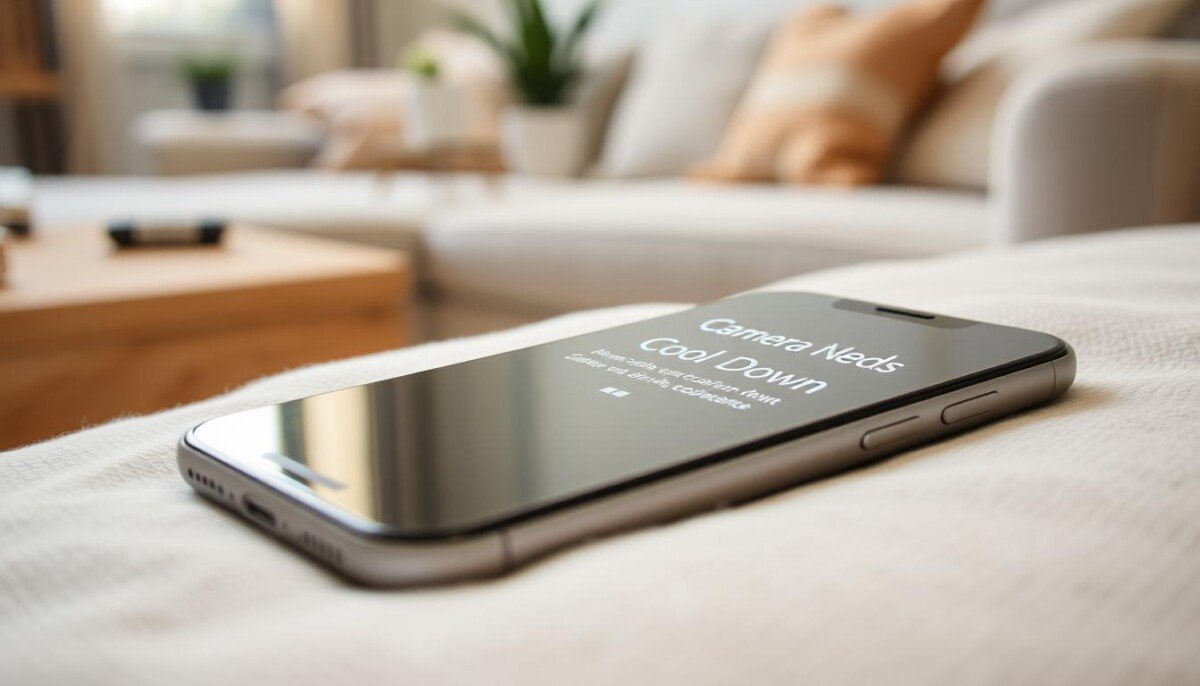
Have you ever seen the message “iphone camera needs to cool down” right when a crucial shot appears? That sudden warning feels like a trap during a meeting or an event. You want clear steps and a fast way back to shooting.
This short guide explains why your camera might overheat and what you can do now. We cover simple setting changes, quick checks, and when the heat points to a real hardware problem.
Follow practical advice that helps protect your phone and keeps your camera ready for work. The goal is a reliable device and fewer interruptions during important captures.
Key Takeaways
- Understand why the overheating message appears and what it means.
- Try quick fixes in settings and app use before seeking repair.
- Manage heat with simple habits and power choices to prevent repeats.
- Know when the issue is likely a hardware fault needing service.
- Use this guide as a step-by-step plan to get your camera working again.
Understanding Why Your iPhone Camera Needs to Cool Down
Modern pro models push chips hard, and that creates noticeable heat. The metal frame on the iPhone 15 Pro Max acts as a passive heatsink, moving heat away from the logic board during heavy use. This design helps, but it has limits when the chip is under sustained load.
Apple rates these devices for 0º–35º C (32º–95º F) use. When you use camera features outside those conditions, the device may warn and cut performance to protect components.
- Chip load: High-performance recording or computational tasks push the chip and raise internal temps.
- Environment: Leaving the phone in direct sun or a hot car speeds overheating and triggers cooling behavior.
- Thermal priority: When heat rises, the phone reduces features and performance to manage the issue.
If you want quick troubleshooting steps and fixes beyond these basics, see this guide on smartphone overheating fixes for practical tips that apply across models.
Immediate Software Adjustments for Thermal Management
Start by cutting the heavy settings that push the processor and make heat spike.
Optimizing Capture Settings
Keep recording stable by choosing sensible formats and frame rates.
High-resolution formats such as ProRes place a massive load on the chip and image processor. That load raises internal heat quickly during extended video recording.
Set your phone to 4K at 30fps or 24fps instead of 60fps when possible. Lower fps reduces thermal stress and extends filming time without an overheating warning.
Turn off Apple ProRes unless you need it for professional post work. Check the camera app settings and close other apps that may be running in the background.
- Reduce resolution and fps: lowers peak heat during recording.
- Disable ProRes: prevents heavy hardware and software load.
- Optimize apps: close unused apps before long video sessions.
If your iPhone Pro still shows signs of failure after these steps, the issue may be hardware related and worth a deeper diagnostic.
The Role of Environmental Factors and Direct Sunlight
Direct sun can quickly raise your device temperature and cut short a long filming session.
Outdoor heat affects how your phone performs when using camera features for an extended period.
Leaving the phone in direct sunlight for a long time is a common cause of camera overheating. High ambient sun and surface heat reduce the device’s ability for passive cooling and can force a shutdown of video recording.
- Avoid leaving your phone in direct sun for long stretches.
- If you must record video in bright sun, move into shade during breaks.
- Never leave the device in a vehicle where temperatures can pass 45º C.
| Condition | Risk | Quick action |
|---|---|---|
| Direct sunlight, long recording | High heat, feature limits | Seek shade; pause recording |
| Hot car interior | Rapid temp rise, damage | Remove phone; cool gradually |
| Cloudy but hot conditions | Slower heat build-up | Monitor device temp; short sessions |
| Cool shade, brief use | Lower risk | Safe for longer recording |
Performing a Force Restart to Clear Background Processes
A short forced reboot can flush temporary caches and calm software that is creating excess heat. This step often fixes overheating caused by stuck background tasks and reduces the load on your processor.
Do this: press and quickly release Volume Up, then Volume Down, and hold the Side Button until the Apple logo appears. When the screen goes black and the logo shows, your device will reboot and clear many temporary faults.
- What it does: Kills rogue background processes and clears cache that can generate extra heat and waste power.
- If the camera app is unresponsive: the restart often stabilizes the app and improves cooling for longer use.
- After reboot: go to Settings > General > Software Update and install any available update.
Keeping background apps closed and applying updates reduces repeat overheating. A quick restart is a low-effort, high-impact step that fixes many common thermal issues.
Physical Diagnostic Steps to Isolate the Heat Source
Run a quick hands-on check to find where the heat starts. This helps tell if the problem is a software load or a hardware fault on your device.
Start with the viewfinder before recording. Open the camera app and leave the viewfinder on the screen for 10–20 seconds without recording. Watch for rapid rises in temperature and any warning messages.
Testing the Viewfinder
If the phone heats up within 10–20 seconds of opening the camera app, that is a clear red flag. Rapid warming during this short time often points at a hardware short inside the lens module.
Identifying Localized Heat
Gently touch the back glass near the camera bump after the brief test. If that area becomes uncomfortably hot, the module likely needs replacement.
- Before testing: let the device reach room temperature for an accurate result.
- If it heats fast: suspect internal hardware failure rather than an app load.
- If it stays cool: the issue is likely app or settings related and not the module.
Removing Protective Cases and External Accessories

A bulky protective case often traps heat and is the easiest fix to try first.
Take off any thick case, clip, or external mount before long recording. A heavy case can block the metal frame from shedding heat and raise the risk of camera overheating.
If you notice rising temperature or reduced performance, remove the case immediately. Let the phone rest in a shaded spot for a few minutes and check whether normal operation returns.
Many users switch to a slim case for long shoots. Slim designs allow better air flow and improved cooling compared with heavy-duty covers.
- Quick test: remove the case and run the camera viewfinder for 30–60 seconds.
- When a case is the culprit: overheating often subsides and functions restore.
- If heat persists: the issue may be internal and might need professional inspection, especially on an iphone pro model.
Advanced Hardware Inspection and Internal Components
Before you open the device, gather the right tools and a clean work area. Use a Pentalobe P2 for the bottom screws and a Tri-point Y000 for internal covers. Work slowly and keep small parts organized.
Internal connector inspection
Lift the screen gently and look at the flex cables near the triple camera module. Check for green or white powder on the flex and connector pads; that buildup often signals liquid exposure and early corrosion.
Identifying liquid damage
Corrosion can cause rapid heat and localized failure. If you see discolored residue on the flex or around the battery and screen connectors, mark those areas and stop further testing.
Risks of DIY repair
- Opening an iphone pro breaks water resistance and may void warranty.
- The camera module is serialized; aftermarket parts can trigger warnings or limit features on newer models.
- Small mistakes can damage the screen, battery, or other hardware and create a larger failure.
| Step | Risk | Signs |
|---|---|---|
| Remove bottom screws | Strip threads | Loose screws, wobble |
| Inspect flex cables | Connector damage | Green/white powder, burn marks |
| Test after reassembly | Feature loss | Camera errors, screen glitches |
If you are not skilled with micro-electronics, seek professional help. A trained technician can diagnose hardware faults without risking the battery or other components. That choice protects your phone and saves time in the long run.
Managing Battery Health and Charging Habits

Managing power and charging keeps heat under control and protects battery health over time.
If your Lock Screen shows “Charging On Hold”, the phone is too hot or too cold for safe charging. Move the device to a shaded, moderate area and let the battery return to normal before you resume charging.
Avoid charging while running graphics-heavy apps or streaming high-quality video. Charging plus intensive apps creates rapid heat buildup and raises the risk of overheating during recording or extended use.
Keep consistent charging habits to preserve battery health. Use a certified charger and avoid extreme conditions during charge cycles. A degraded battery will heat faster and shorten useful recording time.
- Don’t charge during long video sessions: pause charging before heavy recording.
- Watch for buildup of temperature: stop charging if you feel rapid heat.
- Use certified chargers: proper voltage keeps the battery stable and aids cooling.
Good charging habits reduce overheating and help the camera perform reliably over the long term.
When to Seek Professional Repair Services
If software fixes and simple checks fail, get professional help. Persistent camera overheating after restarts, setting changes, and case removal usually points at a hardware fault. A trained technician can run focused diagnostics faster and with proper tools.
Look for these clear signs that require expert service. If the screen dims, camera features are disabled, or video recording cuts out while the device is warm, those are indicators the phone cannot manage heat safely. These symptoms often mean component replacement or connector repair is needed.
A service shop will inspect the charging port, battery, and camera module for faults. They will test the charger and charging behavior and check internal connectors for corrosion or damage. This step protects your device and saves time compared with repeated DIY attempts.
- Persistent overheating: seek repair after software fixes fail.
- Charging or charger faults: have the port and battery tested.
- Disabled features or dim screen: get an expert diagnosis.
- iPhone Pro owners: consider certified service for serialized parts and warranty-safe fixes.
| Symptom | Likely cause | Professional action |
|---|---|---|
| Rapid heat when opening camera app | Lens module or flex cable fault | Module test and replacement if needed |
| Device heats while charging | Damaged port or failing battery | Port cleaning or battery replacement |
| Video stops, features disabled | Thermal protection triggering | Full system diagnostic and repair |
| Intermittent app crashes with heat | Hardware or firmware conflict | Firmware update and component check |
Best Practices for Long-Term Device Maintenance

A few simple maintenance steps will keep recording performance steady over time.
Update your software regularly. Updates often include fixes that reduce background processing and improve cooling. Set automatic updates so you do this with no extra effort.
Keep charging habits smart. Use the correct charger for your specific models and avoid charging while filming for long periods. If the battery warms rapidly, stop charging and let the device rest in mild conditions.
Adjust key settings before long shoots. Choose 30fps for most video recording and close unused apps that run in the background. These steps lower thermal load and extend recording time.
Prevent dust buildup and keep vents and ports clear. Clean the device gently and store it where heat can dissipate. Prioritize performance over high-power features when you expect long use.
- Regular update: keeps background processes efficient and aids cooling.
- Smart charging: preserves battery health and reduces excess power draw.
- 30fps video: reduces sustained processor load during filming.
Follow this guide and these steps to avoid future overheating and keep your camera functioning well for a long time.
Conclusion
Summing up, routine checks let you shoot longer and avoid unexpected thermal pauses. A careful look at the iphone and its camera helps prevent overheating and lets you fix most issues early.
Follow simple habits: adjust settings, limit heavy apps, and pause during long video runs. These steps aid cooling and reduce risk of damage.
Watch battery behavior and give the device short rest periods during intense use. That will save time and extend useful life for both battery and parts.
Use this guide as a quick reference. If heat persists, seek professional repair to restore full function and avoid further harm.



