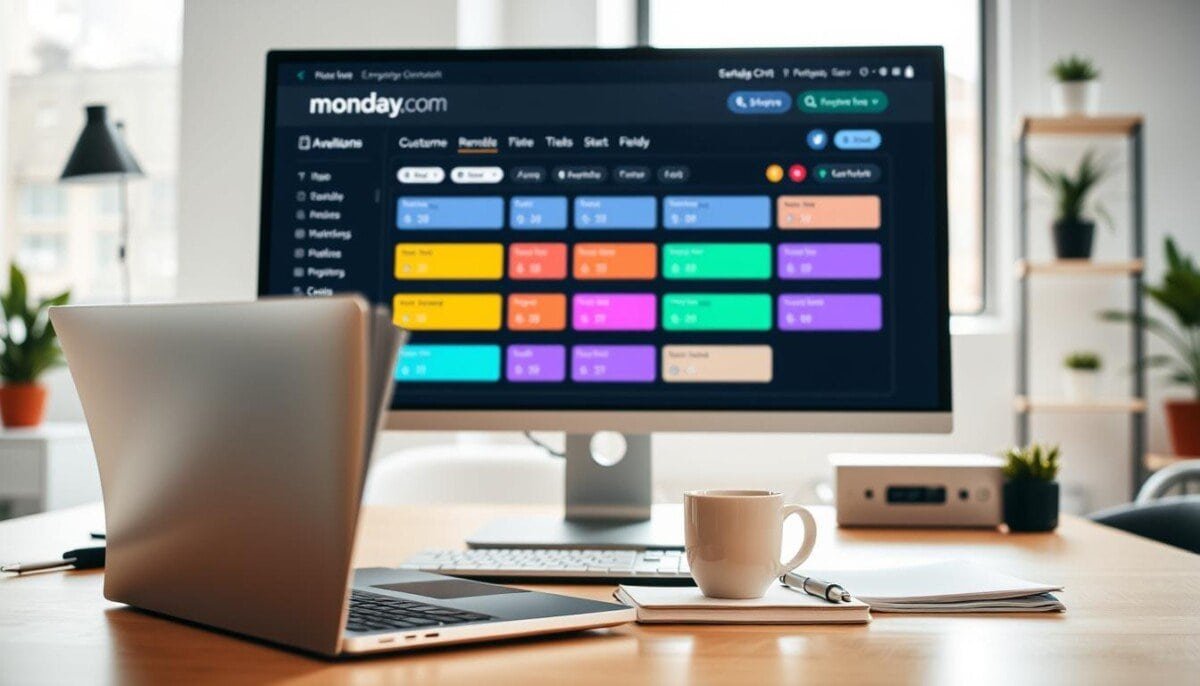
72% of teams report missed deadlines due to poor schedule alignment—fix the root cause with structured resource tracking.
Configure boards to reflect team capacity. Follow a systematic procedure to ensure calendar data matches real work schedules.
Bianca Taylor verified that administrators can assign precise work patterns for accurate calendar representation. Neelam Bhatt confirmed that custom widgets—tied to user schedules—transform resource planning.
Implement the setup in clear stages: create custom columns, map user hours, and bind widgets to schedule logic. Use data-driven controls to reduce misallocation risk and improve delivery timelines.
Do not skip validation steps. Test board logic with a pilot team. Adjust time zones and recurring patterns before full rollout.
Key Takeaways
- Establish custom columns to capture user schedules and capacity.
- Assign admin roles to enforce consistent schedule mapping.
- Link widgets to columns to visualize real-time team load.
- Validate with a pilot to catch time-zone and recurrence errors.
- Implement incremental rollout—monitor metrics and iterate.
Understanding the Role of Monday.com Availability Fields
Map group schedules to boards so project planning uses consistent, auditable hours.
Bianca Taylor confirmed the release of availability management in late 2023. Ziad Fokeladeh noted the current release focuses on team-level scheduling rather than individual user schedules.
Administrators must note that team-based assignments directly change how total available work hours calculate. Set team calendars to reflect expected capacity.
- Provides a granular view of capacity—answers critical questions about resource availability and timelines.
- Centralizes schedule data—serves as a single source of truth for planning.
- Maintains consistency—team-level configs ensure uniform calculations across units.
| Aspect | Current State | Impact |
|---|---|---|
| Release status | Released late 2023 | Immediate adoption for team planning |
| Scope | Team-level | Consistent work-hour calculations |
| Requested capability | Individual user schedules | Planned; not yet available |
Configuring Your Board for Team Availability Tracking

Establish the board schema by selecting column types that record time and quantity precisely. Create a compact plan before column creation. Map required data points per item. Assign admin roles to enforce consistency.
Selecting the Right Column Types
Choose column types that match tracking needs. Use text and dropdown types for categorical options. Add number and list columns to quantify capacity.
- Use dropdown options for shift types and role lists.
- Use text for notes and exceptions on each item.
- Use number columns to capture hours and capacity values.
Setting Up Date and Timeline Columns
Insert date and timeline columns to map work windows. Date columns capture single-day events. Timeline columns capture ranges and overlap.
Click the add button to create new columns. Configure column settings so each item reflects correct date and timeline data. Link these columns to widgets for workload visualization.
| Column Type | Purpose | Recommended Use |
|---|---|---|
| Date | Single-day deadlines | Milestones and due dates |
| Timeline | Range mapping | Task duration and overlap |
| Dropdown / Number | Options and capacity | Shift types and hours |
Implementing monday.com availability fields for Workload Management
Link schedule columns to the workload widget to reveal real-time team load.
Begin with a clear board schema. Map each item to specific columns that carry hours, role, and exception notes. Configure the widget to read those columns as sources of information.
Configuring the Workload Widget
Assign the widget to the board. Select the columns that contain capacity and date data. Ensure each item has an assignee and hours value.
Neelam Bhatt verified that proper mapping yields an accurate representation of user availability. Amanda requested a holiday indicator—enable a special notes column or a holiday tag. The widget will then display reduced capacity on those dates.
- Map board columns to workload widget sources—hours, timeline, and role.
- Track every item assigned to a user to prevent over-allocation.
- Use a notes column for exceptions and holiday markers.
- Read widget visuals to spot overloads and reassign work quickly.
| Action | Column Type | Outcome |
|---|---|---|
| Map hours | Number | Quantified capacity |
| Flag holidays | Text / Dropdown | Visual reduced capacity |
| Assign items | People | Real-time load |
Utilizing Status Columns for Daily Schedule Updates

Implement a single, standardized status column to capture daily attendance and shift type on the board.
Define options such as AM, PM, All Day, and Annual Leave. Neil Penry described a board where team members select one option per item. Require daily entries to keep the board current.
Use the status column as the primary signal for presence. Configure columns so “Working” and “Annual Leave” trigger downstream logic. Each item must reflect the latest status.
- The status column serves as the primary mechanism for daily availability updates.
- Configure options to map to workload semantics—present, partial, absent.
- Ensure each item is updated so the workload widget reads accurate values.
| Function | Configuration | Outcome |
|---|---|---|
| Daily selection | Status column with AM/PM/All Day/Annual Leave | Real-time presence per item |
| Widget trigger | Mapped status columns | Accurate workload visualization |
| Audit trail | Timestamped status updates | Historical schedule analysis |
Reference implementation and community tips available in the status column summary.
Managing Freelancer and Global Team Schedules
Collect weekly availability from freelancers and standardize team reporting. Create a simple intake process so each item representing contractor work updates the board quickly.
Handling Varying Freelancer Schedules
Require a recurring update for each freelancer—weekly or monthly. Use a dedicated column to record hours and notes.
Nick Westphal emphasized that freelancer availability changes month-to-month. Enforce item-level updates to prevent capacity errors.
Managing Global Team Time Zones
Standardize time reporting across teams. Map one column to a primary time zone and another to local time when needed.
Use the week view to compare capacity across zones. Managers then assign work with clear overlap awareness.
Addressing Public Holiday Constraints
Amanda recommended a visual holiday indicator in the workload widget week view. Flag holidays in a status column so the widget shows reduced capacity.
- Ways to implement: status column for holidays; number column for hours; notes column for exceptions.
- Update every item before the week starts.
- Use consistent columns so automation and reports read the same information.
For related troubleshooting and scheduling tips consult the scheduling troubleshooting guide.
Automating Availability Notifications and Updates
Automate status-driven workflows so changes propagate across the project stack.
Define automation rules that trigger when a status or column value changes. Configure the rule to send a manager notification when an item flips to “Annual Leave.” Keep rules simple—one trigger, one action.
Link the workload widget to the mapped columns. Use that connection to trigger cross-board automation and ensure all dependent boards receive the same updates.
- Use condition-based actions to reduce manual updates.
- Log each change as immutable information for audit and reporting.
- Prioritize automations that reassign tasks when capacity drops.
| Trigger | Action | Outcome |
|---|---|---|
| Status = Annual Leave | Notify manager; reassign item | Real-time capacity correction |
| Column: hours changed | Update workload widget | Accurate resource plan |
| Timeline adjusted | Propagate updates across boards | Consistent schedule data |
Implementing these automations converts manual maintenance into proactive controls. Track metrics—notification latency and reassignment rate—to validate the feature and refine actions.
Optimizing Your Resource Planning Processes
Treat the board as the authoritative source for resource status and planning data. Enforce a disciplined cadence. Require each team member to update every item assigned to them before weekly reviews.
Mandate a short note on each item that records hours, exceptions, and status. Managers must verify consistent application of this routine. Consistency drives reliable metrics.
Review the stored information weekly to reveal capacity trends. Use that data to refine allocation rules and forecasting horizons. Integrate insights with dashboards and automated rules for faster decisions. Utilizing capacity planning methods in monday.com can enhance team collaboration and streamline project management. By leveraging these tools, organizations can optimize resource allocation and ensure that workloads are balanced effectively. This strategic approach not only improves efficiency but also supports proactive decision-making across all departments.
Continuously improve these processes—iterate rules, archive stale entries, and keep the resource directory current. For a structured approach, consult the resource scheduling guide and the no-code database comparison.



