Can one quick step really restore your primary email and personal data? This guide answers that question with clear, practical steps you can follow right now.
If you suspect a breach, act fast. Visit the official Google Account recovery page to begin. You will need to follow steps that verify your identity. That may include answering security questions or providing verification codes sent to your phone.
Try signing Google services with your last known password or recovery phone number to get back in. Understand that 2-Step Verification pairs something you know, like a password, with something you have, like a phone or security key. This adds a vital layer of security beyond a single password. If you are unable to regain access, consider resetting a Google account password through the recovery process. This will involve verifying your identity and may require answering security questions or confirming a code sent to your recovery phone. Once you’ve successfully reset your password, be sure to update your security settings to enhance your account’s protection.
This short guide will help you navigate the account recovery process and protect your email and personal data.
Key Takeaways
- Start at the Google Account recovery page immediately.
- Follow steps to verify identity, including questions and codes.
- Try your last known password or recovery phone to sign Google services.
- Enable 2-Step Verification for stronger security.
- This guide offers clear steps to help you get back access and protect data.
Identifying Signs of a Compromised Account
Open your Google security dashboard and review recent events for anything you don’t recognize. Start with the “Recent security events” panel to spot odd logins or new device entries. This gives quick context and shows the time and location of each access.
Recognizing Suspicious Activity
If you see a login from a device you don’t own, mark it. Select “Your devices” and tap “Manage devices” to list linked hardware.
Check your email address settings for new forwarding rules or unfamiliar filters. These can send copies of messages to someone else without alerting you.
Verify that your name, recovery phone, and other info remain correct. If the recovery phone number or username was changed, act immediately.
Unusual Account Notifications
Notifications matter. Alerts about password or username changes are a strong sign of unauthorized access. Treat them as high priority.
| Sign | Where to Check | Quick Action |
|---|---|---|
| Unknown login | Recent security events | Sign out device, review session |
| Forwarding rules added | Email settings → Forwarding | Remove rule, scan messages |
| Recovery phone changed | Personal info → Phone | Restore your number, start recovery |
For guidance on related identity steps like finding a lost username, see this username recovery guide. Use it only after you secure devices and update settings.
How to Recover Hacked Gmail Account Access
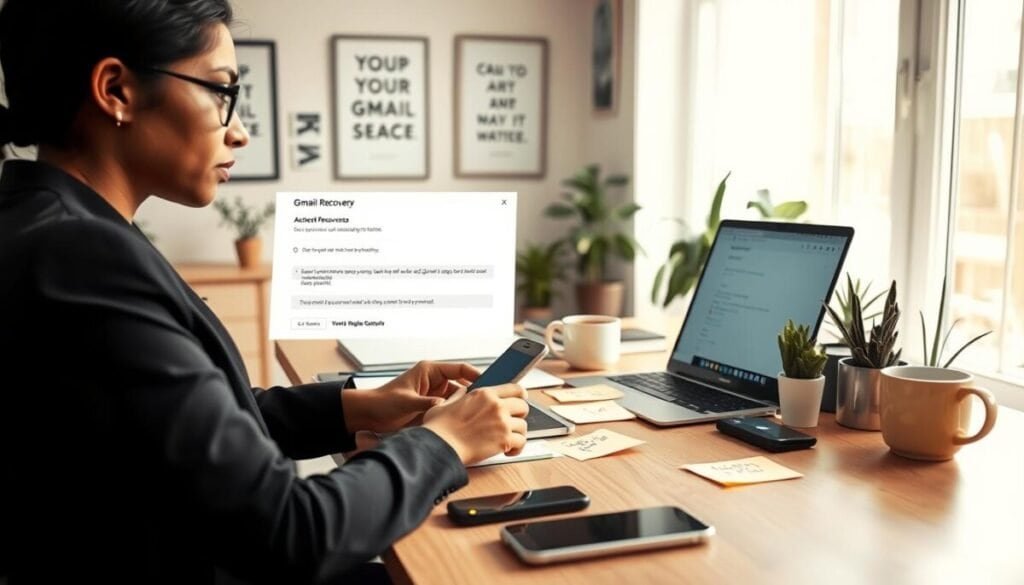
Open the Google recovery page and gather your recent passwords, phone, and backup email before you begin.
Act quickly. Use the official recovery portal and follow steps carefully. Enter the most accurate answers to security questions to prove ownership.
If you cannot sign Google services, request verification codes sent to your backup phone. Use those codes to verify identity and finish the process.
- Go to the Google recovery page and enter the email or username.
- Provide the last known password you remember.
- Answer security questions as precisely as possible.
- Request codes to your backup phone or email if prompted.
Important: If you change your recovery info, those updates may take up to 7 days to become active. Plan for this delay before expecting new details to work.
| Action | When to Use | Expected Result |
|---|---|---|
| Answer security questions | When prompted by the recovery tool | Proves ownership to Google |
| Request verification codes | If you cannot sign Google services | Receive short codes on your backup phone or email |
| Update recovery info | After regaining entry | New details take up to 7 days to activate |
There is no cap on how many times you can try if answers are incorrect. Persistent, accurate attempts increase your chance to get back access.
For related guidance on recovering social profiles, see this forgot Facebook password resource for next steps after securing devices.
Securing Your Account After Regaining Entry
Once you regain entry, act fast to lock down any remaining access points and restore control. Start with clear, targeted steps to close vulnerabilities and strengthen your defenses.
Updating Password Credentials
Change your password immediately. Create a strong password that is unique and unrelated to previous ones. Use a password manager to generate and store complex strings.
Install and run trusted anti-virus software first to remove any malware that might capture new passwords. Then sign out of all devices to end active sessions.
Reviewing Connected Devices
Open the device list and remove any unknown entries. Sign out everywhere to force re-authentication on every device.
Check third‑party app access and revoke permissions for apps you do not recognize. This stops lingering sessions and token abuse.
Checking Recovery Information
Verify your recovery email address and recovery phone number. Update any incorrect info so future account recovery flows work as intended.
Enable 2‑Step Verification to require both a password and a secondary code for login. This adds a high level of security for your google account.
- Create strong, unique credentials to replace exposed passwords.
- Update your recovery email and recovery phone number immediately.
- Sign out of every device to terminate suspicious sessions.
- Run anti‑virus and remove any threats before reusing credentials.
| Action | When to Use | Result |
|---|---|---|
| Change password | After regaining entry | Prevents old credentials from working |
| Sign out devices | Immediately | Ends active sessions |
| Update recovery info | After securing device | Restores reliable account recovery options |
For step‑by‑step guidance on securing compromised profiles and related verification steps, see the official security checklist. For device login tips, this login help page offers practical advice.
Protecting Your Personal Data and Connected Services
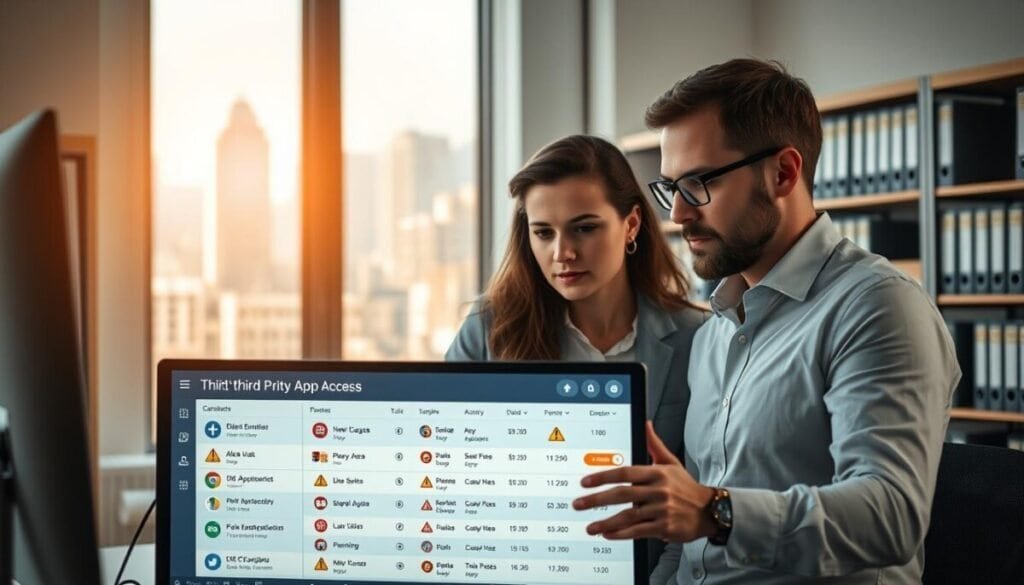
Begin with a quick audit of third‑party apps so persistent connections can’t siphon your data. Focus on services that list mailbox or contacts access first.
Auditing Third‑Party App Access
Open your security settings and view less secure apps. Turn off any service you do not recognize or no longer use.
Next, inspect delegated mail and forwarding rules in your email settings. Delete strange filters or rules that send copies of messages elsewhere.
Be methodical. Check app permissions and revoke any tool with excessive access. This prevents long‑term data collection and stops malicious scripts from keeping a hold on your profile.
- Audit connected services to spot persistent access tokens.
- Remove suspicious forwarding rules that leak private email.
- Watch for unexpected password changes and lock them down quickly.
- Revoke apps with excessive permissions immediately.
Maintain a clean list of connected services as part of your recovery plan and long‑term digital hygiene. For extra login troubleshooting tips, see this login help page.
Maintaining Long Term Account Safety
Treat long-term safety as an ongoing habit, not a one-time fix. Enable 2‑Step Verification and use a strong password for every account. These two steps cut risk dramatically.
Keep your recovery email and recovery phone number current. If you suspect someone else is trying to access your profile, update those details immediately and review your username and security questions.
Run regular checks for connected apps and remove anything you do not recognize. Let contacts know if your email was used to send spam so they avoid malicious links.
Need guidance? Follow the official recovery steps and consult this forgot Facebook password page or alternative recovery methods for extra help.
One simple tip: keep software updated and use a password manager to create strong, unique passwords. Stay vigilant and repeat these steps regularly to keep your Google Account secure.