
60% of work interruptions come from unread messages—this reduces focus and costs time.
Use the slack later feature to regain control. Save critical content in one location. Stop hunting through busy conversations.
Direct the workflow into a centralized stream. The slack app consolidates important messages from multiple channels and direct threads. This ensures key notes and files remain in one place for future action. Additionally, you can schedule messages in Slack to remind team members of upcoming deadlines. This feature helps maintain accountability and ensures everyone is on the same page. By organizing communication in this way, productivity can significantly increase, making collaboration smoother.
Adopt a system. Tag and prioritize each incoming message. Move non-urgent items out of immediate view but keep them accessible.
Maintain focus on core objectives. Use scheduled reminders and saved items to reduce cognitive load. Create a structured environment for teams and individuals.
Key Takeaways
- Implement the tool to centralize critical messages across channels.
- Prioritize incoming items—assign immediate or deferred status.
- Store files and notes in one place for reliable retrieval.
- Use the app to reduce context switching and information loss.
- Apply a repeatable process—save, schedule, and review.
Understanding the Slack Later Feature for Better Workflow
Map the saved-item workflow to daily task cycles for measurable productivity gains.
Get started by defining one clear intake point for saved messages. Assign a consistent communication style and tagging convention. This reduces decision friction and preserves focus.
Configure settings permissions to protect saved content. Limit access to necessary roles. Maintain audit trails for compliance.
- Integrate apps slack integrations to centralize files and notes.
- Leverage platform tools to standardize team workflow and review cycles.
- Consult help documentation and videos for step-by-step setup.
| Category | Action | Benefit |
|---|---|---|
| Settings | Adjust access and retention | Secure stored items |
| Apps | Connect project tools | Faster retrieval across channels |
| Support | Watch help videos | Reduce onboarding time |
How to Save Messages and Files for Later Access

Capture important conversation items so they remain retrievable when needed.
Saving on Desktop
Hover message to reveal the row of controls. Click the save icon to store the message in the saved tab.
Hover a file and open the More actions icon. Select Save for Later to keep the file accessible inside the app.
Saving on Mobile
Tap message to open the context menu. Choose the save icon so users can come back later to the content.
Tap a file, select the three dots, then pick Save for Later. Files remain in the app—download locally if external storage is required.
- Verify the channel name before saving—this makes the conversation easy to locate.
- Save from channels direct or direct messages to manage workflow and centralize critical items.
- Use hover message on desktop and three dots on mobile for consistent operation.
| Action | Where | Result |
|---|---|---|
| Save message | Desktop — hover message | Stored in Saved tab for review |
| Save file | Desktop — More actions icon | Accessible in files list; downloadable |
| Save message | Mobile — tap message | Available to come back later on mobile |
Navigating Your Saved Items Dashboard
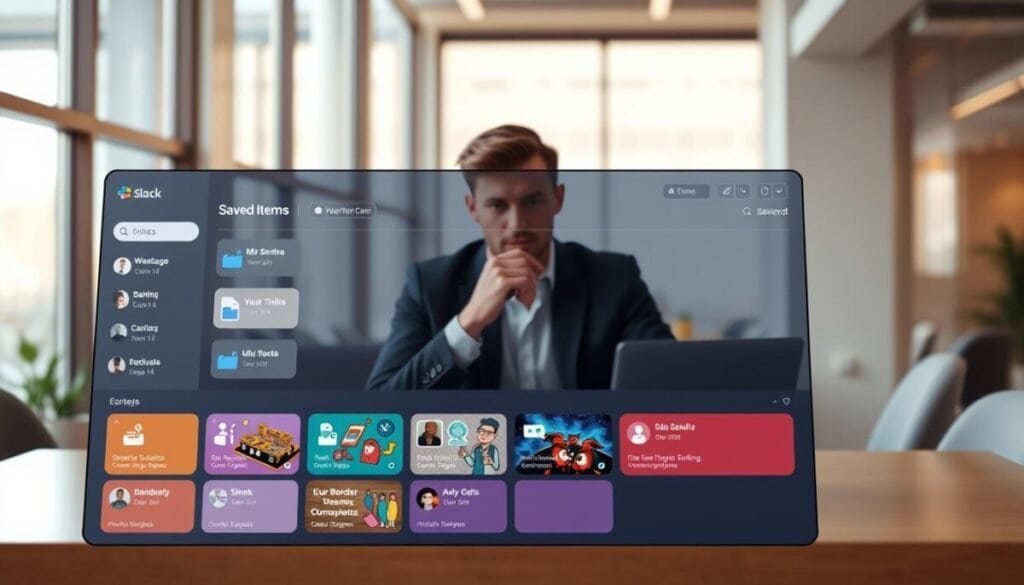
The Saved Items dashboard groups work into three precise status tabs for quick triage.
Use the dashboard to view every saved message and file in one place. The interface divides content into three tabs: In progress, Archived, and Completed. This structure enforces a predictable workflow.
Understanding Tab Categories
The In progress tab lists reminders and newly saved items. Monitor active tasks here. Move items forward as work advances.
The Archived tab stores older messages and files for long-term reference. Use it to preserve conversation history without cluttering daily queues.
The Completed tab confirms finished work. Use the three dots icon in the top-right corner of any item to move content back to In progress. The three dots menu also reveals status controls and additional actions.
- One place for saved messages, files, and reminders—organized into three clear tabs.
- Tap the three dots in the corner to reclassify items or apply tags.
- Integrate apps slack connectors to tag files and channel threads automatically.
- Consult help documentation and videos for setup and to configure settings permissions: help documentation.
Setting Reminders to Stay on Top of Tasks
Assign a date and time to saved messages so work returns to the queue exactly when needed.
Click the reminder icon in the top-right corner of a saved message or file to schedule notifications. Options include preset times and a Custom date and time selector. Choose the exact date and time to trigger the alert.
Any reminder set from the More actions menu appears in the In progress tab. Manage notifications there to keep every conversation and file visible until action completes. Use the tab as the single place to review active items.
Set a Custom date and time for tasks that require precise timing. This tip reduces context switching and ensures the team comes back later to critical messages at the exact scheduled moment.
- To stay on top—click the reminder icon in the top-right corner of a saved message or file.
- Define the date time precisely to receive timely notifications and come back to the message.
- Mark reminders complete when done; move items back to In progress if follow-up is required.
For step-by-step help, use the official guide to set a reminder. For advanced scheduling with a custom date and time, consult the scheduling walkthrough: schedule with a custom date and.
Filtering Your Saved Content for Maximum Efficiency
Apply focused filters to reduce visual noise and accelerate triage in the Saved tab.
Use the filter controls to limit viewable items. The filter icon sits in the top-right corner of the In progress tab. Toggle it to show or hide upcoming reminders and focus on due work.
Using the Filter Icon
Click the icon to exclude future reminders. This trims the list so only actionable messages appear at the top.
Creating Custom Views
Create scoped views in Activity to isolate a specific channel, a file type, or a date time range. Save the view for repeatable triage.
- Hover message or tap message to open context controls and apply a filter.
- Use the three dots menu to archive items that no longer require attention—this keeps the dashboard lean.
- Adjust settings permissions to control who can create or edit custom views.
| Filter | Action | Benefit |
|---|---|---|
| Due only | Hide upcoming reminders | Faster triage |
| Channel | Show specific conversation | Contextual focus |
| File type | Filter by files | Targeted retrieval |
Mastering Message Management for a More Productive Workday
Adopt a repeatable process to ensure every message is actioned on schedule.
Treat each saved message as a discrete task. Assign a time and move items through the tab workflow—In progress, Archived, Completed. This enforces predictable review cycles and reduces context switching.
Use channels direct and direct messages to capture context. Name files and apply a consistent style so any conversation is searchable by name. Schedule reminders to come back later and close the loop.
Get started by consulting help and instructional videos. Review integrations and productivity tools—see a curated list of productivity apps to streamline setup and training.