
Can voice input really change the way we work and reclaim hours every week?
We explore how integrating advanced voice tools into our daily workflows can boost productivity and spark creativity. Our team tested multiple setups and found ways to speed tasks while keeping quality high.
In this guide, we share practical steps, proven tools, and simple habits that make the shift from typing to voice effortless. We focus on clear results for teams and freelancers across the United States.
Read on for a concise roadmap that helps you streamline communication, sharpen documentation, and focus on the work that matters most.
Key Takeaways
- Voice input can speed routine tasks while preserving accuracy.
- We provide tested tools and setups to ease the transition.
- Our methods help teams in the United States improve workflow and output.
- Practical tips ensure natural, efficient interactions with AI assistants.
- Adopting these steps helps reclaim time for higher-value work.
Why We Use Speech to Text with Claude
Adopting a spoken-input mode lets our team capture thoughts faster and move from idea to draft in minutes.
We use advanced voice processing because accuracy matters. The system reaches over 99% accuracy across 50 languages, so our instructions are parsed reliably.
Integrating a reliable dictation tool reduces the effort of manual entry. It keeps quality high and cuts revision time.
Switching to a voice-first mode also makes interactions more fluid. We see fewer errors than when typing fragmented notes.
- High accuracy: Less manual correction.
- Multilingual support: Works across 50 languages.
- Professional fit: Dedicated dictation systems help creators and analysts produce clean prompts fast.
Overall, this setup bridges our spoken ideas and the digital text needed for complex prompts. It helps us focus on meaning, not mechanics.
The Productivity Benefits of Voice Dictation
Moving into a voice-first mode transforms how quickly we capture and shape ideas.
Speed Advantages
We find dictation is about 3x faster than typing. That speed cuts minutes from every task and adds up across a day.
Nicholas Cino reported an 80% reduction in the time spent writing complex emails. For our teams, that means fewer interruptions and more focus on strategy.
Natural Flow
By choosing to speak instead typing, we preserve a natural flow that captures rough ideas as usable drafts.
Our spoken words convert into clean text with minimal edits. This reduces friction and helps us move faster through review cycles.
- Faster output: Complete tasks in a fraction of the usual time.
- Less revision: Cleaner first drafts require fewer edits.
- Better rhythm: We keep pace in fast work environments without feeling overloaded.
Getting Started with Voice Input
Getting started is fast: a small browser add-on can turn any input field into a dictation-ready area.
Install the Voicy extension and you’ll see a microphone button appear in every text box across the web. The install takes seconds and integrates with common browsers we use in the United States.
Setup requires just a few clicks to allow browser access for your microphone. Once the permission is granted, the tool is ready for immediate dictation sessions.
The extension makes the shift from manual typing feel natural. Spoken words convert straight into clear text, giving us usable drafts without lengthy edits.
- Quick start: Install Voicy and click the mic icon.
- Easy setup: Grant microphone access and run a short test.
- Quality tip: Test sensitivity before a big project for better transcription results.
Setting Up Your Microphone for Optimal Results
Clear audio starts with the gear we pick and the habits we follow.
Hardware Considerations
Choosing the right device is the first step. A dedicated USB headset or condenser mic captures cleaner audio than built-in laptop mics.
High-quality hardware reduces background noise and improves dictation accuracy. Our tests show fewer errors and faster edits when the input is clean.
Adjusting microphone settings in the operating system ensures balanced levels. Lower gain for noisy rooms and a bit more gain in quiet spaces works well.
- Use a dedicated key: Map a keyboard key to toggle recording mode and stay focused while speaking.
- Optimize placement: Keep the mic an inch or two from your mouth and off-axis to reduce plosives.
- Test audio: Run a short dictation sample before long sessions to confirm levels and clarity.
By optimizing environment and device, we build a reliable setup for consistent voice capture. That leads to cleaner text output and fewer interruptions in our workflow.
How to Use Speech to Text with Claude Effectively
We rely on clear, practiced habits to get fast, reliable results when we use voice input during work sessions.
Speak clearly and pause briefly between sentences. That pause gives the system time to process and keeps the transcript tidy. We find short bursts work better than long monologues.
Adjusting language settings cuts errors dramatically. Set the correct locale and test once. Our experience shows this change yields smoother, real-time accuracy.
Activate dictation mode and watch your words appear within seconds. Keeping your microphone at a steady distance helps the capture stay even across a session.
- Clear enunciation: reduces edits later.
- Consistent distance: stabilizes audio input.
- Correct settings: optimize accuracy for your language.
| Tip | Expected Impact | Time to Notice |
|---|---|---|
| Pause between sentences | Fewer run-on errors | Immediate |
| Tune language settings | Higher transcription accuracy | Seconds |
| Keep mic distance steady | Stable audio levels | Immediate |
In short, simple habits plus the right settings make dictation a productivity booster we use every day.
Improving Prompt Quality Through Natural Language
Speaking our ideas aloud makes prompt writing more natural and often reveals useful details we miss when typing.
When we use voice input, our prompts gain context and depth. That extra detail leads to clearer, faster responses from the AI.
Using a good microphone helps us capture nuance. Our dictation mode turns conversational speech into coherent text so the model understands intent.
- More detail: Natural phrasing uncovers constraints and examples we might skip when we type.
- Cleaner prompts: Dictation helps us structure thoughts into one clear request.
- Better responses: Richer input yields fewer clarifying rounds and faster outcomes.
In practice, we find that a relaxed, conversational approach to prompt engineering improves quality. It lets us refine our communication style and get the best possible results from our assistant.
Integrating Voice Commands into Your Coding Workflow
We bring spoken commands into our developer workflow to keep momentum during long builds.
We send a clear message from our mic straight into the terminal. At about 150 words per minute, our voice input is far faster than typing a long command line.
Vibe Coding
Our team practices a focused mode where we speak intent in plain words. This keeps the flow and reduces context switching.
Refactoring Tasks
Using claude code lets us describe refactoring in a single line. The system turns that prompt into a precise change request.
- Speed: 150 wpm keeps us moving.
- Accuracy: Clear commands map to exact code edits.
- Key habit: Speak intent, then confirm the generated patch.
By leveraging these commands, we manage our claude code environment more efficiently and save time during complex coding projects.
Comparing Built-in Dictation to Specialized Tools
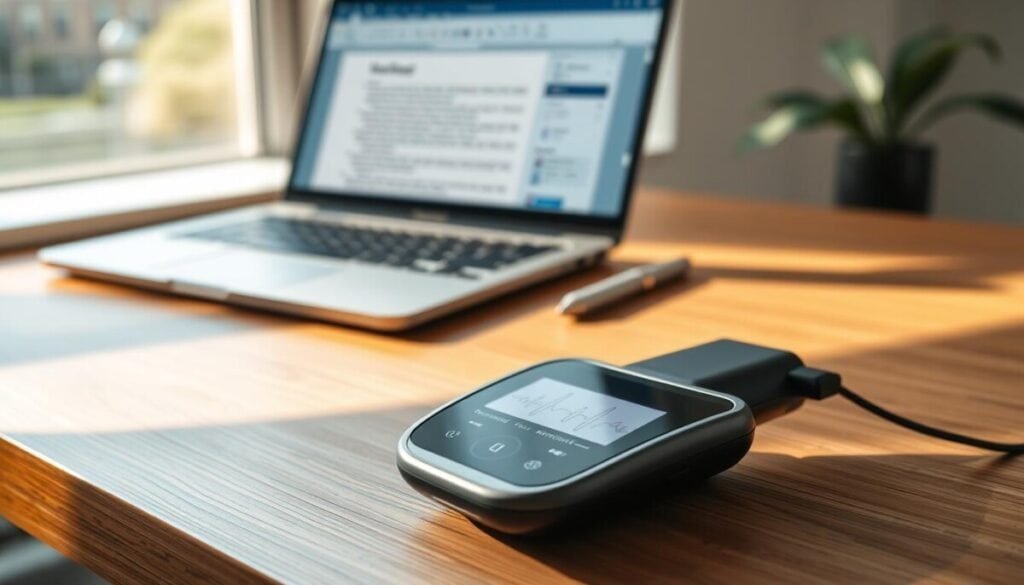
We found that not all dictation options handle technical jargon equally, so we test each tool against real project prompts.
Built-in browser dictation is fast to access and fine for quick notes. It often lacks advanced shortcuts and custom dictionaries, though. That makes it less ideal for long-form technical work.
Dedicated apps offer richer options and better integration. They provide custom vocab, command mode, and deeper support for complex workflows. For our claude code projects, that extra accuracy matters.
- Specialized apps keep accuracy steady across web interfaces.
- They offer robust options for managing industry terms and formatting.
- We rely on them when switching between editors and terminals.
| Feature | Built-in | Specialized app |
|---|---|---|
| Accuracy on code | Good for plain text | High for technical terms |
| Custom dictionary | Limited | Full customization |
| Web app integration | Basic | Deep support |
In practice, we prefer advanced dictation software that ties directly into the web apps we use. It keeps our workflow consistent and reduces time spent fixing errors.
Why Accuracy Matters for Technical Prompts
Precision in our prompts ensures the model returns usable code the first time. For complex coding tasks, exact wording and correct technical terms keep the workflow moving.
When we use voice input, every word counts. A single misheard term or command can change the intent of a prompt and produce incorrect responses.
We avoid sloppy transcription because small mistakes create debugging overhead. That defeats the time saved by skipping typing.
- Exact terms: Use industry vocabulary so the model maps intent to correct code.
- Clear commands: Speak short, direct messages to minimize errors.
- Proof at speed: Verify the text quickly before sending a claude code request.
In short, the value of this mode depends on accuracy. We rely on high-quality dictation and a careful review step so our coding prompts yield reliable claude code responses every time.
Maintaining Privacy While Using Voice Tools
We prioritize secure handling of recorded input so sensitive work never leaves our control.
Privacy is non‑negotiable when we enable a voice mode in our workflow. We choose providers that are SOC 2 compliant to protect our data during every claude code session.
Where possible, our team uses an app that processes audio locally. This local processing keeps private information off external servers and reduces exposure risk.
We also require clear documentation about how a tool handles data. That documentation helps us verify retention policies, encryption, and access controls before we deploy the tool in production.
- SOC 2 compliance: core requirement for vendor selection.
- Local processing: keeps sensitive content on-device.
- Clear docs: confirm retention, encryption, and access rules.
Finally, we embed privacy checks into onboarding. For details on our standards and vendor review, see our privacy policy.
Troubleshooting Common Transcription Issues
We treat delays and missed lines as clues rather than failures. When an entry looks wrong, our first check is the microphone path and system input level. Clean audio removes most errors quickly.
Next we measure processing latency. Our target is about 200ms. If latency exceeds that, real‑time dictation feels laggy and prompts can break across lines.
We also tweak the key sensitivity used to start recordings. Low sensitivity often causes the system to miss the first word of a prompt. Raising it a small amount fixes many missed lines.
We audit usage patterns when technical code prompts fail. Complex terms and fast delivery will confuse even strong engines. A quick review of recent sessions usually shows the cause.
- Check mic and OS settings: remove background noise and confirm input device.
- Verify 200ms latency: test roundtrip speed and retry if it spikes.
- Adjust key sensitivity: prevent dropped starts of lines.
| Issue | Likely Cause | Quick Fix |
|---|---|---|
| Missing start of prompt | Key sensitivity too low | Raise key threshold |
| Laggy dictation | Processing latency >200ms | Restart service; check network |
| Incorrect code tokens | Fast delivery or jargon | Slow down; add industry terms |
| Persistent errors | Usage pattern issue | Review session logs |
Fast feedback loops help. By keeping our speed of communication high, we catch and fix errors in seconds. For deeper causes, we reference an article on common recognition failures at AI transcription pitfalls.
Optimizing Your Environment for Clearer Audio

We set up our recording space so the microphone captures only our voice and nothing else.
We use noise-canceling hardware and simple room tweaks to reduce background hum. That cleaner audio leads to far better transcription and fewer edits.
System settings matter. We tune input levels, choose the right sample rate, and enable noise suppression to improve how prompts arrive in our tools. These small changes raise the accuracy of claude code requests and technical notes.
Protecting privacy is a core step. We keep the workspace quiet so no accidental data is recorded. A dedicated activation key prevents always‑on capture and stops the system from recording when we are not actively working.
- Noise‑canceling headset: isolates our voice.
- Tuned settings: reduce errors in prompts.
- Activation key: prevents stray captures of sensitive data.
| Change | Why it helps | Expected result |
|---|---|---|
| Noise‑canceling mic | Removes ambient sound | Cleaner transcription |
| Input settings | Stabilizes gain and sample rate | Fewer prompt errors |
| Activation key | Records only when needed | Better privacy and less data cleanup |
Scaling Your Workflow with Multi-Device Support
Scaling our workflow means keeping the same tools available whether we’re at a laptop, phone, or desk.
We use an ecosystem that syncs input and settings across every device. That consistency keeps our pace steady when we switch contexts.
With over 10,000+ happy users, the app family we chose offers both mobile and desktop apps and reliable web support. This coverage ensures our claude code work continues uninterrupted across locations.
We standardize a single microphone and an activation key layout on each device. A uniform setup cuts friction and reduces the time spent configuring hardware mid-task.
- Consistent input: same settings on phone, laptop, and desktop.
- Seamless dictation: files and prompts follow us across apps.
- Reliable support: both local dev and web workflows run the same.
| Need | Benefit | Where |
|---|---|---|
| Same microphone | Fewer errors | Mobile & desktop |
| Shared key mapping | Faster capture | All devices |
| Cross-device tool | Continuous work | Web & local |
In practice, this approach keeps our claude code and dictation capabilities available no matter where we are working today.
Understanding the Role of AI Models in Transcription
The underlying model shapes how fast and faithfully our audio becomes written output.
On Apple Silicon chips, some models run locally and deliver much lower latency. That means faster recognition and fewer pauses while we work.
We pick models that can handle accents and technical jargon. This reduces the rounds of correction and keeps our claude code conversations focused.
Privacy is a priority. When a model performs transcription on-device, our sensitive sessions stay on our hardware and out of external servers.
Speed depends on the engine’s architecture and how it processes incoming audio streams. A tuned model interprets our words in real time and returns usable drafts almost immediately.
- Local models on Apple Silicon cut cloud exposure and latency.
- Robust recognition handles varied accents and domain terms.
- Faster throughput means fewer interruptions during development.
| Factor | Benefit | Impact |
|---|---|---|
| On-device model | Improved privacy | High |
| Recognition quality | Less cleanup | Medium–High |
| Processing speed | Real-time flow | High |
Customizing Your Dictionary for Industry Terms
We add custom vocabulary so our tools recognize niche commands and project jargon.
Custom dictionaries help the model map technical words into accurate text. We list project names, API identifiers, and common coding tokens so every prompt carries the right meaning.
By updating our settings, we ensure claude code receives messages that match our domain language. That reduces manual editing and keeps development moving.
- Project terms: added for each repo and release cycle.
- Recognition options: tuned so commands convert cleanly.
- Usage reviews: regular audits keep the list current.
We measure impact by tracking edits per message. After adding focused terms, our recognition errors drop and coding prompts return usable patches faster.
In practice, this level of customization keeps accuracy high, even when we discuss highly specialized topics. The effort pays off in fewer corrections and smoother workflow.
Reclaiming Your Time Through Conversational AI
Adopting a voice-first approach helped us capture ideas far faster than manual typing. We reclaimed real time each day and turned loose thoughts into usable drafts in minutes.
The mode keeps our daily experience more natural and less tedious. It improves the quality of our responses and helps us focus on strategy rather than minor edits.
We encourage teams to try this app and see the difference. For healthcare case studies and adoption impact, check this real-world example. For a quick guide to available AI tools, see popular tool listings.
In short, conversational work frees us from constant typing and brings our ideas forward faster. We believe this is the future of productive, human-centered workflows.



