Can a few precise settings stop the stream of distracting alerts and restore focus?
Reduce inbox clutter with a systematic approach. Configure menu items to prioritize critical messages. Set defaults that route only high-value updates to the activity feed.
Audit current settings. Identify which channels send frequent messages and replies from many people. Silence nonessential mentions and mute threads that drain attention.
Implement targeted filters. Use the activity feed as the single source of truth—only after refining notification and notification activity rules. Adjust the notification menu to ensure the team receives vital updates while others remain quiet.
Key Takeaways
- Perform a settings audit to identify noisy channels.
- Use the activity feed selectively—show only prioritized messages and mentions.
- Adjust menu preferences to limit alerts from replies and low-value posts.
- Change default notification rules to filter messages from many people.
- Validate changes by monitoring the feed and refining filters as needed.
Understanding the Basics of Teams Channel Notifications
Identify where alert overload begins to regain control of work focus.
Select the More options icon to view the options for a specific channel name. Choose how alerts deliver to the activity feed—banner plus feed, or feed only. This step defines the delivery method for each team channel.
Differentiate banner alerts from feed-only alerts. Banner alerts interrupt immediately. Feed-only entries collect in activity for later review. Choose the mode based on meeting rhythm and deep-work blocks.
- Click More options to select options channel notifications for the listed channel name.
- Prefer feed-only for high-volume channels to reduce real-time interruptions.
- Use banner + activity for critical updates from members during meetings.
Customize delivery to keep chat and activity relevant. Apply settings per team to prevent the interface from becoming a distraction. For scheduling tips and related message controls see schedule messages.
Configuring Global Settings for Teams Channel Notifications
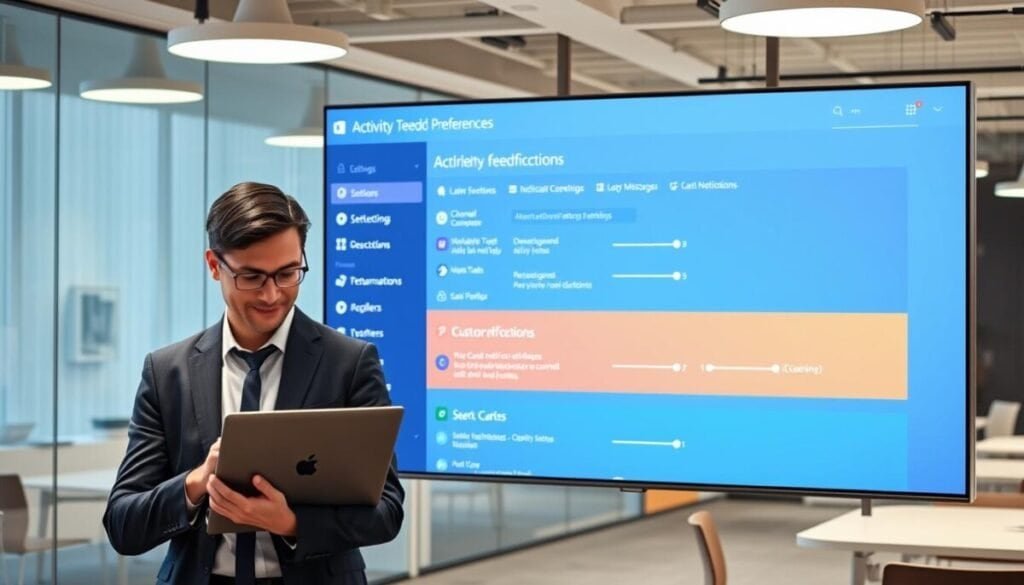
Set global defaults to funnel only priority updates into the activity feed.
Activity Feed Preferences
Click the profile picture at the top right to access global settings. Edit delivery rules to separate immediate banners from feed-only entries.
Only show in feed prevents desktop banners from interrupting deep work. On Windows, banners appear bottom right. On macOS, banners appear top right. Use feed-only to keep desktop app alerts in the top left.
- Edit banner and feed preferences to reduce interruptions during meetings and focused tasks.
- Turn default new-post delivery to feed-only for high-volume channels and posts.
Email Notification Controls
Disable redundant email requests. Route actionable items to the activity feed and keep the inbox clear.
| Delivery | Desktop action | Recommended global setting |
|---|---|---|
| Mentions | Banner + feed | Keep banner for critical mentions; feed for others |
| New posts | Feed only | Set default to feed-only |
| Replies | Feed only | Disable banners; receive updates in feed |
| Email digests | Inbox | Limit to priority requests; turn off summaries |
Customizing Alerts for Specific Channels
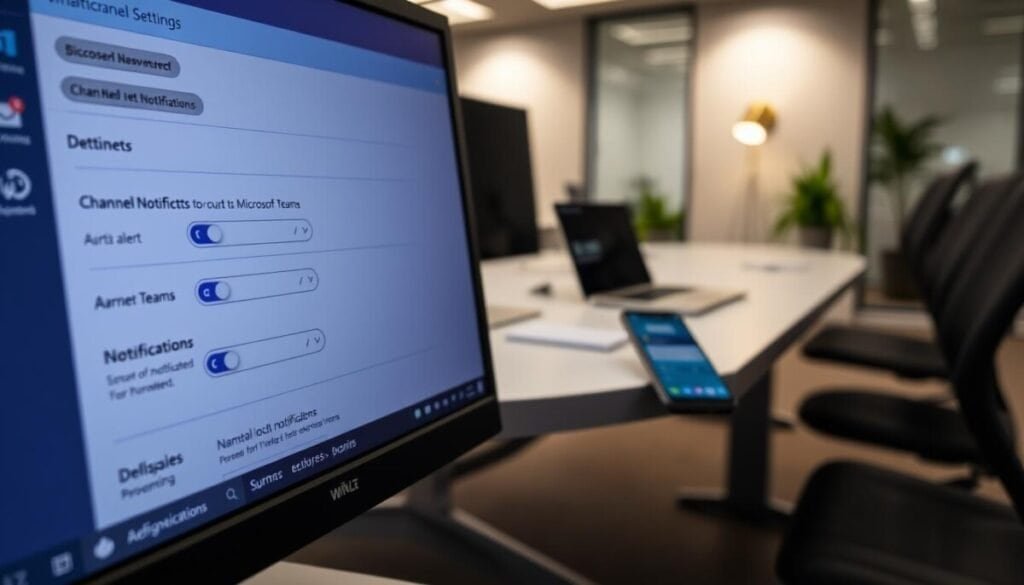
Define per-channel alert rules to keep high-priority threads visible and low-value noise suppressed.
Adjusting Thread and Reply Settings
Edit the options menu for a given team channel to apply precise controls. Select options channel notifications to set how posts and replies appear in the activity feed.
Key adjustments:
- Select Follow all new threads to pin replies to the top of the list without triggering a banner or activity interruption.
- Enable Include thread replies to receive a notification when others respond to a specific post.
- Edit defaults per channel name to mute low-value posts and preserve alerts for direct mentions or action items.
When the options channel notifications menu is used, people gain granular control. Prioritize high-traffic project lists. Mute less critical discussions.
Managing Individual Conversation Updates
Silence high-volume threads by muting individual conversations from the message menu.
Select the More options item at the top right of the initial post to turn notifications off for that specific message thread.
Muting stops thread updates while preserving critical alerts. Muted conversations remain hidden from routine desktop alerts but still deliver @mentions from other people.
Apply per-conversation controls to manage notifications activity on a per-request basis. Use these controls during meetings and focus blocks to reduce interruptions.
- Turn notifications off for a thread — stop nonessential messages without leaving the conversation.
- Keep @mentions active — preserve direct requests and urgent replies.
- Use the menu on the post to adjust settings quickly on desktop and mobile devices.
Result: Fewer irrelevant pings; the activity feed surfaces only priority posts and messages. This method lets the team maintain awareness without constant alert fatigue.
Optimizing Mobile Device Notification Settings
Control mobile alert behavior to preserve focus and battery life.
Microsoft Teams suppresses mobile alerts by default to reduce battery drain when the desktop app is active. Enable the mobile menu > Always to receive every notification regardless of desktop status.
Enabling Always Notifications
Open the app menu and edit notification settings. Set delivery to Always for critical channels and high-priority names.
Setting Quiet Hours
Configure quiet hours and quiet days on the device. Allow calls to pass through while muting activity feed updates. Use quiet periods to disconnect from work-related alerts.
Managing Battery Impact
Balance alert frequency with battery use. Mirroring banner and feed preferences across desktop and device reduces redundant pings and conserves power.
For a deeper configuration workflow and best practices, consult the guide to Microsoft Teams notifications.
Mastering Your Workflow for a Distraction-Free Experience
Apply a tiered alert matrix—priority, routine, suppressed—to align alerts with work phases. Create strict delivery rules that route only high-value items to the activity feed.
Set presence to Do not disturb during deep work and meetings. Allow priority access for specific people to avoid missing urgent requests.
Hide or mute low-value channels and mute noisy chats. Review settings regularly. Audit hidden items and muted conversations every two weeks to adapt to changing project rhythms.
Result: Convert persistent pings into a predictable flow. For implementation details and a step-by-step workflow, consult this guide on silencing Microsoft Teams alerts.