
Can a virtual room make remote participants feel as present as an in-person meeting?
Deploy the solution that recreates shared space. Microsoft Teams introduced the teams together mode in August 2020 to shift participants out of isolated tiles and into a unified view. This design reduces cognitive load and improves the meeting experience.
Activate the feature to place users in a cohesive virtual scene that mimics real seating. The AI-driven system aligns video feeds into a single view. The result: more natural interaction and reduced fatigue during long meetings.
Use the feature to foster engagement. Configure layout, enable gallery sizing, and brief attendees on etiquette. Expect clearer focus, better turn-taking, and a measurable lift in participation metrics.
Key Takeaways
- Activate together mode in Microsoft Teams to create a shared visual space.
- Leverage AI alignment to reduce meeting fatigue and improve focus.
- Configure layout settings for optimal view and participant balance.
- Brief users on behavior to maximize natural interaction.
- Measure participation and adjust settings to sustain engagement.
Understanding the Benefits of Teams Together Mode
Replace grid-style feeds with a unified scene to make video meetings feel more natural. This view reduces cognitive load and lowers meeting fatigue by restoring social context—eye lines, seating cues, and shared backgrounds.
Key benefits: improved focus, stronger sense of presence, and fewer interruptions. The auditorium background places users in one room, which increases perceived belonging and supports healthier interaction patterns.
- Research shows a measurable drop in meeting fatigue when participants use a shared visual environment instead of a grid view.
- Users report feeling like they are in the same room—this bolsters team cohesion and meeting efficiency.
- The auditorium design minimizes visual fragmentation—this sustains attention during long sessions.
- Adopting this approach yields a more immersive, repeatable meeting experience for professional groups.
Implement the setting to reduce cognitive strain and improve social signals; monitor participation metrics to validate impact.
How to Enable and Configure Your Settings
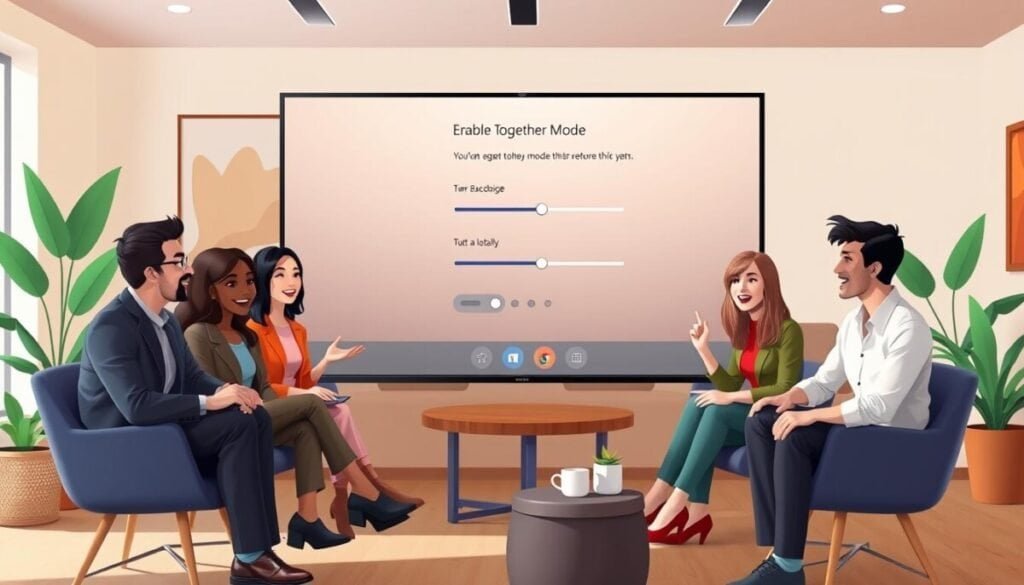
Ensure the client build is current to unlock advanced meeting display options. Check versioning before changing any display settings. Confirm access to the new meeting experience prior to in-meeting configuration.
Updating Your Software
Open the profile menu. Select Settings. Verify the installed version matches vendor release notes.
Enable automatic updates when possible. Restart the application after update completion to initialize new meeting features.
Activating the Feature
Enable the Turn on new meeting experience toggle in Settings. Join a new meeting to test the view.
- Open the “…” menu during a meeting and choose the Together mode option.
- Require at least five participants for activation—this is a technical minimum.
- Allow users to pick backgrounds to align the shared environment with meeting objectives.
If the option is absent, contact the administrator to confirm tenant version and feature rollout. Proper configuration reduces troubleshooting and keeps meetings focused on work.
Best Practices for Maximizing Meeting Engagement
Start every session with standardized settings that prime attendees for a shared visual experience. Set expectations—camera on, audio checked, and a clear agenda. Allow two to three minutes for attendees to settle into the view and test audio.
Encouraging Camera Usage
Require cameras for core participants. Visible faces improve nonverbal signals and reduce fatigue.
Recommendation: Use a Logitech C920 HD Webcam for consistent video quality. Paul Lange, Senior Consultant at Computacenter, advises using a headset to maintain audio clarity—this feature does not replace hardware.
Managing Meeting Agendas
Always publish a time-boxed agenda before the new meeting. Start with objectives and end with action items. Limit side conversations; assign a moderator to manage turn-taking.
Optimizing Your Physical Environment
Center the camera; use even front lighting. Noel Kennedy, Head of Sales at Involve Visual Collaboration, recommends taking a screenshot during setup so people can arrange by size for the best visual result.
Checklist:
- Camera centered and stable.
- Well-lit background; minimal motion.
- Headset for audio; webcam for video.
- Short agenda and initial exploration time.
When to Utilize This Immersive View
Select the immersive view when the objective is to read audience energy and nonverbal cues.
Use the setting for group sessions where multiple people speak and visual feedback matters. Limit the feature to meetings with up to 49 participants for best performance.
Avoid the view when sharing physical content such as a whiteboard or props. The technology removes backgrounds and centers participants, which conflicts with physical-content sharing.
- Read the room—gauge attention and energy via unified seating cues.
- Support multi-speaker conversations—participants find natural gaps to enter the dialogue.
- Do not use for one-to-one calls or sessions with continuous motion; the feature optimizes stationary camera framing.
- Apply when groups struggle with focus—immersive view reduces meeting fatigue and improves attention.
| Scenario | Recommended | Max Participants |
|---|---|---|
| Presentation with many speakers | Yes—use the auditorium-style view | 49 |
| Whiteboard or physical demo | No—use standard screen share | N/A |
| One-to-one or mobile movement | No—use grid or single feed | 2 |
Minimum System Requirements for Optimal Performance
Verify device specifications before the meeting to prevent performance bottlenecks.
Hardware and OS compatibility determine whether the immersive view runs smoothly. Confirm CPU, memory, and graphics minima before scheduled sessions.
Hardware and OS Compatibility
Windows devices require a 1.6 GHz CPU, 4 GB RAM, and 512 MB graphics memory.
Mac systems need an Intel dual-core processor, 4 GB RAM, and 512 MB graphics memory.
Linux clients must use a distribution supporting RPM or DEB packages and meet the 1.6 GHz CPU and 4 GB RAM baseline.
- Display resolution—Windows and Linux: 1024 x 768 minimum; Mac: 1200 x 800 recommended.
- Configure camera, speakers, and microphone prior to the meeting.
- Use a stable network and sufficient hardware to allow real-time AI mapping of faces and shoulders—this helps the view perform as intended.
- If issues occur, confirm the application system requirements and update the client to the latest version.
| Platform | CPU | RAM | Graphics |
|---|---|---|---|
| Windows | 1.6 GHz | 4 GB | 512 MB |
| Mac | Intel dual-core | 4 GB | 512 MB |
| Linux | 1.6 GHz | 4 GB | 512 MB |
Checklist for meeting participants: verify resolution, confirm peripherals, update client, and test the camera and microphones before start time. This reduces setup delays and ensures the feature works best during live sessions.
Elevating Your Virtual Collaboration Experience
Finish each meeting with a concise recap that preserves momentum and reduces follow-ups.
Master the teams together mode to elevate virtual collaboration and unify remote participants. Apply the checklist—agenda, camera checks, and clear owners—to make every meeting efficient.
Use video deliberately. Confirm action items and deadlines. Track outcomes with a shared workspace to cut app-switching and speed decisions.
Review platform options and implementation tactics in the collaboration platforms guide. Continue iterating settings to optimize experience for people and keep the team focused on goals.