
Question: Can one structured view stop deadlines from slipping and restore control over a crowded workweek?
Define the objective: visualize upcoming deadlines across multiple boards. Implement a single time-centric view to reduce cognitive load. Use data to prioritize tasks and align daily outputs with strategic goals.
Adopt the tool as the primary mechanism for organizing project timelines. Maintain a high-level perspective—scan all active items and spot conflicts early. Integrate the view with cross-platform workflows to ensure every important thing is logged and tracked.
Refer to practical setup guidance for small teams at project management for small businesses. Follow systematic steps—map dates, assign owners, enforce weekly reviews.
Key Takeaways
- Use a unified view to visualize deadlines across multiple boards.
- Map dates and assign ownership to prevent missed milestones.
- Scan weekly to detect conflicts and rebalance workload.
- Integrate tools to sync notifications and updates across platforms.
- Standardize process to align daily tasks with organizational goals.
Getting Started with the Trello Calendar Power-Up
Activate the board-level scheduling feature to surface every due date in a single visual timeline.
Enabling the Power-Up
Open the board menu. Select the Power-Ups section. Enable the calendar power-up for the active project.
Click the calendar link in the top-right of the board to switch to the view that plots all cards with dates.
- Enable the feature per board to generate a unique calendar that maps every task.
- All cards with assigned due dates appear immediately in the schedule.
- Every team member sees the same timeline—use this to synchronize project dates.
- Enable the add-on on multiple boards to track cross-department progress.
Result: A single time-centric view reduces missed deadlines. Use the board schedule to prioritize cards and align workloads.
Managing Your Schedule with Calendar Views
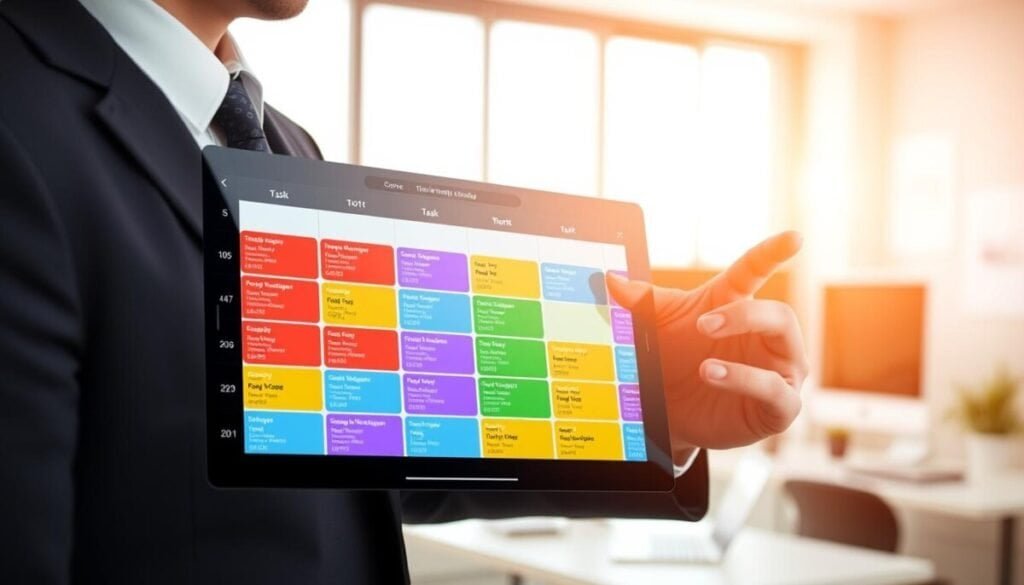
Adjust the display to a weekly or monthly granularity to match planning cadence and task density.
Switch modes instantly. Toggle the calendar power-up between week and month to change granularity. Use week mode for sprint planning. Use month mode for roadmap visibility.
Switching Between Week and Month Modes
Switch the view to reduce clutter. Weekly mode surfaces short-term work and day-by-day load. Monthly mode reveals long-range conflicts and major milestones.
- Move from month to week to inspect a single day’s workload.
- Expand a day to see every card assigned to that slot.
- Use the broader view to detect overlapping dates across boards.
Dragging and Dropping Cards
Drag cards between days to adjust a due date without opening the card. This method reduces clicks and saves time.
- Drop a card to update its date and time instantly.
- Maintain accurate due dates across multiple boards—keep the calendar reliable.
- Click to expand a crowded day for a roomier display of cards and dependencies.
Pro tip: For cross-board scheduling practices and comparative reviews, consult project management software reviews.
Integrating External Calendars via iCalendar Feeds
Expose board schedules via an iCalendar URL to consolidate dates across apps and create a single view for planning.
Open the board menu. Click Power‑Ups. Click the tools gear in the Calendar section to access the iCal feed.
A board admin must enable the iCalendar feed by selecting the gear icon and toggling Enabled under “Enable iCalendar feed”. After enabling, the system generates a unique URL.
- Generate the iCalendar feed to allow third‑party apps to watch the board for updates.
- Import the generated URL into external calendars to view all cards with due dates in one location.
- Use this integration to sync boards with enterprise scheduling systems and digital tools.
- Revoke access instantly — iCal feeds are issued per member and can be disabled when a user is removed.
Result: A unified calendar reduces confusion and keeps cross‑platform schedules aligned without manual entry.
Distinguishing Between Trello Calendar Options
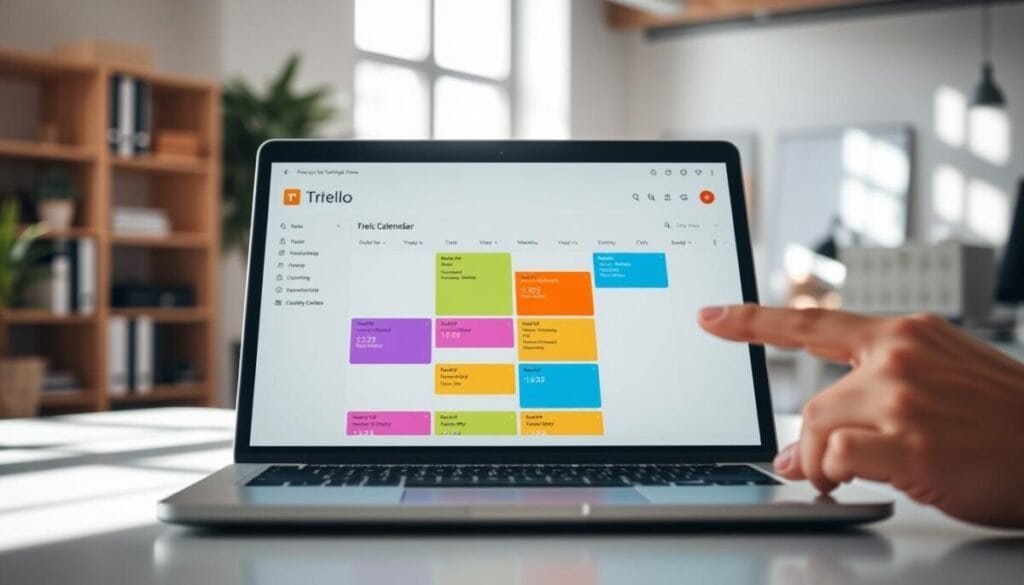
Assess whether a single-board schedule meets cross-project needs or if an aggregator is required.
Native board scheduling presents each card and its due date inside one board view. Use it for focused projects with limited scope. It reduces setup time. It enforces consistent dates per board.
Advanced aggregators funnel cards from multiple boards into a unified calendar view. Teamup, for example, merges boards and presents eleven layout options — including a year view and a table view. Toggle sub-calendars to isolate a team or project.
Use cases:
- Compare personal dates with major work deadlines in one place.
- Switch layouts to evaluate time distribution across months or a single day.
- Toggle individual sub-calendars to remove visual clutter when reviewing specific boards.
Decide based on scale: choose native scheduling for single-board clarity. Choose an aggregator when multiple boards and overlapping dates require a consolidated thing to monitor. For cross-board scheduling workflows, review this practical guide at project management for small businesses and see setup tips at free calendar view and moving.
Mastering Your Time Management Workflow
Adopt a unified Planner workflow to centralize meetings, tasks, and deadlines into one actionable view.
Press g+p to connect Google or Outlook calendars. Link external calendars to the Planner. Syncing creates a single place to manage dates and meetings.
Drag cards into the Planner to convert tasks into scheduled items. The drag-and-drop method reduces manual entry and preserves each card’s due date. This maintains accurate dates across boards and cards.
Use the high-level calendar view to scan the week and the day. Spot conflicts early. Reprioritize to protect critical due dates and prevent bottlenecks.
Combine native scheduling with external feeds for full coverage. For comparative reviews and integration options consult project management software reviews. Regular reviews keep the team aligned and work predictable.