
Can speaking naturally change the way an assistant understands complex ideas?
We found that using a speech-driven workflow speeds our work and clears up confusion fast. We speak in plain phrases and watch the assistant return smarter, more useful replies.
Our team trusts Voicy for near-perfect transcription in many languages. That accuracy means fewer edits and smoother collaboration across tasks.
Integrating this approach into daily routines improved how we frame problems and get answers. Speaking helps us organize thoughts and get precise guidance from the assistant.
Key Takeaways
- Speech-driven input speeds idea exchange and reduces typing time.
- High transcription accuracy cuts errors and saves editing work.
- Natural phrasing helps produce clearer, more actionable replies.
- Daily use of the method raised overall interaction quality.
- Thousands of users show this workflow is practical and growing.
- We recommend trying it for faster, clearer AI collaboration.
Why We Switched to Voice Dictation for Claude
We wanted faster drafting and less friction in daily work.
The Speed Advantage
We switched to dictation because it cuts drafting time dramatically. Voicy helps us write roughly three times faster than typing emails. Willow lets developers speak near 150 words per minute versus about 40 when typing.
The result: long briefs and detailed instructions arrive sooner, and we move on to review faster.
Natural Language Benefits
Using spoken input keeps a natural rhythm in our conversations. We prefer speech instead typing because it mirrors talking to a colleague.
- Faster drafts free up valuable time for edits and planning.
- Dictation mode reduces hand strain after long work sessions.
- We focus on the substance of our words rather than hitting keys.
In short, dictation made our workflow smoother and more human, and it fit easily into our existing process with Claude.
Getting Started with Voice to Text with Claude
Getting started takes minutes: we install a privacy-focused Chrome extension called Voicy and open a new chat in Claude.ai.
The extension adds a small microphone icon to every input field. We click the icon to begin dictation and click again when our recording ends.
The tool processes our audio instantly and drops accurate text into the chat window.
- Install the Voicy extension from the Chrome store.
- Open a new chat and find the mic icon in the input bar.
- Record, stop, and watch the transcription appear in place.
Why we like this flow: there is no complex setup. The process keeps our creative focus on the conversation instead of technical steps.
| Step | Action | Result |
|---|---|---|
| Install | Add Voicy to Chrome | Mic appears in chat fields |
| Record | Click the microphone icon | Audio captured and sent for processing |
| Insert | Stop recording | Transcribed text fills the input box |
Setting Up Your Microphone and Input Settings
Good input starts at the microphone — not the app — and that matters every session.
Voicy lets us pick a default device so the mic captures clear audio for every dictation run. A single system setting keeps browser capture consistent across tabs and apps.
Configuring Default Devices
Pick the right input in your operating system before you open the chat. That simple step prevents misrouted capture and odd failures.
- We always confirm our default microphone in system settings for the best audio quality during dictation.
- Choosing the correct input device is a key step to avoid errors and ensure speech recognition reads our commands accurately.
- Check these settings often so the text output stays consistent and free from background noise.
| Setting | Recommended Value | Why it matters |
|---|---|---|
| Default device | External USB mic | Stable capture and lower noise |
| Sample rate | 48 kHz | Better clarity for speech recognition |
| Input gain | Moderate (avoid clipping) | Prevents distortion in audio |
| Browser permissions | Allow microphone | Ensures dictation starts without prompts |
Optimizing Prompts for Better AI Responses
Clear, detailed prompts yield much better responses from the assistant when we speak them aloud.
We craft prompts by speaking in full, descriptive sentences. That gives the assistant more context and reduces follow-up clarifications.
Using a microphone for dictation lets us include background, goals, and constraints without the fatigue of manual typing. The tool also fixes punctuation and grammar, so each prompt arrives clean and easy to parse.
- We speak full instructions, which produces more accurate replies.
- Dictation encourages richer context and fewer edits.
- Automatic punctuation keeps every prompt professional.
| Prompt Style | How We Create It | Typical Responses |
|---|---|---|
| Short | Quick note, minimal context | Requires follow-up questions |
| Detailed | Spoken full sentences via dictation | Actionable, accurate replies |
| Structured | Bullets and constraints included | Precise steps and examples |
How Voice Dictation Enhances Coding Workflows
Describing architecture aloud keeps our intent clear during complex code edits.
We use Claude Code to manage development tasks and dictate refactor steps in real time. Speaking lets us sketch intent, name edge cases, and ask for safe transforms without stopping our flow.
Describing Refactoring Tasks
We narrate each change so the assistant can suggest minimal edits, rename variables, or extract functions. This cuts the friction of typing long change lists and preserves intent across sessions.
Managing Code Instructions
Using a keyboard key to trigger dictation mode lets us issue commands instantly. We say the prompt, include context, and the assistant returns patches or test suggestions.
Vibe Coding Techniques
Our team practices vibe coding: we talk through architecture, then let the assistant write the implementation details. This keeps us in a deep flow state and saves time on boilerplate typing.
| Task | How We Use It | Benefit |
|---|---|---|
| Refactor | Speak intent and examples | Safer, smaller edits |
| Implementation | Describe behavior and tests | Faster delivery, fewer errors |
| Commands | Trigger via key and speak | Instant actions without typing |
Comparing Built-in Dictation to Specialized Tools
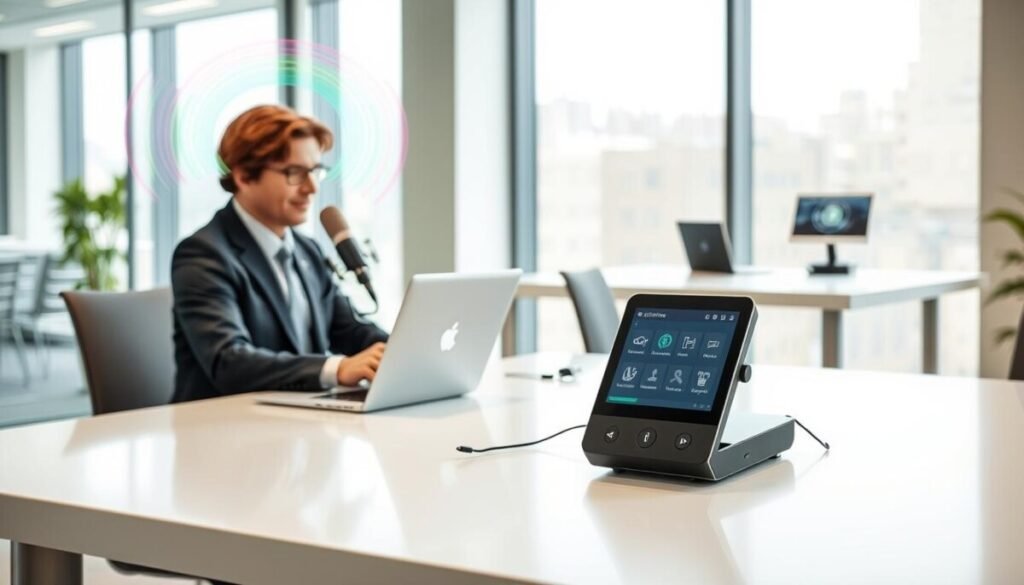
We discovered that third-party dictation tools cut error rates in half for developer notes.
Voicy proved twice as accurate compared to the built-in option. That accuracy matters when we handle technical prose and long prompts.
Basic browser dictation works fine for short notes. For complex commands and coding, we prefer a dedicated app that preserves symbols and jargon.
- Dedicated apps deliver stronger punctuation and parsing of code terms.
- Specialized tools lower manual edits and speed review cycles.
- Willow and similar solutions perform better for claude code tasks than generic browser capture.
| Tool | Strength | Best use |
|---|---|---|
| Built-in | Quick setup | Short notes and casual prompts |
| Voicy | High accuracy | Technical docs and long drafts |
| Willow | Coder-focused parsing | claude code workflows |
In our view, investing in a robust dictation feature pays back fast. Power users see fewer fixes, cleaner output, and a smoother mode for daily work.
Maintaining Privacy While Using Voice Input
We treat privacy as a basic feature, not an add‑on.
We keep recordings and transcripts on our own device. Voicy never uploads files or stores entries in a remote database. That design means only our team can read or listen to files.
We control when the mic listens. A dedicated key activates the microphone so capture begins only when we choose. This reduces accidental recording and keeps sessions private.
Local Data Storage Practices
Keeping audio local is central to our security plan. It protects proprietary code and sensitive business talks. We also ensure recordings are never used to train external models. That preserves our intellectual property.
- Store recordings on the device rather than in the cloud.
- Use a physical or keyboard key to enable the microphone.
- Confirm the app does not export transcripts automatically.
| Practice | How we apply it | Benefit |
|---|---|---|
| Local storage | Files stay on our device only | Reduced exposure, better control |
| Manual activation | Dedicated key for mic start | Prevents accidental capture |
| Model training | No recordings shared for training | Safeguards IP and secrets |
Handling Technical Terms and Complex Vocabulary
Technical jargon often trips up generic transcribers, so we rely on tools that learn our terms fast.
Willow uses context-aware AI to recognize programming terminology and niche jargon. That model reads code names, API calls, and library labels more reliably than basic dictation tools.
We train custom dictionaries by correcting a single error. The tool then applies that fix across future sessions. This saves time and keeps our prompts accurate.
By adjusting settings we teach the system project-specific words. The result: clearer prompt phrasing and cleaner output when we describe complex Claude Code tasks.
- Context-aware models handle coding terms better than standard software.
- Custom dictionaries learn project jargon after one correction.
- Accurate transcription reduces edits and preserves intent in every session.
The payoff: fewer misunderstandings, faster iterations, and confident data entry for technical workflows.
Improving Accuracy with Automatic Punctuation
Our transcripts look crisp because punctuation is handled automatically during every capture.
Voicy adds commas, periods, and proper case so the output reads like edited copy. That means near-zero typos and clean grammar after every dictation run.
We find that this feature makes our input ready for immediate use in any chat. The typed result is structured and easy to scan. We no longer pause to fix missing commas or run-on sentences.
- Higher accuracy when speaking into the microphone, fewer edits after capture.
- Audio is converted into clean, readable text suitable for direct paste in a chat.
- The feature handles grammar and commas so we focus on content, not cleanup.
- Eliminating typos saves time and keeps our messages professional and clear.
Practical tip: follow our quick setup in the Voicy transcription guide and explore complementary tools in this AI automation tools roundup for a tighter workflow.
Integrating Voice Commands into Your Daily Routine
A single key can change how we work every day.
We set our microphone as the default input across messaging apps so capture starts reliably. That small step removes friction and makes dictation mode predictable during meetings and quick updates.
Using a keyboard key to trigger the mode means we send messages and instructions without touching the mouse. It feels natural: press the key, speak a command, stop, and the message appears ready to send.
We lock down privacy in our settings so usage is limited to specific tasks. Manual activation and scoped permissions keep recordings local and our data safe.
We also use a simple command to create a new line while speaking. That helps us structure ideas and write clear messages on the go.
- Default microphone across apps for consistent input
- Single-key trigger for quick command entry and sending messages
- Settings tuned for privacy and limited usage
- New-line command to keep thoughts organized
| Action | How we set it | Benefit |
|---|---|---|
| Default device | System and app settings | Reliable input every session |
| Trigger key | Assign a keyboard shortcut | Hands-free messages and faster flow |
| Privacy | Limit capture and local storage | Protects sensitive work |
Overcoming Common Challenges with Speech Recognition
Background noise and latency are the two issues that break our dictation flow most often.
Reducing Background Noise
We use high-quality microphones and set them close to the speaker. Good placement cuts room echo and distant chatter.
Practical settings include low gain, directional capture, and a noise gate in the input chain. These steps filter common distractions in shared workspaces.
Managing Latency
Fast processing keeps our coding sessions in a steady flow. Willow delivers sub-200 millisecond processing, which preserves context during technical explanations.
We pick a low-latency mode and monitor system load. That reduces pauses when we issue commands or ask about claude code changes.
- Use a quality microphone and tuned settings for clean audio.
- Choose tools that process speech under 200 ms for live coding.
- Rely on a robust model to handle rapid speech and technical terms.
- Practice dictation regularly and keep hardware consistent across sessions.
| Issue | Action | Benefit |
|---|---|---|
| Noise | Directional mic + noise gate | Clearer input, fewer errors |
| Latency | Low-latency mode + local processing | Sustained coding flow |
| Terms | Model training for jargon | Accurate handling of code and APIs |
Why Speed Matters for AI Conversations

Moving at speaking pace lets us capture fleeting insights before they fade.
Speed saves time. Speaking at about 150 words per minute beats typing at 40 words per minute. That gap means complex prompts and detailed requests arrive in seconds rather than minutes.
Fast response and sub‑second latency keep our flow intact. When the system processes input in under a second, we can describe changes to claude code and keep thinking. That prevents lost ideas and reduces context switching during sessions.
We find that rapid input preserves momentum. Short pauses break concentration. A responsive mode keeps our conversation moving and helps us iterate faster on code and requirements.
- Express complex ideas in seconds, not minutes.
- Speak at higher words per minute for sustained productivity.
- Low latency protects creative momentum during claude code edits.
- Faster exchanges produce richer, more actionable prompts.
| Action | Speed | Benefit |
|---|---|---|
| Speaking | 150 words/minute | Capture ideas in seconds |
| Typing | 40 words/minute | Slower drafts, more interruptions |
| Low-latency mode | Under 1 second | Maintain flow during sessions |
Exploring Cross-Platform Compatibility
Cross-platform support means an input method that behaves the same in terminals, browsers, and code editors.
We rely on Willow for universal compatibility across terminals, IDEs, and browser windows. That lets us carry a single workflow across every device we use.
A single command key that works in the terminal, an app, and our browser cuts friction. Press the key, issue commands, and the input appears where we need it.
SOC 2 compliance gives us confidence that discussions about proprietary code remain secure. We control how data is stored and maintain strict privacy across platforms.
Context-aware parsing keeps messages and lines of code coherent when we switch tasks. The result: consistent output and smoother usage on Mac, Windows, and mobile.
- Unified key mapping across apps improves speed and reduces mistakes.
- Consistent input handling preserves coding terms and project context.
- SOC 2 and local controls protect data and privacy during every session.
| Area | What we expect | Benefit |
|---|---|---|
| Device support | Mac, Windows, mobile | Same mode and default behaviour everywhere |
| Commands | Single key & app integration | Faster messages and fewer context switches |
| Security | SOC 2 compliance & local options | Protected code discussions and safer data |
Reclaiming Your Time Through Conversational Prompting
Our team now recovers lost time by treating prompts as short conversations.
We cut friction by speaking prompts instead of typing. This change saves valuable seconds on every task and adds up across the day.
The result is clear: more productive minutes in each session. Our work on claude code feels natural and less like a documentation chore.
When we skip long typing sessions, we finish routine items faster. That reclaimed time lets us focus on higher‑level problem solving.
The conversational experience improves outcomes and morale. We spend more energy on strategy and less on formatting or small edits.
- Save seconds per prompt and reclaim hours weekly.
- Move from chores into creative work during daily sessions.
- Deliver better results in fewer minutes.
| Action | Effect | Metric |
|---|---|---|
| Speak a prompt | Faster entry, clearer intent | Seconds saved |
| Avoid long typing | Less context switching | More focused minutes |
| Use conversational flow | Better problem solving | Improved experience |
For practical steps and a guide, visit our claude code guide.
Conclusion
Adopting spoken input reshaped how we plan, iterate, and ship work.
Across development and writing, dictation has changed our daily habits. It speeds drafting, tightens communication, and cuts manual edits.
In practice, the speed and accuracy of modern tools help us reclaim time and stay focused on higher‑value tasks.
We encourage teams to explore these methods and see the benefits firsthand. Our experience proves that speaking naturally yields clearer prompts and better outcomes when using Claude.
We look forward to expanding this workflow as tools grow more integrated into professional life.



