
Team planning gets messy fast when ideas live in chat threads, meeting notes, spreadsheets, and project boards at the same time. A good online whiteboard gives your team one shared space to brainstorm, prioritize, map dependencies, and turn rough ideas into a clear plan.
The best online whiteboard tools for team planning do more than let people add sticky notes. They support facilitation, voting, templates, async comments, integrations, and handoff into the tools where work actually gets done. Below, you’ll find the strongest options for different planning styles, from product roadmaps and sprint planning to marketing calendars, operations workflows, and remote workshops.
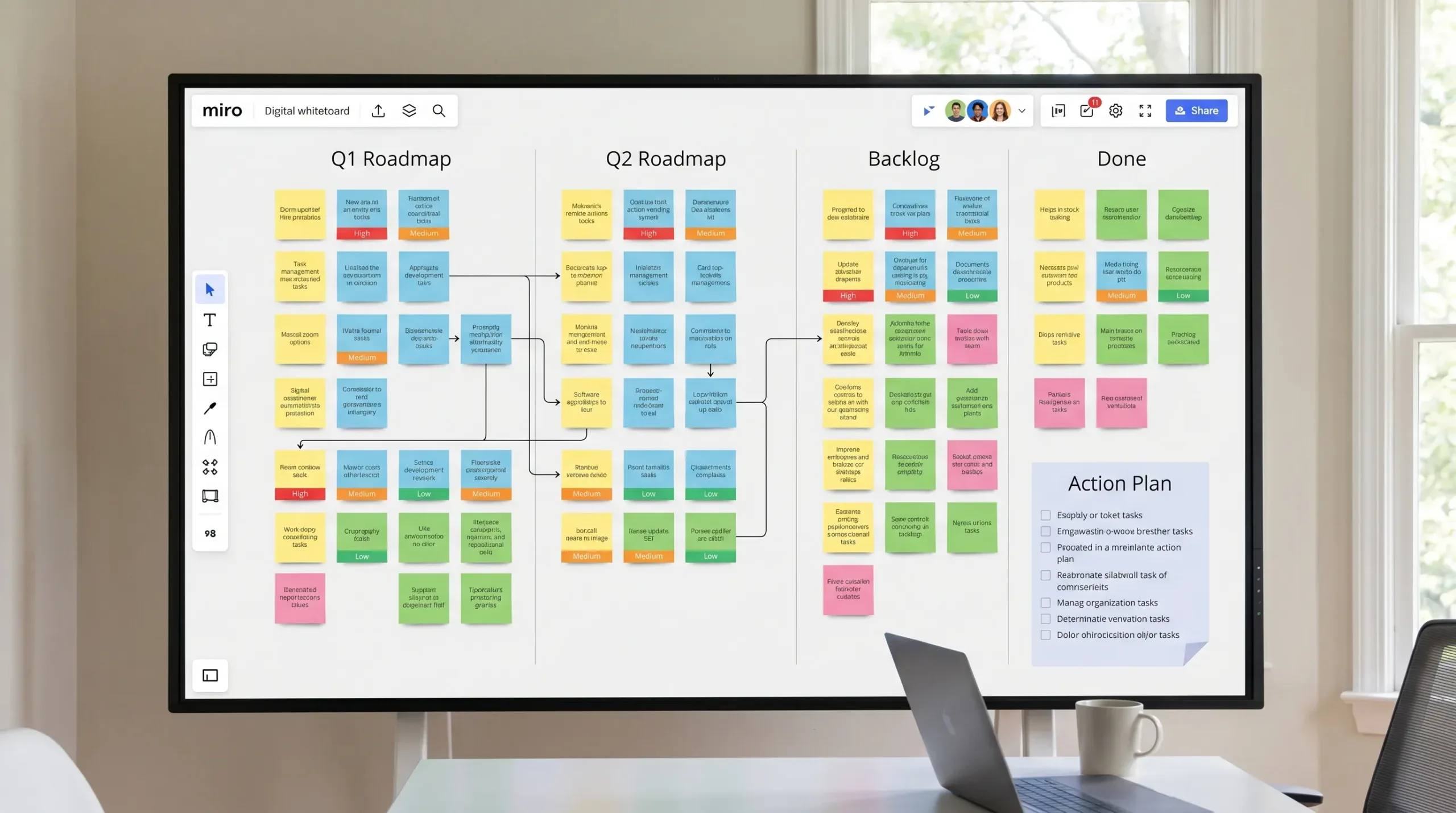
What to Look for in an Online Whiteboard for Team Planning
Before choosing a tool, think about how your team plans. A design team reviewing product concepts has different needs than a sales team mapping quarterly priorities or an operations team assigning field work.
For most teams, the most useful whiteboard features are:
- Fast collaboration with cursors, comments, reactions, and live editing.
- Planning templates for retrospectives, roadmaps, OKRs, journey maps, mind maps, and prioritization grids.
- Facilitation tools such as timers, voting, private mode, presentation mode, and breakout spaces.
- Async-friendly workflows so people can contribute before or after meetings.
- Integrations with tools like Slack, Microsoft Teams, Jira, Asana, ClickUp, Notion, Google Drive, and Figma.
- Clear handoff options so decisions become tasks, documents, or tickets instead of staying buried on a canvas.
If you are building a larger productivity stack, you may also want to compare these whiteboards with broader task management tools in our online tools list.
Quick Comparison: Best Online Whiteboard Tools for Team Planning
| Tool | Best for | Main strength | Watch out for |
|---|---|---|---|
| Miro | Cross-functional planning | Huge template library, strong facilitation, broad integrations | Can feel overwhelming for simple boards |
| FigJam | Product and design teams | Lightweight brainstorming with deep Figma connection | Less robust for complex program management |
| Mural | Facilitated workshops | Excellent moderator controls and structured sessions | Best value when teams use it consistently |
| Lucidspark | Process and strategy mapping | Great for diagrams, flows, and Lucidchart users | May be more structured than casual brainstormers need |
| Microsoft Whiteboard | Microsoft 365 teams | Simple, built into the Microsoft ecosystem | Lighter than specialist whiteboard platforms |
| Canva Whiteboards | Marketing and creative planning | Visual templates, brand-friendly design assets | Not ideal as a full project execution tool |
| ClickUp Whiteboards | Task-driven planning | Turns ideas into ClickUp tasks quickly | Most useful if your team already uses ClickUp |
| Whimsical | Fast diagrams and wireframes | Clean, simple, low-friction visual planning | Less workshop-heavy than Miro or Mural |
| Stormboard | Structured brainstorming | Turns sticky-note sessions into organized reports | Interface may feel less modern to some users |
| Conceptboard | Visual review and stakeholder feedback | Strong for feedback-heavy planning and reviews | More specialized than general-purpose tools |
1. Miro: Best Overall Online Whiteboard for Cross-Functional Team Planning
Miro is one of the most complete online whiteboard platforms available, especially for teams that run planning workshops across departments. It works well for product planning, sprint ceremonies, strategy sessions, customer journey mapping, retrospectives, and quarterly planning.
Its biggest advantage is flexibility. You can start with a blank canvas, use a ready-made template, create mind maps, build Kanban-style planning areas, run dot voting, add timers, and embed supporting documents. For teams that regularly collaborate across product, marketing, operations, and leadership, that flexibility matters.
Miro is also strong when planning needs to happen before and after the meeting. A facilitator can create the board in advance, ask participants to add ideas asynchronously, run the live session, then summarize the final decisions in one place.
Best fit: Teams that want one visual collaboration hub for workshops, roadmaps, brainstorming, and planning rituals.
Planning tip: Create a repeatable board structure with four zones: context, ideas, decision criteria, and action items. This keeps big planning sessions from turning into endless sticky-note clutter.
2. FigJam: Best Whiteboard Tool for Product and Design Teams
FigJam is Figma’s online whiteboard tool, and it shines when design, product, and engineering teams need a fast place to explore ideas. It is less intimidating than many enterprise whiteboards, which makes it easy for teams to jump in and collaborate.
FigJam is especially useful for early-stage planning. Teams can sketch user flows, run retrospectives, map feature ideas, collect feedback, and align on design decisions before moving into Figma files. Its stamps, comments, widgets, and lightweight templates make meetings feel more interactive without adding too much process.
If your team already works in Figma, FigJam is a natural extension. Designers can keep discovery, ideation, and design production close together, while non-designers can still participate without learning a complex design tool.
Best fit: Product, UX, engineering, and design teams that want a simple planning canvas tied closely to Figma workflows.
Planning tip: Use FigJam for discovery sessions, then link final concepts directly to Figma design files so stakeholders can follow the thread from idea to execution.
3. Mural: Best for Facilitated Workshops and Strategy Sessions
Mural is built around structured collaboration. It is a strong choice for teams that run formal workshops, design thinking sessions, leadership offsites, retrospectives, and strategic planning meetings.
Where Mural stands out is facilitation. Features like timers, voting, private mode, guided flows, and templates help facilitators keep sessions focused. This is valuable when planning meetings involve many participants, senior stakeholders, or cross-functional groups that need to make decisions quickly.
Mural is also useful for teams that want repeatable planning exercises. Instead of reinventing the workshop every time, you can create reusable templates for quarterly planning, team health checks, prioritization sessions, and post-project reviews.
Best fit: Teams that run structured planning workshops and need strong facilitation controls.
Planning tip: Assign a facilitator for every major Mural session. The tool is powerful, but the best results come when someone actively guides the group through the board.
4. Lucidspark: Best for Process Planning, Strategy Maps, and Diagrams
Lucidspark is the online whiteboard from Lucid, the company behind Lucidchart. It is ideal for teams that need planning and diagramming to work together.
If your planning sessions often include process flows, org charts, system maps, decision trees, or customer journey diagrams, Lucidspark can be a great fit. Teams can start with sticky notes and brainstorming, then move toward more structured visuals. The connection to Lucidchart is particularly useful for turning rough planning ideas into polished diagrams.
Lucidspark works well for operations, IT, product, and business strategy teams. It gives you the freedom of a whiteboard but nudges you toward clear structure, which helps when the output needs to become a process document or implementation plan.
Best fit: Teams that plan through workflows, diagrams, systems, and process maps.
Planning tip: Use Lucidspark for early brainstorming, then convert the final structure into a formal process diagram when the team agrees on the direction.
5. Microsoft Whiteboard: Best for Teams Already Using Microsoft 365
Microsoft Whiteboard is a practical option for organizations already using Microsoft Teams, Outlook, OneDrive, and other Microsoft 365 apps. It is not the most advanced whiteboard on this list, but it is convenient, accessible, and easy to introduce.
For quick planning sessions inside Microsoft Teams meetings, Microsoft Whiteboard is often enough. You can brainstorm ideas, sketch a simple flow, add sticky notes, and capture decisions without asking everyone to create another account.
Its simplicity is the main appeal. If your team needs a lightweight whiteboard for meeting notes, simple planning, and quick collaboration, Microsoft Whiteboard can reduce tool friction.
Best fit: Microsoft 365 teams that need a simple whiteboard inside everyday meetings.
Planning tip: Use Microsoft Whiteboard for quick alignment, then move final tasks into your project management system so the board does not become the only record of decisions.
6. Canva Whiteboards: Best for Marketing, Content, and Creative Planning
Canva Whiteboards is a strong choice for teams that plan visually. It is especially useful for marketing teams, content creators, educators, social media managers, and small businesses that already use Canva for graphics.
The big advantage is Canva’s design ecosystem. Teams can brainstorm campaign ideas, map content themes, create mood boards, plan social posts, and quickly turn concepts into polished visuals. It feels less like a corporate planning tool and more like a creative workspace.
Canva Whiteboards is also beginner-friendly. Non-technical users can open a board and start organizing ideas without much onboarding. For teams that care about visual presentation, brand assets, and creative direction, that ease of use is valuable.
Best fit: Creative, marketing, content, and education teams that need planning and visual production close together.
Planning tip: Use Canva Whiteboards for campaign planning, then turn selected ideas into social graphics, presentations, or content briefs inside Canva.
7. ClickUp Whiteboards: Best for Turning Ideas Into Tasks
ClickUp Whiteboards is built for teams that want planning to connect directly to execution. Instead of brainstorming in one tool and manually recreating tasks somewhere else, ClickUp lets teams turn whiteboard elements into ClickUp tasks.
This makes it useful for project managers, agencies, software teams, and operations teams that already use ClickUp as their main work hub. You can map a project, identify dependencies, assign owners, and push work into lists or task views.
ClickUp Whiteboards is less about beautiful free-form ideation and more about closing the gap between planning and delivery. If your team often leaves planning meetings with unclear ownership, this tool can help.
Best fit: Teams already using ClickUp that want brainstorming, task assignment, and project execution in one place.
Planning tip: After a planning board is complete, review every action item and convert only confirmed next steps into tasks. This prevents your workspace from filling up with half-formed ideas.
For teams that want to analyze execution after planning, our guide to ClickUp time tracking can help connect task planning with workload patterns.
8. Whimsical: Best Lightweight Whiteboard for Flows, Wireframes, and Quick Planning
Whimsical is clean, fast, and easy to understand. It is a great option when your team wants visual structure without the complexity of a large whiteboard platform.
Whimsical is particularly good for flowcharts, wireframes, mind maps, and simple project planning. Product teams can map user journeys, startup teams can outline business processes, and content teams can plan site structures or editorial flows.
The interface is one of its strongest points. Boards tend to stay neat because the tool encourages structured diagrams rather than endless clusters of sticky notes. That makes it useful for teams that want clarity more than workshop theatrics.
Best fit: Startups, product teams, and small teams that need quick visual planning with minimal setup.
Planning tip: Use Whimsical when the end result needs to be understandable at a glance, such as a user flow, launch plan, or decision tree.
9. Stormboard: Best for Structured Brainstorming and Meeting Outputs
Stormboard is designed around sticky-note collaboration, structured brainstorming, and turning ideas into usable outputs. It is especially helpful for teams that want meeting notes, votes, comments, and decisions to become organized reports.
Stormboard is a good fit for retrospectives, brainstorming sessions, risk planning, and structured decision-making. It can help teams avoid the common problem of running a lively brainstorming session and then losing the value afterward because nobody summarizes the board.
While some teams may prefer the look and feel of newer whiteboard tools, Stormboard’s strength is its practical approach to capturing and organizing meeting outcomes.
Best fit: Teams that care about structured brainstorming, decision capture, and reporting.
Planning tip: Use Stormboard when you need a clear record of who contributed what, which ideas were prioritized, and what decisions came out of the session.
10. Conceptboard: Best for Visual Review and Stakeholder Feedback
Conceptboard is a strong online whiteboard for teams that review visual work, collect stakeholder feedback, and manage collaborative planning around files, designs, or documents.
It is useful for agencies, design teams, product teams, and organizations that need to mark up visual assets and keep comments organized. Instead of scattering feedback across email, chat, PDFs, and screenshots, teams can review materials in one shared space.
Conceptboard can also support planning sessions where the board is tied to a specific deliverable, such as a campaign concept, website redesign, client presentation, or training material.
Best fit: Teams that need visual feedback, stakeholder review, and collaborative planning around creative or technical assets.
Planning tip: Use clear feedback stages, such as first review, revisions, approval, and final handoff, so stakeholders know exactly what kind of input is needed.
How to Choose the Right Online Whiteboard for Your Team
The best tool depends less on brand popularity and more on how your team plans. A powerful whiteboard can still fail if it does not match your workflow.
| If your team needs… | Start with… | Why |
|---|---|---|
| A flexible all-purpose planning canvas | Miro | Strong templates, integrations, and workshop features |
| Structured facilitation for workshops | Mural | Excellent moderator controls and session flow |
| Design discovery and product ideation | FigJam | Simple collaboration connected to Figma |
| Process maps and system planning | Lucidspark or Whimsical | Better structure for flows and diagrams |
| Quick whiteboarding inside Teams meetings | Microsoft Whiteboard | Low friction for Microsoft 365 users |
| Creative campaign planning | Canva Whiteboards | Combines planning with brand and design assets |
| Brainstorming that becomes task execution | ClickUp Whiteboards | Connects ideas directly to tasks |
| Structured brainstorming reports | Stormboard | Captures decisions and outputs clearly |
| Stakeholder review of visual assets | Conceptboard | Strong feedback and review workflows |
Also consider the type of business you run. Field-service teams, for example, can use whiteboards for dispatch planning, emergency triage, and technician handoffs. A company offering licensed plumbing and drain cleaning services in Kingston could map incoming service requests by urgency, assign owners, and identify recurring issues that should become process improvements.
That same logic applies to any operations-heavy team. The whiteboard should make work easier to see, easier to prioritize, and easier to assign.
A Simple Team Planning Workflow You Can Use in Any Whiteboard Tool
The tool matters, but the workflow matters more. Even the best online whiteboard tools can become messy if every session starts from scratch.
Use this simple structure for recurring planning meetings:
- Define the planning question: Start with one clear question, such as “What should we prioritize next quarter?” or “How can we reduce support backlog?”
- Add context before the meeting: Place goals, data, constraints, customer insights, or project notes on the board before people join.
- Collect ideas silently first: Give everyone a few minutes to add ideas before group discussion begins. This reduces bias toward the loudest voices.
- Cluster related ideas: Group sticky notes by theme, outcome, customer need, or effort level.
- Vote or score priorities: Use dot voting, impact-effort scoring, or MoSCoW prioritization to identify the strongest options.
- Assign owners and deadlines: Convert decisions into tasks, tickets, or calendar blocks before the meeting ends.
- Archive the final board: Keep a clean record of the decision, but avoid letting old boards become cluttered workspaces.
This approach pairs well with focus-friendly planning habits. If meetings are consuming too much of your week, consider combining whiteboard planning with meeting-free days so teams have time to execute decisions.
Common Mistakes When Using Online Whiteboards for Planning
Online whiteboards are powerful, but they can also create visual chaos. The most common mistakes are usually process problems, not software problems.
| Mistake | Better approach |
|---|---|
| Starting with a blank board every time | Use a repeatable template for recurring planning sessions |
| Letting everyone add notes without structure | Create zones for context, ideas, decisions, and action items |
| Treating the whiteboard as the project manager | Move final tasks into ClickUp, Asana, Jira, Trello, or another execution tool |
| Overloading one board with every project detail | Keep planning boards focused and archive old sections |
| Skipping facilitation | Assign one person to manage time, voting, and decision capture |
| Ending without owners | Close every planning session with named owners and next steps |
A whiteboard should help your team think visually. It should not become a dumping ground for every idea, note, screenshot, and decision your team has ever made.
Security and Governance Questions to Ask Before You Choose
If your whiteboard will contain customer information, financial plans, product strategy, or internal process maps, security matters. Before rolling out a tool across your team, check the vendor’s current documentation for privacy, permissions, and admin controls.
Important questions include:
- Can admins manage user access centrally?
- Does the tool support single sign-on for your organization?
- Can you control guest access and external sharing?
- Are board history, exports, and deletion settings clear?
- Does the tool integrate safely with your project management and file storage apps?
- Can you create workspace-level templates and naming conventions?
For small teams, these questions may feel unnecessary at first. But as planning boards multiply, governance becomes important. A simple naming system, access policy, and archive routine can prevent confusion later.
Final Recommendation: Which Online Whiteboard Should You Try First?
If you want the safest all-around choice, start with Miro. It offers the broadest mix of templates, facilitation tools, integrations, and planning flexibility.
If your team is design-heavy, try FigJam. If you run formal workshops, consider Mural. If you live in Microsoft Teams, Microsoft Whiteboard may be enough. If your biggest challenge is turning ideas into assigned work, ClickUp Whiteboards is the most direct option.
The best choice is the one your team will actually use consistently. Start with one real planning session, not a theoretical feature comparison. Build a simple template, run the session, assign tasks, and review whether the tool made planning clearer.
Frequently Asked Questions
What is the best online whiteboard tool for team planning? Miro is the best overall option for most cross-functional teams because it combines templates, collaboration, facilitation, and integrations. However, FigJam is better for design teams, Mural is excellent for workshops, and ClickUp Whiteboards is best for teams that want ideas to become tasks quickly.
Are free online whiteboard tools enough for team planning? Free plans can work for small teams, one-off brainstorming, or simple meeting boards. Paid plans are usually worth considering when you need more boards, admin controls, guest permissions, advanced templates, integrations, or security features.
Can an online whiteboard replace project management software? Usually, no. A whiteboard is best for thinking, mapping, and deciding. Project management software is better for tracking owners, deadlines, status, dependencies, and reporting. The strongest workflow is to plan visually, then move confirmed work into a task management tool.
Which online whiteboard is best for remote teams? Miro, Mural, FigJam, and Lucidspark are all strong for remote teams. The best choice depends on whether your team needs open brainstorming, structured workshops, product design collaboration, or process mapping.
How do you keep online whiteboards organized? Use templates, label sections clearly, archive old boards, limit each board to one planning purpose, and close every session with an action area. If a board becomes too large, split it into separate boards for strategy, planning, and execution.
Keep Improving Your Planning Stack
Online whiteboards work best when they are part of a clear digital workflow. After you choose a planning canvas, connect it to your calendar, task manager, documentation tool, and communication channels.
For more practical comparisons and workflow ideas, explore our guides to online tool examples and digital workflow optimization. The right tool will not plan for you, but it can make your team’s best thinking easier to see, organize, and execute.



