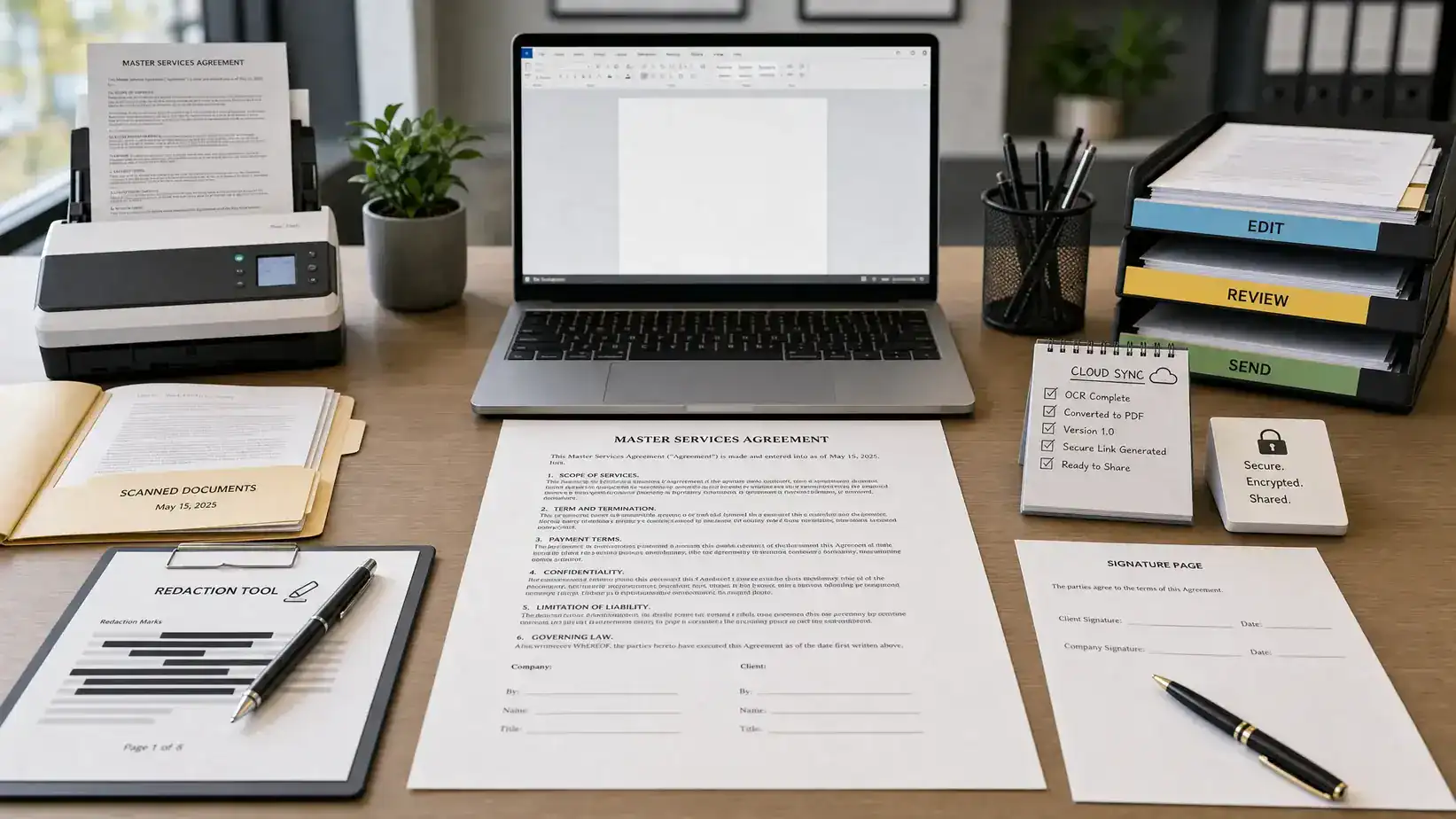
PDFs remain the default format for contracts, invoices, proposals, reports, onboarding packets, resumes, manuals, and client deliverables. The problem is that “editing a PDF” can mean ten different things: changing text, compressing a file, redacting sensitive information, collecting signatures, converting scanned pages with OCR, or collaborating with a remote team.
That is why the best online PDF tools for online work in 2026 are not just the tools with the longest feature list. The right choice depends on your workflow, your device mix, how often you handle sensitive documents, and whether your team needs a full document platform or a lightweight browser tool.
Below is a practical comparison of the top PDF editors to consider this year, with clear recommendations for small teams, freelancers, operations teams, students, and businesses that work heavily in the cloud.
Quick picks: the best PDF editors for online work in 2026
| PDF editor | Best for | Standout strengths | Main limitation |
|---|---|---|---|
| Adobe Acrobat Pro | Full-featured business PDF workflows | Editing, OCR, redaction, forms, signatures, reliability | Can be more than occasional users need |
| Foxit PDF Editor | Business teams that want an Acrobat alternative | Strong editing, security, admin controls, collaboration | Interface can feel dense for beginners |
| Nitro PDF Pro | Microsoft-heavy teams and document productivity | Conversion, batch workflows, business features | Less ideal if you need a very lightweight web tool |
| PDF Expert | Mac and iPad users | Clean interface, fast annotation, Apple-friendly workflow | Best suited to Apple devices |
| Wondershare PDFelement | Value-focused all-around editing | Editing, OCR, forms, conversion, approachable design | Collaboration features may not be as deep as enterprise tools |
| Smallpdf | Fast browser-based PDF tasks | Compress, convert, merge, sign, basic editing | Not built for complex professional editing |
| Sejda PDF | Occasional online PDF editing | Browser editing, forms, splitting, merging | Usage limits on free access |
| pdfFiller | Forms, approvals, and client paperwork | Fillable forms, templates, signing workflows | Less focused on deep layout editing |
| DocHub | Google Workspace users and simple approvals | Annotation, signing, cloud document handling | Not a full professional PDF production suite |
| iLovePDF | Quick conversions and file cleanup | Compress, merge, split, convert, simple tools | Better as a utility than a primary editor |
What makes a PDF editor good for online work?
A modern PDF editor should do more than let you type over a document. For online work, the most useful tools combine editing, file management, sharing, and security in one smooth workflow.
A strong PDF editor in 2026 should handle most of these jobs well:
- Edit text, images, links, headers, footers, and page order without breaking the layout.
- Convert PDFs to and from Word, Excel, PowerPoint, JPG, PNG, and other common formats.
- Run OCR on scanned documents so the text becomes searchable and editable.
- Add comments, highlights, stamps, drawings, and review notes.
- Create or fill forms, including checkboxes, text fields, and dropdowns.
- Compress large files for email, portals, and cloud uploads.
- Protect files with passwords, permissions, encryption, and redaction.
- Support eSignatures or integrate cleanly with signing tools.
- Work across browsers, desktops, tablets, and cloud storage platforms.
The key is matching the tool to the way you actually work. A legal team reviewing contracts has very different needs from a creator compressing PDFs for download, a VA filling forms for clients, or a sales team sending proposals.
1. Adobe Acrobat Pro: best overall PDF editor for professional online work
Adobe Acrobat Pro remains the most complete option for businesses that rely on PDFs every day. It is the benchmark for full PDF editing because it covers nearly every major workflow: text and image editing, OCR, combining files, splitting pages, creating forms, redaction, commenting, file protection, and signature handling.
For online work, Acrobat is especially useful when you need predictable formatting. If you regularly receive PDFs from clients, government portals, designers, or legal teams, Acrobat is often the safest choice because it handles complex files better than many lightweight editors.
It is also a strong fit for teams that need a document management solution for effective document control. Features like redaction, permissions, and document comparison matter when you are handling contracts, HR records, invoices, or client reports. Casual users may find it more expensive and feature-heavy than necessary, but for professional document workflows, it is still the most complete recommendation.
Choose Adobe Acrobat Pro if your PDFs are business-critical and you want the most dependable all-in-one editor.
2. Foxit PDF Editor: best Acrobat alternative for business teams
Foxit PDF Editor is one of the strongest alternatives to Acrobat for teams that want professional PDF features without committing to Adobe’s ecosystem. It offers robust editing, OCR, page organization, commenting, forms, redaction, file protection, and collaboration tools.
Foxit is particularly appealing for organizations that need administrative controls and security options. It is commonly used in business environments where teams need to manage documents at scale, standardize review workflows, and protect sensitive files.
The tradeoff is that Foxit can feel a little complex if all you need is a quick browser edit. It is not the simplest tool on this list, but it is one of the most capable for teams that work with PDFs daily.
Choose Foxit PDF Editor if you want a serious business PDF editor with strong security and collaboration capabilities.
3. Nitro PDF Pro: best for Microsoft-heavy document workflows
Nitro PDF Pro is a good fit for teams that spend most of their day in Word, Excel, PowerPoint, Outlook, and shared business documents. Its strengths are conversion, PDF creation, editing, collaboration, and productivity-focused document handling.
Nitro is especially useful when your PDF workflow starts or ends in Microsoft Office. If you frequently convert Word documents into polished PDFs, extract tables, create reports, or prepare internal business documents, Nitro offers a familiar productivity-oriented experience.
It is less suited to someone who only needs a free online editor a few times a month. But for organizations managing repetitive PDF tasks, it can save time by reducing formatting cleanup and manual file preparation.
Choose Nitro PDF Pro if your team works heavily with Office files and needs a professional PDF editor for repeatable document workflows.
4. PDF Expert: best PDF editor for Mac and iPad users
PDF Expert is one of the best choices for Apple users who want a fast, polished PDF workflow. It is popular with consultants, students, researchers, executives, and freelancers because the interface is clean and the annotation experience feels natural.
Its strengths include reading, highlighting, commenting, organizing pages, filling forms, and editing text or images. On iPad, it is especially useful with Apple Pencil for marking up contracts, research papers, scripts, plans, and client documents.
PDF Expert is not the best choice if your team is split across many operating systems or needs enterprise-level document controls. But if your work happens mostly on Mac and iPad, it is one of the smoothest PDF editors available.
Choose PDF Expert if you want a fast, elegant PDF editor for Apple-based work.
5. Wondershare PDFelement: best value all-around PDF editor
Wondershare PDFelement is a strong option for users who want many premium PDF features without choosing the most enterprise-oriented software. It covers the core needs well: PDF editing, OCR, conversion, annotation, forms, page management, compression, and batch processing.
The interface is generally approachable, which makes it a good choice for freelancers, small business owners, office managers, educators, and teams that want power without a steep learning curve.
PDFelement may not be the first choice for companies with strict enterprise governance needs, but it is very competitive for everyday professional use.
Choose Wondershare PDFelement if you want a capable editor that balances features, usability, and value.
6. Smallpdf: best browser-first PDF tool for quick tasks
Smallpdf is ideal when you need to finish a PDF task quickly in the browser. It is best known for compression, conversion, merging, splitting, signing, and basic PDF editing.
For online work, Smallpdf is useful because it removes friction. You do not always want to install a desktop editor just to compress a file, convert a PDF to Word, merge two attachments, or add a simple signature. Smallpdf handles those common jobs quickly and is easy for beginners.
The limitation is depth. If you need precise layout editing, complex OCR review, advanced redaction, or heavy document production, a more complete editor will be better.
Choose Smallpdf if your PDF work is mostly quick, browser-based file cleanup and conversion.
7. Sejda PDF: best for occasional online PDF editing
Sejda PDF is a practical choice for users who need occasional browser-based PDF editing without a complex setup. It can edit text, add images, fill forms, split and merge files, compress PDFs, and perform common conversion tasks.
One reason Sejda stands out is that it feels closer to an actual editor than some simple utility sites. For light edits, it can be enough to fix typos, add fields, rearrange pages, or prepare a document for sharing.
The free version has usage limits, so it is not ideal if you process a high volume of documents. Still, for occasional PDF edits, it is one of the most convenient options.
Choose Sejda if you need a straightforward online editor for light to moderate PDF tasks.
8. pdfFiller: best for forms, templates, and client paperwork
pdfFiller is built around document completion rather than deep PDF design. It is especially useful for businesses that handle forms, applications, waivers, onboarding packets, approvals, and client-facing paperwork.
Its value comes from making documents easier to fill, send, sign, and manage. If your workflow involves collecting information from clients, employees, vendors, or applicants, pdfFiller can be more practical than a traditional editor.
It is not the best tool if your primary need is precise visual editing or professional PDF production. But for form-heavy work, it can be a strong fit.
Choose pdfFiller if your PDF workflow is mostly about fillable documents, templates, and approvals.
9. DocHub: best for Google Workspace users and simple signatures
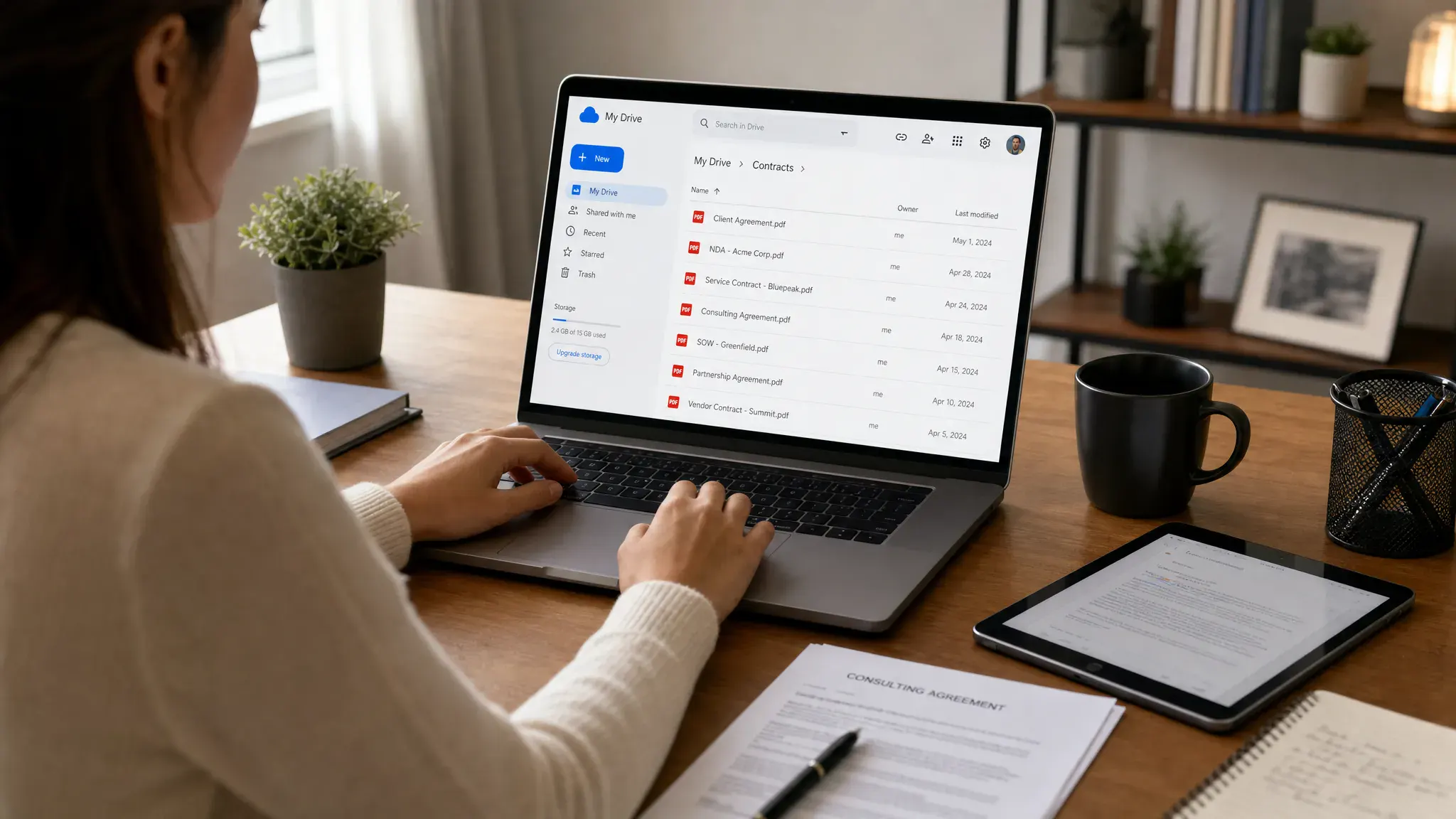
DocHub is a lightweight, cloud-friendly PDF editor that works well for annotations, simple edits, form filling, and signatures. It is particularly useful for people who live in Google Drive and need an easy way to mark up or complete PDF documents online.
Teachers, students, operations teams, and small businesses may find DocHub convenient because it is easy to share and does not require a heavyweight setup. It is also useful for quick approvals and straightforward document completion.
The tradeoff is that DocHub is not a full professional publishing or enterprise PDF editing suite. It is better for simple online workflows than complex document engineering.
Choose DocHub if your team uses Google Workspace and needs easy PDF markup, forms, and approvals.
10. iLovePDF: best for quick PDF conversion and cleanup
iLovePDF is a reliable utility-style option for everyday PDF tasks. It is best for splitting, merging, compressing, converting, rotating, unlocking, watermarking, and basic file preparation.
It is not the tool you choose for detailed document editing, but it is very useful when you need fast results. For example, if you need to reduce a file size before uploading it to a client portal or combine several PDFs before sending an invoice packet, iLovePDF is simple and efficient.
Choose iLovePDF if you want a quick PDF toolbox for common file-handling tasks.
Best PDF editor by workflow
The easiest way to choose is to start with the job you do most often. A great PDF editor for legal redaction might be overkill for a freelancer who only needs to compress files, while a browser utility will not be enough for a finance team managing scanned invoices.
| Workflow | Best options | Why they fit |
|---|---|---|
| Heavy business editing | Adobe Acrobat Pro, Foxit PDF Editor, Nitro PDF Pro | Strong editing, conversion, security, and team features |
| Browser-based quick tasks | Smallpdf, Sejda, iLovePDF | Fast compression, merging, splitting, and simple edits |
| Forms and approvals | pdfFiller, DocHub, Adobe Acrobat Pro | Better for fillable documents, signatures, and client paperwork |
| Apple-focused work | PDF Expert | Smooth Mac and iPad experience |
| Budget-conscious full editing | Wondershare PDFelement, Foxit PDF Editor | Good balance of features and usability |
| Sensitive documents | Adobe Acrobat Pro, Foxit PDF Editor, Nitro PDF Pro | Stronger redaction, permissions, and professional controls |
PDF editors vs. eSignature tools: know the difference
Many PDF editors include signature features, but a PDF editor is not always the same thing as a dedicated eSignature platform.
A PDF editor is best when you need to modify, convert, annotate, compress, or secure the document itself. An eSignature tool is best when you need legally structured signing workflows, signer authentication, audit trails, reminders, reusable templates, and approval routing.
If signatures are the main reason you are comparing PDF tools, it is worth reviewing dedicated options in our guide to the best document signing tools for small business. For simple approvals, a PDF editor may be enough. For contracts, sales agreements, HR forms, or regulated workflows, a purpose-built signing tool may be safer and easier to manage.
Security checklist for editing PDFs online
PDFs often contain sensitive information: addresses, tax details, payment data, contracts, medical forms, employment records, and confidential business notes. Before uploading documents to any online PDF editor, review the security basics.
Use this checklist when choosing a PDF editor for online work:
- Confirm whether the tool processes files in the browser, in the cloud, or through a desktop app.
- Check the provider’s file retention and deletion policy before uploading sensitive PDFs.
- Use true redaction tools, not black boxes or shapes placed over text.
- Add passwords or permissions when sharing confidential documents externally.
- Avoid uploading regulated or highly sensitive files to free tools unless your organization has approved them.
- Keep original copies before converting, compressing, or editing important documents.
- Use team accounts instead of shared logins when multiple people handle business files.
The most important point is redaction. Covering text with a black rectangle is not secure if the underlying text remains selectable or searchable. If you need to remove private information, use a real redaction feature from a professional PDF editor.
How to choose the right PDF editor in 2026
Start by identifying your primary PDF pain point. Most people do not need every feature. They need the right feature to work reliably.
If you work with PDFs every day, prioritize editing accuracy, OCR quality, redaction, conversion, and collaboration. Adobe Acrobat Pro, Foxit PDF Editor, Nitro PDF Pro, and PDFelement are the strongest options in this category.
If you only need occasional PDF tasks, a browser-first tool such as Smallpdf, Sejda, or iLovePDF may be enough. These tools are especially useful for quick file compression, page extraction, format conversion, and merging.
If your PDFs support team workflows, think beyond editing. Look at the tool’s role in project management, cloud storage, communication, approvals, and client handoffs. Our broader guide to best productivity software tools can help you decide how PDF editing fits into the rest of your software stack.
If your team works remotely, also consider review and collaboration habits. PDF comments are only useful if people know where feedback lives, who owns the next step, and when revisions are due. For that bigger workflow question, compare your PDF process with the systems in our guide to online collaboration tools for remote teams.
Smart PDF workflows for online teams
The best PDF editor will not fix a broken workflow by itself. To get more value from any tool, standardize how your team creates, reviews, signs, stores, and shares documents.
For example, a small agency might use a PDF editor to finalize proposals, a signing tool for contracts, cloud storage for client folders, and a task manager for follow-ups. A finance team might use OCR to process vendor invoices, redaction to remove sensitive details, and compression before uploading documents to accounting software.
PDFs can also support marketing and sales workflows. If you publish PDF guides, checklists, templates, or reports, you may need more than editing software. You may also need a way to find conversations where those resources are relevant. For example, a lead-generation tool like Redditor AI for finding relevant Reddit conversations can complement PDF-based content by helping teams discover discussions where their guides, templates, or resources may answer real user questions.
The goal is not to collect more tools. The goal is to reduce document friction: fewer broken layouts, fewer duplicate files, fewer unclear approvals, and fewer manual steps.
Final recommendations
For most professional users, Adobe Acrobat Pro is the safest overall pick because it handles the widest range of PDF tasks with the fewest compromises. Foxit PDF Editor is the best business-focused alternative, while Nitro PDF Pro is excellent for teams rooted in Microsoft-style document workflows.
For individuals and smaller teams, Wondershare PDFelement offers a strong balance of features and usability. PDF Expert is the best choice for Mac and iPad users. Smallpdf, Sejda, and iLovePDF are ideal when speed and convenience matter more than advanced editing.
If your work centers on forms, signatures, and client paperwork, look closely at pdfFiller and DocHub, but also compare dedicated eSignature platforms before committing.
The best PDF editor for online work in 2026 is the one that fits your real document lifecycle: create, edit, review, protect, sign, send, and store. Choose around that workflow, and the software decision becomes much easier.
Frequently Asked Questions
What is the best PDF editor for online work in 2026? Adobe Acrobat Pro is the best overall choice for professional online work because it offers advanced editing, OCR, redaction, forms, signatures, and security features. For lighter browser-based tasks, Smallpdf, Sejda, and iLovePDF are better PDF editing tools.
What is the best free online PDF editor? Sejda, Smallpdf, iLovePDF, DocHub, and PDFescape-style tools are commonly used for free or low-cost PDF tasks. Free plans usually come with limits, so they are best for occasional edits, compression, merging, and simple annotations rather than sensitive or high-volume business workflows.
Can I safely edit confidential PDFs online? You can, but only if the tool meets your security requirements. Check file deletion policies, encryption, access controls, and whether the service is approved by your organization. For confidential files, a professional desktop or business-grade PDF editor is often safer than a free web utility.
Do I need a PDF editor if I already use an eSignature tool? Yes, in many cases. An eSignature tool helps you send and sign documents, while a PDF editor helps you fix layout issues, convert files, add fields, redact content, compress documents, and prepare the PDF before signing.
Which PDF editor is best for Mac users? PDF Expert is one of the best choices for Mac and iPad users because it is fast, clean, and optimized for Apple workflows. Adobe Acrobat Pro and PDFelement are also strong options if you need broader business features.
Build a better PDF workflow
Choosing a PDF editor is easier when you start with your workflow instead of the feature list. Decide whether you need advanced editing, simple browser tools, secure redaction, form completion, or signature routing, then choose the tool that fits that job best.
For more practical comparisons, tutorials, and tool recommendations, keep exploring Online Tool Guides as you build a faster, cleaner, and more reliable online work setup.