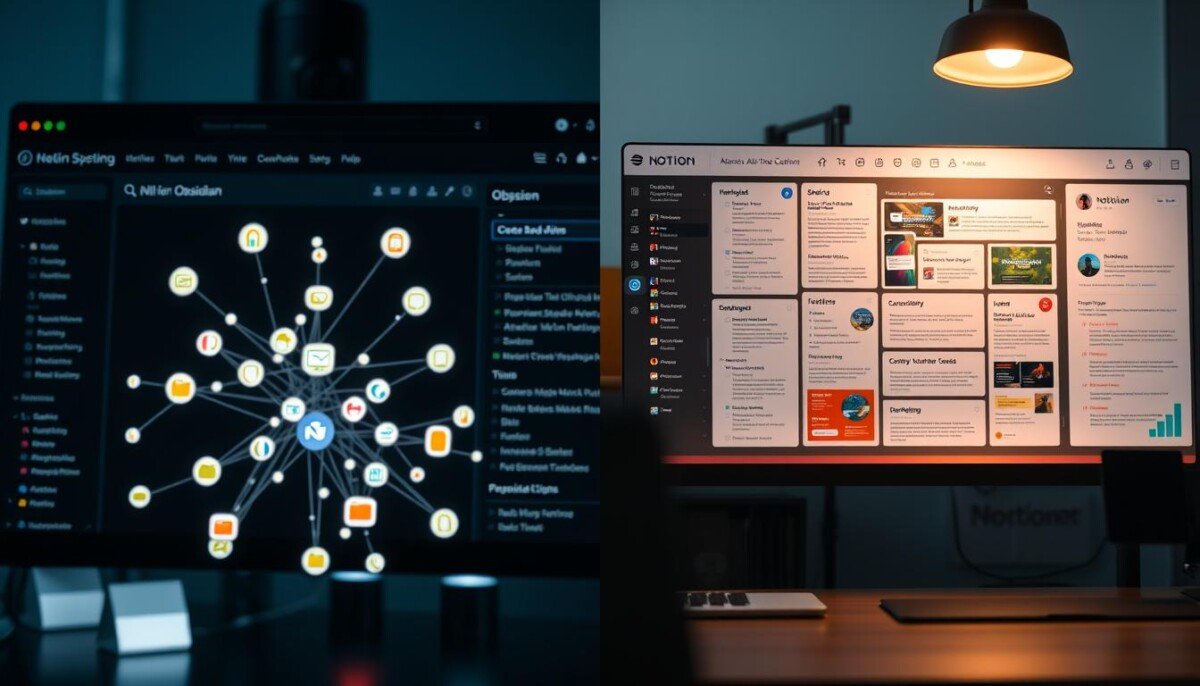
Remote work gets easier when your team knows where to talk, where to plan, where to store files, and where decisions live. The problem is not a lack of apps. It is that many teams end up with too many disconnected apps, which creates duplicate conversations, missed updates, and messy handoffs.
The best online collaboration tools for remote teams solve specific workflow problems. Some are built for fast communication, some for project visibility, some for visual brainstorming, and others for documentation or automation. The right choice depends on your team size, work style, security needs, and how much of your work should happen asynchronously.
According to Buffer's State of Remote Work, communication and collaboration remain recurring challenges for distributed teams. That makes tool selection a strategic decision, not just a software preference.

What Remote Teams Should Look for in Collaboration Tools
Before comparing tools, clarify what your team actually needs. A five-person creative team does not need the same setup as a 200-person operations department. A good remote collaboration stack should reduce friction, not add another place people have to check.
Look for tools that help your team answer five questions quickly:
- Who owns the work?
- What is the current status?
- Where is the latest file or decision?
- What needs a meeting, and what can be handled asynchronously?
- What happens next when a task is complete?
Here is a practical selection framework.
| Capability | Why it matters for remote teams | Tool category to consider |
|---|---|---|
| Real-time communication | Keeps quick questions and urgent updates moving | Team chat, video meetings |
| Asynchronous updates | Reduces meeting overload across time zones | Recorded video, project comments, status posts |
| Task ownership | Prevents work from disappearing in chat threads | Project management tools |
| Shared documentation | Creates a searchable source of truth | Wikis, docs, cloud storage |
| Visual collaboration | Helps teams brainstorm, map processes, and review designs | Whiteboards, design tools |
| Automation | Removes repetitive handoffs and status updates | Workflow automation tools |
| Security and permissions | Protects company data and client information | Admin controls, SSO, MFA, role-based access |
A strong remote team usually needs a combination of tools, not one tool for everything. The key is to make each tool’s purpose clear.
Quick Comparison: Top Online Collaboration Tools for Remote Teams
| Tool | Best for | Main strength | Watch out for |
|---|---|---|---|
| Slack | Fast team messaging | Channels, integrations, async updates | Can become noisy without rules |
| Microsoft Teams | Microsoft 365 organizations | Chat, meetings, files, calendar integration | Best when your team already uses Microsoft apps |
| Zoom | Video meetings and presentations | Stable meetings, webinars, screen sharing | Too many meetings can hurt focus |
| Google Workspace | Shared docs and cloud collaboration | Docs, Sheets, Drive, Calendar, Meet | File permissions need regular review |
| Asana | Structured project management | Tasks, timelines, portfolios, dependencies | Requires consistent task hygiene |
| ClickUp | Flexible all-in-one work management | Tasks, docs, goals, time tracking options | Can feel complex without setup standards |
| Trello | Simple Kanban boards | Visual task flow and easy adoption | Less ideal for complex reporting |
| Notion | Team knowledge bases | Wikis, docs, databases, dashboards | Needs governance to avoid messy workspaces |
| Miro | Visual brainstorming | Whiteboards, workshops, diagrams | Boards can become cluttered over time |
| Loom | Async video updates | Quick screen recordings and walkthroughs | Needs naming and storage conventions |
| Figma | Design collaboration | Real-time design review and comments | Mainly valuable for product and creative teams |
| Zapier | Workflow automation | Connects apps and automates repetitive tasks | Automations need testing and ownership |
Best Communication Tools for Remote Teams
Slack
Slack is one of the most popular collaboration tools for remote teams because it moves day-to-day communication out of email. It works best when teams use clear channels for projects, departments, clients, and announcements.
Slack is especially useful for teams that rely on integrations. You can connect project management tools, calendars, support apps, and automation platforms so updates appear where people already communicate. For remote teams, that can reduce the need to constantly switch tabs.
The downside is notification overload. Slack should not become a place where every message is treated as urgent. Use channel naming rules, scheduled messages, custom statuses, and muted channels to protect focus. If your team struggles with interruptions, start with our guides on creating Slack status presets and scheduling messages in Slack.
Microsoft Teams
Microsoft Teams is a strong choice for organizations already using Microsoft 365. It brings chat, meetings, file sharing, Outlook calendar integration, and SharePoint-backed collaboration into one environment.
Teams works well for larger organizations that need central administration, permissions, compliance controls, and structured collaboration spaces. It is also useful for companies that depend heavily on Word, Excel, PowerPoint, Outlook, and OneDrive.
For remote meetings, Teams includes features such as live captions, breakout rooms, Together Mode, and status controls. If accessibility and meeting clarity matter to your team, our Microsoft Teams live captions guide is a good next step.
Zoom
Zoom remains a go-to video meeting tool for remote teams that need dependable calls, client presentations, training sessions, and webinars. It is simple for external guests to join, which makes it useful for sales teams, consultants, educators, and customer success teams.
The best remote teams use Zoom intentionally. They do not turn every status update into a meeting. Instead, they reserve video calls for discussion, decision-making, relationship building, and complex problem solving.
If meetings are becoming distracting, use features that limit interruptions during presentations. Our guide on Zoom Focus Mode explains how to keep attention on the presenter when needed.
Best Project Management Tools for Remote Teams
Asana
Asana is a strong project management tool for teams that need structured task ownership, deadlines, project timelines, and executive visibility. It is especially effective when work moves through stages, such as planning, review, approval, and launch.
Remote teams benefit from Asana because conversations stay attached to tasks instead of disappearing in chat. A task can include the owner, due date, dependencies, subtasks, files, comments, and completion status. That makes it easier for teammates in different time zones to catch up without asking for a live update.
Asana also works well for leadership reporting. If managers need a high-level view of multiple projects, read our tutorial on Asana Portfolio View.
ClickUp
ClickUp is useful for teams that want a flexible workspace combining tasks, docs, dashboards, goals, forms, and time-related workflows. It can support software teams, marketing teams, operations teams, agencies, and internal departments.
The appeal of ClickUp is customization. Teams can create different views for the same work, including lists, boards, calendars, timelines, and workload views. That flexibility is powerful, but it also means teams should define standards early. Without naming conventions, field rules, and workflow ownership, ClickUp can become cluttered.
For teams analyzing workload patterns or billing time, our ClickUp time tracking guide explains how to use time data to identify busy hours and bottlenecks.
Trello
Trello is one of the easiest tools for remote teams to adopt. Its board-and-card layout is simple, visual, and familiar. Teams can create columns such as Backlog, In Progress, Review, and Done, then move cards as work progresses.
Trello is best for lightweight workflows, editorial calendars, simple client pipelines, onboarding checklists, and small-team task tracking. It is less ideal when you need advanced dependencies, multi-project reporting, complex permissions, or detailed resource management.
If your team is new to task management tools, Trello can be a low-friction starting point before moving into a more advanced system.
Best Documentation and Knowledge-Sharing Tools
Google Workspace
Google Workspace is a practical foundation for remote collaboration because it combines shared documents, spreadsheets, cloud storage, calendars, email, and video meetings. Teams can co-edit documents in real time, comment on drafts, assign action items, and maintain version history.
Google Docs and Sheets are especially useful for collaborative planning, meeting notes, content calendars, lightweight reporting, and team SOPs. Google Drive makes sharing simple, but permissions should be reviewed regularly. Remote teams often create unnecessary risk by leaving old folders open to too many people.
Google Calendar is also valuable for availability and focus planning. If your team works across time zones, consistent calendar hygiene prevents scheduling conflicts and reduces unnecessary back-and-forth.
Notion
Notion is a flexible workspace for documentation, team wikis, project notes, onboarding hubs, lightweight databases, and personal dashboards. It is especially popular with startups, creators, product teams, and remote-first companies that need a central place for knowledge.
Notion works best when it has a clear structure. Create top-level areas for company information, team spaces, project documentation, processes, and meeting notes. Assign owners to important pages and review outdated content on a schedule.
For remote teams, Notion can reduce repeated questions. Instead of asking, “Where is the latest process?” teammates can search the workspace and find the current answer.
Dropbox, Box, OneDrive, and Google Drive
Cloud storage services are still essential collaboration tools, even when teams use project management apps. Contracts, source files, exports, reports, creative assets, and client deliverables often need a secure storage layer.
Choose cloud storage based on your existing ecosystem and security requirements. OneDrive fits naturally with Microsoft 365. Google Drive fits Google Workspace. Dropbox is widely used for file syncing and sharing. Box is often chosen by organizations with stricter enterprise content management needs.
The most important rule is consistency. Decide where final files live, how folders are named, who can share externally, and when old files should be archived.
Best Visual Collaboration Tools
Miro
Miro is a digital whiteboard platform for brainstorming, workshops, process mapping, retrospectives, customer journey maps, and planning sessions. It helps remote teams recreate some of the visual energy of an in-person whiteboard session.
Miro is strongest when used with a clear agenda. A blank board can be overwhelming, so prepare templates before workshops. Use sections, frames, timers, and voting to keep sessions structured.
For remote teams, Miro is especially useful during early-stage planning, product discovery, design thinking, and cross-functional problem solving.
Figma and FigJam
Figma is a leading collaborative design tool for product, UX, UI, and creative teams. Multiple teammates can review designs, leave comments, inspect components, and work in shared files. FigJam, its whiteboarding companion, is useful for workshops, flows, brainstorming, and lightweight planning.
Figma is not necessary for every remote team, but it is extremely valuable when design work requires frequent feedback. Instead of sending static files back and forth, designers and stakeholders can discuss work directly inside the file.
Canva
Canva is useful for remote marketing teams, creators, educators, and small businesses that need to collaborate on social graphics, presentations, PDFs, and brand assets. It is more approachable than professional design software and helps non-designers produce polished visuals quickly.
For remote teams, Canva works best when brand templates, folders, and approval rules are organized. Otherwise, multiple teammates may create inconsistent assets.
Best Async Collaboration Tools
Loom
Loom is excellent for asynchronous video communication. Remote teammates can record short screen walkthroughs, product demos, design feedback, bug reports, onboarding explanations, and status updates.
Async video is powerful because it preserves context without forcing everyone into a meeting. A five-minute walkthrough can replace a 30-minute call, especially when the topic is visual or procedural.
To keep Loom useful, set expectations. Videos should be concise, clearly titled, and stored or linked in the relevant project space. Avoid using recordings as a replacement for written decisions. If something becomes policy, document it in your wiki.
Calendly and Scheduling Tools
Remote teams need scheduling tools to avoid endless “what time works?” messages. Calendly, Acuity Scheduling, and similar platforms help teams create booking rules, meeting types, buffer times, and availability windows.
This is especially useful for sales, consulting, recruiting, coaching, and customer success teams. Scheduling tools reduce friction, but they should protect focus time too. If your calendar is packed with back-to-back calls, see our guide on setting buffer times in Calendly.
Best Automation Tools for Remote Collaboration
Zapier
Zapier connects online tools and automates repetitive work. For remote teams, this can mean automatically creating tasks from form submissions, sending Slack alerts when a deal changes stages, updating spreadsheets when new records are added, or syncing statuses between apps.
Automation is most valuable when it removes manual handoffs. For example, a client intake form can create a project task, notify the assigned teammate, add a calendar reminder, and store the submission in a database.
The key is governance. Every automation needs an owner, a test process, and a way to detect errors. Our guide on using Zapier to update status across multiple apps covers practical ways to avoid sync loops and stale data.
Airtable
Airtable combines spreadsheet simplicity with database structure. It is useful for remote teams managing content calendars, asset libraries, CRM-like workflows, product inventories, research pipelines, or operations trackers.
Airtable works well when teams need structured data, filtered views, forms, and lightweight automation without building custom software. It is especially useful for operations teams because it can track records, attachments, owners, statuses, and due dates in one place.
Recommended Collaboration Stacks by Team Type
No remote team needs every tool in this guide. A lean stack with clear rules usually beats a bloated stack with overlapping tools.
| Team type | Recommended stack | Why it works |
|---|---|---|
| Small startup | Slack, Notion, Trello or ClickUp, Google Workspace | Fast communication, lightweight documentation, simple planning |
| Client services agency | Slack or Teams, Asana, Google Workspace, Loom, Calendly | Clear client deliverables, async walkthroughs, easy scheduling |
| Product and engineering | Slack, Linear or ClickUp, Figma, Notion, Zoom | Design collaboration, sprint planning, documentation, focused meetings |
| Marketing team | Slack, Asana, Canva or Figma, Google Drive, Loom | Campaign visibility, creative review, asset management |
| Education or training team | Zoom, Google Workspace, Notion, Miro, Loom | Live instruction, shared resources, async lessons, workshops |
| Operations and logistics | Microsoft Teams, ClickUp or Airtable, OneDrive, Zapier | Structured handoffs, files, approvals, automation |
Operations teams often need collaboration tools that connect digital planning with real-world movement of goods, vendors, inspections, and delivery windows. For example, a distributed team coordinating procurement or site projects could use shared folders, task checklists, and approval comments while working with vendors that provide quality-inspected shipping containers with nationwide delivery. The tool stack matters because every photo, quote, inspection note, and delivery update needs to be easy to find later.
How to Build a Collaboration Workflow That Actually Works
Pick one source of truth
Remote teams struggle when the same information lives in five places. Decide which tool owns each type of information. Chat is for conversation. Project management is for tasks. Cloud storage is for files. Your wiki is for decisions, policies, and processes.
Once that is clear, reinforce it. If someone posts a task request in Slack, convert it into a task. If a meeting produces a decision, add it to the project or wiki. The goal is to make important work searchable and durable.
Separate urgent messages from normal updates
Not every message deserves an instant response. Create rules for urgency. For example, chat mentions might mean same-day attention, while task comments can be handled during the next work block. Emergency channels should be rare and clearly defined.
This matters because remote teams often span time zones. If every notification feels urgent, teammates lose focus and burn out faster.
Make meetings more intentional
Meetings are useful for debate, alignment, relationship building, and decisions. They are less useful for routine status reporting. Before scheduling a meeting, ask whether the update could be handled with a written summary, task comment, or Loom recording.
For meetings that remain necessary, use agendas, owners, time limits, and follow-up notes. A remote meeting without notes often creates more confusion than clarity.
Automate repetitive handoffs
Automation can keep collaboration tools connected. A form submission can create a task. A closed task can notify a channel. A new file can trigger a review checklist. A calendar event can update status.
Start small. Automate one painful workflow, test it, document it, then expand. Avoid building complicated automations that only one person understands.
Review your stack quarterly
Remote collaboration needs change. A tool that worked for a team of 8 may not work for a team of 50. Schedule a quarterly review to remove unused tools, archive old spaces, check permissions, and ask teammates where work is getting stuck.
This is also a good time to evaluate cost. Many remote teams pay for overlapping apps because nobody owns the software stack.
Common Mistakes to Avoid
The first mistake is choosing tools before defining workflows. Software will not fix unclear ownership, missing deadlines, or poor communication habits. Map the workflow first, then choose the tool.
The second mistake is using chat as a project management system. Chat is useful for quick coordination, but it is a weak long-term record. Important tasks should live in Asana, ClickUp, Trello, Jira, or another task system.
The third mistake is ignoring onboarding. New remote employees need to know which tools to use, where information lives, how to ask for help, and what response times are expected. A simple onboarding checklist can prevent weeks of confusion.
The fourth mistake is letting every team choose disconnected tools. Some flexibility is healthy, but core collaboration systems should be standardized enough that cross-functional work stays smooth.
The fifth mistake is failing to protect focus time. The best productivity tools are not helpful if every app sends constant notifications. Use quiet hours, status messages, focus blocks, and notification rules to reduce noise.
Frequently Asked Questions
What is the best online collaboration tool for remote teams? There is no single best tool for every team. Slack is excellent for messaging, Microsoft Teams is strong for Microsoft 365 organizations, Asana and ClickUp are strong for project management, and Google Workspace is a reliable foundation for shared documents and calendars.
Should remote teams use Slack or Microsoft Teams? Choose Slack if your team wants flexible chat channels and broad app integrations. Choose Microsoft Teams if your organization already relies on Microsoft 365, Outlook, SharePoint, and OneDrive. Both can work well when communication rules are clear.
What tools help reduce remote meetings? Loom, Notion, Asana, ClickUp, Google Docs, and Slack scheduled messages can all reduce meetings by supporting asynchronous updates. The key is to document decisions and keep tasks connected to owners and deadlines.
Are free collaboration tools enough for remote teams? Free plans can work for small teams or early testing. Growing teams often need paid plans for admin controls, larger histories, advanced permissions, automation, reporting, storage, or security features.
How many collaboration tools should a remote team use? Most teams need a small core stack: one chat tool, one project management tool, one document or wiki tool, one cloud storage system, one meeting tool, and optional automation. More tools should only be added when they solve a clear workflow problem.
Final Recommendation
The best online collaboration tools for remote teams are the ones your team will actually use consistently. Start with your workflow, choose a simple stack, set communication rules, and review the system regularly.
If you are building a remote work setup from scratch, begin with a communication tool, a project management tool, shared documents, cloud storage, and a meeting platform. Then add whiteboarding, async video, automation, and reporting tools as your needs become clearer.
For more practical comparisons and workflow tutorials, explore our guides to best AI productivity tools, time tracking applications, and online tools for task management.