
If a process only lives in someone’s head, it is not a process your team can reliably repeat. That is why learning how to create standard operating procedures online is one of the highest-leverage improvements for freelancers, agencies, small businesses, and remote teams.
An online SOP turns recurring work into a clear, searchable, step-by-step workflow. It helps new team members get up to speed, reduces avoidable mistakes, and gives managers a simple way to improve operations without answering the same questions every week.
The good news: you do not need an expensive documentation system to start. You need the right process, a simple template, and a place where your team can actually find and use the instructions.
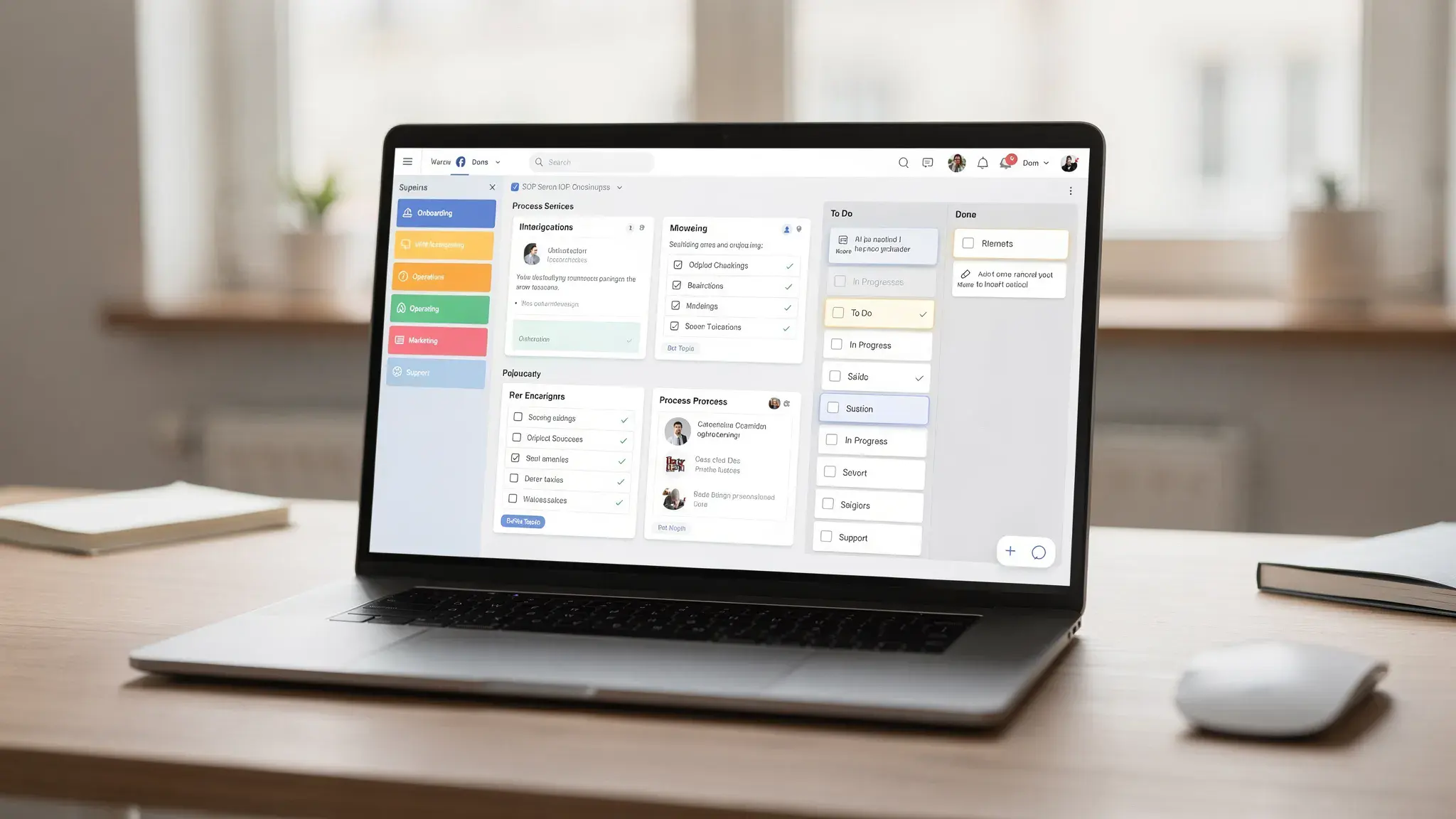
What Is an Online Standard Operating Procedure?
A standard operating procedure, usually shortened to SOP, is a documented process that explains how to complete a recurring task correctly. An online SOP is simply that procedure stored in a digital tool, such as Google Docs, Notion, ClickUp, Confluence, SharePoint, Airtable, or a dedicated process management platform.
The best online SOPs are not long policy documents. They are practical operating guides that answer four questions:
- What task is being done?
- Who is responsible for it?
- What exact steps should be followed?
- How do we know the task was completed correctly?
Online SOPs are especially useful for tasks that involve handoffs, approvals, compliance, customer communication, content publishing, data entry, onboarding, reporting, or tool setup. If your team repeats a task more than a few times per month, it is probably worth documenting.
If you are still exploring the broader category of web-based productivity platforms, our guide to what online tools are is a useful starting point.
Step 1: Choose the Right Process to Document First
The biggest mistake beginners make is trying to document everything at once. That usually creates a half-finished knowledge base nobody trusts. Start with one process that is frequent, important, and easy to observe.
A strong first SOP candidate usually has at least one of these traits:
| SOP candidate | Why it is worth documenting | Example |
|---|---|---|
| Repetitive task | Saves time and reduces repeated questions | Publishing a blog post |
| Error-prone workflow | Prevents costly rework | Sending client invoices |
| New-hire task | Speeds up onboarding | Setting up a new project board |
| Approval-based process | Clarifies who signs off | Launching a campaign |
| Tool-dependent workflow | Keeps software steps consistent | Creating reports in a dashboard |
Do not start with your most complex process. Start with a workflow that can be completed in 10 to 30 minutes and has a clear beginning and end. Once your team sees value from one useful SOP, it becomes much easier to document larger processes.
Step 2: Pick Where Your SOPs Will Live Online
Your SOP platform matters, but it matters less than consistency. A simple Google Drive folder used well is better than a premium knowledge base nobody maintains.
Choose a platform based on how your team works. If your SOPs are mostly written instructions, a document tool or wiki may be enough. If your procedures require recurring checklists, approvals, and assigned tasks, a project management or workflow automation tool may be better.
| Tool type | Best for | Common examples | Watch out for |
|---|---|---|---|
| Cloud documents | Simple written SOPs and small teams | Google Docs, Microsoft Word Online | Can become messy without folders and naming rules |
| Wiki or knowledge base | Searchable team documentation | Notion, Confluence, GitBook | Requires clear ownership and structure |
| Project management tools | SOPs connected to tasks and deadlines | ClickUp, Asana, Trello | Procedures can get buried inside active projects |
| Checklist tools | Repeatable step-by-step execution | Process Street, SweetProcess | May be more structured than some teams need |
| Database tools | SOPs tied to records, owners, and review dates | Airtable, SmartSuite | Setup requires planning before scaling |
| Video and screen recording tools | Visual walkthroughs and training | Loom, Scribe, Tango | Videos become outdated when interfaces change |
For most small teams, a practical starter stack is a documentation tool plus a task management tool. For example, you might write the SOP in Notion or Google Docs, then link it inside ClickUp, Asana, or Trello whenever that process becomes an assigned task.
If you are comparing software options, our online tools list can help you evaluate productivity and task management platforms.
Step 3: Use a Simple SOP Template
A good SOP template keeps every procedure consistent. It also prevents vague documentation like “handle the client request” or “check the report,” which may make sense to the writer but not to the next person who uses it.
Here is a practical online SOP structure you can copy:
| SOP section | What to include |
|---|---|
| SOP title | Use a clear action-based name, such as “Publish a WordPress Blog Post” |
| Purpose | Explain why the procedure exists in one or two sentences |
| Owner | Name the person or role responsible for keeping it updated |
| Tools required | List the apps, accounts, files, and templates needed |
| Trigger | Define when the SOP should be used |
| Inputs | List what must be ready before starting |
| Step-by-step instructions | Write the actual workflow in order |
| Quality check | Define what “done correctly” means |
| Exceptions | Explain what to do if something does not fit the normal flow |
| Review date | Add when the SOP should be checked again |
The “owner” and “review date” fields are more important than they look. Without them, SOPs slowly become outdated, especially when software interfaces change or responsibilities shift.
Step 4: Capture the Process Before You Write It
Before writing the SOP, watch the process happen in real time. If possible, ask the person who already performs the task well to complete it while explaining what they are doing.
You can capture the workflow in three simple ways:
- Record the screen while the task is being completed.
- Take screenshots at key decision points.
- Write rough notes using the exact order of actions.
Do not try to make the first capture perfect. The goal is to see the real process, including small decisions that experienced team members may forget to mention. For example, a content publishing SOP might include details like checking image alt text, confirming internal links, previewing mobile formatting, and scheduling the post.
This is similar to creating a strong content brief. The more clearly you define inputs, expectations, and acceptance criteria, the better the final work becomes. If you create articles, briefs, or editorial workflows, our guide on how to write content briefs pairs well with SOP documentation.
Step 5: Write Steps That Someone Else Can Actually Follow
An SOP is not a memory aid for the expert. It is a guide for the next person. Write as if the reader is competent but unfamiliar with this specific workflow.
Use direct, action-based language. Start each step with a verb, then explain the expected result. For example, “Open the client folder in Google Drive and confirm the final brief is approved” is better than “Check files.”
A useful rule is: one step, one action, one outcome. If a step contains several actions, split it. If a step requires judgment, explain the decision rule.
Weak SOP step:
“Prepare the report and send it to the client.”
Stronger SOP steps:
| Step | Instruction | Done when |
|---|---|---|
| 1 | Open the monthly reporting dashboard | Dashboard shows the current month |
| 2 | Export the traffic and conversion data as a PDF | PDF is saved in the client folder |
| 3 | Check that the date range matches the reporting period | Report covers the correct month |
| 4 | Add a three-sentence summary using the report template | Summary explains wins, issues, and next actions |
| 5 | Send the approved report using the client email template | Email is sent and logged in the CRM |
This level of detail may feel slow at first, but it prevents confusion later. It also makes delegation easier because the “definition of done” is built into the workflow.
Step 6: Add Screenshots, Examples, and Decision Rules
Text alone is not always enough. Online SOPs become much more useful when they include visual references and real examples.
Add screenshots for tool settings, important buttons, approval screens, and places where users commonly make mistakes. Add examples for emails, file names, naming conventions, form entries, or finished deliverables.
Decision rules are especially important. Many processes break down because the SOP explains the normal path but not the edge cases.
For example, instead of writing “assign the task to the right person,” write “assign design tasks to the designer listed in the project brief. If no designer is listed, assign the task to the project manager and add a comment requesting confirmation.”
If your SOP covers website updates, include intake details, approval steps, content requirements, and handoff expectations before working with a fixed-price web design partner or outside contractor. That small amount of clarity can prevent delays, missing assets, and repeated revision cycles.
Step 7: Turn the SOP Into a Repeatable Checklist
A written SOP explains the process. A checklist helps someone execute it consistently.
For recurring tasks, convert the core steps into a checklist inside your task management tool. This makes the SOP actionable instead of passive. Each time the process runs, the assignee can follow the checklist and mark progress.
A good checklist should be short enough to use during real work. If your SOP has 40 steps, group them into phases such as preparation, execution, review, and handoff. If your checklist has only three vague items, it probably needs more detail.
Here is a simple structure:
| Checklist phase | Example items |
|---|---|
| Prepare | Confirm inputs, gather files, check access |
| Execute | Complete the main task steps in order |
| Review | Check quality, formatting, data, or approvals |
| Handoff | Notify the next owner and update status |
| Archive | Save files, log notes, close the task |
This is where project management tools become powerful. For example, custom fields can help track SOP status, owner, review date, priority, and process category. If your team uses ClickUp, our guide to ClickUp custom fields explains how structured task data can improve tracking and reporting.
Step 8: Organize SOPs So People Can Find Them
A great SOP is useless if nobody knows where it is. Treat organization as part of the process, not as an afterthought.
Create a central SOP library with clear categories. Common categories include operations, marketing, sales, customer support, finance, HR, content, reporting, and software setup.
Use consistent naming conventions. A helpful format is:
[Department] - [Action] - [Tool or Context]
Examples:
- Marketing – Publish Blog Post – WordPress
- Sales – Qualify Inbound Lead – CRM
- Operations – Onboard New Contractor – Google Workspace
- Finance – Send Monthly Invoice – Accounting Tool
Also add links between related SOPs. If your “Publish Blog Post” SOP depends on your “Create Content Brief” SOP, link them together. Internal linking is not only helpful for websites, it is useful for team knowledge bases too.
Step 9: Assign Ownership and Review Dates
Online SOPs should be living documents. Every SOP needs an owner who is responsible for accuracy, updates, and improvements.
The owner does not need to be the manager. In many cases, the best owner is the person closest to the process. They understand the real workflow, common blockers, and tool changes.
Use review frequency based on risk and change speed:
| Process type | Suggested review cadence | Review trigger |
|---|---|---|
| High-risk or compliance-related | Monthly or quarterly | Regulation, policy, or audit change |
| Customer-facing | Quarterly | Complaints, delays, or quality issues |
| Software-dependent | Quarterly | Tool interface or permission changes |
| Internal admin | Every 6 months | Role, folder, or approval changes |
| Low-risk reference docs | Annually | Team feedback or outdated examples |
During review, do not just check grammar. Confirm that the steps still match reality. Test the SOP by having someone other than the owner follow it. If they get stuck, the SOP needs improvement.
Step 10: Automate Where It Makes Sense
Once your SOPs are clear, you can automate parts of the workflow. Automation works best after the process is documented because you already know the trigger, owner, inputs, and expected output.
Common SOP automations include task creation, approval reminders, status updates, form submissions, file routing, recurring review reminders, and notifications to Slack or email.
For example, a client onboarding form could automatically create a project folder, assign a kickoff checklist, notify the account manager, and set a due date for the first deliverable. The SOP still explains what humans should do, while automation handles predictable admin steps.
If you use Airtable as an operations database, our tutorial on Airtable automations shows how triggers and actions can reduce repetitive database work.
Example: A Simple Online SOP for Publishing a Blog Post
Here is what a lightweight SOP might look like in practice.
| Section | Example content |
|---|---|
| Title | Marketing – Publish Blog Post – WordPress |
| Purpose | Publish approved blog content consistently with correct formatting, SEO basics, and internal links. |
| Owner | Content Manager |
| Trigger | Final article is approved and marked ready for upload. |
| Tools required | WordPress, image folder, SEO plugin, editorial calendar. |
| Inputs | Final article, meta description, featured image, target URL slug. |
| Steps | Upload draft, format headings, add images, add links, set category, preview, run SEO checks, schedule or publish. |
| Quality check | Post displays correctly on desktop and mobile, links work, image alt text is complete, metadata is filled in. |
| Exceptions | If the article is missing an image or meta description, return it to the editor before publishing. |
| Review date | Review every quarter or after major WordPress/plugin changes. |
This format is simple, but it is enough to remove guesswork. As the workflow matures, you can add screenshots, video walkthroughs, approval rules, or automated task templates.
Common Mistakes to Avoid When Creating SOPs Online
Many SOP libraries fail because they become too complicated too quickly. Keep your first version useful, not perfect.
Avoid these common mistakes:
- Writing long paragraphs instead of actionable steps.
- Creating SOPs without owners or review dates.
- Storing procedures across too many disconnected tools.
- Using screenshots that become outdated without review.
- Documenting the ideal process instead of the real process.
- Forgetting to test the SOP with someone unfamiliar with the task.
- Making every SOP private, which prevents the team from finding answers.
The goal is not to create documentation for its own sake. The goal is to make work easier to repeat, delegate, improve, and measure.
How to Know Your SOP Is Working
A good SOP should reduce friction. If people still ask the same questions, skip steps, or produce inconsistent results, the SOP needs improvement.
Track simple signals:
| Signal | What it tells you |
|---|---|
| Fewer repeated questions | The SOP is easy to find and understand |
| Faster onboarding | New team members can complete tasks with less supervision |
| Fewer errors | Steps and quality checks are clear |
| Shorter handoffs | Responsibilities and outputs are defined |
| More consistent delivery | The process is repeatable across people and projects |
You do not need advanced analytics at first. Start with feedback from users. Ask: “Where did you get stuck?” and “What step was unclear?” Those two questions can improve almost any SOP.
Frequently Asked Questions
What is the best tool to create standard operating procedures online? The best tool depends on your workflow. Google Docs or Microsoft Word Online work well for simple SOPs. Notion, Confluence, and SharePoint are better for searchable knowledge bases. ClickUp, Asana, Airtable, and checklist tools are useful when SOPs need tasks, owners, due dates, and automations.
How detailed should an SOP be? An SOP should be detailed enough that a trained person can complete the task without asking basic questions. Include steps, tools, examples, decision rules, and quality checks, but avoid unnecessary background information that slows people down.
Should SOPs include videos? Videos are helpful for visual tasks, software walkthroughs, and onboarding. However, they should not be the only version of the SOP because videos are harder to skim and update. A short written checklist with screenshots is usually easier to maintain.
How often should online SOPs be reviewed? Review high-risk, customer-facing, or software-dependent SOPs at least quarterly. Lower-risk internal procedures can be reviewed every six to twelve months. Always review an SOP when a tool, owner, policy, or workflow changes.
Who should write SOPs in a team? The best SOPs are usually drafted by the person who performs the task, then reviewed by a manager or process owner. This keeps the instructions realistic while making sure the final process meets team standards.
Build Better Online Workflows One SOP at a Time
Creating standard operating procedures online does not have to be complicated. Start with one recurring task, document the real workflow, turn it into a clear checklist, assign an owner, and review it regularly.
Once your first SOP is working, repeat the process for your highest-impact workflows. Over time, you will build a searchable operating system for your team, one that makes delegation easier, reduces mistakes, and supports better digital workflow optimization.
For more practical guides on productivity tools, task management, automation, and online software, explore the latest tutorials on Online Tool Guides.



