Digital notes become messy for one simple reason: most people organize them by where they were captured, not by where they will be used. A meeting summary sits in one app, screenshots live in a cloud folder, ideas are scattered across mobile notes, and action items end up in a task manager with no context attached.
That setup works for a week. It fails the moment you manage several client projects, internal initiatives, content calendars, classes, or product launches at the same time.
A better system does not require a perfect note-taking app. It requires a repeatable structure that answers three questions for every note: What project does this belong to? What type of information is it? What should happen next? Once those answers are built into your workflow, your notes stop acting like a storage bin and start acting like a project command center.
Start With Projects, Not Apps
The biggest mistake in digital note organization is starting with the tool. Notion, OneNote, Obsidian, Evernote, Google Docs, Apple Notes, and ClickUp Docs can all work. The tool matters, but the operating model matters more.
A project-based system starts with active outcomes. A project is not a vague topic like “marketing” or “client research.” A project has a result, a timeline, and decisions that need to be tracked. Examples include “Launch Q3 newsletter,” “Redesign client homepage,” “Prepare tax documents,” or “Publish YouTube automation guide.”
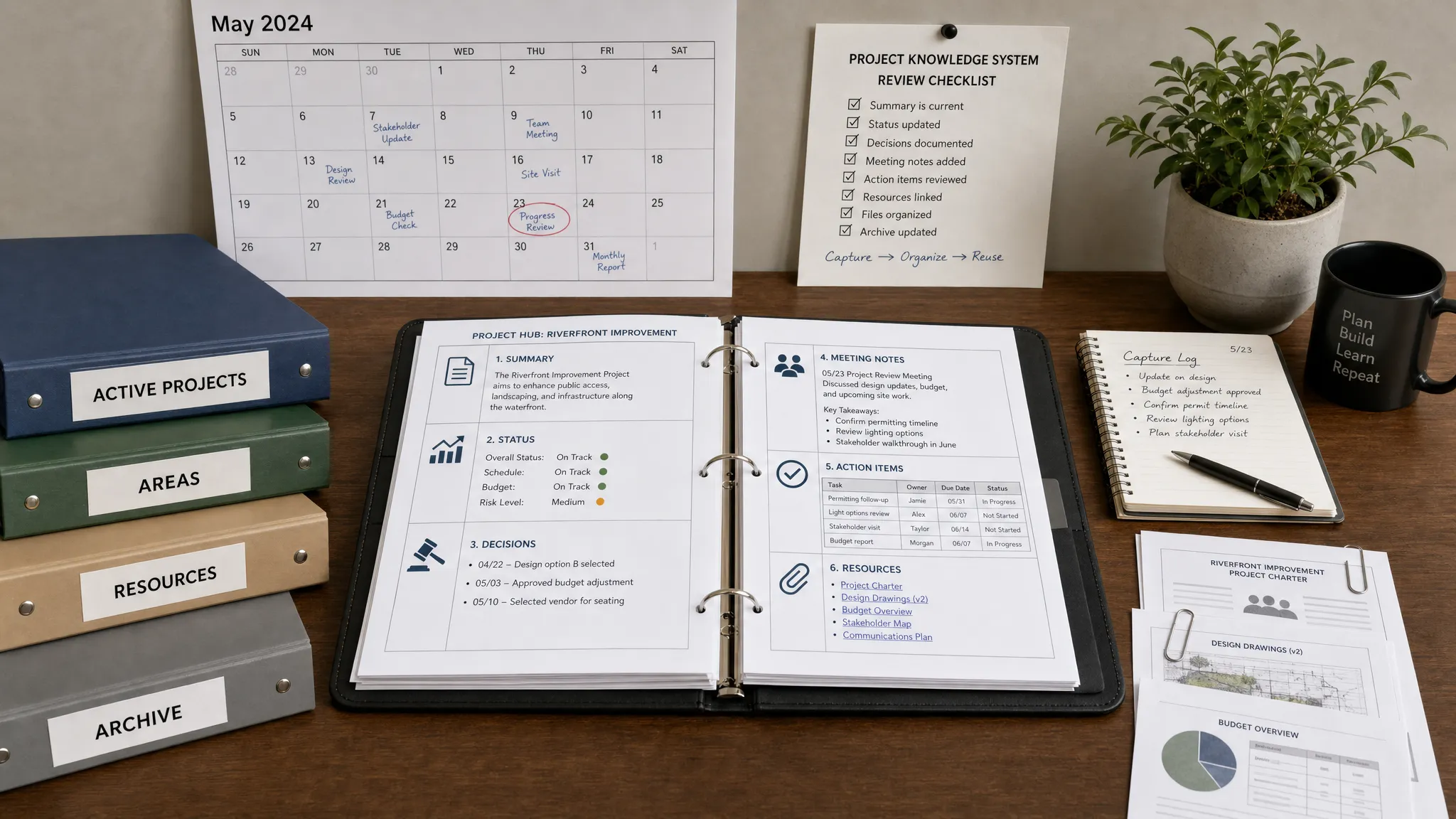
Each active project should have one central project hub. That hub can be a Notion page, OneNote section, Google Doc, Obsidian folder, or ClickUp document. The format is flexible. The rule is not: every related note, file, decision, and link should either live inside that hub or be linked from it.
| Note type | Where it belongs | Why it matters |
|---|---|---|
| Quick ideas | Inbox first, then project hub | Prevents random capture from becoming permanent clutter |
| Meeting notes | Inside the project hub | Keeps decisions and context close to the work |
| Research links | Resources section in the hub | Makes supporting material easy to revisit |
| Decisions | Decision log | Avoids repeated debates and forgotten approvals |
| Tasks | Task manager, linked from notes | Keeps notes for context and tasks for execution |
| Final documents | Cloud storage, linked from hub | Keeps large files organized without bloating notes |
This approach gives you a single place to open when you return to a project after a day, a week, or a month away.
Choose a Source of Truth and a Capture Inbox
A strong note system needs two layers: a fast capture inbox and a reliable source of truth.
The capture inbox is where unfinished thoughts go. It should be frictionless. If you are on your phone, in a meeting, or reading an article, you need a place to dump the note quickly without deciding where it belongs yet. Notetaking tools like Google Keep, Apple Notes, Todoist comments, Slack saved messages, or a dedicated “Inbox” page in your note app can all serve this role.
The source of truth is where organized notes live after processing. This is the place you trust when you need the latest brief, meeting summary, client context, decision history, or project resources. For many teams, this will be Notion, OneNote, Confluence, ClickUp Docs, or Google Drive.
If you are building your note system in Notion, our guide on creating Notion databases for project management can help you set up structured properties, views, and templates. If your notes are tightly connected to documents and team files, pair your note system with a clean file structure like the one described in our Google Drive organization guide for teams.
| Setup style | Best for | Watch out for |
|---|---|---|
| One all-in-one workspace | Teams that want notes, tasks, and databases together | Can become overloaded without templates and permissions |
| Notes plus task manager | People who separate thinking from execution | Requires clear links between notes and tasks |
| Markdown vault | Writers, developers, researchers, and privacy-focused users | Needs discipline around naming and linking |
| Cloud documents | Teams already using Google Workspace or Microsoft 365 | Search can get messy without naming rules |
| Simple notes app | Solo users and lightweight projects | Limited structure for complex cross-project work |
The key is to reduce the number of places where “important project context” might live. You do not need one app for every type of thought. You need one trusted destination for processed notes.
Build a Folder Structure That Scales
A useful note structure should be simple enough to maintain on a busy day. If it requires too many categories, you will stop using it.
One proven approach is the PARA method, which organizes information into Projects, Areas, Resources, and Archives. You do not need to follow it exactly, but the principle is valuable: separate active outcomes from ongoing responsibilities and reference material.
Here is a practical structure for organizing digital notes across projects:
00 Inbox
01 Active Projects
02 Areas
03 Resources
04 Archive
“00 Inbox” is temporary. It should be reviewed regularly and emptied into the right project or resource folder.
“01 Active Projects” contains anything tied to a current deliverable. This is where your project hubs live.
“02 Areas” contains ongoing responsibilities without a fixed end date, such as marketing, finance, hiring, client success, personal health, or operations.
“03 Resources” contains reusable knowledge, templates, checklists, swipe files, research, vendor information, and reference material. For example, if you manage renovation projects or local service content, a resources note might include quote links for a professional painter in Copenhagen and North Zealand alongside budget notes, design references, and supplier contacts.
“04 Archive” contains completed projects and inactive material. Archiving is essential because it keeps your active workspace focused without deleting useful history.
Create a Repeatable Project Note Template
Templates are what make cross-project organization sustainable. Without a template, every project becomes a custom filing system. With a template, your brain learns where to look.
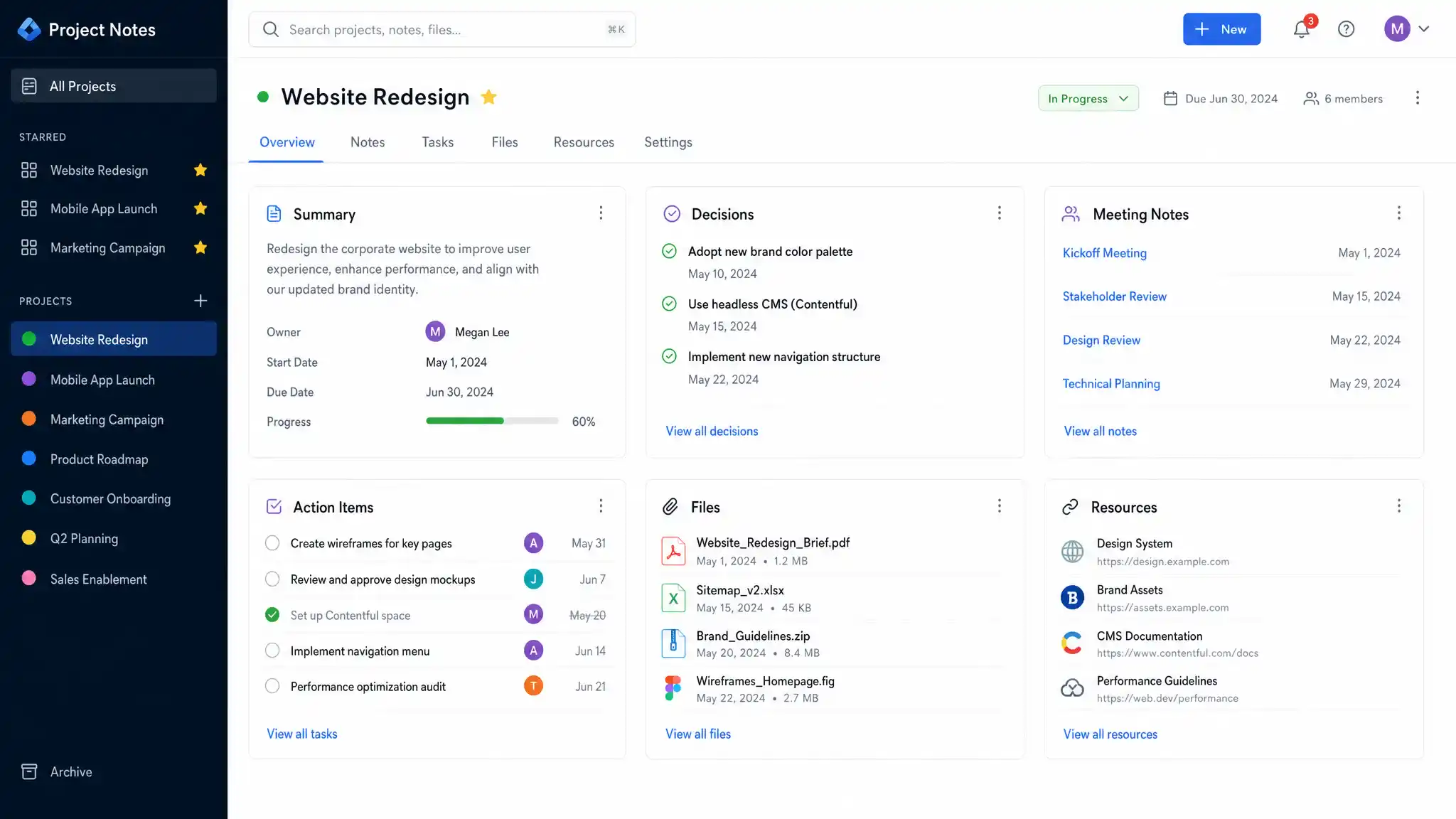
A project hub should not be complicated. It should collect the context you need to restart quickly, understand current status, and find related material without searching across five tools.
| Project hub section | What to include |
|---|---|
| Project summary | Goal, owner, deadline, stakeholders, and success criteria |
| Current status | One short paragraph that explains what is happening now |
| Key links | Task board, folder, calendar, briefs, dashboards, and final assets |
| Meeting notes | Date-based notes or links to meeting summaries |
| Decision log | Approved choices, rejected options, and who decided |
| Action log | Important follow-ups with owner and due date |
| Resources | Research, examples, vendor links, screenshots, references, and ideas |
| Review notes | Weekly updates, blockers, risks, and next steps |
A simple project note template might look like this:
Project:
Owner:
Status: Planning / Active / Waiting / Complete
Deadline:

Goal:

Current status:

Key links:

Decision log:

Meeting notes:

Action log:

Resources:

Next review date:
The “Current status” field is especially useful. It acts like a handoff note to your future self. If you only have two minutes to understand a project before a meeting, this section should tell you what matters.
Name Notes for Search, Not Aesthetics
Good naming conventions make search dramatically more useful. A beautiful title like “Brainstorm” is not helpful six months later. A searchable title like “2026-06-12 – Website Redesign – Meeting – Homepage Approval” tells you the date, project, note type, and topic.
Use a consistent naming formula:
YYYY-MM-DD - Project Name - Note Type - Topic
You do not need this for every tiny note, but it is worth using for meetings, decisions, research summaries, client updates, and final briefs.
| Weak note title | Better note title |
|---|---|
| Meeting notes | 2026-06-12 – CRM Migration – Meeting – Data Cleanup Plan |
| Ideas | 2026-06-12 – Content Calendar – Ideas – July Newsletter Angles |
| Research | 2026-06-12 – Vendor Audit – Research – Scheduling Tools |
| Client call | 2026-06-12 – Acme Onboarding – Call – Kickoff Requirements |
| Final draft | 2026-06-12 – Product Launch – Draft – Landing Page Copy V2 |
The goal is not to make every title long. The goal is to make important notes findable even when you only remember one detail.
Use Tags Sparingly
Tags are powerful when they connect information across projects. They are useless when every note has five random labels that nobody remembers.
Use tags for attributes that repeat across many projects. Avoid tags that duplicate your folder structure. If a note already lives inside the “Client Website Redesign” project, you probably do not need a “client-website-redesign” tag.
Useful tag categories include:
- Status tags:
#waiting,#blocked,#approved,#needs-review - Information type tags:
#decision,#idea,#meeting,#research,#template - Workflow tags:
#follow-up,#delegate,#archive,#review-weekly
Keep your tag vocabulary visible in a short reference note. If you work with a team, agree on the official tags and avoid personal variations like #todo, #to-do, and #task all meaning the same thing.
A good test is this: if clicking a tag helps you answer a real cross-project question, keep it. For example, #blocked can show every project waiting on input. #decision can reveal approval history across clients. A vague tag like #important usually does not help because everything feels important in the moment.
Separate Notes From Tasks
Project notes and task lists should be connected, but they should not be treated as the same thing.
Notes are for context, thinking, decisions, research, and history. Tasks are for action, ownership, deadlines, reminders, and accountability. When you turn every note into a task, your task manager becomes noisy. When you hide tasks inside notes, work gets missed.
A practical rule is to keep tasks in your task management tool and link back to the supporting documentation note. For example, the task might say “Send revised proposal to client,” while the linked note contains the meeting discussion, pricing rationale, and approved scope.
If your team is still choosing a system for execution, our overview of project management software features explains the core functions to look for, including task management, time tracking, collaboration, reporting, and automation.
Calendar-based work needs the same discipline. If a note includes a deadline or scheduled review, create a calendar event or task reminder rather than relying on memory. For Notion users, connecting notes with calendars can be especially useful. Our guide on integrating Notion with Google Calendar walks through options for keeping project dates visible.
Create a Weekly Review Ritual
No system stays organized without maintenance. The good news is that note maintenance does not need to take long. A 20-minute weekly review can prevent hours of searching later.
Use this weekly routine:
- Open your capture inbox and move each note into a project, area, resource folder, or archive.
- Review active project hubs and update each “Current status” section in one or two sentences.
- Move action items out of notes and into your task manager with owners and due dates.
- Add decisions to the decision log so approvals do not stay buried in meeting notes.
- Archive projects that are complete, paused, or no longer relevant.
- Rename unclear notes so future search results make sense.
- Check your blocked or waiting tags and decide what follow-up is needed.
The weekly review is where your system earns trust. If you skip it for several weeks, your notes slowly return to being a dumping ground. If you keep it lightweight, it becomes a simple reset that keeps every project usable.
Make Meeting Notes Easier to Reuse
Meetings generate some of the most valuable project notes, but they are often the least organized. A transcript or AI summary is helpful, but it is not enough by itself. Someone still needs to extract the decisions, action items, open questions, and context worth preserving.
For recurring meetings, use a consistent structure: agenda, discussion notes, decisions, action items, blockers, and next meeting focus. If you use AI note-takers, treat the automated summary as a draft. Review it, correct names and terminology, then move the useful parts into the project hub.
If your team is comparing transcription and summarization tools, our guide to the best AI meeting note-takers covers options like Otter.ai, Fireflies, Fathom, and others, with notes on privacy, integrations, and workflow fit.
For maximum value, do not leave meeting notes as isolated documents. Link them from the project hub and copy the key decision into the decision log. That way, someone can understand the project without reading every meeting transcript.
Handle Team and Client Projects With Clear Permissions
When notes involve multiple people, organization is not only about structure. It is also about access.
A private personal note may contain rough thoughts, reminders, or sensitive context. A team note should be clean, useful, and understandable to others. A client-facing note should be even more polished, with clear language, accurate dates, and no internal commentary.
For shared workspaces, decide who can create pages, edit project hubs, change templates, and archive content. Too much restriction slows people down. Too little restriction creates duplicated pages, inconsistent titles, and accidental deletions.
Use ownership fields where possible. Every active project hub should have one accountable owner, even if many people contribute. That owner is responsible for keeping the status current, filing meeting notes, and archiving the project when complete.
Also be careful with sensitive information. Passwords, private keys, payment details, and confidential credentials do not belong in general notes. Use a password manager or secure vault for that information, then link to the approved secure process if needed.
Avoid These Common Digital Note Mistakes
Most note systems fail for predictable reasons. The fix is usually not a new app. It is a better rule.
| Mistake | Better rule |
|---|---|
| Capturing everything but processing nothing | Empty the inbox during a weekly review |
| Creating too many folders | Use a small structure and rely on search for details |
| Using tags inconsistently | Maintain a short approved tag list |
| Keeping tasks buried in notes | Move action items into a task manager |
| Saving meeting summaries without decisions | Add key decisions to a decision log |
| Mixing active and finished projects | Archive completed work every week |
| Choosing tools before defining workflow | Decide the project structure first, then choose tools |
If you feel overwhelmed, simplify. Start with one inbox, one project hub template, and one weekly review. Once those habits are stable, add databases, automations, AI summaries, and integrations.
A Simple System You Can Set Up Today
If you want to organize digital notes across projects without overthinking it, start with this minimal notetaking setup.
Create five top-level spaces: Inbox, Active Projects, Areas, Resources, and Archive. Then create one project hub for each active project. Add the same template to every hub: summary, status, links, meeting notes, decision log, action log, and resources.
From there, choose one capture tool and one source of truth. Process your inbox once a week. Use a consistent naming convention for important notes. Move tasks to a task manager. Archive completed work quickly.
This system is simple enough for solo freelancers and structured enough for teams. More importantly, it scales because it is based on how projects work, not on how one specific app happens to organize pages.
Frequently Asked Questions
What is the best app to organize digital notes across projects? The best app depends on your workflow. Notion is strong for databases and templates, OneNote works well for notebook-style organization, Obsidian is popular for linked markdown notes, and Google Docs or Drive can work for teams already using Google Workspace. The most important factor is having one trusted project hub system.
Should I organize notes by project or by topic? Organize active work by project and reference material by topic. Projects need fast access to decisions, tasks, meetings, and files. Topics are better for reusable knowledge that applies across many projects.
How often should I clean up digital notes? A weekly review is ideal for most people. Use it to empty your inbox, update project statuses, move tasks into your task manager, rename unclear notes, and archive finished work.
How do I prevent duplicate notes? Create one project hub for each active project and make it the default place for related notes. If you capture notes elsewhere, move or link them back during your weekly review.
Are tags better than folders for project notes? Folders are better for giving notes a home. Tags are better for connecting patterns across folders, such as all blocked items, approved decisions, or notes that need review.
Build a Cleaner Digital Workflow
Organized notes are the foundation of better project execution. Once your notes, tasks, files, and calendar events point to the same project hub, you spend less time searching and more time moving work forward.
For more practical guides on productivity tools, task management systems, automation, and digital workflow optimization, explore the latest tutorials and software comparisons on Online Tool Guides.



